After Effects already comes with a large library of free animation presets. Open the Effects & Presets panel, expand Animation Presets, select a layer and double-click a preset to apply it. Text animations are in the Text folder, and Animation, Browse Presets opens the whole library in Adobe Bridge so you can preview them first.
Below is how to get the most from the built-in presets, how to save your own, and a free set of text, motion and expression presets with live previews right in the panel.
The free presets already inside After Effects
Open Effects & Presets
Choose Window, Effects & Presets. Expand Animation Presets to see the folders: text animations, backgrounds, transitions, shapes and more.
Preview in Bridge
Choose Animation, Browse Presets. If Adobe Bridge is installed, it opens the preset folders with a preview of each one. Double-click a preview to apply it to the selected layer.
Apply at the playhead
Select the layer, move the playhead to where the animation should start, and double-click the preset. Its keyframes start from the playhead.
Retime it
Press U on the layer to show its keyframes, then drag them closer together or further apart to speed it up or slow it down.
Pro Tip: Text presets that animate in usually start at the playhead and run forward. For an Out animation, put the playhead near the end of the layer, apply, then drag the keyframes so the last one lands on the layer’s out point.
Save your own presets
Any animation you build can become a preset. Select the properties or effects you animated (their names, not the keyframes), choose Animation, Save Animation Preset, and give it a name. After Effects saves an .ffx file in your presets folder and lists it in Effects & Presets. It is free, it is yours, and you can copy the .ffx to another machine.
What about expressions?
After Effects has no preset library for expressions. You Alt-click (Option-click) a stopwatch and type them, which is fine for wiggle(2, 30) and harder for a bounce or an inertia expression you half remember. Our guide to the wiggle expression covers the one most people start with.
Free presets you can watch first, with EXpress
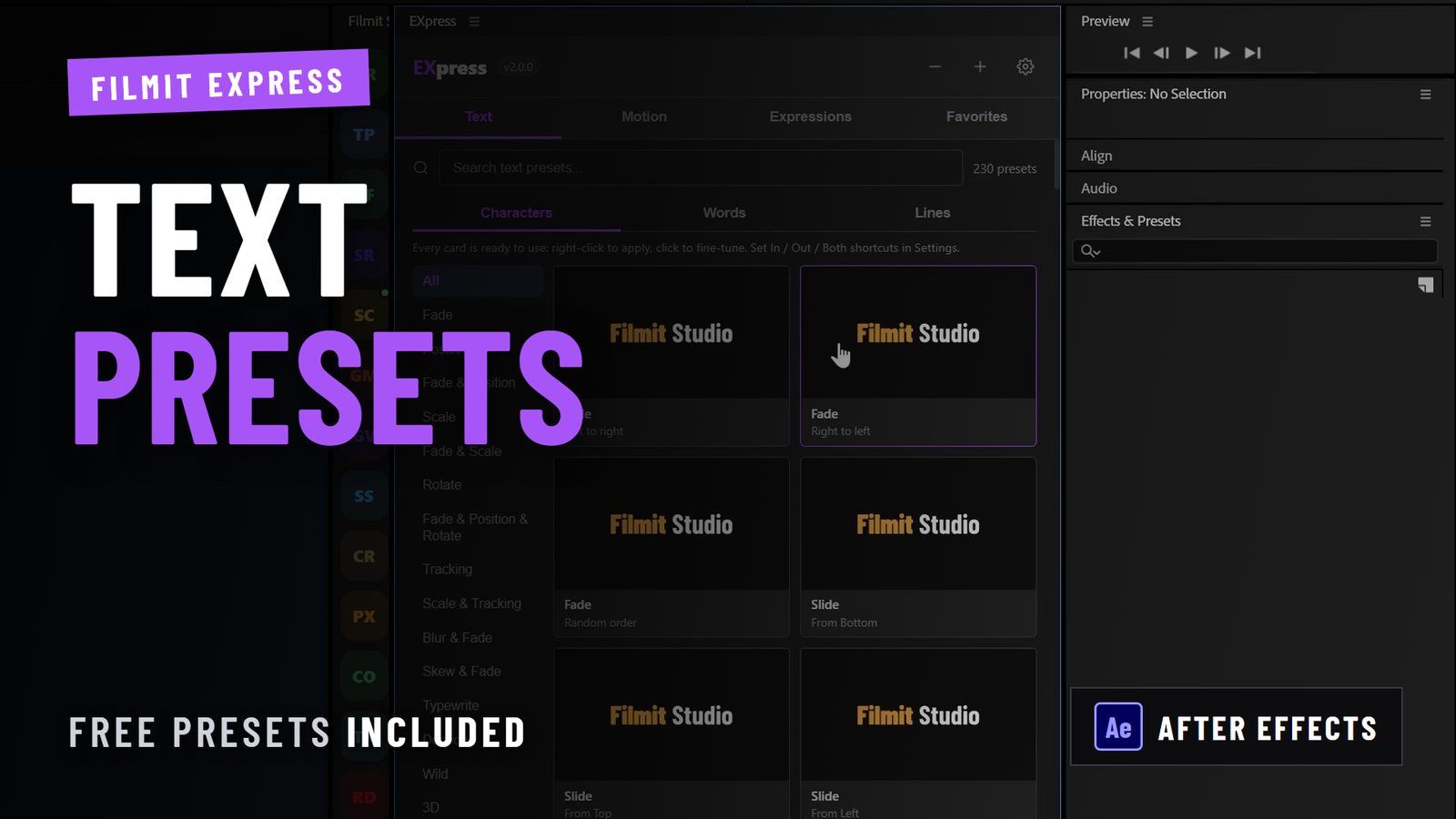
EXpress is a panel of text presets, motion presets and expressions where every card plays its animation before you pick it. These are the steps in the video:
Open the Free list
Starting out free? The Free list shows every preset the free tier includes. Locked cards still play their previews, so you can see what a subscription adds.
Click a text preset
Titles need some life? Click a text preset, watch its live preview, then hit Apply. Choose characters, words or lines, and In, Out or both.
Use the Motion tab
Logos and shapes too? The Motion tab slides, scales and fades any layer you select, no keyframing. Slides always start fully off screen, whatever the frame size.
Open Expressions
Want nonstop motion? Open Expressions, pick Wiggle and apply it in one click. Set its values with sliders before you apply.
The free set is 7 text presets (including Fade, Slide, Pop and Typewriter), 5 motion presets and 25 expressions (including Loop Cycle, Wiggle, Bounce and Overshoot), in every direction and at any duration, with the Smooth, Linear, Ease In and Ease Out styles. A Filmit Studio subscription unlocks the full library, plus Overshoot, Bounce and Elastic styles on everything.
Tips for presets that do not look like presets
In After Effects, every value an EXpress preset uses sits in Effect Controls with a clear name. Retime the whole animation by moving two keyframes on one slider.
Choose Both and give the In and the Out different directions. The In starts at the layer’s in point and the Out lands on its out point, however long the layer is.
The same slide feels calm with Ease Out and playful with Overshoot. Trying two eases is quicker than trying ten presets.
Everything EXpress sets up is native After Effects, so the project opens and renders on a machine without EXpress installed.
Or ask Claude or ChatGPT
The Filmit MCP can apply per-character text animations (typewriter, fade, scale, slide, tracking) and ready-made expressions like wiggle, loops, bounce and overshoot in After Effects, by asking. "Typewriter the title in over a second, then add a gentle bounce to the logo" is one request. Our guide to using Claude in After Effects covers the setup.
For more on the text side, see text animation presets for After Effects and animating a logo without keyframing. In Premiere Pro? Our free motion presets for Premiere Pro guide covers that side. EXpress installs from Filmit Studio, our free desktop app.