To use the wiggle expression in After Effects, Alt-click (Option-click on Mac) the stopwatch next to a property, type wiggle(2, 30), and click outside the box. The first number is how many times a second the value changes direction, and the second is how far it moves, in that property’s own units: pixels for Position, degrees for Rotation.
Below is what the two numbers do in practice, the variations people search for most (one axis, a slider, stopping it), and a one-click way to apply it.
What the two numbers do
Wiggle picks a new random value around the property’s current value, over and over, and eases between them. Frequency sets how often, amplitude sets how far. A few starting points:
wiggle(1, 10)on Position: a slow, gentle drift, good for floating elements.wiggle(3, 20)on Position: handheld camera feel.wiggle(8, 15)on Position: nervous, jittery energy.wiggle(2, 5)on Rotation: a sign swinging slightly.
Wiggle adds to whatever the property already does, so you can keyframe a move and wiggle on top of it.
Adding wiggle by hand, step by step
Open the property
Select the layer and press P for Position (R for Rotation, S for Scale, T for Opacity).
Open the expression field
Alt-click (Option-click) the stopwatch next to the property. An expression field opens on the timeline and the value turns red.
Type the expression
Type wiggle(2, 30), then click anywhere outside the field. Press Space to preview.
Tune it
Change the two numbers until the motion feels right. Frequency is usually the one to lower.
Four useful variations
On Position, w = wiggle(2, 30); [value[0], w[1]] keeps the horizontal position and wiggles only up and down. Swap the two to wiggle sideways only.
Add Effect, Expression Controls, Slider Control, then replace the 30 with a pick-whip to the slider. Now you can change the amount without opening the expression.
With the amount on a slider, keyframe the slider to 0 where the wiggle should stop, or ramp it up from 0 to ease it in.
Two layers with the same wiggle still move differently, because each layer has its own random seed. Add seedRandom(5); before the wiggle to try a different pattern on the same layer.
Prefer keyframes to expressions? Window, Wiggler opens a panel that writes random keyframes between two selected keyframes, which you can then edit one by one.
The one-click way with Shortcut
Shortcut is a free bar of one-click buttons for the jobs you repeat every day in After Effects. Wiggle is one of them, and the video runs through it alongside the others:
Adjustment layer
Need an adjustment layer over these layers? One click, and it spans the selection.
Loop
Want that logo spinning all comp long? Loop runs the layer out to the end of the comp, stutter-free. Shift-click for a ping-pong loop.
Wiggle
Need a little shake? Wiggle drops the expression straight onto Position, or onto the properties you selected. Shift-click strips expressions off the selection again.
Reverse keyframes
Animation running backwards? Reverse keyframes flips them in time, eases and all.
The wiggle frequency and amount live in Shortcut’s settings, so the button applies your numbers every time, and each button is one undo step in After Effects.
Wiggle tips
For camera shake, wiggle a null and parent the camera or the footage to it. You can switch the shake off by unparenting.
Wiggling a full-frame layer shows its edges. Scale it up a few percent, or use a camera so the frame stays covered.
Fast wiggles look cheap without motion blur. Switch it on for the layer and the comp.
A wiggle from Shortcut is an ordinary expression, so the project opens and renders anywhere, with or without Shortcut installed.
Or ask Claude or ChatGPT
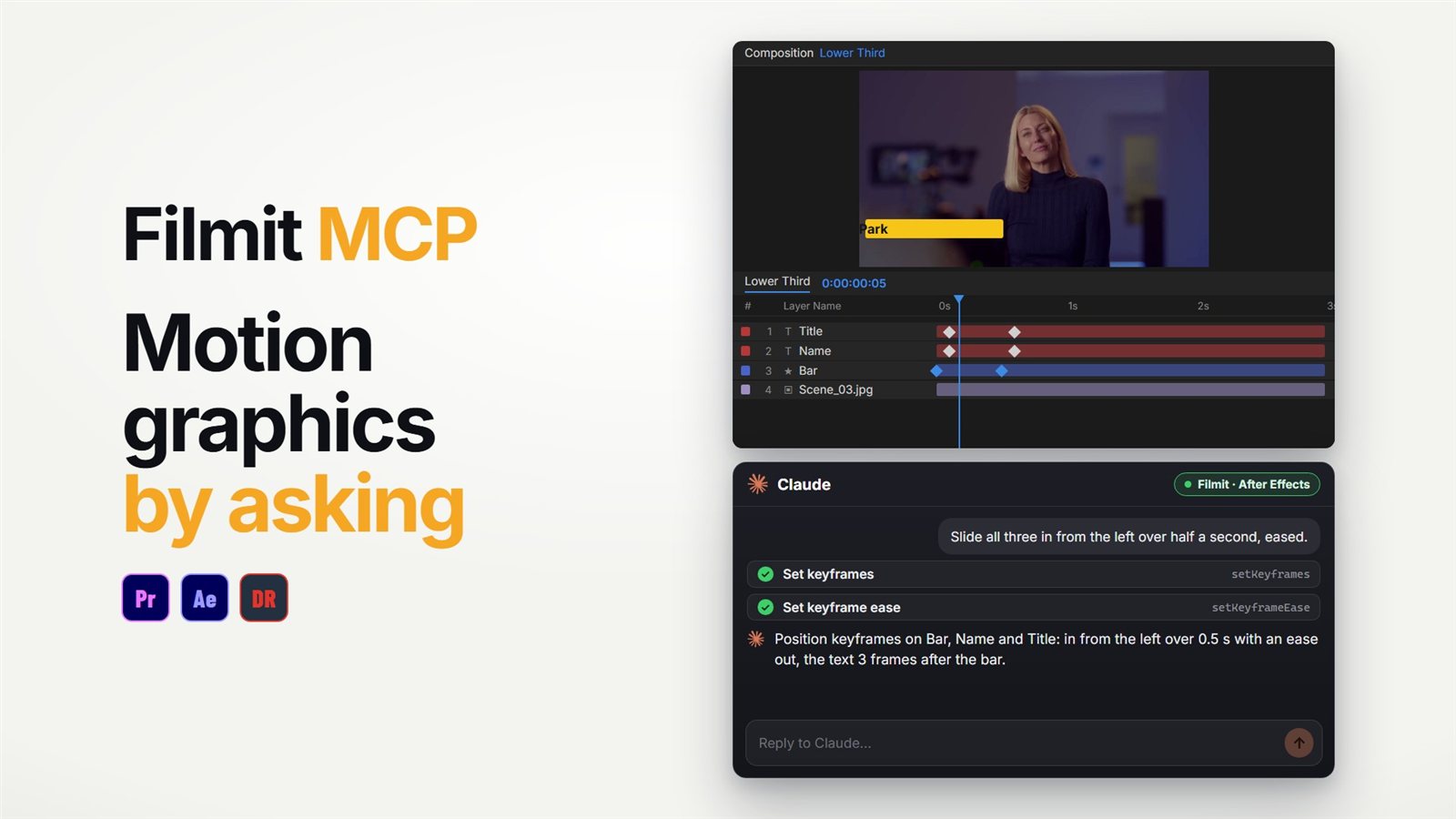
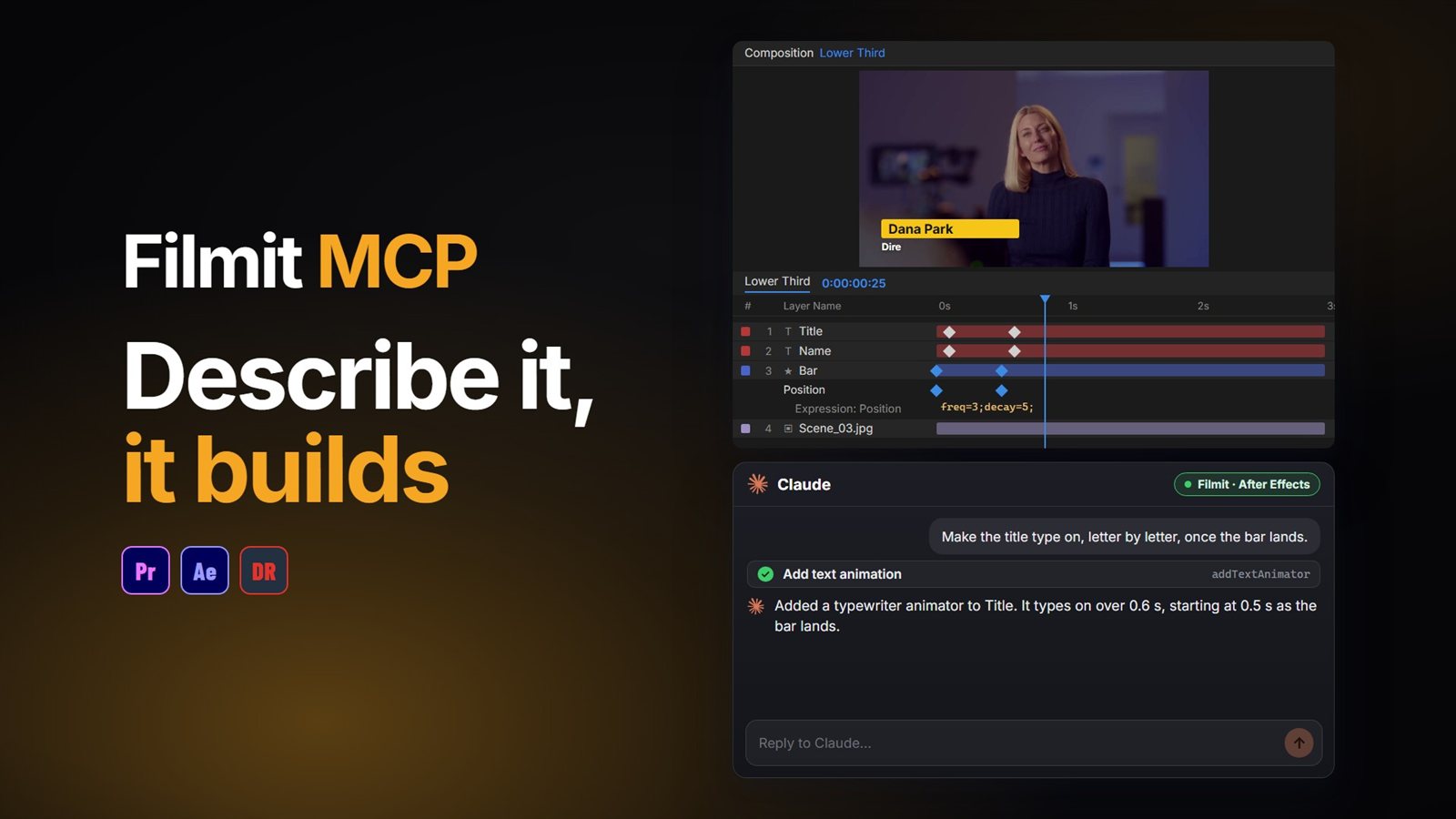
The Filmit MCP can apply ready-made expressions in After Effects, wiggle included, and add the slider to control them. "Add a gentle wiggle to the logo’s rotation with a slider for the amount" is one request. Our guide to using Claude in After Effects shows the setup, and the After Effects MCP guide lists what it can build.
Next, see how to loop an animation in After Effects, or the full tour of Shortcut for After Effects. Shortcut is free in Filmit Studio, our free desktop app.