Edit with Claude,
in your real project
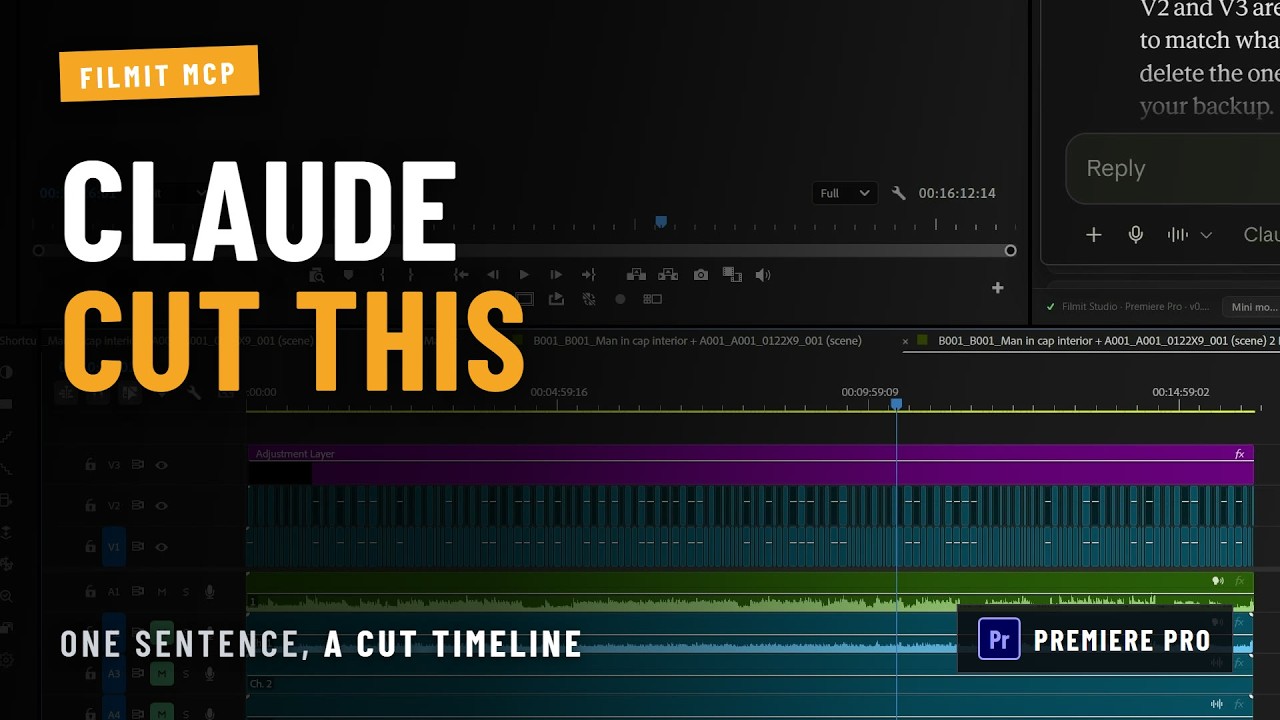
Connect Claude to Premiere Pro, After Effects and DaVinci Resolve from Filmit Studio. Ask for a cut, a title, markers or a transition in plain words, and it happens in the project you have open. Claude even looks at the frame to check its work.
New to Filmit? Start today. It works with a free Filmit account.

Turn it on
Open Filmit Studio (Window → Extensions in Adobe apps, Workspace → Workflow Integrations in Resolve), go to the MCP tab and flip the switch.
Connect Claude
Click Connect next to Claude. Filmit Studio copies the connector address and shows you the three quick steps in Claude.
Ask for the edit
In Claude, on the web, desktop or your phone, ask for what you want. It lands in the project you have open.
Pr In Premiere Pro
Ae In After Effects
Dv In DaVinci Resolve
30 Premiere Pro actions
Read the project and timeline, then edit it.
- Import media, organize bins, build and duplicate sequences
- Place clips, add edits, remove sections with ripple, trim and move clips
- Markers, in and out points, transitions and effects
- Motion, opacity and volume, with keyframes
- Titles from Motion Graphics templates, caption files
- Look at any frame to check the edit
35 After Effects actions
Build and animate inside your comp.
- Comps, solids, nulls, adjustment layers, shapes and text
- Text styling and per-character text animators
- Keyframes with real easing, interpolation and motion blur
- Expressions, expression controls and linked properties
- Effects, gradients, masks, track mattes and precomps
- Render a frame so Claude can see the result
22 DaVinci Resolve actions
Read and edit your timelines in Resolve Studio.
- Import media, bins, new and duplicate timelines, vertical copies
- Place and remove clips, enable, disable and color them
- Cut sections out into a fresh timeline, your original untouched
- Zoom, position, rotation, crop, opacity and blend modes
- Markers and Text+ titles
- Look at any frame, export EDL, FCPXML or OTIO
Filmit MCP
Everything on this page, with a free Filmit account.
- All 30 Premiere Pro actions
- All 35 After Effects actions
- All 22 DaVinci Resolve actions
- Frame checks, so Claude sees its work
- Claude on the web, desktop and phone
Filmit's engines, from Claude
The tools that make Filmit Filmit, driven by conversation.
- JumpCut silence removal coming soon
- Sync audio sync coming soon
- RoughCut interview edits coming soon
- Filmit FX, Transitions and title templates coming soon
Every step visible
Claude shows each Filmit action it takes, and you can make it ask before anything that changes your project.
Your media stays put
Your footage never leaves your computer. Claude sees names, timings and settings, and a frame only when it asks to look.
Off with one switch
Flip the MCP switch in Filmit Studio and nothing can reach your apps. Disconnect in Claude to remove it for good.
Your Filmit sign-in
Claude connects with your Filmit account, by password or Google. No new account, nothing to install beyond Filmit Studio.
Undo works
In Premiere Pro and After Effects, edits land as normal steps you can undo. In Resolve, cutting a section builds a new timeline and leaves your original as it was.
Mac and Windows
Works wherever Filmit Studio runs: Premiere Pro, After Effects and DaVinci Resolve Studio, on macOS and Windows.
What is MCP?
MCP, the Model Context Protocol, is the open standard AI apps like Claude use to connect to other software. A connector gives Claude a set of actions it can take and tells it what each one does. Filmit MCP is that connector for Premiere Pro, After Effects and DaVinci Resolve: it gives Claude real editing actions in your real project, instead of instructions you then carry out yourself.
How it reaches your editor
When you connect, Claude talks to the Filmit connector at mcp.filmit.io, which passes each action to Filmit Studio running in your editor. Filmit Studio does the work inside Premiere Pro, After Effects or Resolve and sends back the result, like the clips on a track or a frame to look at. Nothing runs unless the MCP switch is on.
Why Claude reads before it edits
Every conversation starts with Claude reading your sequence, timeline or comp: tracks, clips, layers, markers, timings. That is why you can say "the second interview clip" or "the logo layer" and it knows what you mean. After visual changes, it can render a frame and look at it, the same way you would glance at the viewer.
Part of Filmit Studio, your assistant editor
Filmit MCP ships inside the Filmit Studio panel for Adobe apps and inside Filmit Studio for DaVinci Resolve, which the Filmit Studio app installs and keeps up to date. Your Filmit account is your sign-in, and the connector grows with Filmit: as we bring tools like JumpCut, Sync and RoughCut to it, they show up in Claude without you changing a thing.
Claude, on the web, the desktop app, your phone, and Claude Code. ChatGPT support is next. Apps that run MCP servers on your computer, like Codex, can connect from "More ways to connect" in the MCP tab.
No. Filmit MCP comes with a free Filmit account. Filmit's own engines, like JumpCut and Sync, will join the connector as part of Filmit Pro. Your AI app's own plan is separate.
Your media never leaves your computer. Claude sees project details like clip names, timings, layers and markers, and a still frame only when it asks to look at one. Our Privacy Policy covers exactly what passes through.
Claude only acts on what you ask for, and shows each action it takes. In Claude's connector settings you can allow read-only actions and require approval for anything that edits. Every edit can be undone in your editor as usual.
Just Premiere Pro, After Effects or DaVinci Resolve Studio with Filmit Studio, a Filmit account, and an AI app like Claude. The Connect button in the MCP tab walks you through adding the connector.
Yes. Filmit MCP works in DaVinci Resolve Studio: open Workspace → Workflow Integrations → Filmit Studio, go to the MCP tab and connect Claude. Resolve's free version doesn't run workflow integrations. Resolve doesn't let add-ons apply effects, transitions or keyframes yet, so Claude tells you when something needs a click from you.
Flip the switch in the MCP tab of Filmit Studio and the connection closes. To remove it completely, disconnect Filmit in your AI app's connector settings.
About a minute, once. The address is already copied.
- Click Open Claude below, then Add custom connector.
- Name it Filmit and paste the address:
- Click Add, then Connect, and sign in to Filmit (or create a free account).
- Open Filmit Studio: Window → Extensions in Premiere Pro or After Effects, Workspace → Workflow Integrations in DaVinci Resolve. Go to the MCP tab and turn it on.