🎥
YouTube Talking Heads
Remove ums, pauses, and dead air from talking-head content automatically. Tighten your delivery without losing natural rhythm.
Auto-remove silence and dead air in Premiere Pro. And now, the Auto-Switcher cuts your multicam to whoever is talking.
JumpCut comes with Filmit Studio, along with our whole suite of plugins, effects, transitions, overlays, and courses, plus everything new we ship. It's all included!
Watch the Demo
A full tour of scanning your footage for silence and removing the dead air automatically in Premiere Pro.
Demo coming soon
This one is live in the app today. We are recording its demo now.
Three steps and you are up and running, with JumpCut and every other Filmit tool, right inside your editor today.
Sign up free at filmit.io. No card needed to look around.
Download the free desktop app for Mac or Windows. It manages every tool for you.
Start your 7-day trial and install JumpCut plus every other tool, straight into your editor.
Watching hours of footage at 2x speed, hunting for dead air. Every. Single. Clip. Your eyes glaze over and you still miss gaps.
Razor, select, delete, close gap. Repeat 200 times per video. Your wrist hurts and you're only halfway through the timeline.
Manual cuts lead to uneven timing. Some gaps are too short, some too long. Your video feels choppy in some places and draggy in others.
Assign each camera to its speaker and JumpCut switches your multicam to whoever is talking. Preview the whole plan on a colored lane before applying.
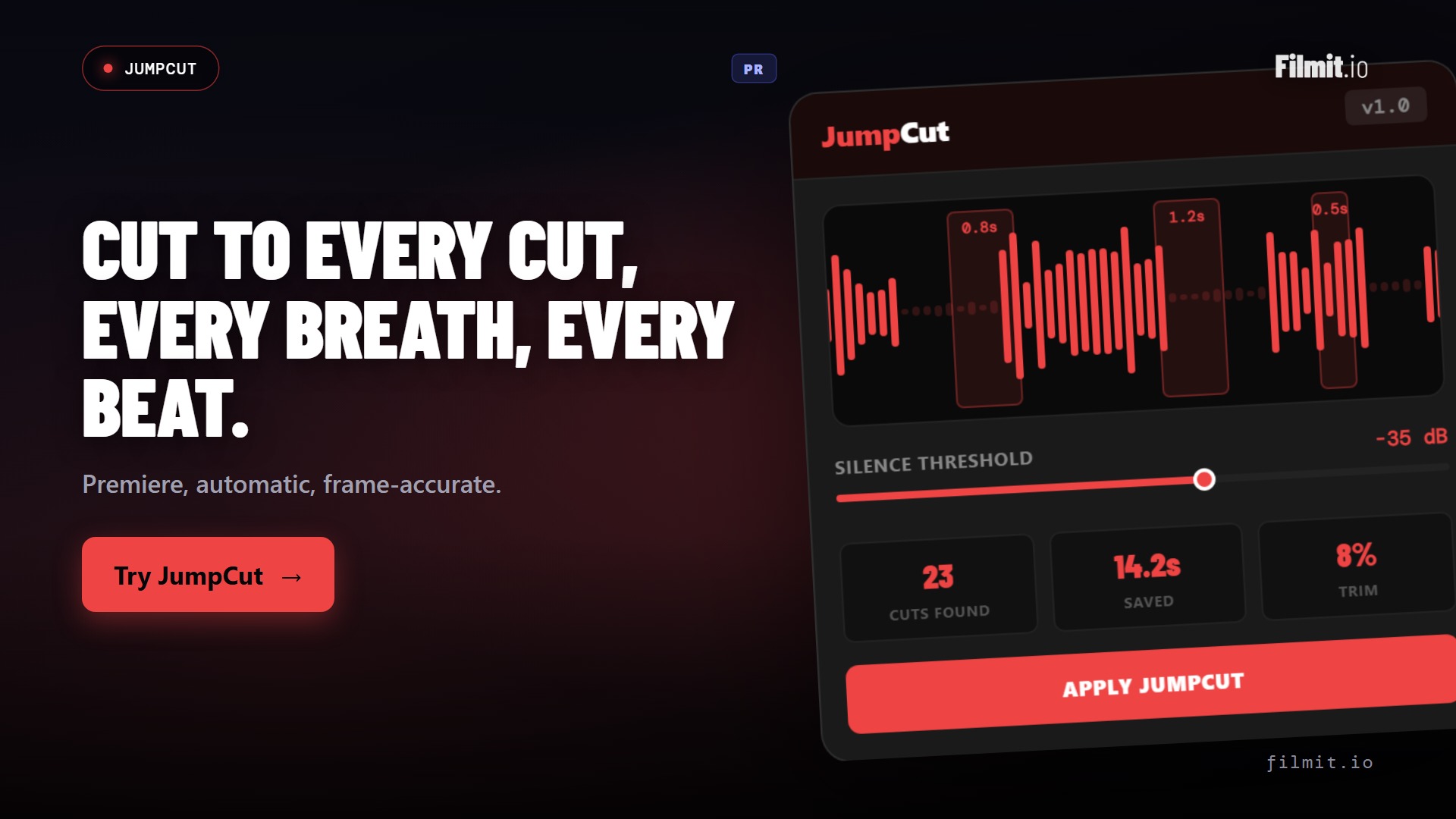
Scans audio waveform and detects silence and gaps below a customizable threshold. Flags every dead spot in your sequence instantly.
Analyzes camera files with embedded audio, including 2GB+ recordings from Riverside and similar tools. One quick setup step and you're covered.
Preview all detected cuts on the timeline before committing. See exactly what will be removed. No surprises.
Adjust silence threshold (dB), minimum gap duration, and padding around cuts. Save presets, and even keyframe settings over time.
JumpCut works on a backup copy of your sequence, and every run undoes with Ctrl+Z. Experiment freely without risk.
JumpCut scans your audio waveform and highlights every gap that falls below your threshold. Red zones are dead air. Everything else stays untouched.
Preview mode places markers on your timeline showing exactly where JumpCut will make cuts. Review, adjust thresholds, then apply when you're satisfied.
Assign each camera to its speaker's audio track and JumpCut builds the whole switching plan: who is on screen, when, and for how long. Preview it as a colored lane, tune the pacing live, then apply. Video switches, audio stays untouched.
Remove ums, pauses, and dead air from talking-head content automatically. Tighten your delivery without losing natural rhythm.
Strip the silence, then let the Auto-Switcher cut between hosts automatically. A multi-hour multicam edit reduced to a few clicks.
Remove awkward pauses and dead air from interview footage while preserving natural flow. Your subjects sound polished and confident.
Install the Filmit Studio desktop app. It manages all your plugins automatically.
Launch Premiere. JumpCut appears under Window → Extensions. Open the panel.
Configure silence detection sensitivity and minimum gap duration to match your content style.
Preview the cuts, then create your JumpCuts. Editing multicam? Flip to Video mode and let the Auto-Switcher take it from there.
JumpCut analyzes audio waveform amplitude. You set the dB threshold (e.g., -35dB) and minimum gap duration (e.g., 0.5s). Anything below threshold for longer than the minimum gap gets flagged as silence and marked for removal.
No. JumpCut adds configurable padding (default 0.1s) before and after each cut to preserve natural speech rhythm. You can preview every cut before applying, so nothing gets removed that shouldn't be.
Yes. All cuts from a single JumpCut operation are grouped as one undo action. Press Ctrl+Z (Cmd+Z on Mac) once to restore your entire sequence to its pre-cut state.
Yes. You can choose which audio tracks to analyze, or JumpCut can analyze the mix. Works with mono, stereo, and multi-channel audio configurations.
Switch the panel to Video mode and assign each camera to its speaker's audio track (graphics and overlay tracks can be ignored). JumpCut analyzes who is talking and builds a switching plan you can preview on a colored timeline lane. Apply it, and JumpCut cuts your camera tracks and enables the right angle for every moment. Your audio is never cut, and you can re-enable any clip to override a decision.
JumpCut uses ffmpeg to analyze camera files with embedded audio, including recordings over 2GB from tools like Riverside. If it isn't already on your machine, the panel offers a one-click download and sets everything up for you. It only happens once, and separate WAV/AIFF audio analyzes without it.
Yes. JumpCut is included with your Filmit Studio subscription at $20/month. You get every Filmit tool, overlay, and course. No extra cost.