You can animate a logo in After Effects without setting a single keyframe in two native ways. Expressions animate a property from a short formula (time * 90 on Rotation spins it, wiggle(1, 8) on Position makes it float), and the built-in Animation Presets apply a ready-made move in a double-click. A third way is a click-to-apply panel like EXpress, where every preset plays its preview before you pick it.
Below are the expressions worth knowing for logos, how to use the presets that ship with After Effects, and the EXpress way from the video.
The native way: four expressions for logos
To add an expression, Alt-click (Option-click on Mac) the stopwatch next to a property and type it in. Precompose the logo first if it is several layers, so one expression moves the whole thing.
Spin forever
On Rotation: time * 90. The logo turns 90 degrees every second. A bigger number spins faster, a negative one spins the other way.
Float gently
On Position: wiggle(1, 8). Once a second, it drifts up to 8 pixels from where you placed it. Good for a logo that sits on screen and should not feel frozen.
Fade in from its first frame
On Opacity: linear(time - inPoint, 0, 1, 0, 100). The logo fades up over one second from wherever the layer starts, so you can slide the layer and the fade comes with it.
Scale up on arrival
On Scale: s = ease(time - inPoint, 0, 0.6, 0, 100); [s, s]. The logo grows from nothing to full size in just over half a second, with easing built in.
Pro Tip: Combine the last two and your logo sting needs no keyframes at all. Trim the layer to where the logo should appear, and both moves start from the layer’s in point.
The native way, part two: Animation Presets
After Effects ships with a library of animation presets in the Effects & Presets panel, under Animation Presets. Select your logo layer and double-click one to apply it. Presets add their own keyframes or expressions, which you can then edit like any others. The catch is choosing: the list shows names, not motion, so you apply, scrub, undo and try the next one. Text presets need a text layer, so for a logo you will mostly use the transition and behaviour folders.
The faster way: click-to-apply presets with EXpress
EXpress is a panel of text presets, motion presets and expressions for After Effects, where every card plays its animation before you pick it. These are the steps in the video:
Start with the Free list
Starting out free? The Free list shows every preset the free tier includes.
Click a text preset
Titles need some life? Click a text preset, watch its live preview, then just hit Apply.
Typewriter
Want it typed out? Typewriter reveals your title one character at a time.
Motion tab for logos
Logos and shapes too? The Motion tab slides and scales any layer you select, with no keyframing.
Combos
Want more punch? Combos like Fade plus Scale Up stack two moves in one click.
Wiggle from Expressions
Want nonstop motion? Open Expressions, pick Wiggle and apply it in one click.
Spin
Need it turning? Spin keeps a layer rotating at whatever speed you set.
What to know about EXpress
Every value a motion preset uses sits in Effect Controls with a clear name. Retime the whole animation by moving two keyframes on one slider.
Motion presets animate from wherever the layer is, so reposition it and the animation follows. Slides always start fully off screen.
Choose Both and set a different direction for each. The In starts at the layer’s in point and the Out lands on its out point.
The setup is native After Effects, so the project opens and renders on a machine without EXpress installed.
Or ask Claude or ChatGPT
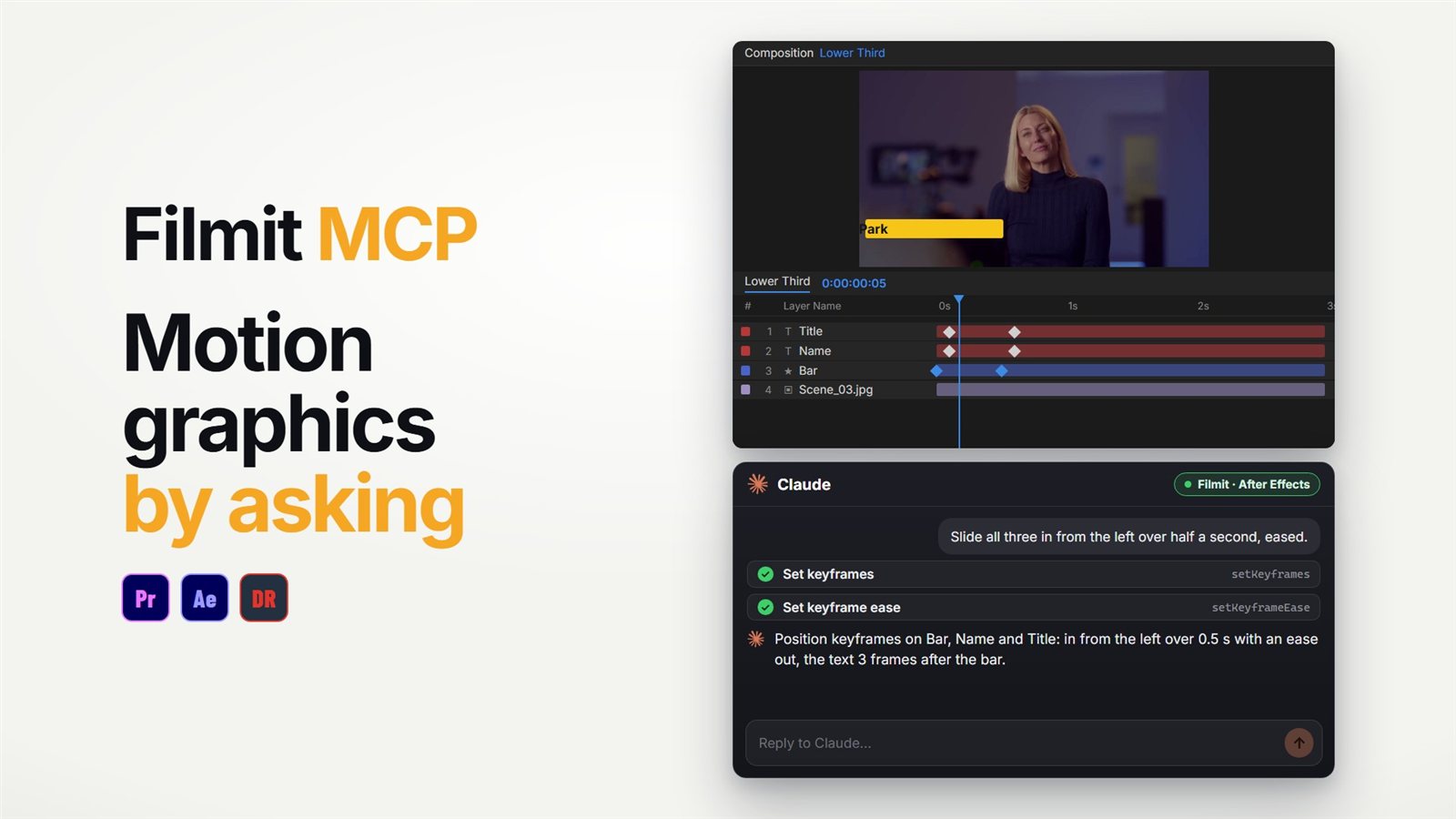
The Filmit MCP can apply ready-made expressions (wiggle, loops, bounce, inertia, overshoot) and set transforms and keyframes by asking: "make the logo spin slowly forever and float a little," or "scale the logo up with an overshoot when it appears." It reads the layer first and can render a frame to check. Our guide to using Claude in After Effects covers the setup.
Working in Premiere Pro? Our guide to slide-in animation in Premiere Pro covers EXpress there, and motion presets for Premiere Pro goes deeper. For type, see text animation presets for After Effects, and if your logo closes a photo montage, our photo slideshow template guide fits right before it. EXpress is free in Filmit Studio, our free desktop app.