To make a clip slide in in Premiere Pro, keyframe its Position in Effect Controls: one keyframe with the clip in place, one at the start with it fully off screen, then ease them so the move slows as it lands. For real motion blur, do the same move with the Transform effect instead, untick Use Composition’s Shutter Angle and set a shutter angle, because the clip’s own Motion properties do not blur.
Below are both native steps, then EXpress, which applies the whole move, blur included, from a card you watch before you click, as in the video.
A slide in with Position keyframes
Set the landing keyframe
Park the playhead where the move should finish, around half a second into the clip, and click the stopwatch next to Position under Motion.
Push it off screen
Go to the first frame of the clip and drag the horizontal Position value until the clip is fully out of frame. Position measures the clip’s centre, so a full-frame clip needs to move a whole frame width.
Ease the move
Right-click the landing keyframe and choose Temporal Interpolation, Ease In; give the first keyframe Ease Out. Open the Position graph if you want a sharper start and a softer stop.
Slide it out too
Mirror the two keyframes at the end of the clip if it should leave the way it came.
That works, but it looks a little stiff on a fast move, because nothing blurs. The fix is a built-in effect.
Adding real motion blur with the Transform effect
Add Transform
In the Effects panel, open Video Effects, Distort and drag Transform onto the clip.
Animate Transform, not Motion
Make the same two Position keyframes on the Transform effect’s Position, and leave Motion alone.
Turn on the blur
Untick Use Composition’s Shutter Angle and set Shutter Angle. 180 is a natural film look; higher values smear more.
Preview it rendered
Motion blur is heavy for playback, so render the section (Enter) before you judge it.
Pro Tip: Transform has its own Scale, Rotation and Opacity, so if you want a slide that also fades or grows, keep all of it on the Transform effect and the blur covers the whole move.
All of this is quick once. On every title, logo and photo in a video, in and out, in a new direction each time, it adds up. Our guide to motion presets in Premiere Pro covers the preset route in more depth.
The one-click way with EXpress
EXpress puts click-to-apply motion presets in a panel in Premiere Pro. These are the steps in the video:
Start with the Free list
Starting out free? The Free list shows every motion preset the free tier includes.
Click a preset
Need a clip to move? Click a preset and its live preview plays right there.
Pick a direction
Want it from the left instead? Pick a direction and the preview follows along.
Set the Duration
Too quick? Drag Duration to slow the move down, up to four seconds.
Apply to Both
Need it to leave too? Set Apply to Both, and it moves in and back out again.
Apply
Hit Apply and it lands as real keyframes, with motion blur built in.
Try a Combo
Want more punch? Combos like Fade plus Scale Up stack two moves in one click.
With motion blur on, EXpress animates through a Transform effect with the shutter angle set in its Settings (180 degrees by default), exactly the native setup above. With it off, you get plain keyframes on Position, Scale, Rotation and Opacity.
Good to know
Fade, Slide, Scale Up, Fade + Slide and Fade + Scale Up, in the Smooth, Linear, Ease In and Ease Out styles. A subscription adds every card plus Overshoot, Bounce and Elastic.
An In starts from nothing on its first frame and an Out ends on an empty frame, and Both fits the clip however long it is.
Everything EXpress sets up is native Premiere Pro, so the project opens without EXpress installed.
Premiere Pro gets the motion presets. Text presets and the expression library are in After Effects, from the same install.
Or ask Claude or ChatGPT
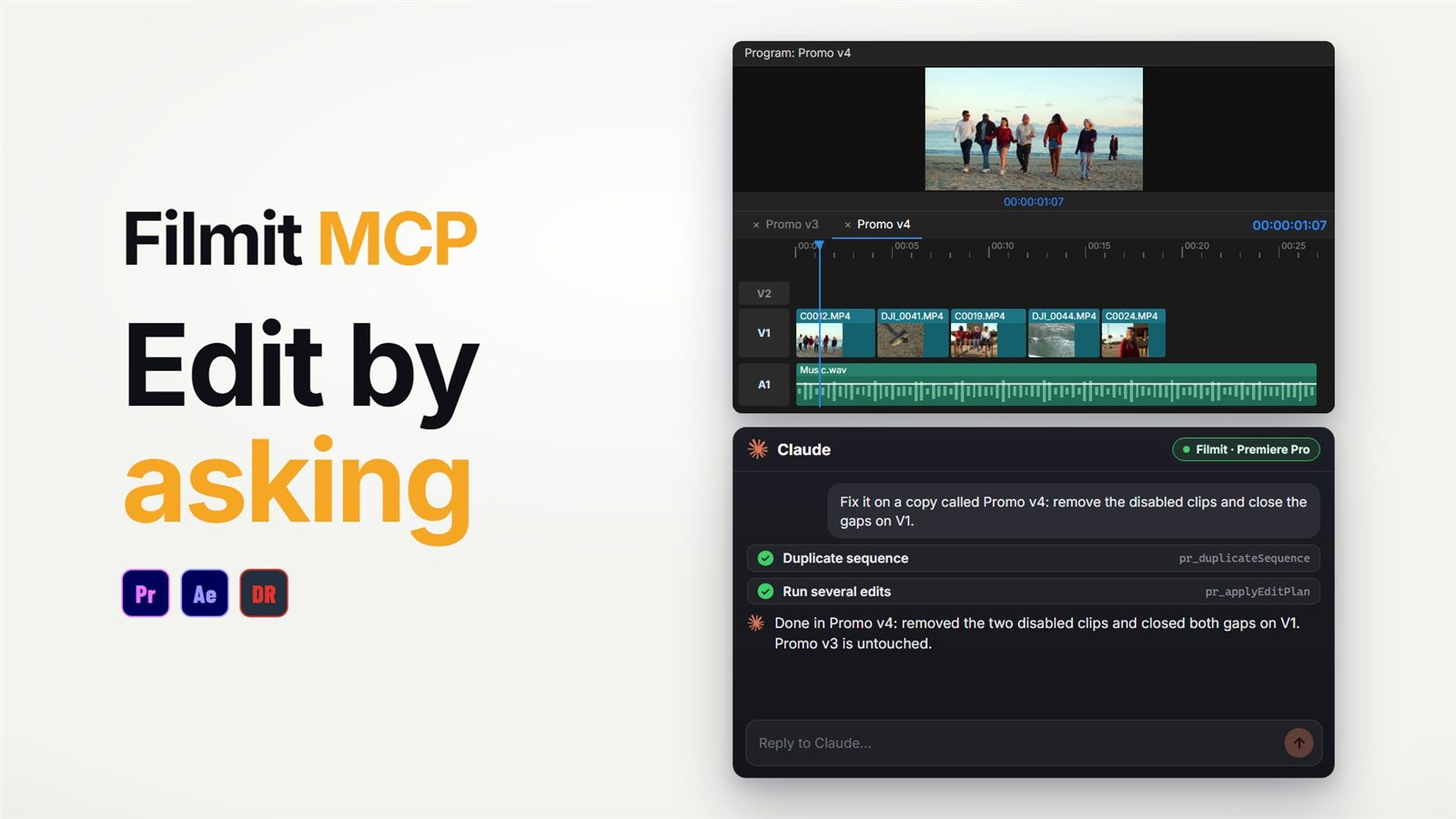
The Filmit MCP can build the native version for you. It can apply the Transform effect, set its settings and keyframe them, so "slide every clip on V2 in from the left over half a second, with motion blur" is one request. Our guides to using Claude in Premiere Pro and using ChatGPT in Premiere Pro cover the setup.
Animating titles in After Effects? See text animation presets for After Effects. Photos sliding in for a wedding? Our wedding slideshow guide builds the whole sequence. EXpress installs with Filmit Studio, our free desktop app.