To make a wedding slideshow in Premiere Pro, choose the song first, set Premiere’s still image duration so the photos fit it, put the photos in order in a bin, and run Automate to Sequence with a dissolve between each one. Then give every photo a slow push or pan with Scale and Position keyframes, so the stills feel alive instead of flicking past.
Below is the native way, with the wedding-specific parts (cutting on the beat, mixing portrait and landscape shots, a vertical copy for the couple to share), then how Slideshow builds the whole sequence from a bin, as in the video.
Before you start: song, order, count
A wedding slideshow lives or dies on its music, so start there. Know the song’s length and how many photos you have, and you know roughly how long each one gets. Most couples want the day in order: getting ready, the ceremony, portraits, the reception. Rename the files in that order before you import (or export them already sorted from your photo app), so sorting by name in the Project panel gives you the story.
The native way in Premiere Pro
Set the still duration
In Preferences (Settings on Mac), Timeline, set Still Image Default Duration before you import. Every photo lands at that length.
Mark the beats
Drop the song on the timeline, play it, and press M on each beat you want a photo to land on.
Automate to Sequence
Select the photos in the bin and choose Clip, Automate to Sequence (or the button at the bottom of the Project panel). Set Placement to At Unnumbered Markers to cut on your beats, or Sequentially for even timing, and tick Apply Default Video Transition for a dissolve on every cut.
Fix the framing
Select the clips and use Set to Frame Size. Portrait shots will pillarbox; for a softer look, put a copy underneath, scale it up to fill the frame and add Gaussian Blur.
Add the movement
Keyframe Scale and Position in Effect Controls on each photo, then right-click the keyframes and ease them. Keep moves slow on faces.
Make the vertical copy
Sequence, Auto Reframe Sequence builds a 9:16 copy for the couple to post. Check every photo, because a reframe can crop someone out.
Pro Tip: Start each photo a little larger than the frame before you animate it. A pan needs room to travel, and at exactly 100 percent any move drags a black edge into shot.
That is a real wedding slideshow made with nothing but Premiere Pro, and for twenty photos it is a calm half hour. It gets slow at two hundred photos, when the couple swaps the song, or when another batch of photos arrives after you have keyframed everything. Our guide to making a slideshow in Premiere Pro goes deeper on the native route.
The faster way, with Slideshow
Slideshow is a panel in Premiere Pro that does the repetitive half: you give it photos, choose how the show should feel and how long it runs, and it builds the sequence. These are the steps in the video:
Pick the bin
Photos already in a bin? Pick it from the list and the show starts playing in the panel’s preview.
Tap a Look
Want more energy? Tap a Look and the motion and transitions change with it. Classic, Cinematic and Drift suit a wedding; Energetic and Pop suit the party.
Pick nine by sixteen
Posting it vertical? Pick 9:16 and the whole show reframes.
Choose a transition
Want a different cut between photos? Pick a transition, like Zoom Punch, and the preview plays it. For the ceremony, a cross dissolve or blur dissolve is gentler.
Add a Ken Burns move
Add a slow Ken Burns move to every photo: zoom in, zoom out or pan.
Set the total length
Need it to fit your song? Set the total length and every slide retimes to match.
Create in Premiere Pro
Hit Create in Premiere Pro and it builds the whole sequence for you, with every photo scaled, moved and transitioned.
What it builds is ordinary Premiere Pro work: clips with keyframes and standard transitions. If one photo bothers you, adjust its keyframes like any other clip.
Wedding slideshow tips
Set the slideshow’s total length to the song, not the other way round. Trimming a first dance track to fit a slideshow always sounds wrong.
Choose fill over fit when portrait and landscape photos are mixed. A show that keeps flipping between full frame and pillarboxed looks like a mistake.
When the couple sends ten more, add them to the bin and build again rather than re-keyframing by hand.
Slideshow takes video clips as well as photos, with a setting to keep or drop their audio, so a few seconds of the vows can sit between the stills.
Or ask Claude or ChatGPT
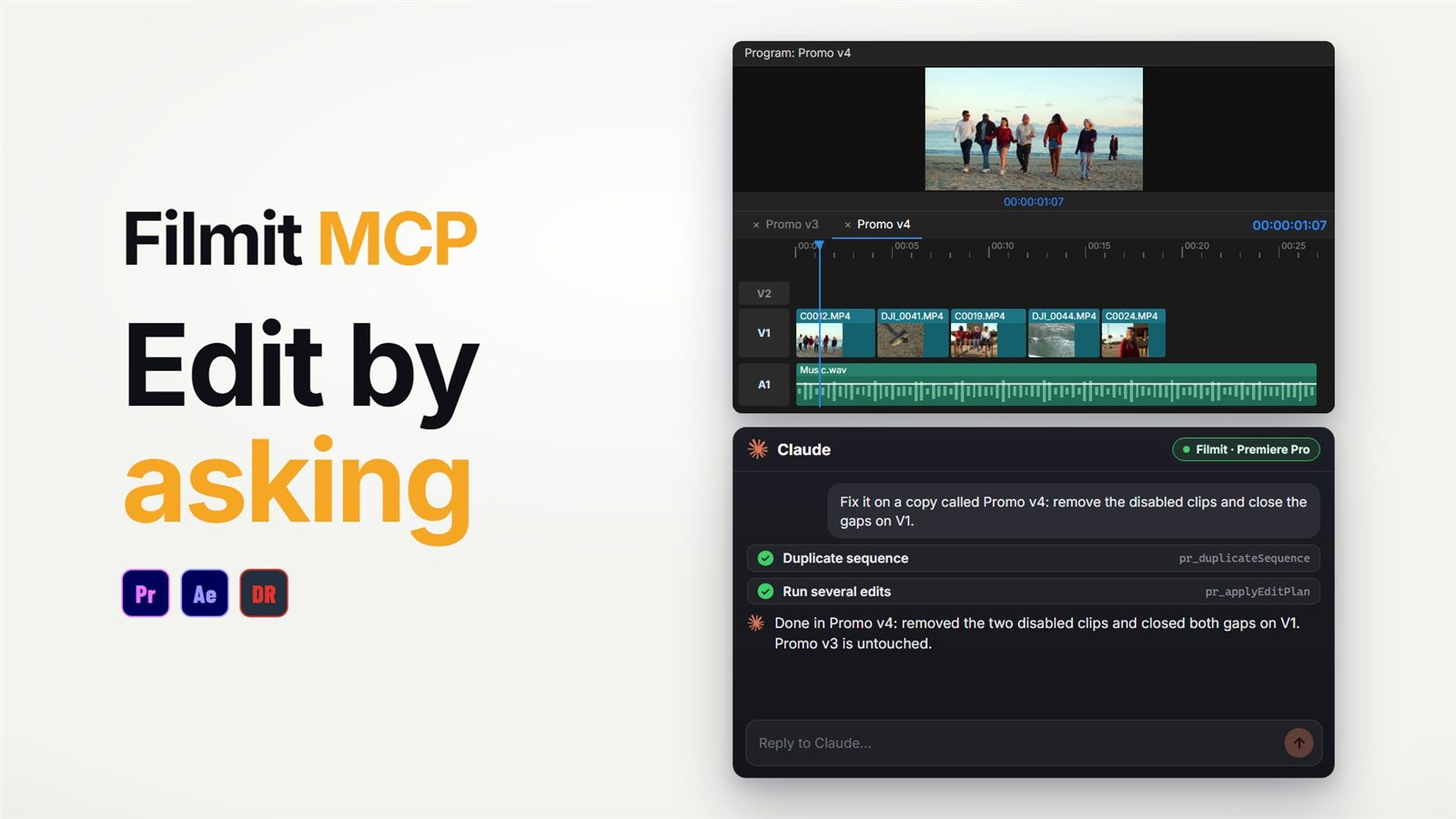
For batch jobs on a slideshow you built by hand, the Filmit MCP can do them by asking. It reads your sequence and can add a transition on every cut, set scale and position (still or animated) on every photo on a track, or drop a marker every few seconds so you can line photos up. It does not hear the music, so the beat markers are still yours. Our guides to using Claude in Premiere Pro and using ChatGPT in Premiere Pro cover the setup.
Building the reception video in After Effects instead? See making a slideshow in After Effects. For a playful interlude, our guide to a text message animation in Premiere Pro recreates the couple’s first texts. Slideshow comes with Filmit Studio, our free desktop app, with a 7-day free trial.