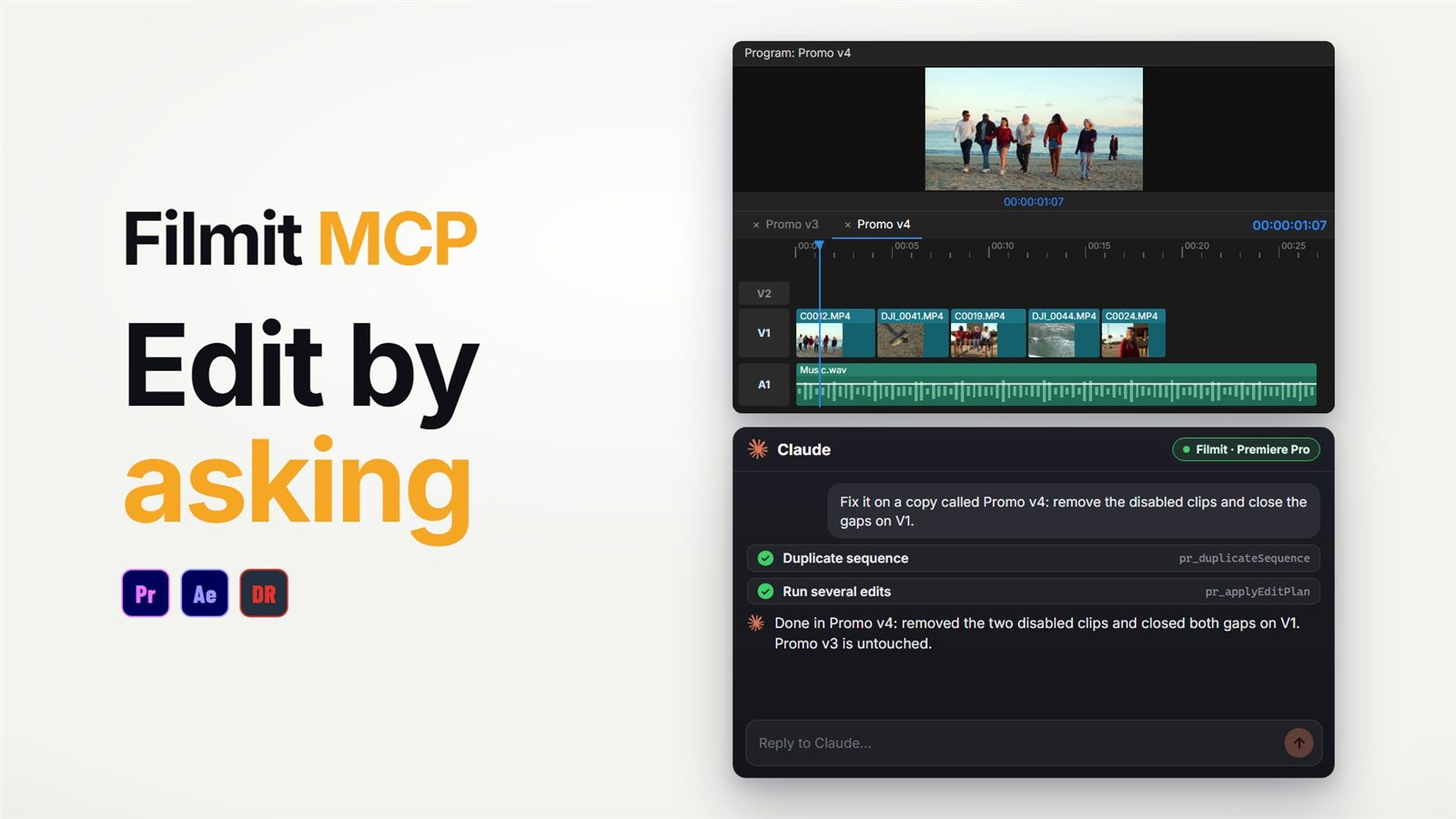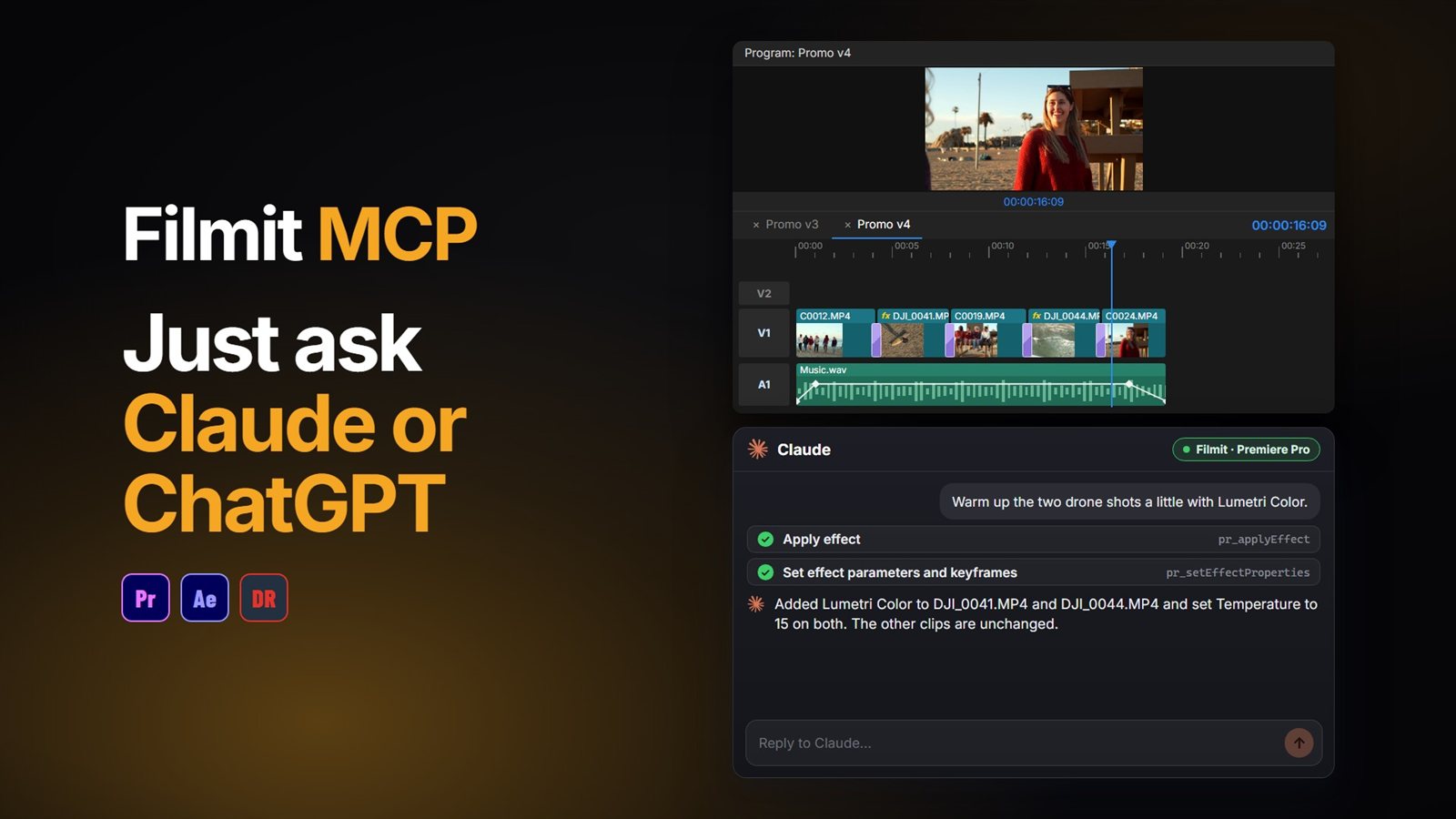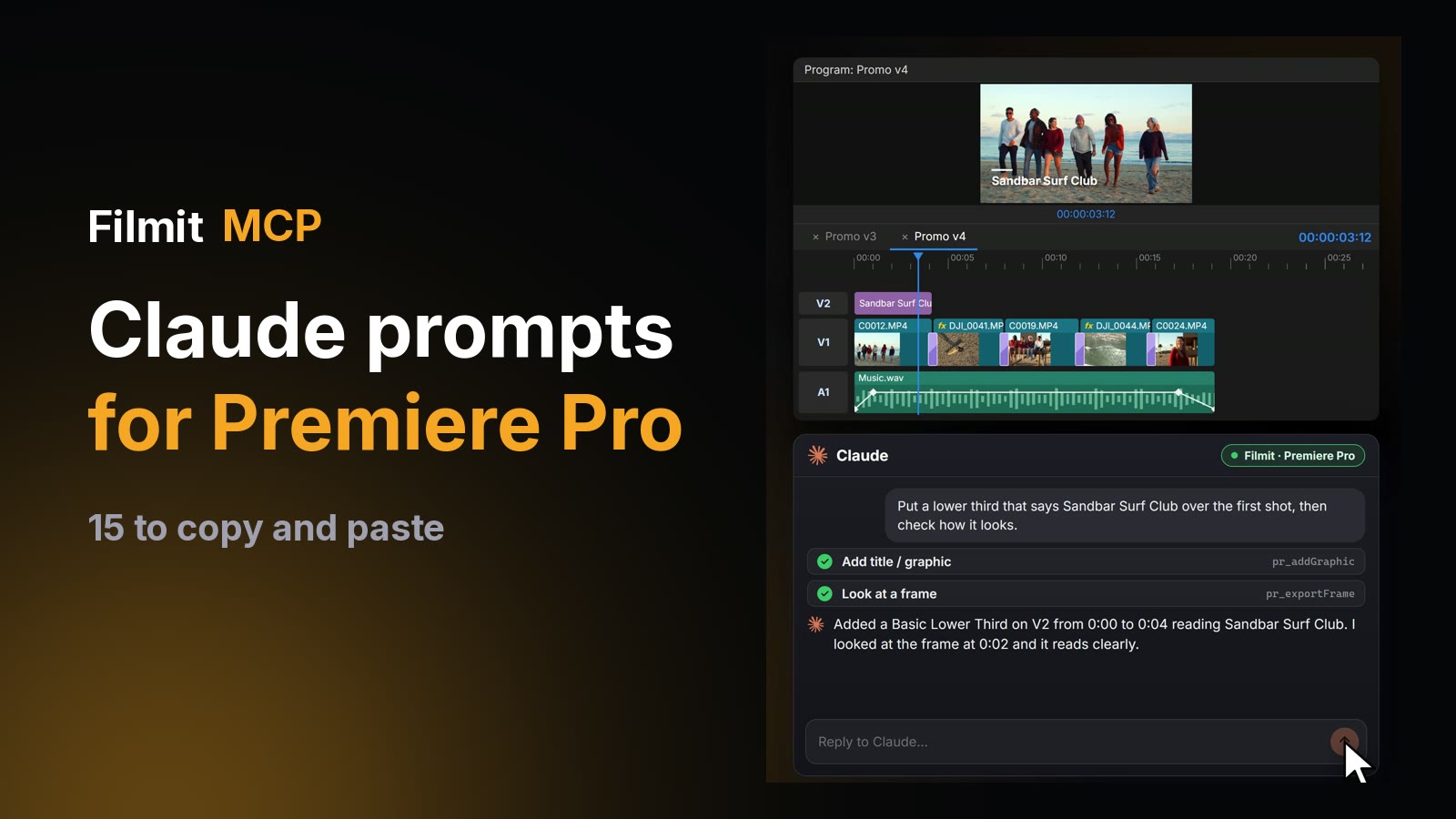
The Claude prompts that work best in Premiere Pro say four things: what to touch, what to change, the result you want, and what has to stay as it is. With Filmit MCP connected, Claude runs them on your real timeline: it reads the sequence, makes the edit as ordinary Premiere Pro steps, and reads it back to check.
Below are 15 prompts to copy and paste, grouped by the stage of the edit, with what Claude does when you send each one. Change the names, times and tracks to fit your project. If Claude is not connected yet, start with our guide to connecting Claude to Premiere Pro.
What makes a good Claude prompt for Premiere Pro?
A good prompt reads like a note to an assistant editor. It names the part of the timeline, says the change, says why, and says what to protect. Claude can only see what is in your project: clip names, tracks, markers, timings and frames it renders. Pointing at those gets you the edit you meant on the first try.
What to touch
The sequence, a track, clip numbers, a time range or "the selected clips". Clips count from the left on each track: "clip 3 on V1".
The change
Cut, fade, add a marker, make a bin, apply an effect. One job per prompt is easier to check.
The result you want
"So the client can leave notes" or "2 to 4 seconds a shot" tells Claude how to make the calls you did not spell out.
What must stay
"On a copy", "don't delete anything", "leave the interview on V1 alone". This is the part people forget, and it is the part that keeps your project safe.
Put together, a prompt looks like this: "On a copy of this sequence, take out everything between 1:12 and 1:30 and close the gap, without touching the music on A1." Start with prompts that only read, check the answer, then move on to edits.
Which prompts should you start with?
Start with a prompt that only reads, and a copy of the sequence. Claude tells you what it sees before it changes anything, and every edit after that lands on the copy, so the original stays as it was.
What are good prompts for organizing a Premiere Pro project?
Organizing is pure busywork, which makes it the best first real job: nothing on the timeline changes, and you can check the result at a glance in the Project panel.
The manual version of this, with a bin structure you can reuse, is in how to organize a Premiere Pro project.
Can Claude assemble a sequence from a prompt?
Yes. Claude can make a sequence, place clips on it, cut sections out and build a first pass to music. It works from names, markers and timings, so the assembly is fast and the story calls stay with you.
For a whole rough cut from a transcript and stills, see how to make a rough cut with Claude in Premiere Pro.
How do you ask Claude to QC a timeline?
Ask it to find problems first and list them, then ask for fixes in a second prompt. Splitting it in two means you see the list before anything changes, and you decide which fixes are safe.
The full checklist, by hand and with Claude, is in how to QC a Premiere Pro timeline.
What are good Claude prompts for polishing an edit?
Polish prompts work well because they are specific and easy to judge: a fade, a transition, a grade, a title. Ask Claude to look at a frame when it is done, and it checks its own work before it reports back.
How do you get a cut ready for client review?
Ask for markers where the client should look and bring in the captions in the same prompt. Claude adds them in one go, and the sequence is ready to export for review.
Do the same prompts work in After Effects and DaVinci Resolve?
The habits do, and the same connector covers both apps. The jobs change with the app:
"Build a lower third that slides in with a little bounce, then type the name on." Claude builds the layers, keyframes and expression in your comp. See how to use Claude in After Effects.
"Add a marker at the start of every clip and colour the clips by camera name." Filmit tools need DaVinci Resolve Studio, and Resolve's scripting has no razor, effects or keyframes, so cuts build a new timeline. See how to use Claude in DaVinci Resolve.
How many actions does a prompt use?
Usually a few. Claude reads the sequence before it edits and again after, so even "add a marker here" takes a couple of actions. A lower third with text and a frame check takes a handful, and a first pass over a short timeline can take a few dozen.
A free Filmit account includes 50 Filmit actions a day, which is enough to try every prompt on this page over a couple of days, or to get real work done on a lighter day. Ask Claude "how many Filmit actions do I have left today?" to check. The details are in Free actions and limits.
Where do prompts fall short?
Claude works from names, markers, timings and the frames it renders. It can look at a frame, but it does not watch a take the way you do. Story and taste stay with the editor.
Every change is a normal Premiere Pro undo step, so Ctrl+Z (Cmd+Z on Mac) undoes the last step, not the whole prompt. For big jobs, the copy from prompt 2 is your safety net.
"Make it better" gives Claude nothing to aim at. A track, a time and a result give it everything.
Claude works through the Filmit Studio panel, so keep Premiere Pro open and the computer awake while it runs.
More prompts, with what to check after each one, are in our Filmit MCP recipes, and the habits behind them are in Getting good results. Prefer ChatGPT? The same prompts work there too: see how to use ChatGPT in Premiere Pro. New to the idea? Start with what a Premiere Pro MCP is, then install Filmit Studio, our free desktop app.