A Premiere Pro MCP is a connector that lets an AI app edit your real Premiere Pro timeline. Instead of Claude or ChatGPT telling you which menus to click, it reads your sequence and makes the change itself: closing gaps, adding dissolves, warming up a clip, dropping markers, in the project you already have open.
This guide explains what MCP is in plain words, what Filmit MCP can do in Premiere Pro, a real pre-delivery cleanup from the video below, and the jobs it is not good at.
What is MCP, and why does Premiere Pro need one?
MCP, the Model Context Protocol, is the open standard AI apps use to connect to other software. A connector hands the AI a list of named actions and a description of each. When you ask for something, the AI picks the actions it needs, runs them, and reads back the result.
Premiere Pro has no AI connector of its own, so without one, a chatbot can only describe steps. Filmit MCP is that connector. It runs through the Filmit Studio panel in your editor, and the AI talks to it at mcp.filmit.io. Nothing happens unless you switch MCP on in the panel, and your media never leaves your computer.
What can it do in Premiere Pro?
There are 30 Premiere Pro actions. Grouped by job:
Bins, sequences, every track, clip and marker, your selected clips, and the effects and keyframes already on a clip.
Import media into bins, make and move bins, create and duplicate sequences.
Place clips, cut at a time, remove a section and close the gap, trim, move, and turn clips off and on.
Transitions on every cut or chosen edits, any installed effect including Lumetri Color, scale, position, opacity and volume with keyframes.
Titles from Motion Graphics templates, caption files, markers, and rendering a frame so the AI can look at its own work.
The full list, with the names you see in your AI app’s settings, is in What Claude can do.
A real job: cleaning a cut before you send it
The video shows the kind of job MCP is best at: a list of small, checkable fixes on a cut that goes out today. Here is the sequence of requests, in order.
"Check this timeline before I send it"
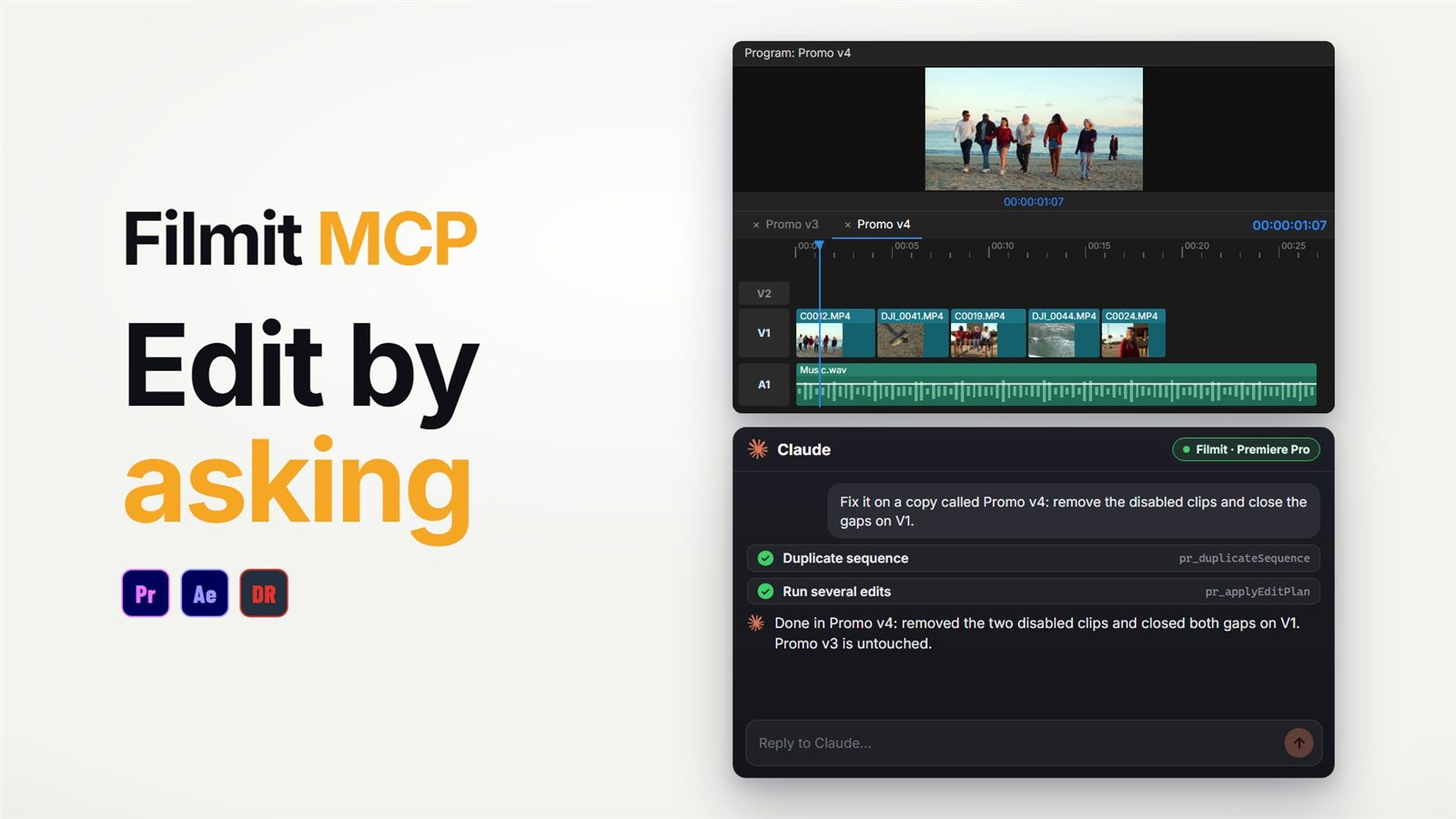
Claude reads the sequence and reports every gap and every disabled clip, with where each one is.
"Fix it on a copy"
It duplicates the sequence, removes the disabled clips and closes the gaps on the copy. Your original stays untouched.
"Fade the music and dissolve every cut"
One sentence adds audio fades on the music and a cross dissolve on every edit.
"The drone shots look cold"
It adds Lumetri Color to those clips and warms them up, right on the clips, where you can adjust it in Effect Controls.
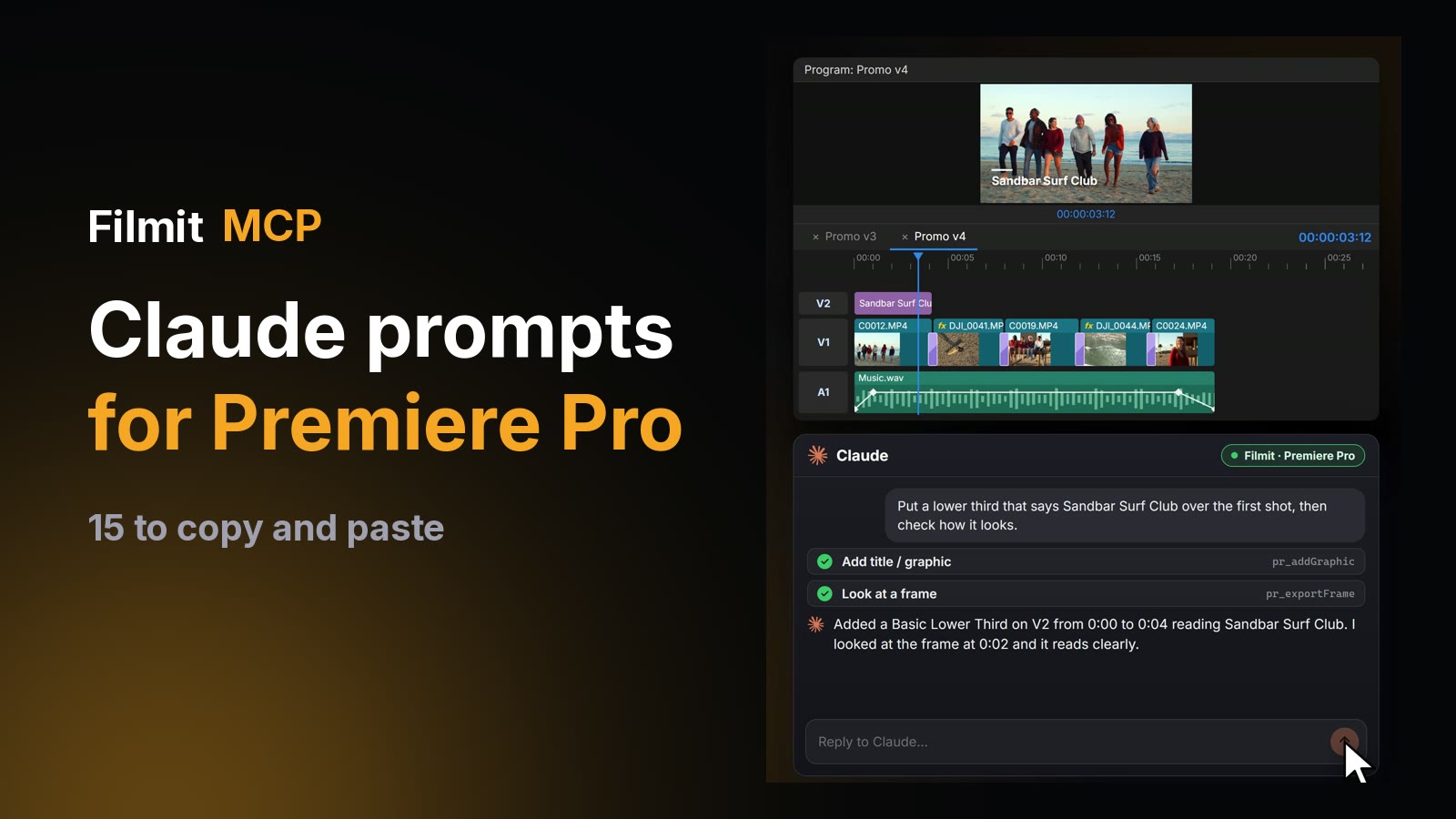
"Add a lower third"
It places a title from a Motion Graphics template, then renders that frame and looks at it to check the placement.
"Marker on every cut"
A marker lands on each edit, so your client knows exactly where to leave notes.
Each of those is a normal Premiere Pro step, so Undo works the way you expect.
How would you do the same cleanup by hand?
All of it is possible natively, and worth knowing. Duplicate the sequence in the Project panel first. Find gaps by stepping through edit points with the Up and Down arrow keys, and close each one with Sequence, Close Gap or by selecting it and pressing Delete. Disabled clips show dimmed on the timeline; select and delete them. Select every clip and use Sequence, Apply Default Transitions to Selection for dissolves on video and crossfades on audio. Press M at each edit for markers.
On a short cut that takes a few minutes. On a long one with dozens of edits, the asking is quicker, and it does not skip a clip when you are tired. We wrote a full checklist for QCing a Premiere Pro timeline before delivery and another for cleaning up a timeline before client review.
How do you connect it?
Install the free Filmit Studio app, which adds the Filmit Studio panel to Premiere Pro. Open Window, Extensions, Filmit Studio, go to the MCP tab and flip the switch. Then click Connect next to your AI app and sign in with your Filmit account. Our step-by-step guide to using Claude in Premiere Pro covers it with screenshots, and the free MCP setup guide covers Premiere Pro and After Effects together.
Where it falls short
It works from names, tracks, timings and markers, plus a still frame when it asks for one. It will not find "the shot where she laughs" on its own.
It cuts where you tell it to. Choosing the moment a cut should land is an editor’s job.
Effects can be added and adjusted but not removed or switched off, and it cannot browse a folder, so give it full file paths when importing.
Used for what it is good at, the fiddly, repeatable, easy-to-check jobs, it hands you back the time at the end of a cut. New to the panel itself? Start with our guide to getting started with Filmit Studio.