You can now type "cut back and forth between camera A and camera B" into Claude and watch it happen in Premiere Pro, on your real timeline, in the project you already have open. The piece that makes that possible is an MCP connector: a bridge that gives Claude a list of real editing actions instead of leaving it to describe steps for you to click through.
This guide covers what that actually means, how to connect Claude to Premiere Pro with Filmit MCP in about a minute, a real test on a two-camera interview, and an honest list of what it is good at and where it falls short.
What does "Claude in Premiere Pro" actually mean?
It means Claude can read your project and change it, not just talk about it. MCP, the Model Context Protocol, is the open standard AI apps use to connect to other software. A connector hands Claude a set of named actions and a description of each one. When you ask for an edit, Claude picks the actions it needs, runs them in Premiere Pro, and reads back the result.
Filmit MCP is that connector for Premiere Pro and After Effects. On the Premiere side it has 30 actions: reading the project and timeline, importing media and organizing bins, building and duplicating sequences, placing, trimming and moving clips, removing sections with ripple, markers, in and out points, transitions and effects, motion, opacity and volume with keyframes, titles from Motion Graphics templates, caption files, and rendering a frame so Claude can look at its own work.
What it is not: a model that "watches" your footage. Claude works from the project data, the names, tracks, timings and markers, and a still frame when it asks for one. Your media never leaves your computer.
What do you need before you start?
- Premiere Pro with the Filmit Studio panel installed. Filmit Studio is a free app that installs it for you, on Mac or Windows.
- A Filmit account. Free works. You do not need to start a trial for MCP.
- Claude, on the web, the desktop app, or your phone.
How do you connect Claude to Premiere Pro?
Turn it on in the panel, add the connector in Claude, sign in. The panel does most of it.
- Open the panel. In Premiere Pro, go to Window, Extensions, Filmit Studio, and open the MCP tab.
- Flip the switch on. The status line says Premiere Pro is ready. From then on, MCP starts with the app until you switch it off.
- Click Connect next to Claude. The panel copies the connector address, shows the three steps, and opens Claude for you.
- In Claude, open Settings, Connectors, click Add custom connector, name it Filmit, and paste
https://mcp.filmit.io/mcp. Click Add, then Connect. - Sign in with your Filmit account, by email and password or Google. Claude shows Filmit as connected, and the panel's status line says Claude connected.
Start a new chat, check Filmit is on in the tools menu, and ask something harmless first: "Are you connected to Premiere Pro? What's in my open sequence?" If it lists your tracks and clips, you are set. The full walkthrough with screenshots is in the Filmit MCP docs.
Pro Tip: In Claude's settings for the Filmit connector, each action is marked read-only or project-changing. Set read-only actions to Always allow and the rest to Ask. Claude can then look around freely, and checks with you before it touches the timeline.
What happens when you ask for a real edit?
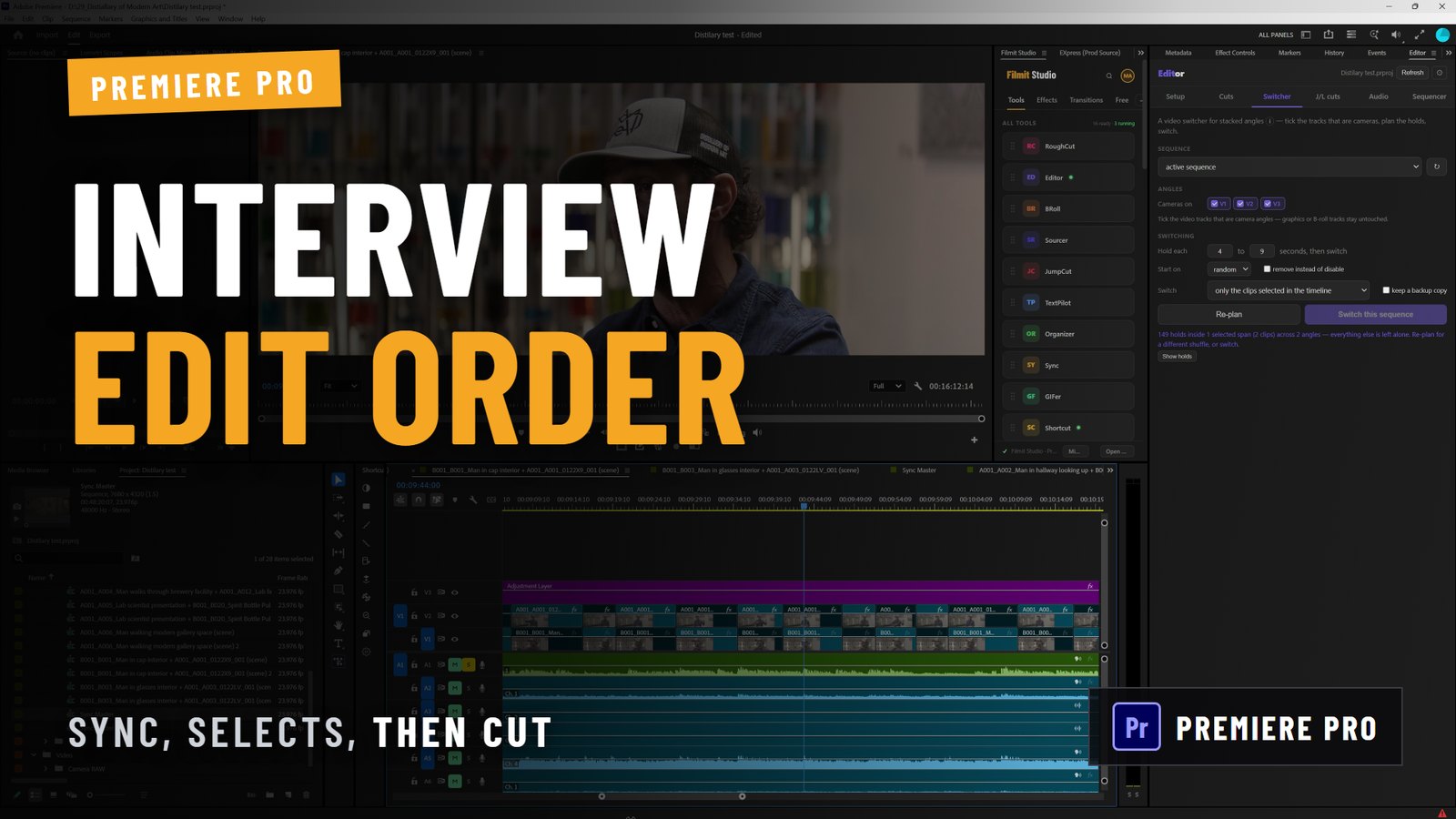
Here is the test from the video above. The project is a real two-camera interview, about fifteen minutes long, with camera A on V1, camera B on V2, and an adjustment layer on V3. The job: a quick back-and-forth cut between the two angles so the client can see a watchable first pass. Nobody wants to spend their afternoon on that.
The prompt, in plain words:
On my current open sequence, can you make a backup and then cut between camera A and B, just back and forth randomly? They're on V1 and V2. There's an adjustment layer on V3 that we do not want to cut.
Claude read the sequence first, duplicated it as a backup, then worked through the timeline adding edits on V1 and V2 and alternating which angle was live, leaving V3 alone. On a fifteen-minute interview that took a couple of minutes of it working through the timeline. At one point it reported that a step had timed out, checked the timeline state before doing anything else, found the work was still landing, and carried on. When it finished, it said where the cut version was and which sequence was the untouched backup.
The result played back exactly as asked: a two-angle cut, switching back and forth. Are the cut points where an editor would put them? No. They are not on sentence boundaries and they do not follow who is speaking. For a rough client preview of a long interview, that was fine, and it was a job we did not have to do.
How would you do that job without AI?
The native route is worth knowing, because it gives you more control. Select both angles, create a multi-camera source sequence synced by audio or timecode, then play it down and switch angles live with the number keys, 1 and 2. Premiere records a cut every time you press a key. It is fast, and the cuts land where you choose, on the beats you actually want. Our guide to editing multicam in Premiere Pro covers it step by step.
The honest comparison: live switching gives you better cuts in real time, which on a fifteen-minute interview is fifteen minutes of your attention. Handing it to Claude gives you worse cut points for none of your attention. For a first pass nobody will judge, that trade can be the right one.
What is Claude in Premiere Pro good at?
Task-shaped jobs you can describe in a sentence, with a clear result you can check:
- Mechanical assembly: "Put a 1 second cross dissolve on every cut on V1." "Add a marker called Review every time the music changes."
- Removing sections: "Cut out everything between 0:12 and 0:18 and close the gap on every track."
- Housekeeping: importing a folder, sorting clips into bins, building a sequence from selects, duplicating before a risky change.
- Answering questions about the project: what is on which track, where a clip is used, how long a section runs.
- Checking its own work: it can render a frame and look at it, the way you would glance at the Program monitor.
And because Claude runs on your phone too, you can ask for a job from somewhere that is not your desk, and the edit lands in the project open on your machine.
Where does it fall short?
- Taste. It does not hear the performance or feel the pacing. Where a cut lands is a creative decision, and that stays yours.
- Precision jobs we built dedicated tools for. Removing silences and filler words across a long talking-head edit, or syncing a hundred camera clips to recorder audio, are jobs where purpose-built tools like JumpCut and Sync are more reliable, because they do one specific thing the same way every time.
- Very long jobs. Hundreds of edits take real time, and Premiere Pro can be busy while it happens. Ask for a backup first, let it finish, and if it reports a timeout, ask it to read the timeline before it tries again.
So is it worth setting up?
Our take, after using it on real projects: treat it like a new assistant editor on day one. Great at the errands you can describe exactly, happy to do the boring parts, and not the person you hand the final cut to. It costs nothing to connect, the setup is a minute, and "make a backup first" is the only habit you need to add.
Getting started
Everything is on the Filmit MCP page: download Filmit Studio, flip on MCP in the panel, and connect Claude. It works with a free Filmit account. The same connector works in After Effects, where Claude builds layers, keyframes and expressions inside your comp. Tell us what you asked it to do in our Discord.