The edit is locked and the client is waiting. This is when a QC pass earns its keep. One gap a few frames wide turns into a flash of black. A disabled clip you forgot about leaves three seconds of nothing. A shot you used twice slips past because you have watched the piece fifty times and your eyes stopped reading it.
This guide covers how to QC a Premiere Pro timeline before delivery: the manual way with real menus and shortcuts, a QC checklist you can reuse, and the version in the video above, where Max asks Claude to check the timeline through Filmit MCP, fix what is safe, and leave markers on the rest. It is a good first job for a Claude MCP for video editing, because the rules are clear and the review is built in.
If you want the pass that changes the timeline for you, that is the cleanup, covered in cleaning up a Premiere Pro timeline before client review. This one is about finding and flagging.
What should you check before you deliver a Premiere Pro timeline?
Check for five things that are easy to miss and obvious to a client: gaps, flash frames, disabled clips, duplicate shots and anything running past the music.
- Gaps. Empty spots on the video track. A few frames show up as a blink of black, and at normal zoom can be thinner than a pixel.
- Flash frames. A few frames of the wrong shot, usually a trim leftover or an upper-track clip that ends just after the cut.
- Disabled clips. Clips switched off with Enable. They sit on the timeline, dimmed, and export as nothing.
- Duplicate shots. The same shot or still used twice. Sometimes on purpose, often not.
- Anything past the music. Credits or a last shot that keeps going after the music ends.
Playing it through, listening for pops at the cuts and checking titles for spelling need eyes and ears, and they stay your job.
How do you QC a Premiere Pro timeline by hand?
Work through the sequence once per problem type, using the tools Premiere Pro already has, then watch it end to end.
- Work on a copy if you plan to fix things. Right-click the sequence in the Project panel and choose Duplicate. Markers alone do not change the picture.
- Find the gaps. Click in the timeline, move the playhead to the start with Home, then choose Sequence, Go to Gap, Next in Sequence. The playhead jumps to the next empty spot. Keep going until it stops moving. Go to Gap also has a Next in Track option if you only care about V1. You can assign your own shortcut to these commands in Edit, Keyboard Shortcuts (Premiere Pro, Keyboard Shortcuts on Mac).
- Close or mark each gap. Click the gap and press Delete to ripple it closed, but only if nothing on the other tracks needs to stay put. If music runs underneath, lock the music track first, or drop a marker with M.
- Step through every edit for flash frames. Zoom in with the = key, then press Down Arrow to jump the playhead to the next edit point and Up Arrow to go back. Watch the Program Monitor at each cut. A flash frame often lives on V2 or V3, so check the upper tracks, not just V1.
- Look for dimmed clips. Press Backslash () to fit the whole sequence in the timeline and scan for clips that look darker than the rest. Select one and press Shift+E, or right-click and toggle Enable, to switch it back on. Decide first whether it was switched off for a reason.
- Find duplicate shots. Open the timeline settings (the wrench icon) and turn on Show Duplicate Frame Markers. Premiere Pro draws a colored stripe on clips that reuse frames from the same source. For stills and graphics, switch the Project panel to List view and add the Video Usage column, which shows how many times each item is used. Edit, Find (Ctrl+F or Cmd+F with the timeline active) searches the sequence by clip name, which helps when you suspect a specific shot.
- Check the end against the music. With the whole sequence in view, look at where the music clip ends and where the last video clip ends. If picture runs past the music, either trim the picture or extend the music. Our guide to fading audio in Premiere Pro helps if the music needs a cleaner tail.
- Review your markers. Open Window, Markers to see every marker in a list. Press Shift+M for the next marker and Ctrl+Shift+M (Cmd+Shift+M on Mac) for the previous one.
- Play it at speed. Press L to play, and press L again to play faster. A fast pass catches blinks of black and jarring cuts. Then watch it once more at normal speed with sound, the way the client will.
For more on the panel all of this happens in, see the Premiere Pro Timeline panel explained.
What does a QC checklist for Premiere Pro look like?
Keep one row per problem, with how to find it and whether to fix it on the spot or mark it for a decision.
Sequence, Go to Gap, Next in Sequence, repeated until it stops.
Usually safe to close, as long as nothing on other tracks moves with it.
Zoom in, Up and Down Arrow through every edit, check all tracks.
Usually safe to remove when it is a stray sliver on an upper track.
Fit the sequence with Backslash and look for dimmed clips.
Re-enable with Shift+E if it should play. Flag it if you are not sure why it was off.
Show Duplicate Frame Markers, the Video Usage column, Edit, Find.
Flag. Only you know which shot belongs in that spot.
Compare the end of the music clip with the end of the last video clip.
Flag. Trim the picture or extend the music is a creative call.
None of this is hard. The trouble is length: on a feature documentary it is a long session of stepping through edits, and the cost of skipping it is the one frame you missed.
How do you connect Claude to Premiere Pro and After Effects?
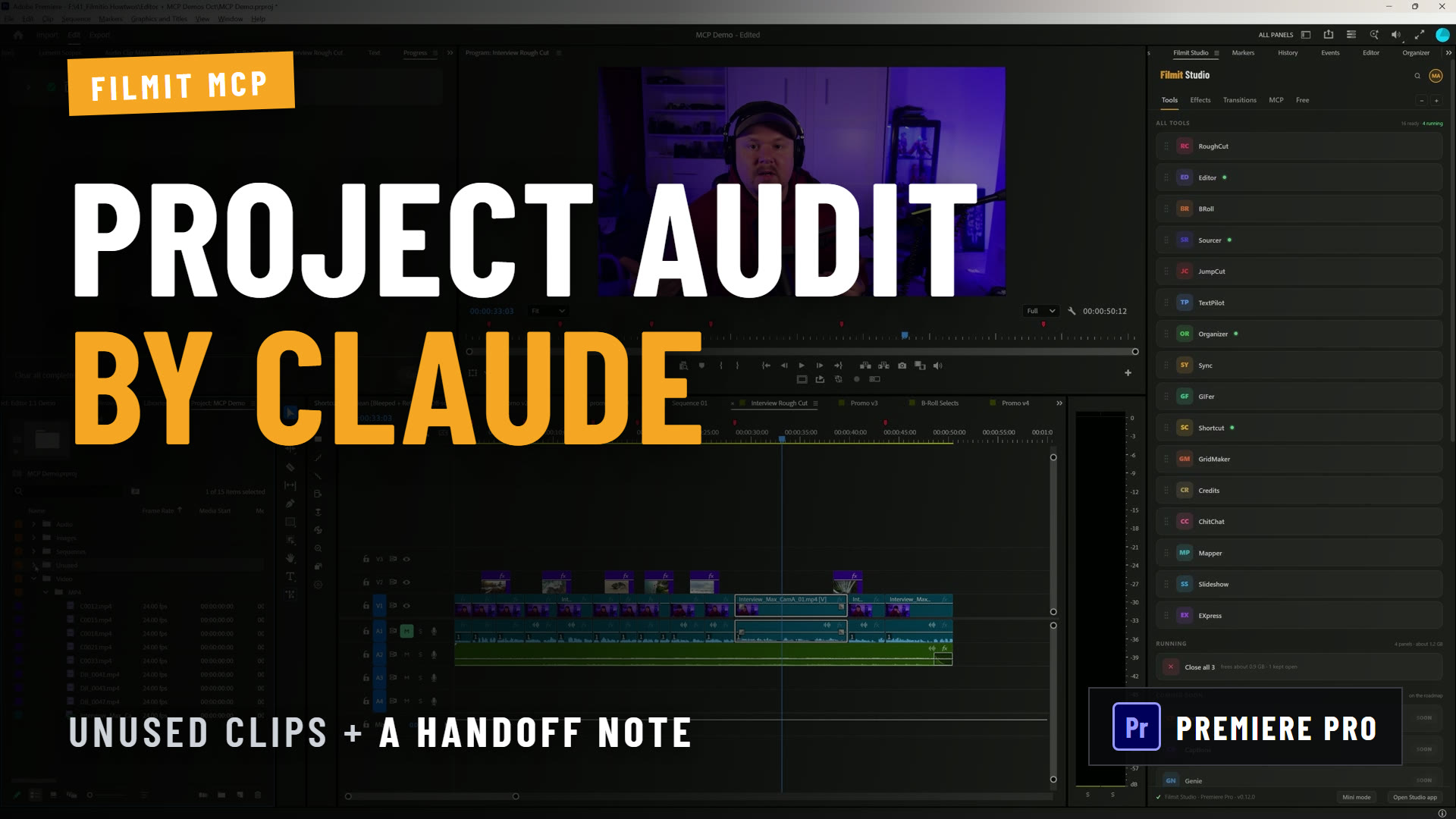
You connect Claude to Premiere Pro and After Effects with Filmit MCP, the Claude connector for Premiere Pro, After Effects and DaVinci Resolve Studio. It runs through the Filmit Studio panel inside the app and is free with a Filmit account. If you have wondered how to connect an MCP to Premiere Pro, these are the steps.
- Install Filmit Studio. It is a free desktop app for Mac and Windows from the download page, and it installs the Filmit Studio panel into Premiere Pro and After Effects. Sign in with a free Filmit account.
- Open the panel. In Premiere Pro or After Effects, go to Window, Extensions, Filmit Studio.
- Turn on Filmit MCP. Go to the MCP tab and flip the switch on. The status line says it is ready. Do this in each app you want Claude to work in.
- Add the connector in Claude. The quickest way is the Connect button next to Claude in the MCP tab, which opens Claude's connector settings. By hand: in Claude, open Settings, Connectors, click Browse connectors (Max calls it Discover in the video), search Filmit, pick Filmit.io and click Connect.
- Sign in. Claude opens the Filmit sign-in page. Sign in with your Filmit email and password, or with Google. The MCP tab then says Claude connected.
- Set tool permissions. Open the Filmit connector in Claude's settings. Max sets every tool to Always allow so a long job runs without stopping. The more careful setup from our setup guide is Always allow for read-only tools and Ask for the ones that change your project.
- Start a new chat. Make sure Filmit is turned on in Claude's tools menu, then ask for something.
If Filmit.io does not show up in the directory, click Add custom connector, name it Filmit and paste the address from the setup guide. If Claude says your editor is not connected, check that the MCP switch is on in the panel and restart the app. The full walkthrough is in how to connect Claude to Premiere Pro and After Effects.
How does Claude run a QC pass in Premiere Pro?
You describe the checks in one message, tell Claude what it may fix and what it should only mark, and it works through the sequence and reports back.
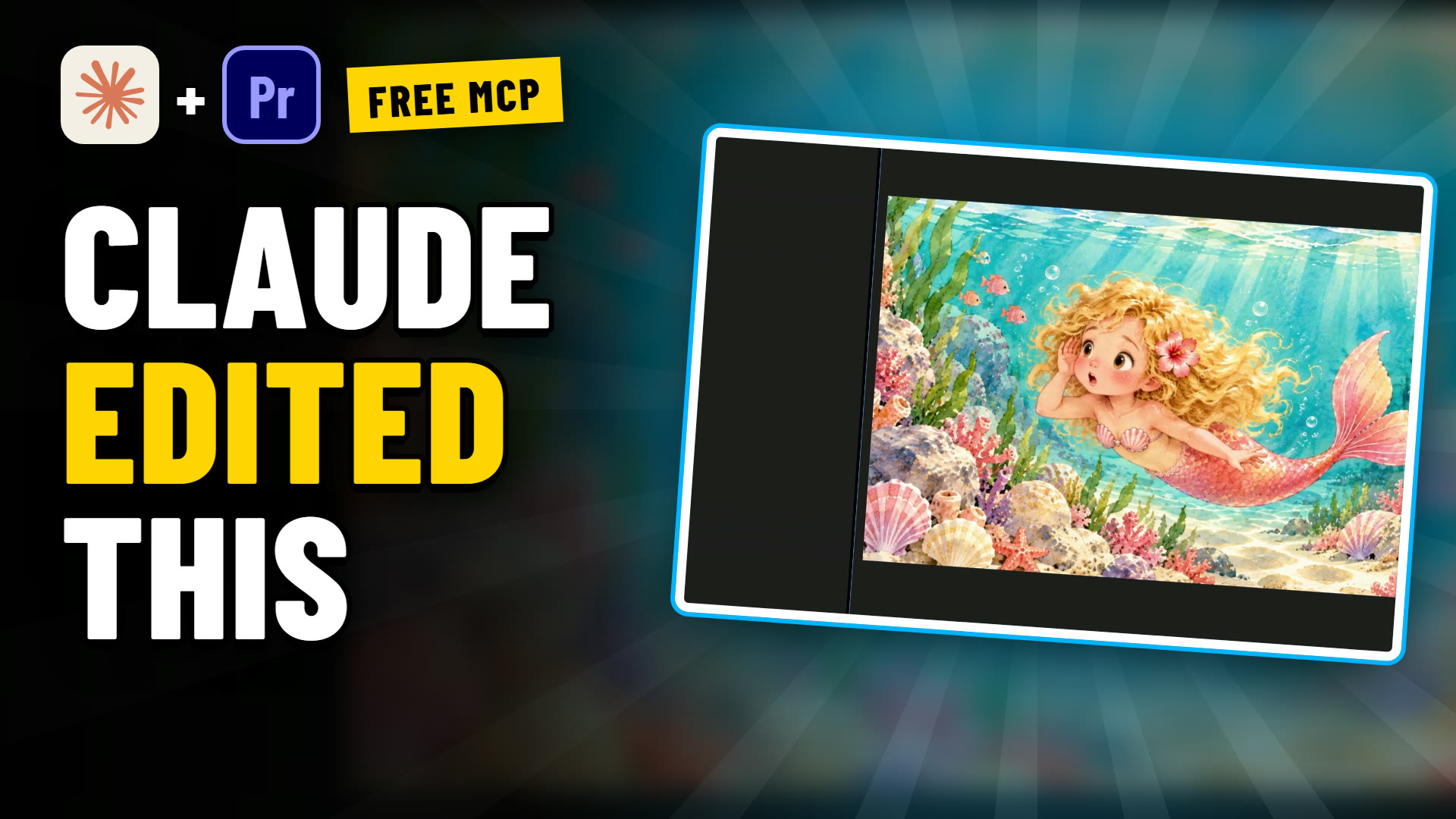
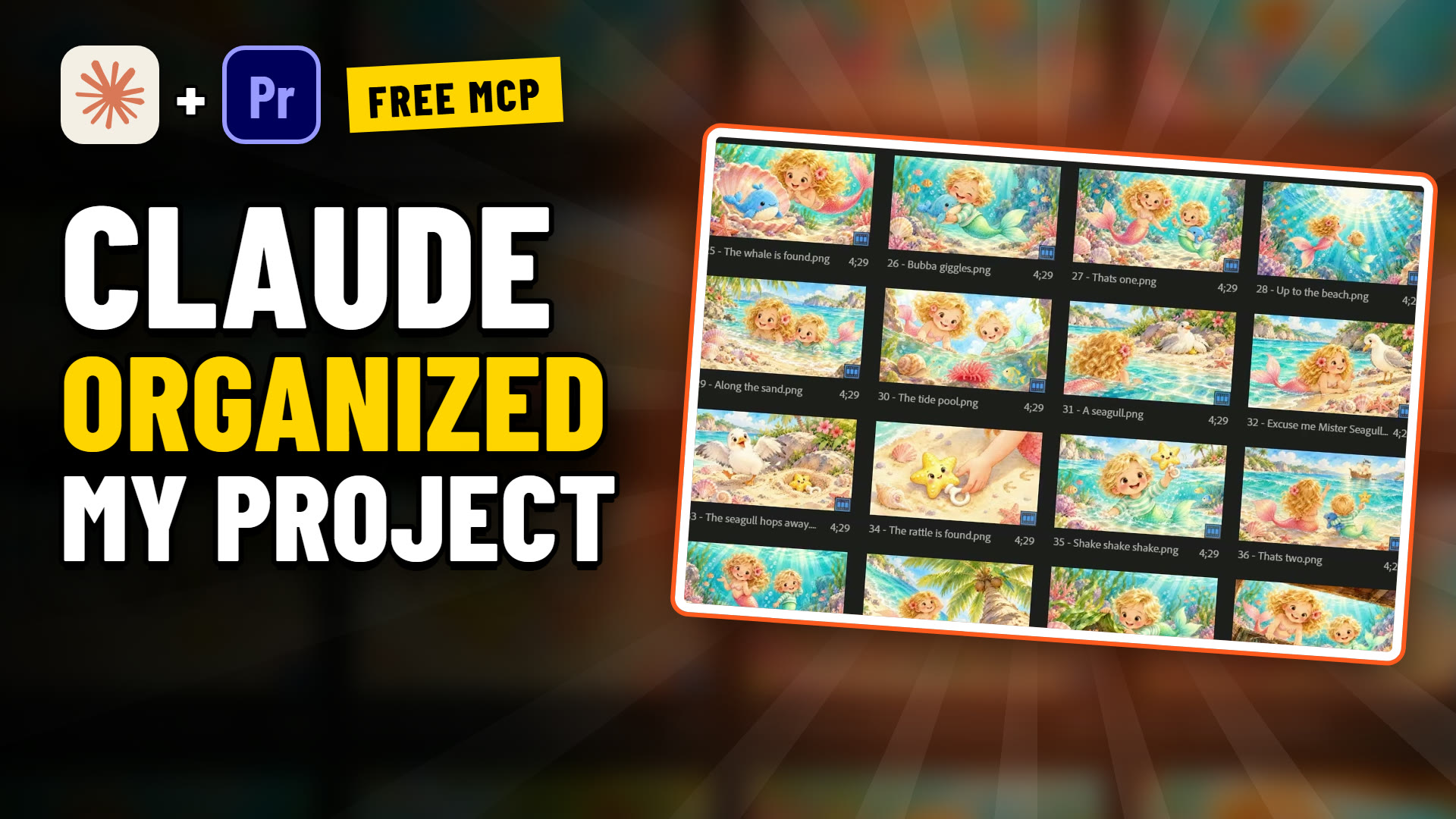
The demo uses The Lost Toys, a storybook series Max makes for his kids: stills with narration, following a girl named Scarlett. We made a copy of the finished master, a 1:45 sequence called The Lost Toys, DELIVERY v1, and planted problems of each kind in it: two short gaps on V1, a three-frame flash frame on V2, a disabled still that leaves the picture black for a few seconds, two stills used twice, and credits that run past the end of the music.
This is the prompt Max sends in the video, word for word:
I'm about to send this to the client. Check the timeline for gaps, flash frames, disabled clips, duplicate shots and anything running past the music. Fix what's safe to fix and put a marker on anything I should look at.
- Claude reads the timeline. Because of the MCP connection, it knows it is talking to Premiere Pro and starts by reading the sequence: clips, tracks, timings and what is enabled.
- It looks for each problem. On screen you can follow it locating the gaps and checking for duplicates and disabled clips.
- It fixes and marks. The report comes back quickly. It lists what it fixed, including the gaps, and what it marked for Max to look at, and the markers are on the timeline.
- Max walks the markers. He zooms into the timeline and goes marker by marker. One marker sits on clip 55, a still that was disabled. He re-enables it himself. Two markers point to duplicate shots, one of them the Big sister still used a second time, and he notes that each spot needs a different shot. The last marker is on the credits, which run past the music.
That split is the point of the prompt. Closing a gap is mechanical. Which shot replaces a duplicate, or whether to trim the credits or extend the music, are editing decisions, so Claude leaves a marker and you make the call. The video does not read out every line of the report, so when you run this yourself, check the report against the timeline before you trust it.
Pro Tip: Write the fix-or-flag rule into the prompt. "Fix what's safe to fix and put a marker on anything I should look at" does a lot of work. If you want nothing changed at all, say "only add markers, do not change any clips", and you get a review list without a single edit.
Is a Claude QC pass worth it on a short timeline?
On a short timeline, probably not much. Max says it plainly in the video: on a sequence that is 1:45 long, you can see all of this yourself.
Where it pays off is length. Max's examples are a documentary of an hour and a half or a two-hour movie, where a full QC pass by hand is a long session of stepping through edits. Hand that to Claude, then go back and read the notes and walk the markers. His advice is to take it with a grain of salt for now and use it to speed up your workflow, not to replace your own watch-down.
He frames Claude the same way across the series: not a replacement for you, an assistant for tedious jobs. The judgment and the final watch stay with you.
What else can you ask Claude to check?
Anything you can describe in terms of clips, tracks, timings, names and markers. Two worth trying on a copy: "Check this sequence for gaps and flash frames and put a marker on each one. Do not change any clips." Or: "Mark every clip on V1 shorter than 12 frames so I can check it is not a leftover." If the QC pass turns up things you want changed in bulk, the cleanup guide has the prompt for that. Other jobs from the same series: making a rough cut with Claude and cutting a b-roll montage to music.
Does the After Effects MCP work the same way as the Premiere Pro MCP?
The connection is the same: the Filmit Studio panel in After Effects, the MCP tab, and the same Filmit.io connector in Claude. There Claude reads your comp and its layers instead of a sequence, so ask for a report first and decide what to change from it. See how to use Claude in After Effects. Filmit MCP also works with DaVinci Resolve Studio, covered in how to use Claude in DaVinci Resolve.
What should you look for in a free MCP for Premiere Pro and After Effects?
If you are looking for the best free MCP for Premiere Pro and After Effects, here is what to check:
- It works inside the real app, on the project you have open.
- Changes are normal undo steps. With Filmit MCP every change lands in your real project as one, so Ctrl+Z (Cmd+Z on Mac) undoes the last.
- You can work on copies. Claude can duplicate a sequence and work on the duplicate. It does not delete media from the project unless you tell it to.
- Which hosts it covers. Filmit MCP connects Claude to Premiere Pro, After Effects and DaVinci Resolve Studio.
- What the free tier includes. Filmit MCP is free with a Filmit account. Free accounts get 50 actions a day, and Filmit Studio members get full MCP access. Your Claude plan is separate. Details are on the pricing page.
Where does a Claude QC pass stop?
It stops at what it can read. Claude sees project details like names, timings and markers, and a frame only when it asks to look at one.
- It does not watch the piece. It checks the timeline, not the sound or the pacing. Your final watch-down is still the QC that matters.
- It cannot know your intent. A shot used twice may be a deliberate callback. A disabled clip may be off on purpose. That is why the prompt asks for markers on judgment calls.
- Check the report, and keep a way back. Read what it says it fixed, then look. Every change is its own undo step, so if you let it fix things, a duplicate sequence is the easier way back.
Sequence, Go to Gap for gaps, arrow keys through every edit for flash frames, Duplicate Frame Markers for repeats, the Markers panel to review.
One prompt through Filmit MCP: fix what is safe, mark what needs your judgment.
On a short piece you can do it yourself. On a feature-length timeline, let Claude do the first pass and walk the markers.
Play it at speed and at normal speed with sound before it goes to the client.
Getting started
Connecting Claude to Premiere Pro with Filmit MCP is free with a Filmit account, and your Claude plan is separate. Install Filmit Studio from the download page, turn on the MCP tab, connect Filmit.io in Claude, and try the QC prompt on a copy of a sequence you know well, so you can tell whether it caught what you would have caught. If you are new to the connector, how to use Claude in Premiere Pro walks through a first edit.