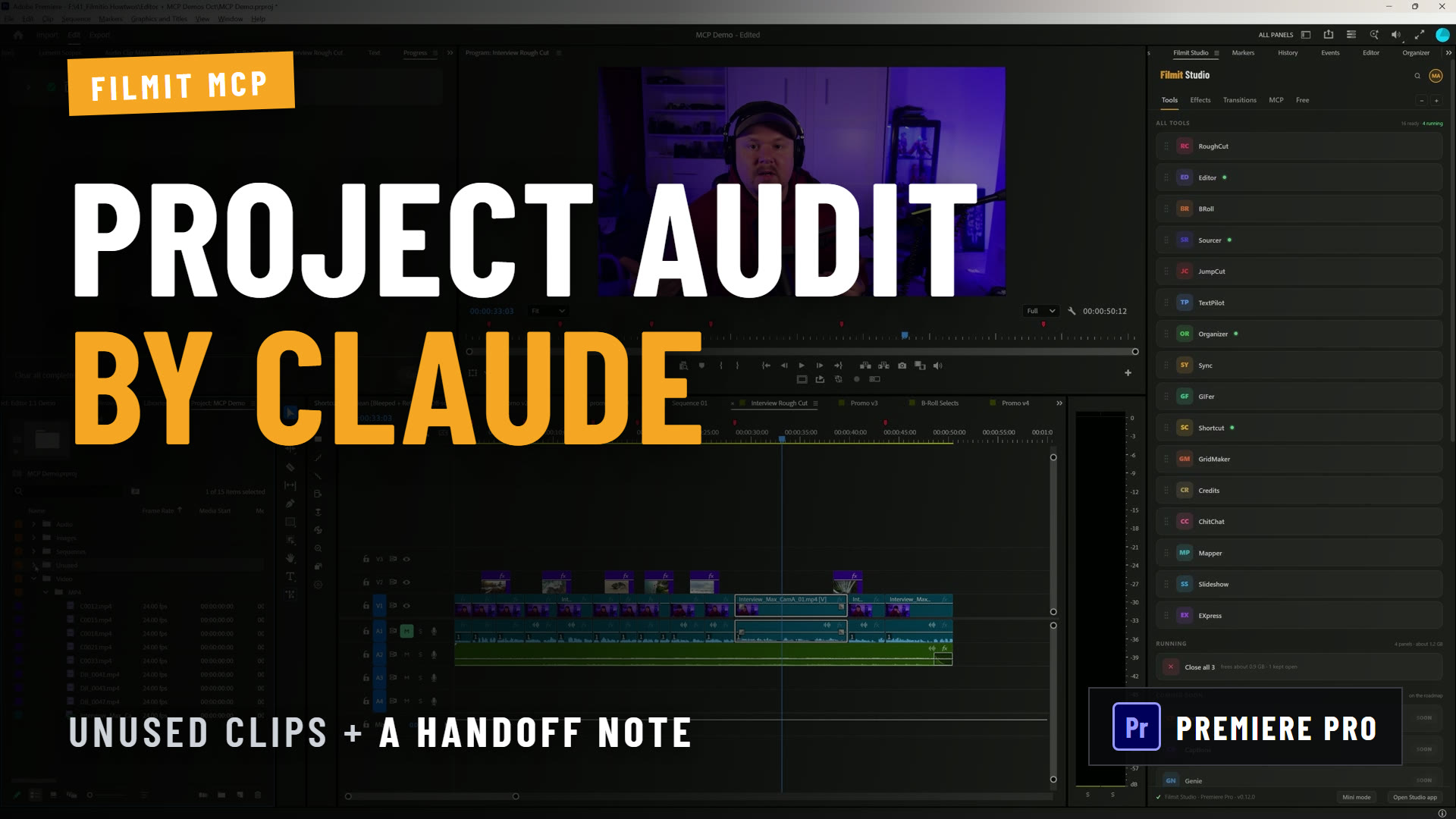
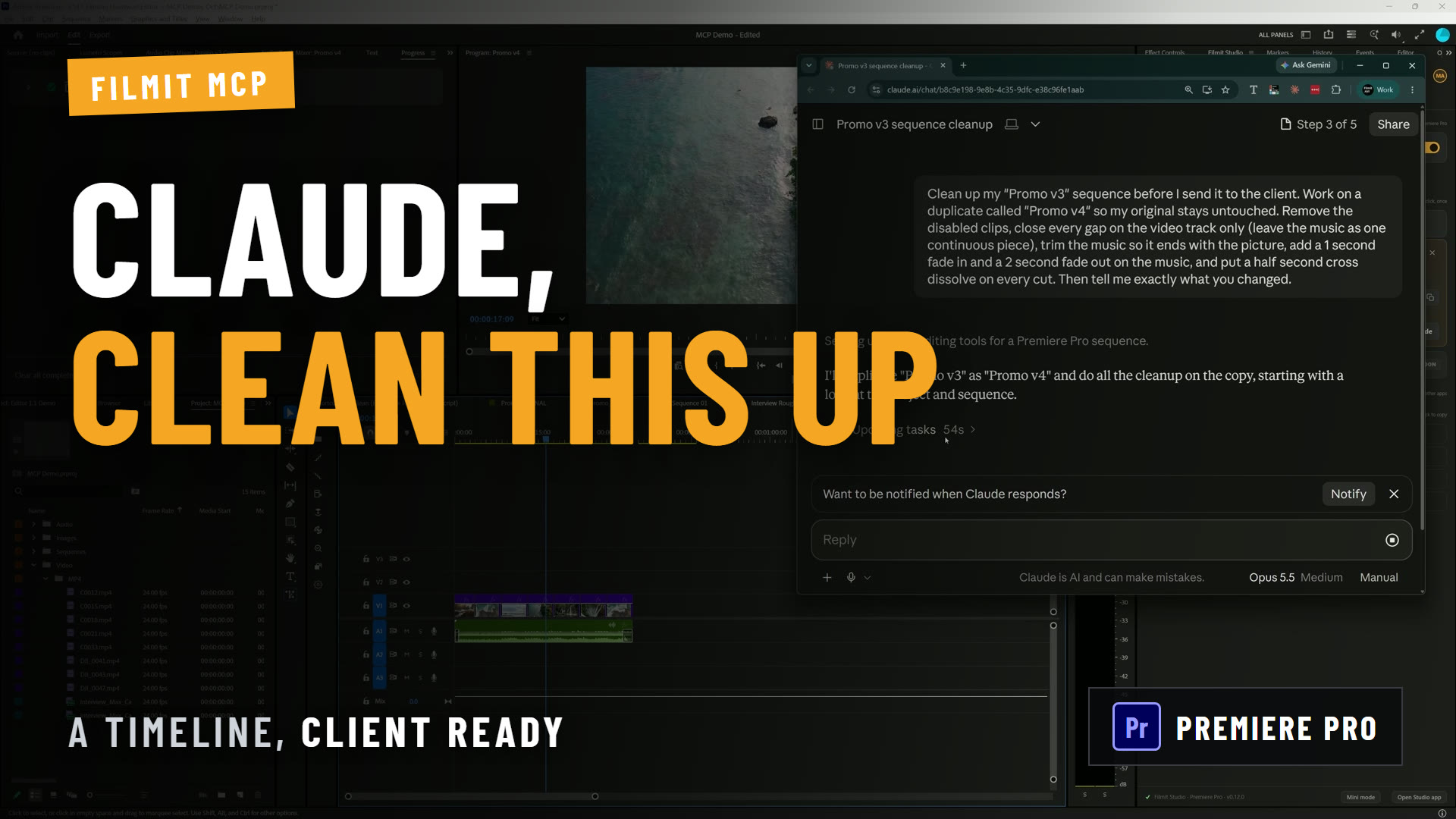
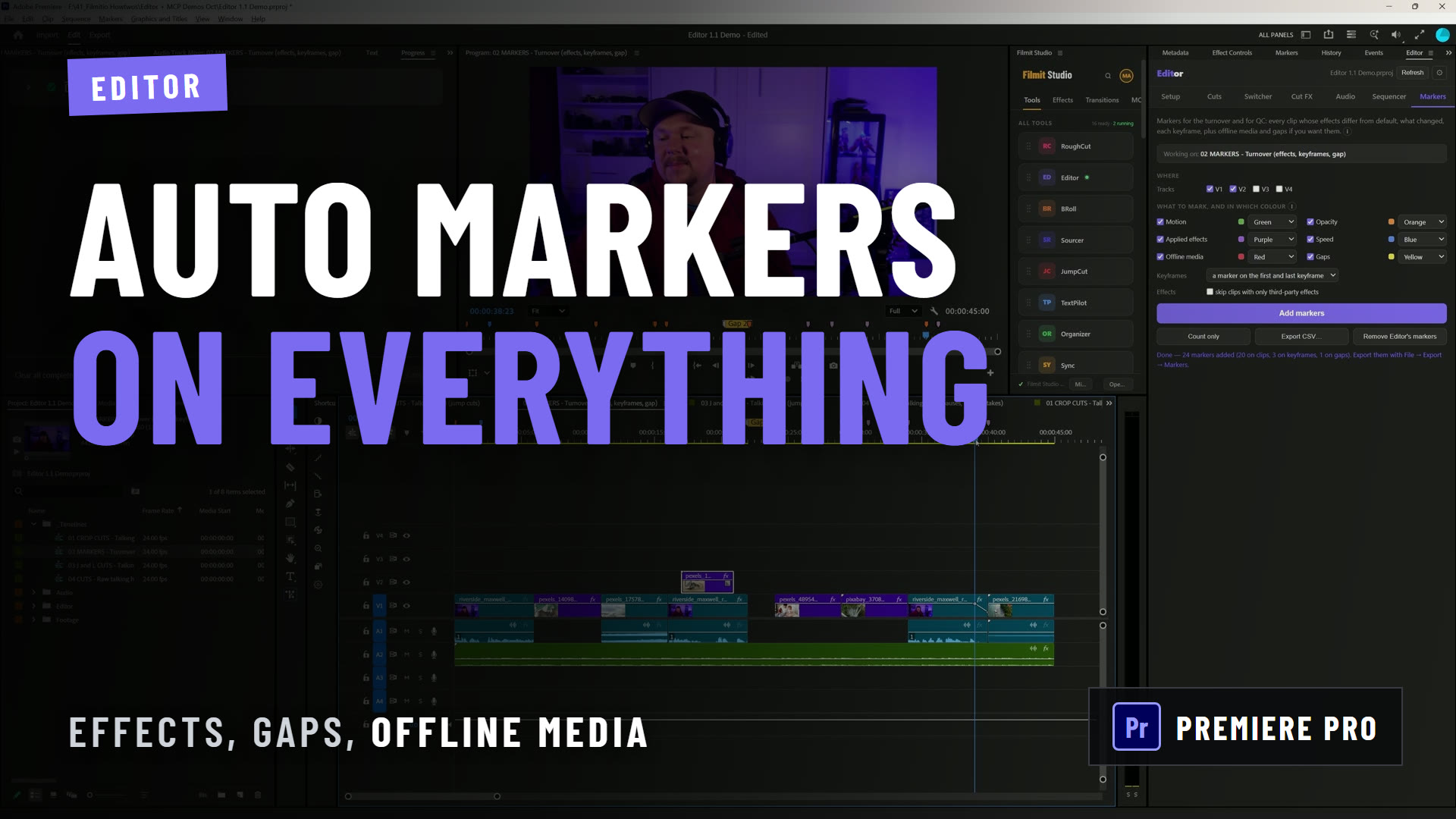
You have Claude open in one window and Premiere Pro in the other, and you keep copying answers from one into the other. An MCP closes that gap. Once Claude is connected, you ask for the job in plain words and Claude does it in your open project: it reads the sequence, looks at frames, makes bins, moves clips, adds markers.
This guide is the full setup: how to connect Claude to Premiere Pro and After Effects with Filmit MCP, which permissions to pick, what to try first, and what to do when it will not connect. Then it walks through the job in the video above, where Max hands Claude a project with hundreds of loose items and gets it back sorted into bins.
What is a Premiere Pro MCP?
A Premiere Pro MCP is a bridge that lets an AI app like Claude use Premiere Pro's own actions, so it can work in your real project instead of only telling you what to click.
MCP stands for Model Context Protocol. It is an open way for AI apps to talk to other software. On its own, Claude can explain how to make a bin or set a marker. With an MCP connected, it can make the bin and set the marker, in the project you have open, and then tell you what it did.
Filmit MCP is the one we build. It connects Claude to Premiere Pro, After Effects and DaVinci Resolve Studio. In Premiere Pro, Claude can read the project and the sequence, look at frames, make bins and move items into them, place and trim clips, add markers, keyframes and transitions, and duplicate sequences. Every change lands in your project as a normal undo step, so Ctrl+Z on Windows or Cmd+Z on Mac takes back the last one. It does not delete media from the project unless you ask it to.
That makes it a Claude MCP for video editing in the practical sense: an assistant that does the procedural work while you keep the creative calls.
What do you need before you connect Claude to Premiere Pro?
You need four things, and two of them are free.
- Premiere Pro or After Effects, on Mac or Windows. For Resolve you need DaVinci Resolve Studio, because the free version of Resolve cannot run workflow integrations.
- Filmit Studio. A free desktop app for Mac and Windows. It installs the Filmit Studio panel into Premiere Pro and After Effects for you.
- A Filmit account. Free to make. Filmit MCP comes with it: free accounts get 50 actions a day, and Filmit Studio members get full MCP access. See pricing for the membership.
- Claude, on the web, the desktop app or your phone. Your Claude plan is separate from Filmit.
There is no config file to edit and nothing to run in a terminal. Some MCP servers for editing apps are set up that way, by hand, with a local server and a settings file. Filmit MCP is a connector you add inside Claude.
How do you connect Claude to Premiere Pro and After Effects?
Turn Filmit MCP on in the Filmit Studio panel, then add the Filmit.io connector in Claude and sign in. Here are the steps in full.
- Install Filmit Studio. Make a free Filmit account on Filmit.io, then download Filmit Studio for Mac or Windows from your dashboard or the download page. In the video, Max points out that pretty much any Try Filmit Studio button on the site gets you there. The app takes you through a short onboarding and installs the panel in the background.
- Sign in to Filmit Studio with the same Filmit account.
- Open the panel in your editor. In Premiere Pro or After Effects, go to Window, Extensions, Filmit Studio. In DaVinci Resolve Studio it is Workspace, Workflow Integrations, Filmit Studio.
- Turn on Filmit MCP. Go to the MCP tab and flip the switch on. The status line says it is ready. Do this once in each app you want Claude to work in. From then on Filmit MCP starts with the app until you switch it off.
- Open Claude's connector settings. In Claude, open Settings, then Connectors. The Connect button next to Claude in the panel's MCP tab can open this page for you.
- Find Filmit. Click Browse connectors (Max calls it Discover in the video), type Filmit in the search, and pick Filmit.io.
- Connect and sign in. Click Connect. Claude opens the Filmit sign-in page. Sign in with your Filmit email and password, or with Google. When you come back, Claude shows Filmit as connected and the panel's MCP tab says Claude connected.
- Set the tool permissions. Click into the Filmit.io connector and choose what Claude can do without asking. The next section covers the two sensible setups.
- Start a new chat. Make sure Filmit is turned on in the chat's tools menu, then ask Claude something simple to prove the connection works.
Not seeing Filmit.io in the directory? Click Add custom connector instead, name it Filmit, paste https://mcp.filmit.io/mcp as the address, then click Add and Connect. Everything after that is the same.
That is also how to connect an MCP to Premiere Pro and After Effects at once: the connector lives in Claude, so you add it a single time, and each app you switch on in its panel becomes available. The Filmit MCP setup guide keeps the current version of these steps.
Should Claude ask before it changes your project?
That is up to you. Claude's settings for the Filmit connector mark each action as read-only or as one that changes your project, and you pick Always allow or Ask for each.
- Everything on Always allow. This is what Max does in the video. His reason: if you do not, Claude constantly stops to ask for permission. For a job like sorting hundreds of items, a prompt on every move gets in the way.
- Read-only on Always allow, the rest on Ask. This is the careful setup our setup guide suggests. Claude can look at your project freely and checks with you before it edits anything. It is a good way to start while you get a feel for how it works.
Whichever you choose, the safety net is the same. Changes are normal undo steps, and you can ask Claude to work on a duplicate sequence so your original stays as it was.
What should you ask Claude first?
Start with questions that only read, so you can check the connection without changing anything.
- "Are you connected to Premiere Pro?" Claude should answer with what it can see, such as the open sequence.
- "What's in my Premiere project?" A quick inventory of bins, clips and sequences.
- "Describe the sequence that's open: how long is it, and what's on each track?"
When those come back right, try a small edit you can judge at a glance, like a marker at the playhead or a duplicate of a sequence. Then move on to a real job. Sorting a messy project is a good first one, because it is pure busywork and nothing on the timeline changes.
How do you organize a Premiere Pro project by hand?
Make a bin for each kind of material, then select items and drag them in, using the Project panel's views and search to find them.
- New bin: Ctrl+B on Windows or Cmd+B on Mac with the Project panel active, or the New Bin button at the bottom of the panel. Select several items and drag them onto the New Bin button to make a bin that already holds them.
- Find by type: switch to List view and sort by the Media Type column, or type in the Project panel search box to filter by name.
- Find by content: switch to Icon view and hover over a clip to scrub through it. This is the slow part, because camera file names say nothing about what is in the shot.
Our guide to organizing a Premiere Pro project covers the full bin method, naming and a bin structure you can reuse. The work is simple. The problem is volume: a project with a few hundred clips means opening each one to see what it is.
How does Claude organize a Premiere Pro project for you?
You describe the bins you want, Claude looks at frames from the clips to decide what each one is, and it files everything and reports what went where.
The project in the video is a real one. It mixes The Lost Toys, a storybook series Max makes for his kids from illustrated stills and narration, with concert footage from an event called Wall Street Rocks. Hundreds of items sit loose in the project: stills, narration reads, music, mixes, camera clips and sequences, with no bins at all.
This is the prompt Max pastes in:
Organize this project like an assistant editor would. Make bins for the narration, B-roll by subject, music and graphics. Look at the clips to decide where they go. Don't delete anything, and tell me what went where.
- Claude reads the project. It gets the list of everything in the Project panel.
- It looks at the footage. You can watch it pull frames from the clips to see what the footage actually shows, instead of guessing from file names.
- It makes the bins and files the items. In the video the top level comes out as B-roll, narration, music, graphics, an audio mixdown bin and sequences. Inside B-roll it splits by subject: the story stills in one place, the event footage in others, including a bin of nothing but crowd reactions.
- It reports back. When it finishes, Claude lists what went into each bin, so you can check its work without opening every folder.
Max's point in the video is who this helps most: an editor walking into a project they have never seen, or footage they did not shoot, who wants a head start before the real work begins.
Pro Tip: Keep "Don't delete anything" in the prompt even though Filmit MCP does not delete media on its own. Saying the rules out loud is a good habit. Name the bins you want too, or Claude decides them for you.
How does Claude work in After Effects?
The After Effects MCP side works on comps and layers instead of sequences and clips, with the same connector and the same panel.
Turn on Filmit MCP in the panel's MCP tab inside After Effects and your existing Claude connection reaches it. Claude reads the comp first, then can build layers, set keyframes and add effects, and render a frame to check how it looks. A typical ask is a lower third with a name and title that slides in from the left. Changes are normal undo steps here too. Our guide to using Claude in After Effects goes through a first build.
For DaVinci Resolve Studio, open Filmit Studio from Workspace, Workflow Integrations and keep its window open while Claude works; Claude in DaVinci Resolve covers what Resolve allows.
What if Claude cannot connect to Premiere Pro?
Most connection problems come down to the panel being closed, the switch being off, or a sign-in that did not finish.
- Claude says your editor is not connected. Open Filmit Studio in that app and check that the MCP switch is on. Keep the app open while you work with Claude.
- The connector does not show as connected. Restart the app and look again. In Claude, check Settings, Connectors.
- Sign-in did not finish. Go back to Claude and click Connect on the Filmit connector again.
- The panel has no MCP tab. Update Filmit Studio so it installs the latest panel, then restart Premiere Pro or After Effects.
- Filmit.io is not in the directory. Use Add custom connector with
https://mcp.filmit.io/mcp. - Claude answers but does not use Filmit. In the chat, open the tools menu and make sure Filmit is turned on. A new chat is the cleanest start.
- Claude stops to ask on every step. That is the Ask permission. Switch the tools you are comfortable with to Always allow.
Still stuck? Send us a message and we will help you get connected.
Is there a free MCP for Premiere Pro and After Effects?
Yes. Filmit MCP is free with a Filmit account, with 50 actions a day on a free account and full MCP access for Filmit Studio members.
If you are looking for the best free MCP for Premiere Pro and After Effects, here is what to check before you install anything:
- It works inside the real app, on the project you have open, not on an export or a copy you have to bring back.
- Its edits are normal undo steps, so Ctrl+Z or Cmd+Z works the way you expect.
- It can work on copies, like a duplicate sequence, and does not delete media unless asked.
- It covers the apps you use. Premiere Pro only, or After Effects and Resolve too.
- The free tier is clear, including what happens when you hit the limit and that your AI plan is billed separately.
- Setup fits your comfort level. A directory connector you sign in to, or a local server you configure by hand.
Filmit MCP works in the open project, lands its changes as normal undo steps, covers Premiere Pro, After Effects and DaVinci Resolve Studio, and adds as a Claude connector for Premiere Pro with a sign-in. Judge it against that list like any other.
Where does it stop?
It stops at taste. Claude is an assistant that does what you describe, and you keep the judgment.
- It is not an editor. Max says it plainly in his videos: Claude is not as creative as an editor. It is very good at procedural work like sorting, renaming and setting up sequences.
- It decides what you leave open. If you do not name the bins, Claude names them. If you do not say how fine to split the B-roll, it picks. Check the report, then move anything that landed in the wrong place.
- Runs can differ. The same prompt on the same project can come out a little differently each time.
- Save when you are happy. Review the result, then save the project yourself.
Getting started
Install Filmit Studio from the download page, sign in with a free Filmit account, and turn on Filmit MCP in the panel's MCP tab. Then add Filmit.io in Claude's connectors and paste Max's organizing prompt into a project that needs it. Once you are connected, how to use Claude in Premiere Pro has more jobs to try, and the Filmit MCP page has the rest.