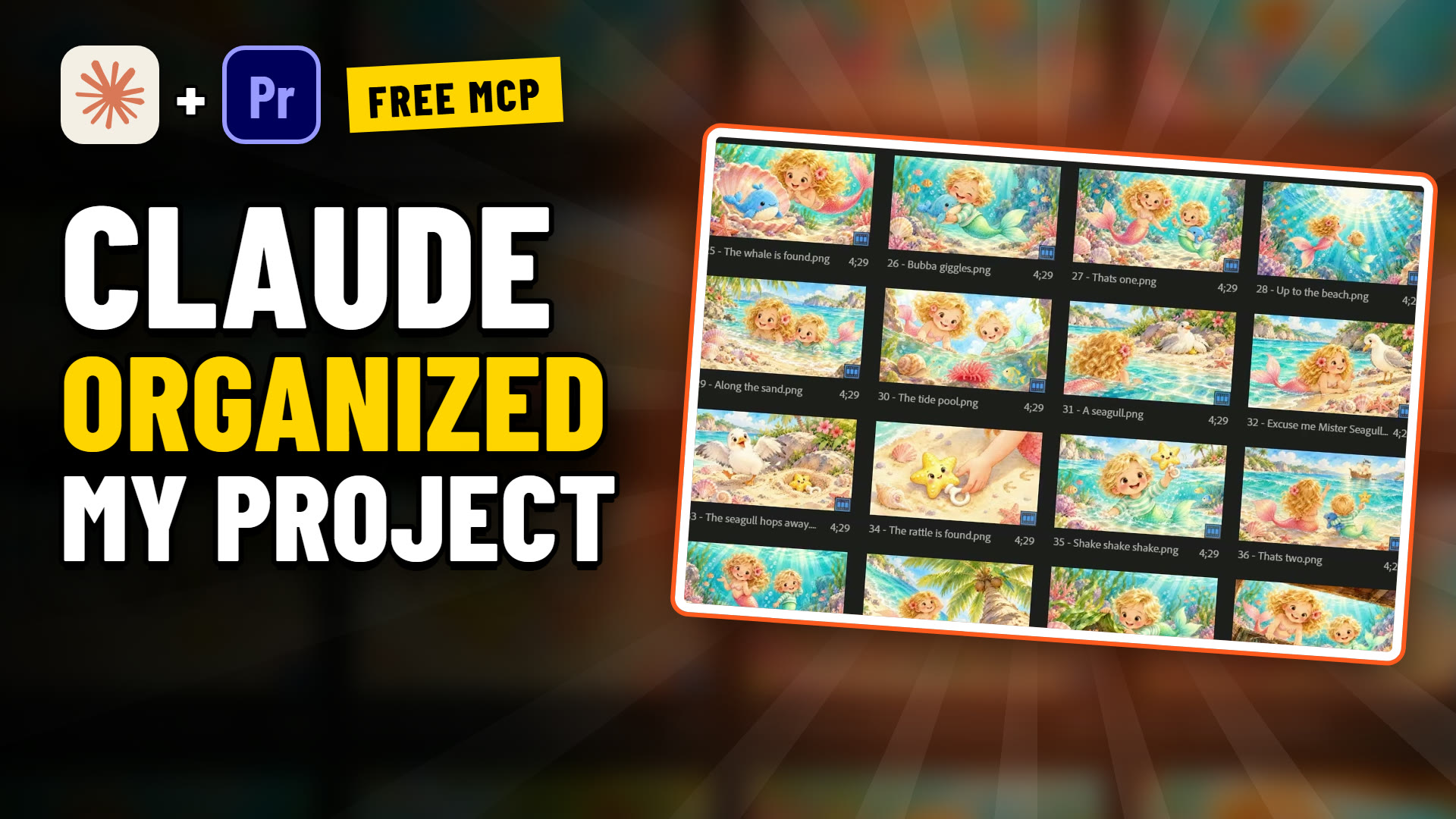
A rough cut starts as a pile: a narration read, a folder of stills, and a transcript you have marked up three times. Getting from that pile to a first assembly on the timeline is slow, careful work. You find each line, cut it in clean, find the picture that goes with it, and do it again forty times.
This guide covers the manual way in Premiere Pro first: paper edit, string-out, stills matched to lines, and Scale and Position keyframes. Then the version in the video above, where Max hands the transcript to Claude through Filmit MCP and gets back a 60-second cut with markers at each section. A second prompt then adds subtle push, pull and slide moves to all 22 stills, alternating so no two neighbours move the same way.
The footage is from The Lost Toys, a storybook series Max makes for his kids: watercolor stills, a narration read and music, with a little mermaid named Scarlett at the center.
How do you make a rough cut in Premiere Pro by hand?
Do a paper edit on the transcript first, then build a string-out of the narration on A1 in that order, then lay the matching stills on V1 and add section markers.
- Get a transcript with timings. If you do not have one, Premiere Pro can make it: open Window, Text, and transcribe the narration clip in the Transcript tab. Each line comes back with its time in the clip.
- Do the paper edit. Read the transcript and mark the lines you want. Pick a hook, the lines that carry the middle and an ending, in order with their times. Add up the lengths as you go so you stop near 60 seconds.
- Make the sequence. Right-click the narration clip and choose New Sequence From Clip, or make a new sequence at your delivery size (the demo uses 1080p at 24 fps) and name it something like ROUGH CUT.
- Build the string-out. Open the narration in the Source Monitor. For each line on your list, set an In point with I just before the first word and an Out point with O just after the last, then press the period key to overwrite it onto A1 at the playhead. Cut in the pauses between lines, never mid-word. If you transcribed in Premiere Pro, you can also select the text of a line in the Text panel and insert it straight into the sequence.
- Tighten the joins. If a breath is clipped, roll the edit a few frames with the Rolling Edit tool (N).
- Lay the stills on V1. For each line, find the still that goes with it and drag it to V1 above the line. Trim each still so it starts with its line and ends where the next line starts. Premiere Pro drops stills in at the Still Image Default Duration (5 seconds unless you changed it in Preferences, Timeline), so expect to trim almost every one.
- Fit the stills to the frame. Select them, right-click and choose Set to Frame Size. More on that choice below.
- Add a marker at each section. Move the playhead to the start of each part of the story (the hook, the problem, the search, the ending) and press M. Double-click a marker to name it.
None of these steps is hard. The cost is repetition: dozens of In and Out points and dozens of stills found and trimmed, for one minute of story.
Set to Frame Size or Scale to Frame Size?
Use Set to Frame Size for stills you plan to move. It fits the image by changing its Scale value and keeps the full resolution underneath, so a slow zoom stays sharp.
- Set to Frame Size fits the clip to the sequence by lowering or raising the Scale number in Effect Controls.
- Scale to Frame Size resamples the image to the sequence size and leaves Scale at 100. Any zoom past 100 then goes soft.
- Fill or fit. Both options fit the image inside the frame, so a still with a different shape gets bars. Raise Scale until the edges are covered to fill it. In the video, Max selects the stills and fills the frame himself before asking for movement.
- Set it once. Preferences, Media, Default Media Scaling applies Set to Frame Size to everything you import afterwards.
How do you add a Ken Burns effect to stills in Premiere Pro?
Keyframe Scale for a push or pull and Position for a slide, in Effect Controls, from the first frame of the still to the last.
- Select the still on V1 and open Effect Controls (Shift+5).
- Go to the first frame of the clip. Under Motion, click the stopwatch next to Scale. That sets the first keyframe at the current value.
- Go to the last frame. Change Scale by a small amount. For a push in, go up; for a pull out, start higher and come down. Premiere Pro adds the second keyframe as soon as you change the value.
- Add a slide if you want one. Keyframe Position the same way, after zooming in slightly so no edge shows.
- Ease it. Right-click the first keyframe and choose Temporal Interpolation, Ease Out, and the last one Ease In, so the move starts and stops gently.
Keep it subtle. A few percent of Scale over a line reads as life; a big zoom pulls attention away from the narration.
How do you apply the move to many stills?
Premiere Pro gives you two ways to reuse one move, and both copy the same move everywhere.
- Paste Attributes. Copy the keyframed still with Ctrl+C or Cmd+C, select the others, then choose Edit, Paste Attributes (Ctrl+Alt+V or Cmd+Option+V), tick Motion and paste. Leave Scale Attribute Times on so the move stretches to each clip's length.
- A Motion preset. Right-click Motion in Effect Controls, choose Save Preset, then drag the preset from the Effects panel onto other clips.
The catch: every still now moves the same way, and twenty-two identical pushes feel mechanical. Varying them means changing each one by hand. That is the tedious part Max hands to Claude in the video.
How do you connect Claude to Premiere Pro and After Effects?
Install Filmit Studio, turn on Filmit MCP in its panel, then add the Filmit.io connector in Claude and sign in. It takes a few minutes, once.
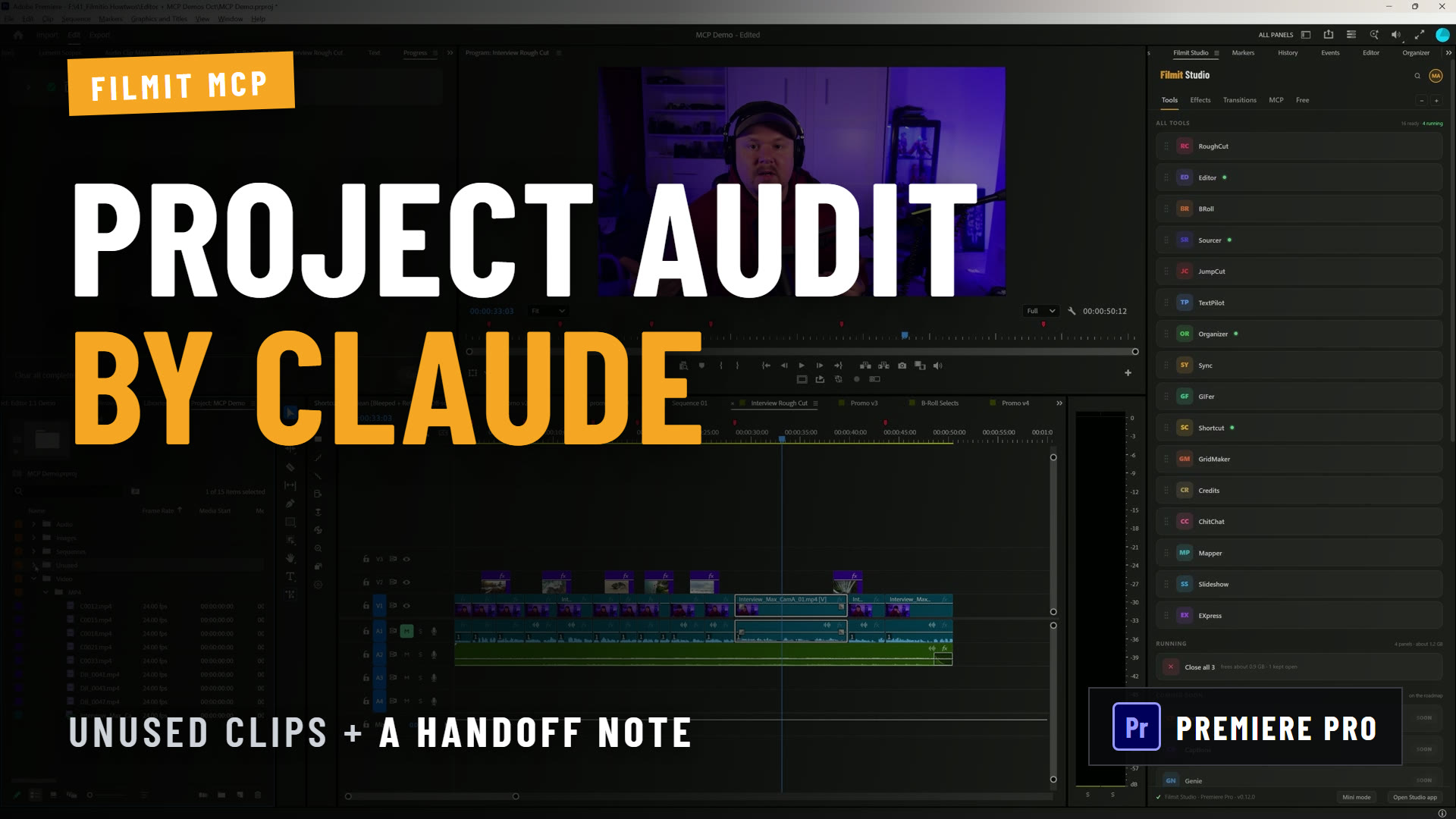
Filmit MCP is the Claude connector for Premiere Pro, After Effects and DaVinci Resolve Studio. It gives Claude a set of editing actions that work inside the app you have open, on your real project. If you have been searching for a Premiere Pro MCP, an After Effects MCP, or how to connect an MCP to Premiere Pro at all, these are the steps. It is the same Claude MCP for video editing in every app.
- Install Filmit Studio. It is a free desktop app for Mac and Windows. Get it from the download page and sign in with a free Filmit account. It installs the Filmit Studio panel into Premiere Pro and After Effects.
- Turn on Filmit MCP. In Premiere Pro or After Effects, open Window, Extensions, Filmit Studio. Go to the MCP tab and flip the switch on. Do this in each app you want Claude to work in.
- Add the connector in Claude. In the MCP tab, click Connect next to Claude, or do it by hand: in Claude open Settings, Connectors, click Browse connectors (Max calls it Discover in the video), search Filmit, pick Filmit.io and click Connect.
- Sign in. Claude opens the Filmit sign-in page. Sign in with the same Filmit account. Claude then shows Filmit as connected.
- Set the tool permissions. Open the Filmit connector in Claude's settings. Max sets every tool to Always allow so a long job runs without stopping. The careful option from our setup guide is Always allow for the read-only tools and Ask for the ones that change your project, so Claude checks with you before it edits.
- Check it works. Start a new chat, make sure Filmit is on in the tools menu, and ask "Are you connected to Premiere Pro?"
If Filmit.io is not in the directory list for you, click Add custom connector, name it Filmit and paste https://mcp.filmit.io/mcp. If Claude says your editor is not connected, check that the MCP switch is on in the panel and restart the app. To connect Claude to After Effects, do the same from its panel; in DaVinci Resolve Studio, use Workspace, Workflow Integrations, Filmit Studio.
The Claude in Premiere Pro guide walks through a first edit, and how to connect Claude to Premiere Pro covers setup and troubleshooting in more depth.
How does Claude build the rough cut for you?
You attach the transcript, describe the cut in one message, and Claude lays the narration on A1 and the matching stills on V1 in your empty sequence, with a marker at each section.
The project in the demo is already organized into bins, with the stills for the episode in 01 The Lost Toys/Images and an empty sequence called ROUGH CUT. The transcript is a text file with each narration line and its start and end time in the read. Max attaches it in the chat, then sends this prompt:
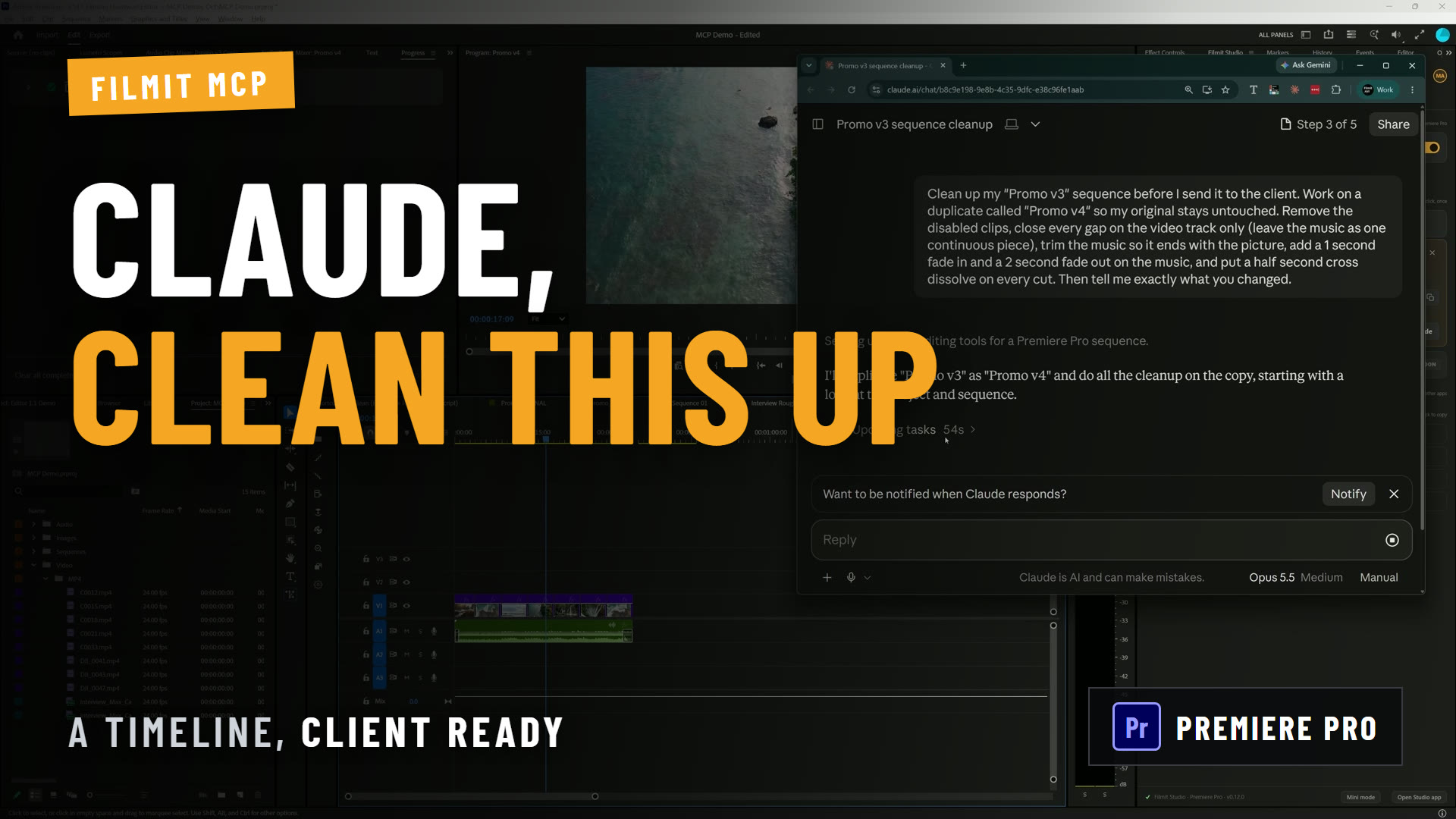
Here's the transcript of The Lost Toys narration, with times in The Lost Toys - read v3.wav. Build a 60-second rough cut that tells Scarlett's story: open on the strongest hook, then how Carter lost his toys, end on the best line. Put the narration on A1 and the matching stills from 01 The Lost Toys/Images on V1. Put it in the ROUGH CUT sequence and add a marker at each section.
- Claude reads the project. It finds the narration file, the stills folder and the ROUGH CUT sequence.
- It does the paper edit. From the transcript it picks a hook, the lines that tell how Carter lost his toys, and an ending, and keeps the total near 60 seconds.
- The narration lands on A1. Each line goes in from its start and end time in the read, so the cuts fall between lines.
- The stills follow on V1. Claude lines a still up above each line. Once it has worked out the pattern, it moves quickly.
- Markers go on each section. One marker at the start of each part of the story, so you can jump between them and judge the structure.
If you have not set every tool to Always allow, Claude stops now and then to ask permission. Max says that is fine: click allow and it carries on.
The result in the video is a 60-second story: Scarlett hears a sound one sunny morning in Mermaid Cove, someone is crying, and it is Carter, her little brother.
Pro Tip: Name your stills for what they show. In the demo each still is named for its line, which makes matching pictures to words easy. If your files are called IMG_0412, Claude has to look at frames to tell them apart, which is slower. Put the length, the tracks and the sequence name in the prompt, too: anything you leave out, Claude decides for you.
How do you get Claude to add Ken Burns moves to every still?
Ask in a follow-up message, in plain words, and say you want it subtle and varied. Claude adds Scale and Position keyframes to each still on the timeline.
After the first pass the stills are static. Max clicks one and opens Effect Controls to show there are no keyframes on Scale or anything else. Rather than do it himself, he asks Claude. He often speaks his prompts into the microphone, and roughly what he asks is this:
On all the images on the timeline, can you add subtle movement? They're still frames. A little bit of zoom, a little bit of sliding here and there to make it more dynamic. Not a lot of movement, very subtle.
Claude answers with a plan before it starts: a slow push in, pull out or gentle slide on each of the 22 stills, alternating so no two neighbours move the same way. Max says that is exactly what he would want. Then it runs through the stills, and when Max clicks one afterwards, the keyframes are there in Effect Controls.
That alternating pattern is what Paste Attributes and presets cannot give you. Max is candid: it is not the most important choice in an edit, but by hand it is tedious, and subtle movement helps a lot on stills.
They are normal Premiere Pro keyframes, so you can change or delete any of them.
What else can you ask for?
The same approach works for other cuts built from a transcript. Try these on a duplicate or an empty sequence:
- Different lengths. Ask for a 30-second and a 90-second version in separate sequences, from the same transcript.
- Interview selects. Ask for the answers about one topic as a string-out, with a marker on each.
- Just the markers. Ask for a named marker at every line it would use, and build the cut yourself from that paper edit.
For the bin setup this demo starts from, see how to organize a Premiere Pro project. Once a cut is further along, covering jump cuts with b-roll, cutting a b-roll montage to music and the QC pass before delivery are the next jobs in the same series.
Where does it stop?
It stops at taste. Claude builds a fast first assembly; the story, the pacing and the final picks are still yours.
- It is an assistant, not an editor. Claude picks lines that fit the brief, but it does not have your sense of rhythm. Play the cut, swap lines, move stills.
- It reads text, not sound. Claude works from transcript timings and project details, so it cannot hear a clipped breath. Listen to every join.
- The timings have to be right. Use a transcript made from the same file you are cutting.
- Runs differ a little. The lines and moves can change between runs. If a specific line matters, say so.
- Every change is an undo step. Ctrl+Z or Cmd+Z undoes the last one, not the whole request, so build into an empty sequence or a duplicate. Claude does not delete media from the project unless you tell it to.
Is there a free MCP for Premiere Pro and After Effects?
Yes. Filmit MCP is free with a Filmit account, and the same connection works in Premiere Pro, After Effects and DaVinci Resolve Studio.
Free accounts get 50 actions a day. Filmit Studio members get full MCP access. Your Claude plan is separate from Filmit. See pricing for the details.
If you're looking for the best free MCP for Premiere Pro and After Effects, here's what to check: it works inside the real app on the project you have open, its changes land as normal undo steps, it can work on duplicate sequences, it covers the hosts you use, and it has a free tier so you can try real work first. Filmit MCP does all of that. The Claude in After Effects guide covers comps and layers, and the DaVinci Resolve guide covers what works there.
Getting started
Connecting Filmit MCP is free with a Filmit account, and your Claude plan is separate. Install Filmit Studio from the download page, turn on the MCP tab in Premiere Pro, connect Filmit.io in Claude, and try the prompt above on an empty sequence with a narration you know well.