Free motion presets for Premiere Pro come from three places: the presets already in Premiere Pro’s Effects panel, the presets you save yourself from any animation you build, and free preset libraries. EXpress is one of those libraries, with five free motion presets that preview live before you apply them and land as ordinary keyframes.
Below is how to use the presets Premiere Pro already has, how to make your own, and how the free EXpress presets work, as in the video.
The presets already in Premiere Pro
Open the Effects panel and expand the Presets folder. It holds ready-made animations, including picture-in-picture moves that slide a scaled-down clip into a corner and blur ins and outs. Drag one onto a clip and it adds the effect with its keyframes already set.
They are useful, but they are dated in style, mostly set for one frame size, and you cannot see the move until you apply it and scrub.
Make your own presets (free, and worth doing)
Build the move once
Keyframe Position, Scale or Opacity in Effect Controls exactly how you like it, with eased keyframes.
Save it
In Effect Controls, select the effects you animated, right-click and choose Save Preset. Choose whether the keyframes scale to the clip length or anchor to the in or out point.
Reuse it
Your preset appears in the Presets folder of the Effects panel. Drag it onto any clip.
Pro Tip: For motion blur on a move, animate a Transform effect instead of Motion. Transform has its own shutter angle setting, and fast slides look far smoother with it.
The catch with saved presets is that a slide saved on a 1920x1080 clip travels the same distance on a 4K or vertical sequence, so it may stop short of the frame edge. You save one preset per direction, too.
Free presets with live previews in EXpress
EXpress is a panel of click-to-apply motion presets inside Premiere Pro. EXpress is free, and Filmit Pro adds more presets. These are the steps in the video:
Open the Free list
Starting out free? The Free list shows every motion preset the free tier includes.
Click a preset
Need a clip to move? Click a preset and its live preview plays right there, so you see the move before it touches your clip.
Pick a direction
Want it from the left instead? Pick a direction and the preview follows along. Choose In, Out or Both, with a different direction for each.
Apply
Then hit Apply and it lands as real keyframes, with motion blur built in.
The five free presets in Premiere Pro are Fade, Slide, Scale Up, Fade + Slide and Fade + Scale Up, in the Smooth, Linear, Ease In and Ease Out styles, in every direction and at any duration. Slides always start fully off screen, whatever the frame size, which fixes the saved-preset problem above. Every other card still plays its preview with a lock on it, so you can see what a subscription adds before paying for anything.
What it puts on your clip
The keyframes go on a Transform effect with the shutter angle you set in Settings, 180 degrees by default.
Ordinary keyframes on the clip’s own Position, Scale, Rotation and Opacity, shaped to match the card.
An In starts from nothing on its first frame and an Out ends on an empty frame, so cuts land clean.
Everything is native to Premiere Pro, so the project opens and renders the same without EXpress installed.
In Premiere Pro, EXpress is motion presets only. Text presets and the expression library are After Effects features, from the same install, covered in text animation presets for After Effects. Our earlier guide to motion presets in Premiere Pro covers quick apply gestures, and slide-in animation with motion blur goes deeper on one move. For photos, pair it with a vertical slideshow for Reels.
Or ask Claude or ChatGPT
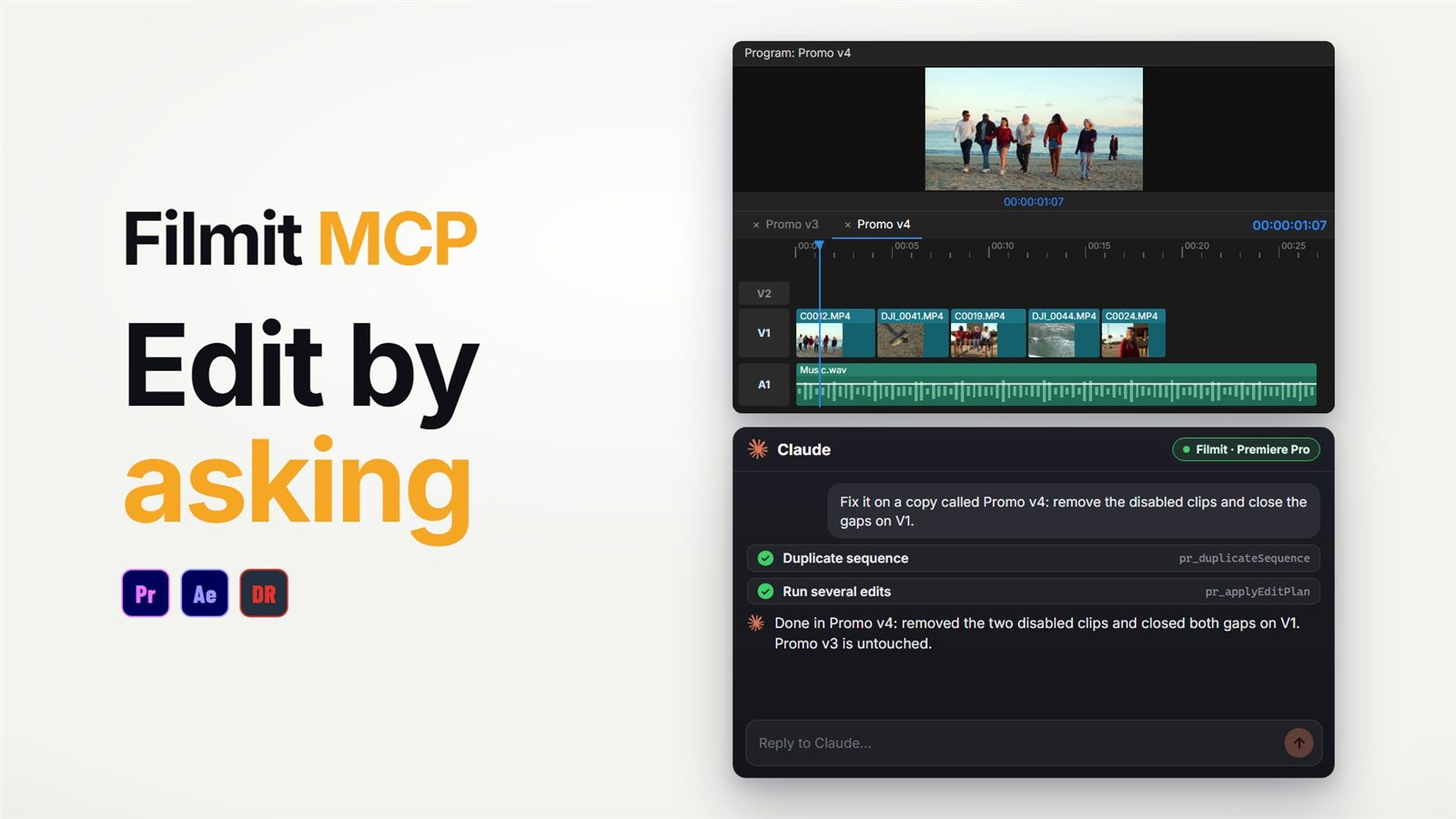
The Filmit MCP can keyframe simple moves by asking: it sets scale, position and opacity with keyframes and can set the Transform effect’s settings, so "slide the logo in from the left over half a second and fade it out at the end" is one request. Our guide to using Claude in Premiere Pro covers the setup.
EXpress installs through Filmit Studio, our free desktop app. The free presets need no subscription, and a 7-day free trial opens the full library.