An end credits template for Premiere Pro should do two things: give you a look you are happy to put your name under, and take your actual list of names without an evening of retyping. Premiere Pro’s own Motion Graphics templates handle the first well enough for a short list. For a full cast and crew, a template that reads straight from your spreadsheet saves the most time.
Here is what the built-in route can do, where it runs out, and how Credits builds a styled roll from a spreadsheet in Premiere Pro, as in the video below.
Credits templates the native way
Premiere Pro works with Motion Graphics templates (.mogrt files). You browse them in the Essential Graphics panel (the Graphics Templates panel in recent versions), drag one onto the timeline, and edit its text and settings.
Find a credits template
Browse the templates that came with Premiere Pro, or download a credits .mogrt from Adobe Stock or a template site and install it into the panel.
Drag it onto the timeline
Place it on a track above your last shot or on black, and trim it to the length you want.
Fill in the names
Select the clip and type each name into the template’s text fields in the Properties or Essential Graphics panel.
Or build a roll yourself
For a long list, type it into one text layer and turn on Roll in Essential Graphics. Our guide to making scrolling credits in Premiere Pro covers that method step by step.
Templates are great when the list fits. The trouble is that most hold a fixed number of lines and columns. A cast of forty, a VFX team in columns and three sponsor logos rarely match a template made for twelve names, and every late spelling fix means finding the right field again.
Credits: seven templates that read your spreadsheet
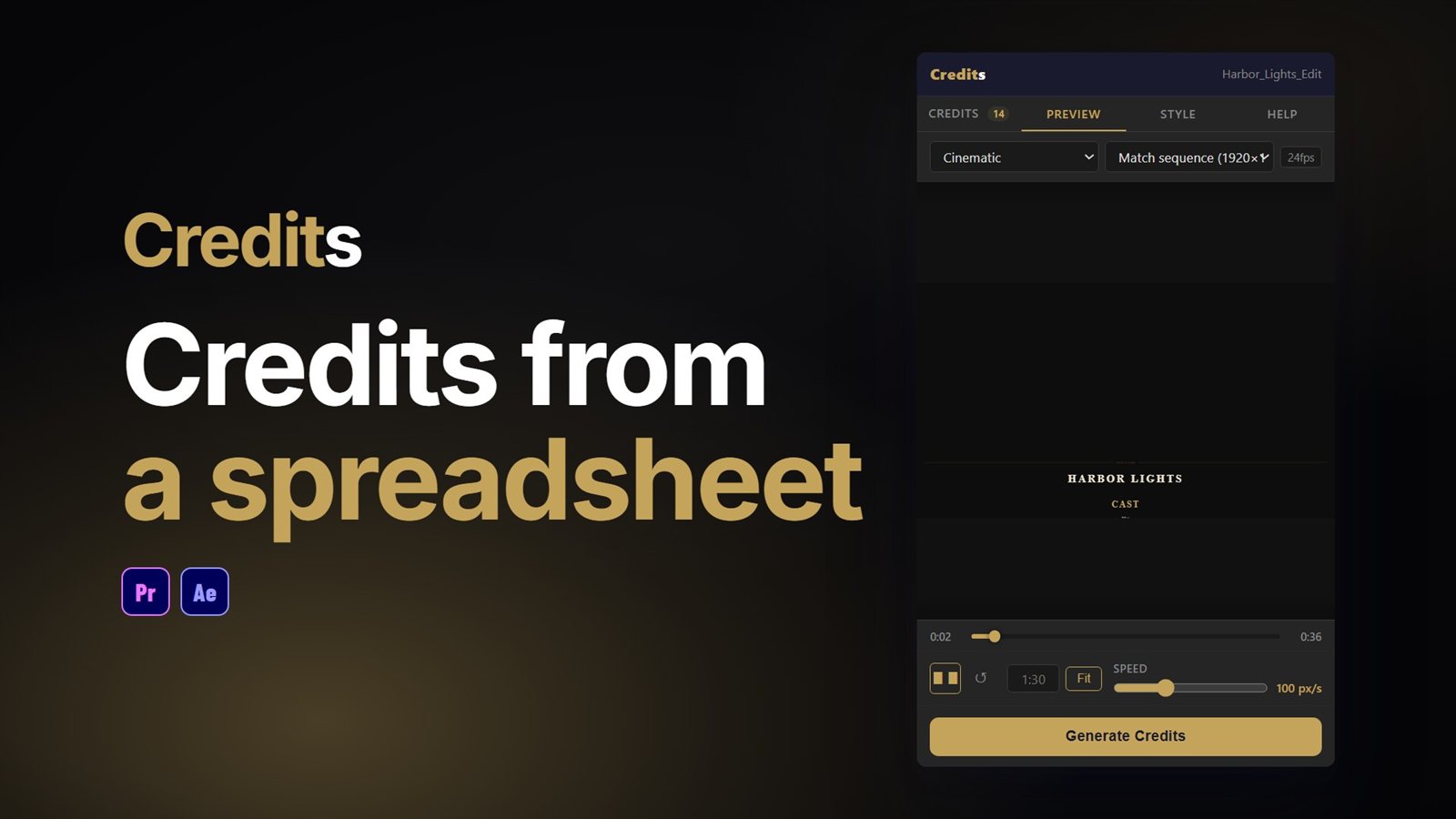
Credits is a panel for Premiere Pro and After Effects. Your list lives in a spreadsheet, the look comes from a template, and the panel builds the roll. These are the steps in the video:
Import Excel
Got every name in a spreadsheet? Hit Import Excel and the whole list drops in. CSV works too, or paste straight from a sheet. Click Excel Template first for a starter sheet with a row-type dropdown built in.
Pick a template
Need a different feel? Pick a template and the whole roll restyles: Hollywood Classic, Modern Minimal, Cinematic, Documentary, Indie, Music Video or Corporate.
Preview it
Want to see it first? The Preview tab plays your roll live, right in the panel. Type a target length and hit Fit to snap the speed to a judder-free value that lands on it.
Generate Credits
Happy with it? Hit Generate Credits and it renders straight onto your timeline at the playhead, as one clip with a transparent background.
A template here is a starting point, not a cage. Separate font, size and weight for title cards, headings, roles and names, plus line spacing, column gap, colours and divider styles, are all adjustable, and your own versions save under My Styles. The Render section on the Style tab sets size, frame rate and quality, and defaults to your sequence.
Picking the right template
Corporate, Hollywood Classic, Cinematic and Indie use fonts that ship with every Mac and PC, so they work with zero installs. The panel’s font check shows which fonts are installed, available via an alias, or missing.
Hollywood Classic and Cinematic suit narrative work, Documentary and Indie suit factual and festival pieces, and Corporate suits client videos.
Prefer episodic-style credits? Card mode shows one section per screen with fades between, and splits a section that is too tall across screens with its header repeated.
Thirteen row types cover section headers, title cards, role and name pairs, groups of up to eight columns of names, logos, still images and video clips.
Pro Tip: Keep the spreadsheet as the master copy. When names change after picture lock, fix the sheet, re-import, and generate again, rather than editing the roll on the timeline.
Finishing in After Effects? Credits builds a comp of real text layers there, and our guide to end credits templates for After Effects covers that side. The Credits demo walks through every row type, and split screens with borders is a good next read for the graphics side of the edit.
Or ask Claude or ChatGPT for an end card
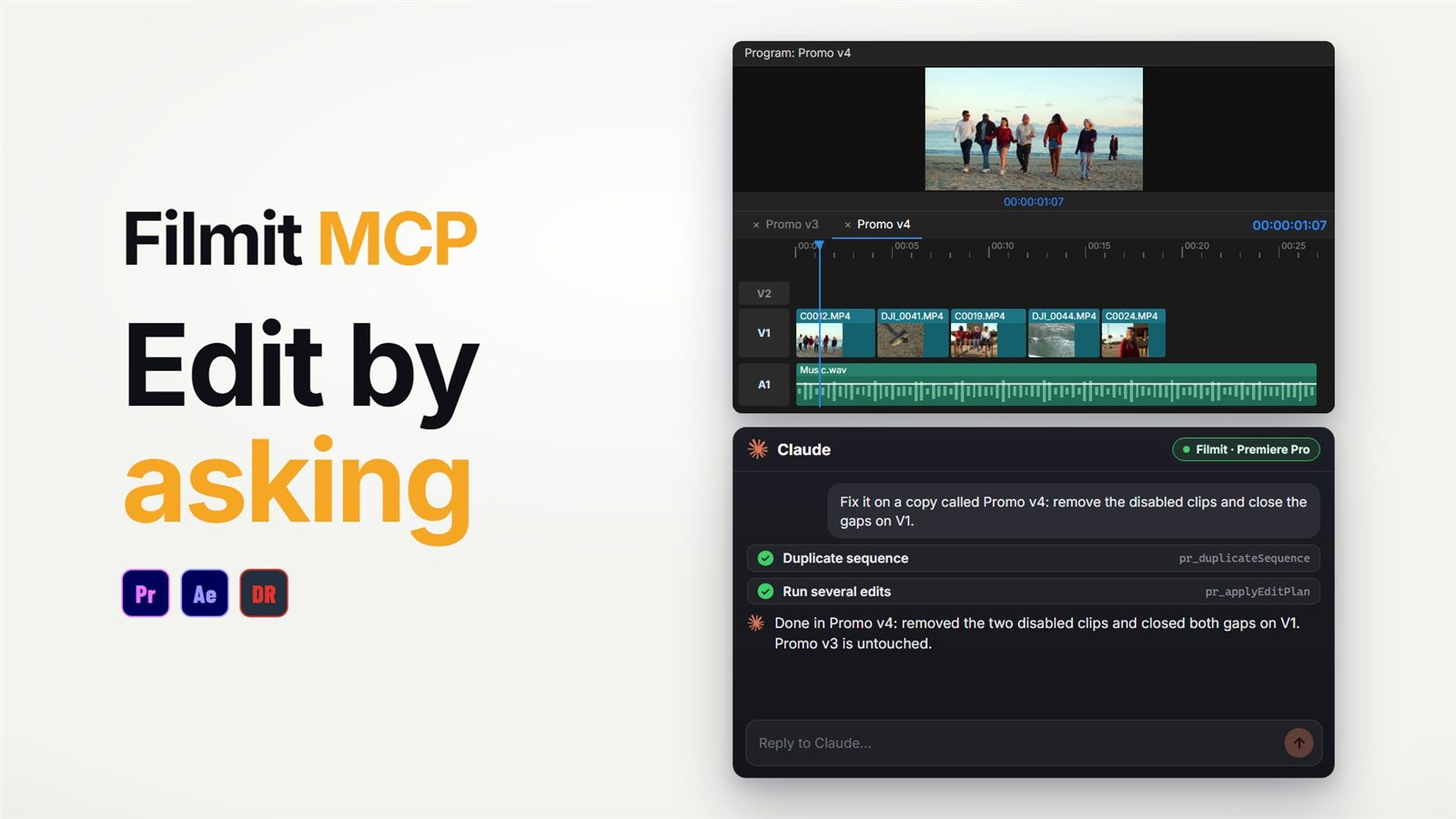
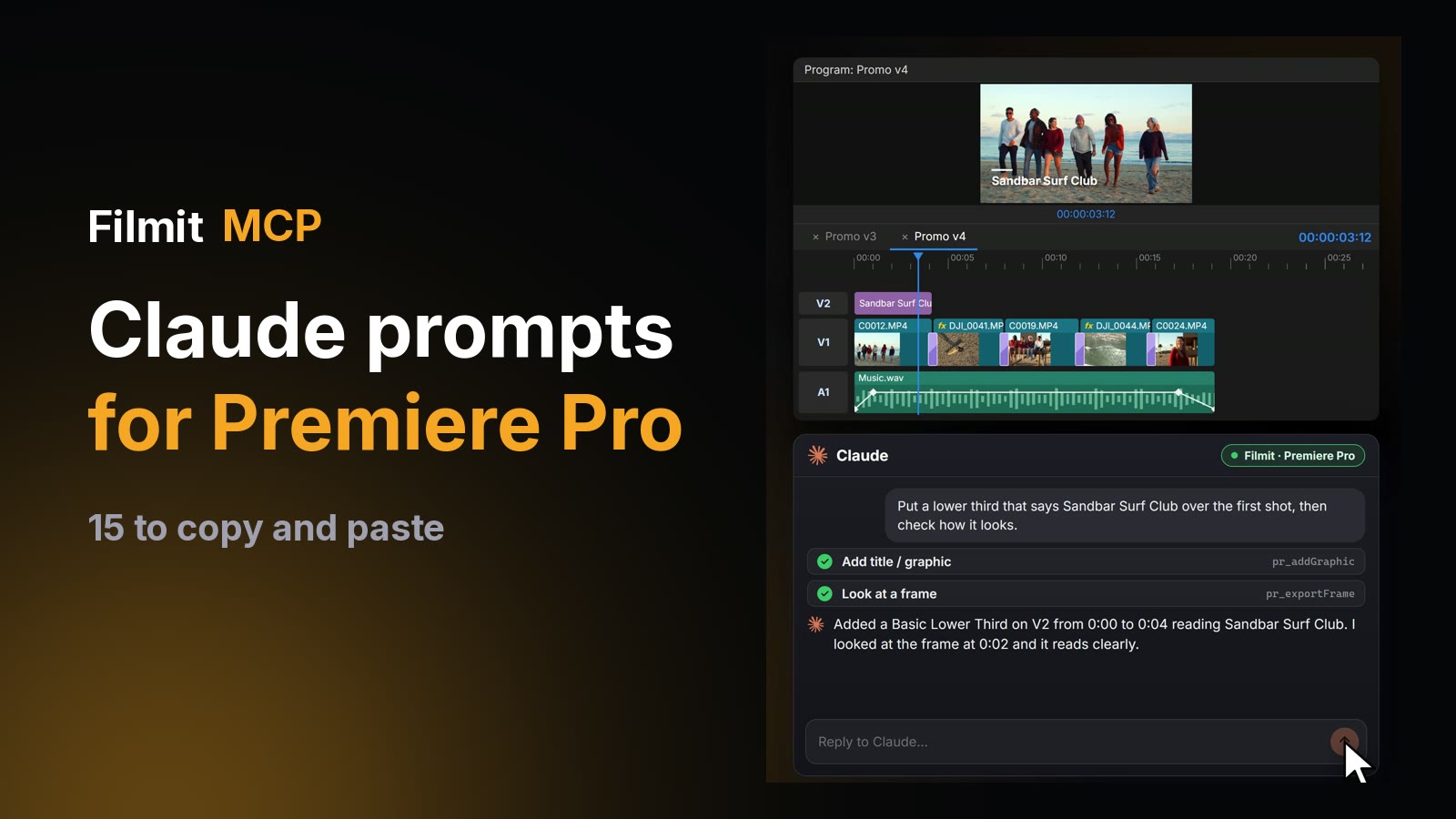
For a single end card rather than a roll, the Filmit MCP can place a title from a Motion Graphics template on your timeline by asking, set its text and length, then look at the frame to check it. Some of Premiere Pro’s own built-in templates do not let add-ons change their text, so templates made in After Effects work best. A full roll is still a job for the Credits panel. Our guide to using Claude in Premiere Pro covers the setup.
Credits comes with Filmit Studio, our free desktop app, with a 7-day free trial of the full toolkit.