To sync audio and video in DaVinci Resolve, select your clips and your audio recording in the Media Pool, right-click, and choose Auto Sync Audio, Based on Waveform (or Based on Timecode if your camera and recorder share timecode). Resolve matches the recorder audio to each clip and attaches it.
That handles a few clips well. For a whole shoot (two cameras, a day of takes, recordings that run for an hour) this guide covers the multicam route and a faster way to do every clip in one pass.
Auto Sync Audio, step by step
Import everything
Bring the camera clips and the recorder files into the Media Pool. Keep each camera in its own bin, it helps later.
Select a matching group
Select the video clips and the recording they belong to. Waveform sync compares sound, so pick clips that were recorded at the same time.
Run Auto Sync Audio
Right-click and choose Auto Sync Audio, then Based on Waveform or Based on Timecode. The "and Append Tracks" versions keep the camera audio alongside the recorder audio.
Check a few clips
Open a synced clip and play a spot with a hard sound, a clap or a plosive. If it is off, Resolve did not find a confident match.
Waveform sync needs a usable scratch track on the camera. A camera mic that barely hears the speaker, or a recording that does not overlap the clip, gives it nothing to match.
Two cameras on one moment: multicam clips
When two cameras cover the same interview, select both angles (and the recording) in the Media Pool, right-click, and choose Create New Multicam Clip Using Selected Clips. Set Angle Sync to Sound or Timecode. Resolve stacks the angles in one multicam clip you can cut live on the Edit page. You do this per scene, so a day with a dozen setups is a dozen rounds.
Syncing a whole shoot at once with Sync
Sync does the whole day in one pass, inside Resolve or Premiere Pro. These are the steps in the video:
Add your bins
Add your camera bins and your sound bin. Nothing is moved, copied or re-imported.
Optional: file copies
Like a tidy project? Switch on File copies in Settings and your clips are also sorted into Matched and Unmatched bins.
Analyze
One click, and Sync compares every clip with every recording, using timecode where it exists, dialogue matching and the waveform, and cross-checks the answers.
Show details
Before anything lands, Show details lists every timeline it will build, so you can check them.
Scenes stack themselves
Two angles of one interview stack into a single scene on a shared clock, with the clean recording underneath.
Create
Hit Create, and every synced timeline is built, plus a master timeline of the whole shoot. Everything lands in a Sync bin, and your originals stay untouched.
Good to know before you start
Filmit tools open in Resolve under Workspace, Workflow Integrations, which needs DaVinci Resolve Studio. The free version of Resolve does not run workflow integrations.
Timecode is used when it is there. Without it, dialogue and waveform matching do the work.
Anything your editor plays, including camera-native formats, with no transcoding first.
The Review screen (listen to a match and slide it a frame before it builds) is part of Sync 1.1 for Premiere Pro. The Resolve version is a separate release.
Working in Premiere Pro instead? Our guide to syncing audio and video in Premiere Pro covers Merge Clips and the native route there, and batch syncing in Premiere Pro and Resolve goes deeper on Sync. Moving off PluralEyes? See our PluralEyes alternatives.
After the sync: tidy up by asking
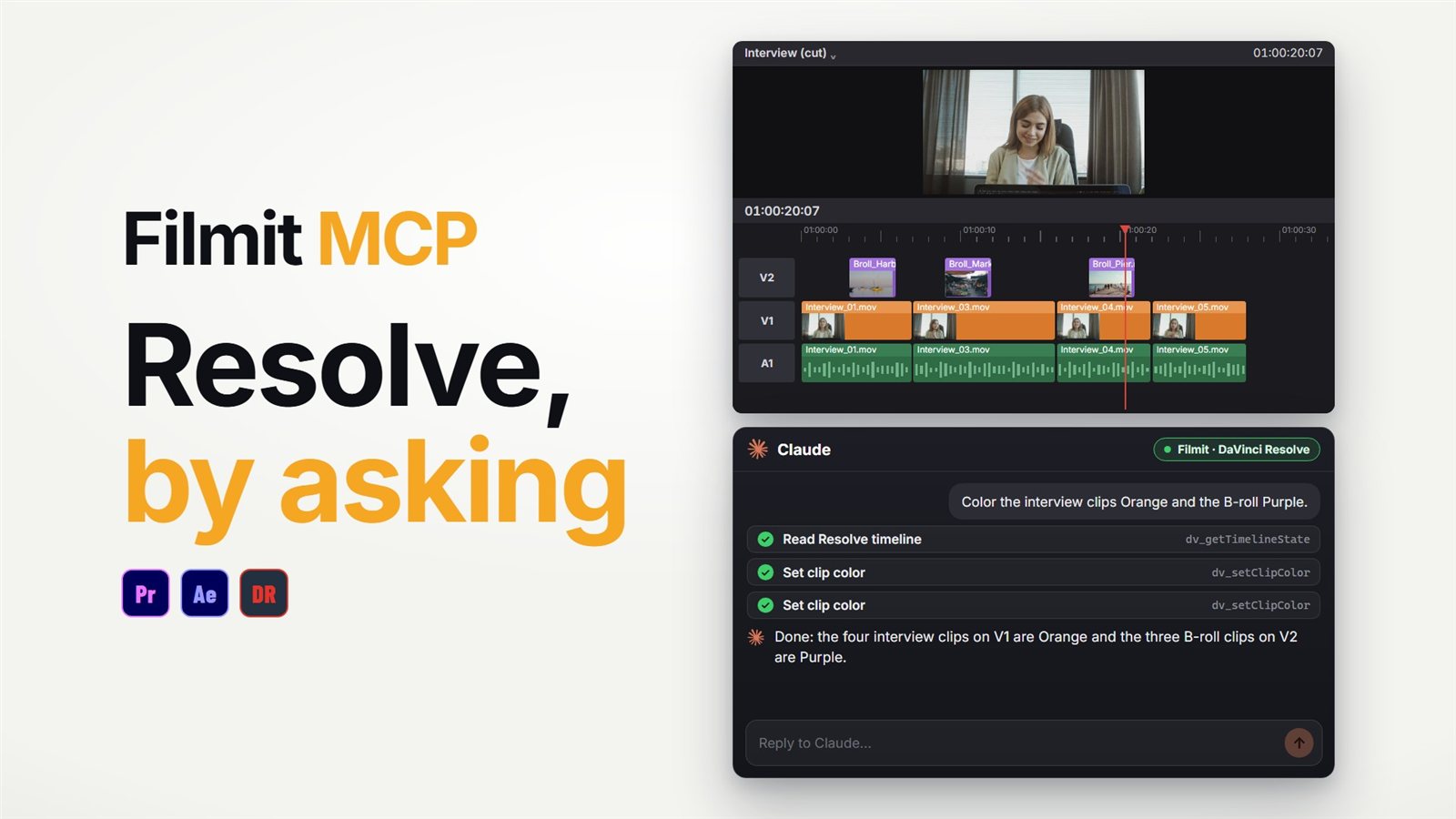
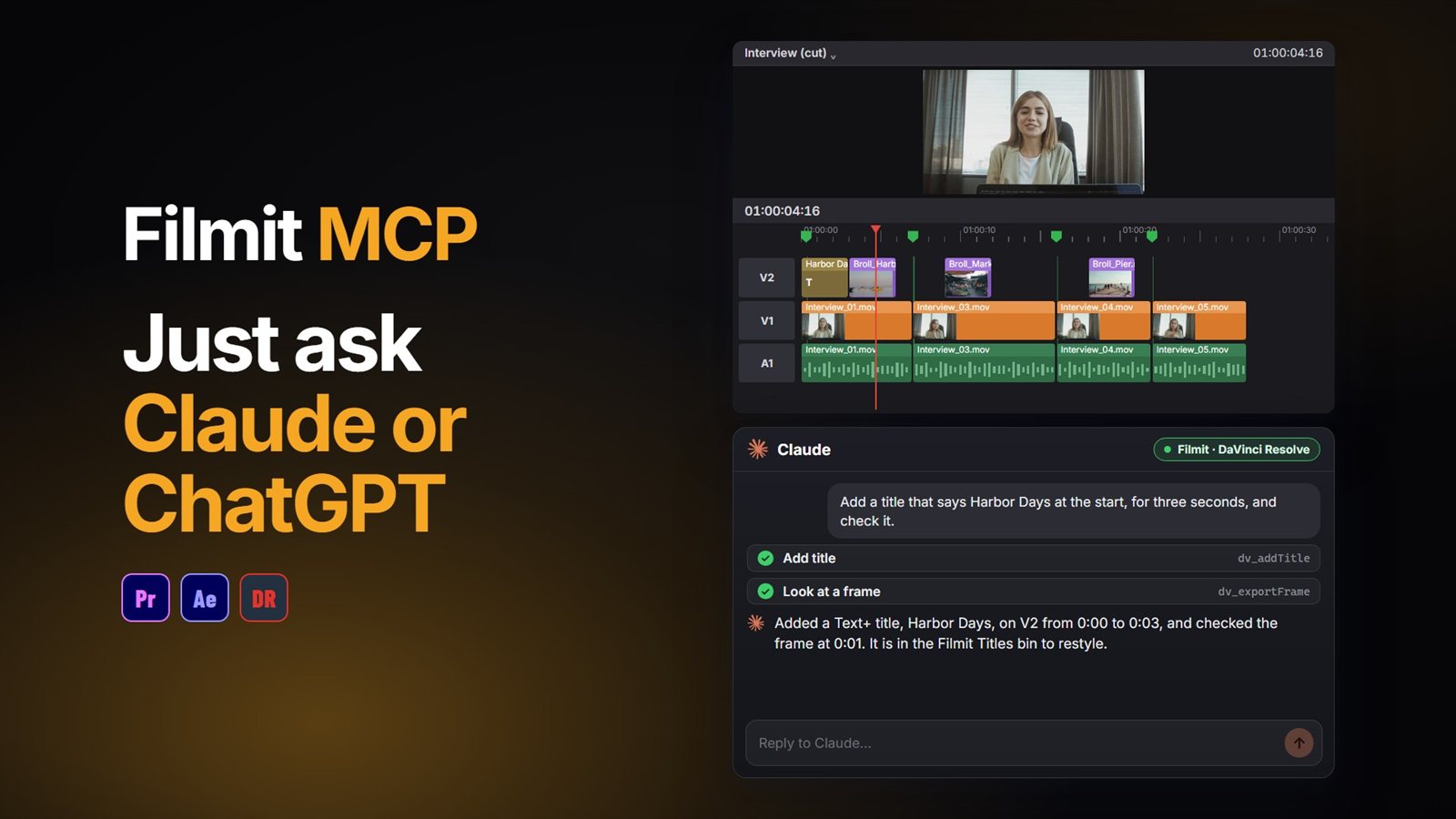
Once the timelines are built, the Filmit MCP can help organize them in Resolve Studio. Ask Claude or ChatGPT to colour code the interview clips and the B-roll differently, or drop a marker on every clip longer than a few seconds to start your selects. It does not sync audio itself; that is Sync’s job. Our guide to using Claude in DaVinci Resolve covers the setup.
Interview shoot? Once it is synced, our guide to cutting one interview into a hero edit, cut-downs and shorts picks up where this one ends. Sync comes with Filmit Studio, our free desktop app, with a 7-day free trial.