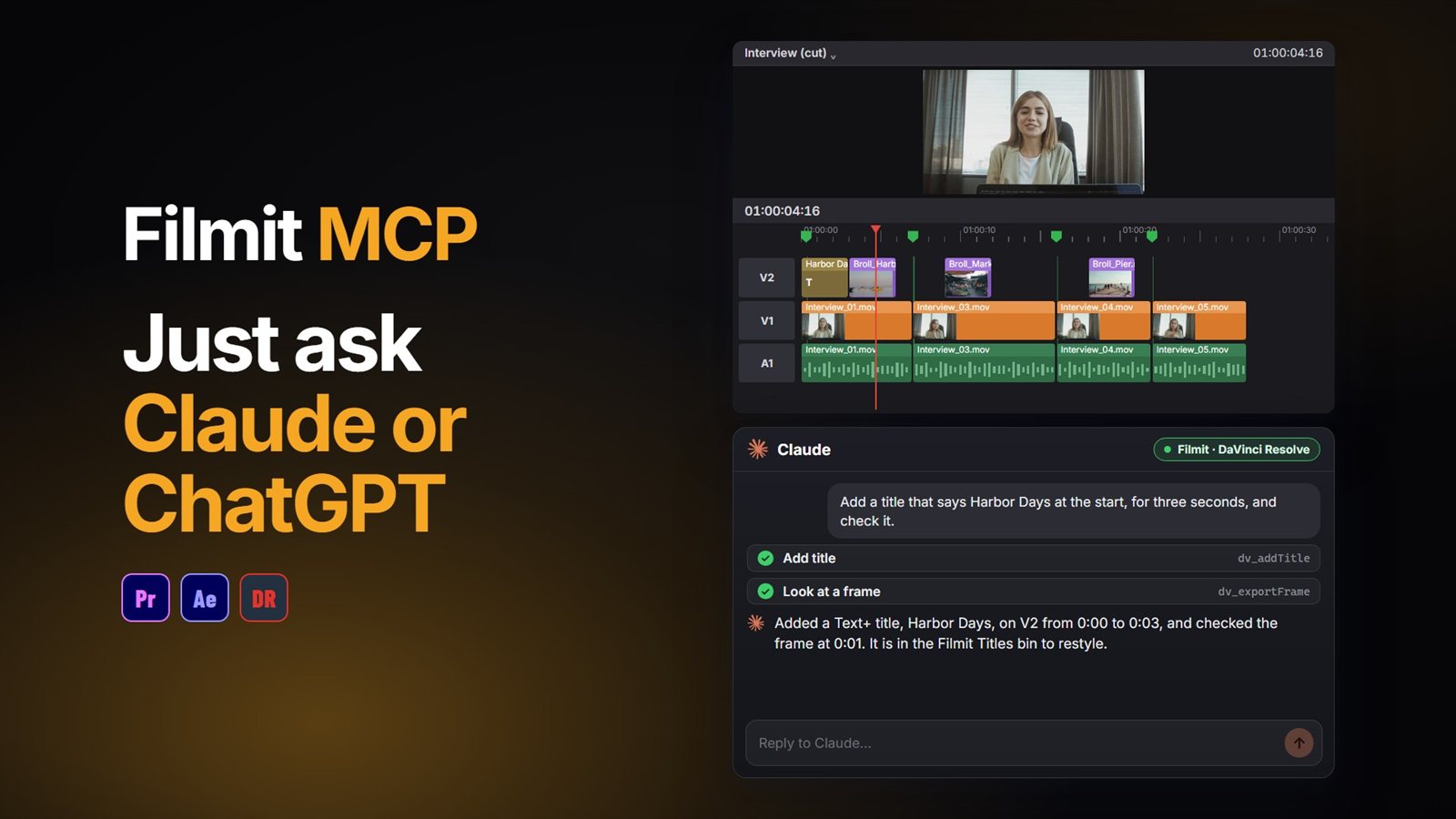
You can use ChatGPT in DaVinci Resolve by connecting it with an MCP connector. Once Filmit MCP is connected, ChatGPT stops listing menu clicks and starts making the edits itself: it reads your timeline, makes the change in the project you have open, and keeps your original safe when it cuts.
Here is what you need, how to connect it, the first job from the video, the native way to do the same thing, and what to expect from Resolve.
What do you need?
- DaVinci Resolve Studio. Filmit Studio runs in Resolve as a workflow integration, and the free version of Resolve does not run those.
- Filmit Studio. The free Filmit Studio app installs it into Resolve, on Mac or Windows.
- A Filmit account. A free one is enough for MCP.
- ChatGPT, signed in to your OpenAI account.
How do you connect ChatGPT to DaVinci Resolve?
Turn on MCP in Resolve
Open Workspace, Workflow Integrations, Filmit Studio, go to the MCP tab and flip the switch. The status line says it is ready, and MCP starts with Filmit Studio from then on.
Add Filmit in ChatGPT
In ChatGPT, open Plugins, click the + button and choose Add custom MCP server (some accounts show Settings, Connectors with Developer mode instead). Name it Filmit and paste the connector address https://mcp.filmit.io/mcp.
Sign in with Filmit
ChatGPT opens the Filmit sign-in page. Sign in with your Filmit email and password, or with Google.
Ask something harmless first
In a new chat with Filmit turned on, ask "What is on my open Resolve timeline?" If it lists your tracks and clips, you are connected.
Already connected in Premiere Pro or After Effects? It is the same connector, so Resolve only needs its own switch turned on.
A first real job: tidy an interview timeline
The video runs three requests on an interview timeline, the kind of tidying you do before you start cutting properly.
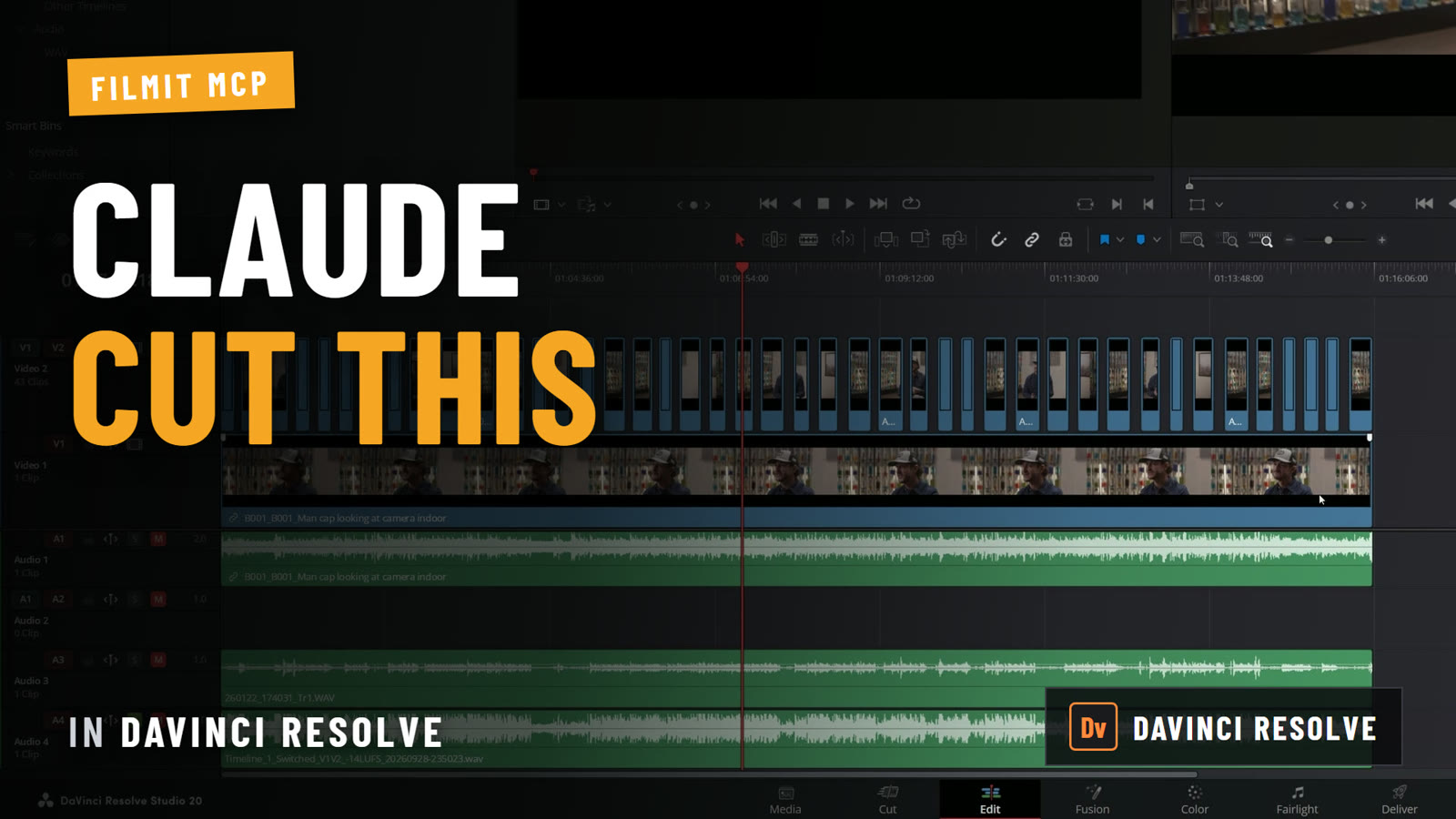
"Cut out the bad take"
It cuts that section out into a new timeline and keeps your original safe. In Resolve this is how every cut works, so there is always a clean version to go back to.
"Colour code the interviews and the B-roll"
It reads every clip and gives the interviews and the B-roll their own clip colours in one pass.
"Green marker on every clip longer than five seconds"
It checks every clip’s length and drops a green marker on the long ones, a fast start on selects.
Pro Tip: In your AI app’s connector settings, Filmit actions are marked read-only or project-changing. Allow the read-only ones and set the rest to ask first, so it can look around freely and checks with you before it edits.
How would you do the same thing by hand?
Duplicate the timeline in the Media Pool first. Blade the start and end of the bad take (Ctrl+B, Cmd+B on Mac) and use Edit, Ripple Delete. Select the interview clips, right-click, and set a Clip Color, then do the same for the B-roll. For the markers, scrub through and press M on every clip you judge to be long enough, since Resolve has no way to select clips by length. None of it is hard. It is a few minutes on a short timeline and a slog on a long one, which is where asking pays off.
What else can you ask for?
Anything you can describe in a sentence and check afterwards. A few that work well in Resolve:
- "Make a copy of this timeline without the section between 0:12 and 0:18."
- "Put a title that says Jane Doe, Director at 0:05, then show me that frame."
- "Make a vertical 1080x1920 copy of this timeline and zoom every clip to fill it."
- "Export this timeline as an EDL."
Every Resolve action is listed in What Claude can do, and the setup steps are in the Filmit MCP setup docs. Our DaVinci Resolve MCP guide runs a longer job with titles, punch-ins and a vertical copy.
ChatGPT or Claude?
It is the same Filmit connector either way, with the same Resolve actions. Use the one you already pay for. If you use Claude, our guide to using Claude in DaVinci Resolve covers that setup and a real two-camera edit. Editing in Premiere Pro as well? See using ChatGPT in Premiere Pro.
What it will not do in Resolve
Resolve does not let add-ons apply effects or transitions, set keyframes, change clip volume or split a clip in place. ChatGPT tells you when something needs a click from you.
A clip cannot be placed over another one. It goes on the next free track, and you are told where.
Keep the Filmit Studio window open in Resolve while ChatGPT works. Closing it ends the connection.
It reads names, tracks and timings, and looks at a still frame when it asks for one. It does not scrub through video looking for a moment.