To edit a talking-head video, work in passes. First keep the takes that landed and cut the restarts. Then take out filler words and long pauses. Then hide the jump cuts that leaves, and finally level the sound. In Premiere Pro, a transcript makes the first passes far quicker, because you read the take instead of scrubbing it.
Here is that workflow with Premiere Pro’s own tools, then the faster way with Editor, which marks the filler words and repeated takes for you and builds a clean sequence, as in the video.
The native way in Premiere Pro
Duplicate the sequence
Right-click the sequence in the Project panel and duplicate it. Cut the copy, and the raw take is always one click away.
Transcribe and read
Open the Text panel and transcribe the sequence. Read it through once to see where the take restarts and which version of each line landed.
Cut the repeated takes
With Text-Based Editing, select the false start in the transcript and delete it, and Premiere Pro removes that span from the timeline. Keep the last clean version of each line.
Cut filler words and pauses
Newer versions of Premiere Pro can highlight filler words and pauses in the transcript. Otherwise, find them on the waveform, razor either side (C) and ripple delete.
Hide the jump cuts
Scale up every other clip a little in Effect Controls, so each cut reads as a new framing. Morph Cut, in the Video Transitions, is the other option for short jumps.
Level the dialogue
Tag the clips as Dialogue in the Essential Sound panel and use its loudness tools to even out the level.
The order matters. Cut the repeated takes before the filler words, because there is no point polishing a line you are about to drop, and hide the jump cuts last, once you know where every cut lands. Each pass is simple. Together, they are the unpaid hour before the real edit starts. Our guides to removing bad takes and hiding jump cuts with punch-ins go deeper on the two slowest passes.
The faster way: an assistant editor in the panel
Editor is a Premiere Pro panel that does the cleanup passes in one go and shows you every change in the script before anything is built. These are the steps in the video:
Transcribe on your machine
Your take is transcribed locally and opens as a script you can read. Nothing is uploaded.
Tick Filler words
Ums and uhs everywhere? Tick Filler words, and every one is marked to go.
Tick Repeated takes
Said it twice? Repeated takes cuts the restart and keeps the take that landed.
Build
Hit Build, and a clean new sequence lands in Premiere Pro, your original untouched.
Between marking and building, Review mode shows every changed passage with the words around it, so you judge each cut in context. Click a mark to keep it, select a span of words to cut it yourself, or bring words back inside a cut. Silences, breaths and profanity are rules you can tick too, and for silences you set how long and how quiet a gap has to be.
Tips for a cleaner talking head
Relaxed only cuts words that are in the transcript, so laughs and reactions stay. Aggressive, the default, also cuts the ums the transcription skipped.
A cut that looks right on a waveform can land mid-thought. Reading it in context catches that.
If music or a second mic is on the sequence, choose the channels that carry the voice so they are the only thing transcribed.
Crop cuts punches in on every other jump cut, J and L cuts roll the audio at every edit, and Audio loudness-normalizes the mix onto its own track.
Or ask Claude or ChatGPT for the mechanical parts
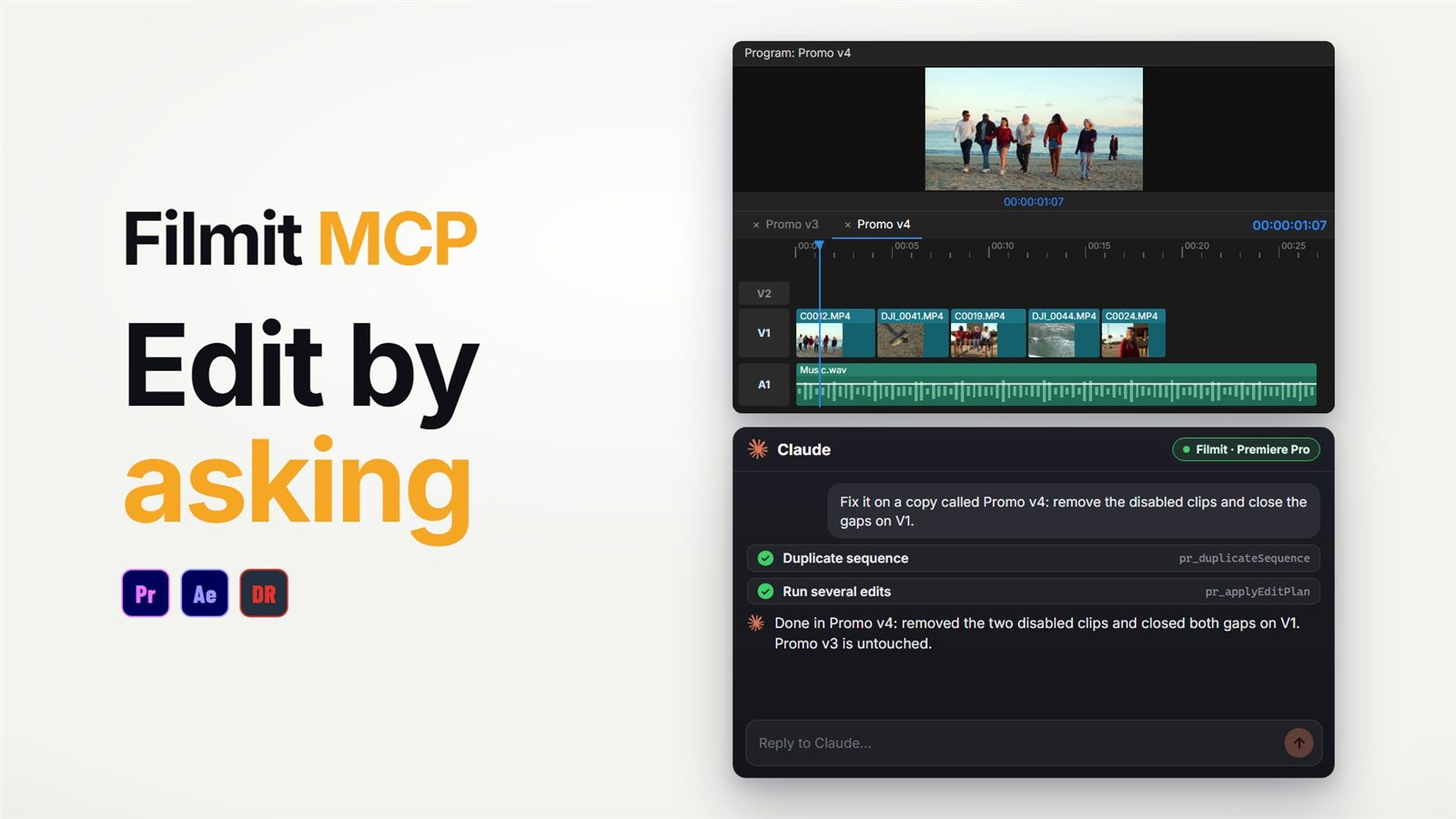
The Filmit MCP does not listen to the take, so it will not find filler words. Give it times and it handles the rest: "duplicate this sequence, remove 0:41 to 0:44 and close the gap", or "scale every other clip on V1 up a little". It can drop a marker on every cut for a client to review too. Our guide to using Claude in Premiere Pro covers the setup.
Cutting from several interviews instead of one take? Start with a paper edit. Working in DaVinci Resolve? See our guide to removing filler words in DaVinci Resolve. Editor comes with Filmit Studio, our free desktop app, with a 7-day free trial.