To gather loose media into your project folder in Premiere Pro, find where each file actually lives, move the strays into the project folder on disk, then relink them so the project still points at the right place. Premiere Pro links to files rather than copying them, so anything you dragged in from Downloads or the desktop is still sitting there, one clean-up away from going offline.
This guide covers the native way, step by step, and then a panel that shows every loose file and moves them in one pass with the project relinked for you.
Why media ends up scattered
A project folder starts tidy: footage in one place, audio in another. Then the client emails a logo, you grab a song from a library site, a producer sends a new voiceover. Each lands in Downloads or on the desktop, you drag it into Premiere, and the edit looks organized while the files live everywhere. It only hurts later, when you archive the project, move it to another drive or hand it to another editor, and half the media is missing.
The native way in Premiere Pro
Find out where each file lives
Right-click a clip in the Project panel and choose Reveal in Finder (Mac) or Reveal in Explorer (Windows). In List view you can add the media file path as a column, so every location is visible at once.
Save and close the project
Close it before you move anything, so Premiere Pro is not holding on to files.
Move the strays
In Finder or Explorer, move each loose file into the right subfolder of your project folder.
Relink on open
Open the project. Premiere Pro lists the missing files in the Link Media dialog. Click Locate, point it at the first file’s new home, and keep Relink others automatically on so files in the same folder follow.
That works, and it is worth doing once by hand so you know what relinking looks like. It gets slow with dozens of strays in different places, because each new folder is another round of Locate. The other native route, File, Project Manager with Collect Files and Copy to New Location, copies your used media and a project copy to a new place, but into one flat folder, so your bin structure does not survive on disk. Our guide to packaging a Premiere Pro project covers Project Manager in detail.
The faster way, with Organizer
Organizer is a panel that sorts your project into clean bins and keeps your files where your bins say they should be. The video starts with the bins and ends with the files on disk:
Preview Sort
Messy project? Preview Sort shows where every clip belongs before anything moves.
After, then Sort
Flip to After, hit Sort, and the whole project lands in clean bins.
Layout tab
Want your own bin structure? Build it once in the Layout tab.
Auto-sort
New imports piling up? Turn on Auto-sort and they get filed as you work.
Files tab
Files hiding in Downloads? The Files tab shows where every file actually lives on disk.
Relocate
Select the loose ones and hit Relocate. They move into your project folder, and the project relinks.
Collect and Organize
Handing off? Collect and Organize copies every file into folders that mirror your bins, with a relinked project copy.
Keep it from happening again
Organizer can watch for imports from Downloads, or anywhere outside the project folder, and copy or move each new file into the project folder, filed to mirror your bins and relinked. Copy is the default, so the original stays put.
Had the panel closed while you imported? Catch Up Now applies your watch and sort settings to everything in one click.
Run Sort first. When the bins are right, the folders the files move into on disk are right too.
It works on the whole project or only selected sequences, reports offline media, and never touches your original project.
Want the bigger picture? Our guide to organizing a Premiere Pro project covers bin structures and naming, and the Organizer demo walks through sorting in After Effects.
Or ask Claude or ChatGPT
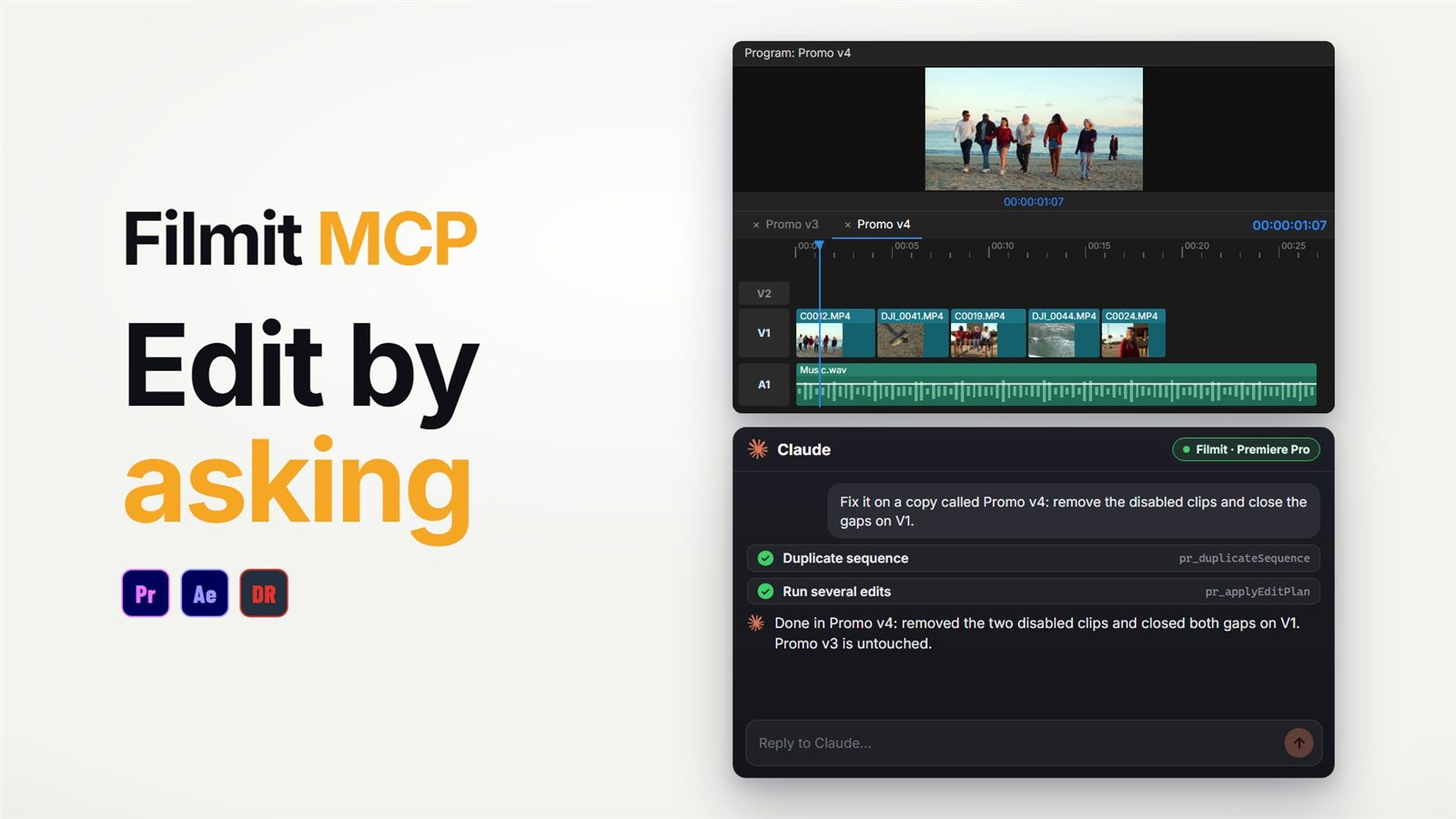
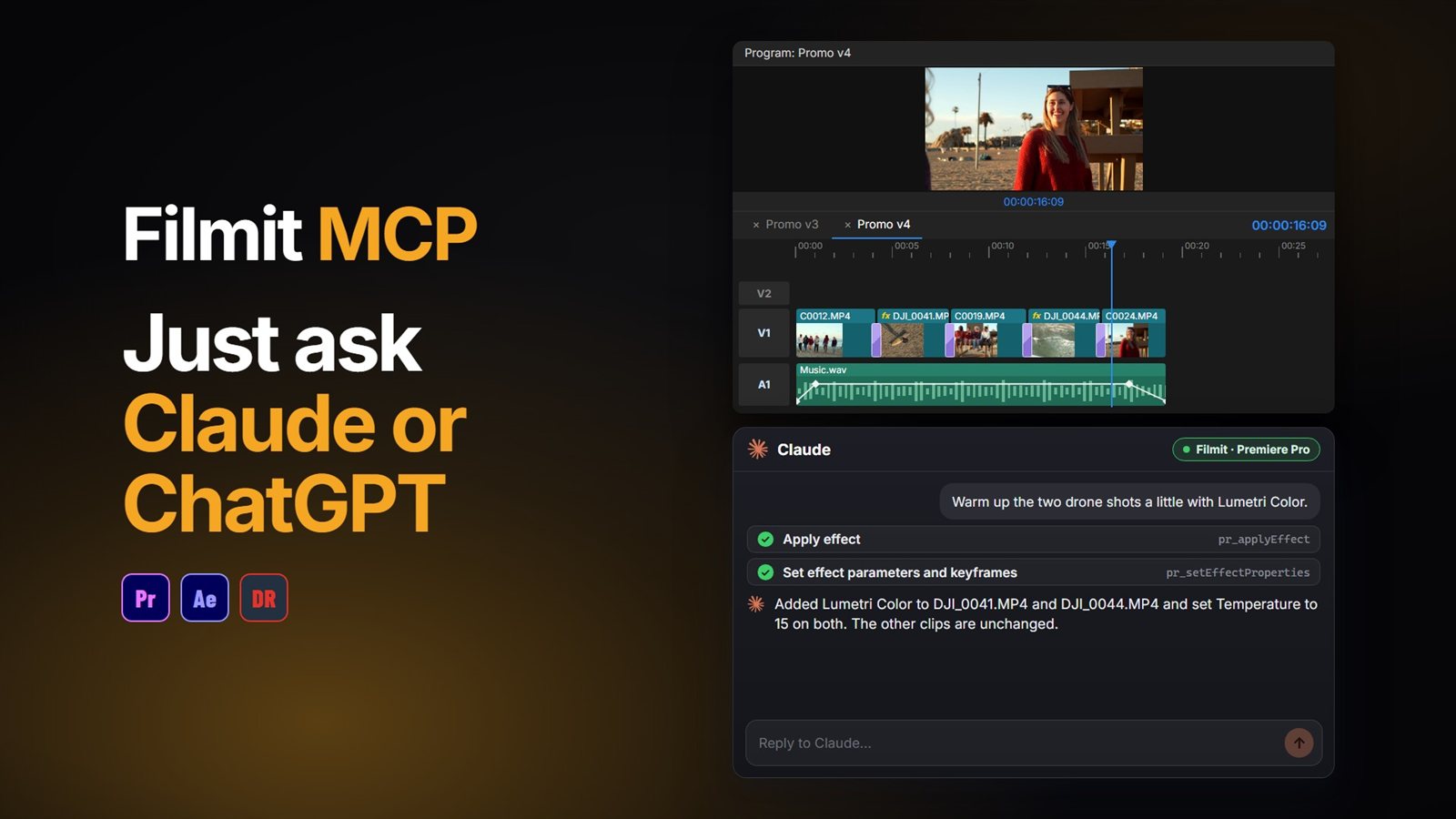
The Filmit MCP can tidy the Project panel side by asking. It reads your project, makes bins and moves items into them, and nothing is ever deleted: "move every clip whose name starts with INT into a bin called Interviews" is one request. It does not move files on disk, so the relinking half is still Organizer’s job. Our guide to using Claude in Premiere Pro covers the setup.
Cleaning up the After Effects side of a job too? See finding and replacing text across an After Effects project. Organizer comes with Filmit Studio, our free desktop app, with a 7-day free trial.