To make a video collage in After Effects, put each clip on its own layer in one comp, scale every layer down to fit its cell, and position the layers in rows and columns. Leave a small gap between cells, put a solid underneath as the backdrop, and round the corners with masks if you want a softer look.
Below is the native build step by step, where it gets slow, and the one-click way with GridMaker, which snaps your selected layers into a grid and goes on to layouts that would take hours by hand, as in the video.
The native way: scale, position and mask
Put every clip in one comp
Make a comp at your delivery size, then drag your clips in so each one is its own layer.
Work out the cells
Divide the comp by the grid. A three by three grid in a 1920 by 1080 comp has cells of 640 by 360, so full HD clips scale to about 33.3%. Shave a little off that if you want gaps.
Position the layers
Type each layer’s Position, or line up a row and use Window, Align with the distribute buttons to space them evenly. Repeat for each row.
Round the corners
Select a clip and draw over it with the Rounded Rectangle tool to make a mask, or put a rounded rectangle shape layer above it and set the clip’s Track Matte to it.
Add a backdrop
Choose Layer, New, Solid, pick a colour and move it to the bottom of the stack. The gaps between cells now show that colour.
Precompose for reframing
Precompose each clip (Ctrl+Shift+C, Cmd+Shift+C on Mac) so you can move and scale the footage inside its cell without breaking the layout.
A two-up or a four-up is quick this way. Nine cells or more is a long session of typing values, and changing your mind about the grid (three by three to four by four, or wider gaps) means doing the maths and the positioning again. For the editing side, our guide to making a split screen in Premiere Pro covers the same job on the timeline.
Pro Tip: Precompose before you mask. A mask on the outer precomp stays put while you reframe the footage inside it, so the cell never moves when you nudge the shot.
The faster way: select your layers and pick a grid
GridMaker is a panel for After Effects. Select your layers, pick a grid, and it builds the whole layout in your comp. These are the steps in the video:
Click three by three
Nine layers piled up? Select them, click three by three, and they snap into a perfect grid.
Padding and Round Corners
Want gaps and soft corners? Set Padding and Round Corners, then click the grid again.
Gap Color
Need a backdrop? Turn on Gap Color and a solid fills every gap behind the grid.
Advanced Mode
Want something wilder? Advanced Mode opens a whole set of layouts, like Tessellate.
3D Spatial
Three D Spatial floats your clips in 3D space. Drag to orbit the preview.
Pack and Jigsaw
Pack fills the frame with circles, and Jigsaw cuts it into puzzle pieces.
Text Fill
Text Fill even puts your clips inside the letters of a word.
Collage tips
Quick grids go up to 20 by 20, and asymmetric layouts like three by five are fine. Advanced Mode goes further, with as many boxes as you add.
GridMaker fills the comp proportionally, whether it is 16:9, 1:1, 9:16 or a custom size, so a vertical collage is the same job as a wide one.
Advanced Mode has built-in in and out animation (fade, scale, pop, slide, 3D flips) with an easing curve editor, so the cells can arrive one by one.
GridMaker installs there too, with a live canvas. Our guide to making a video wall in Premiere Pro covers that side.
Or ask Claude or ChatGPT
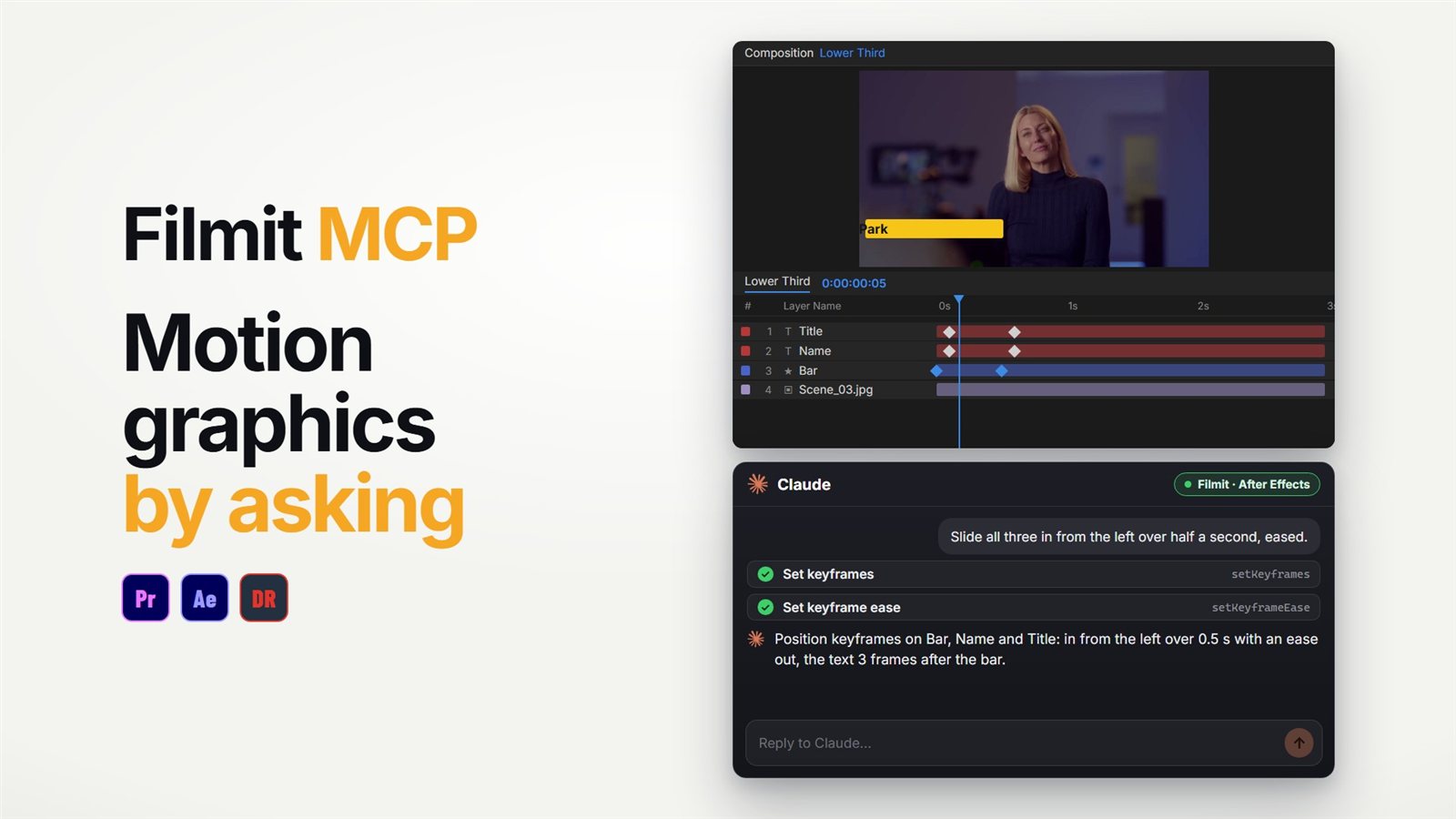
The Filmit MCP can lay out a simple grid by asking, because it can read your comp and set position and scale on any layer: "arrange these nine layers in a three by three grid with a small gap, and add a dark solid behind them." It can also add rounded rectangle shape layers and set them as track mattes. For tessellations and 3D layouts, GridMaker is the quicker route. Our guide to using Claude in After Effects covers the setup.
Need clips to fill the cells? Our guide to free stock footage covers where to find it, and GridMaker Advanced Mode goes through every layout type. GridMaker comes with Filmit Studio, our free desktop app, with a 7-day free trial.