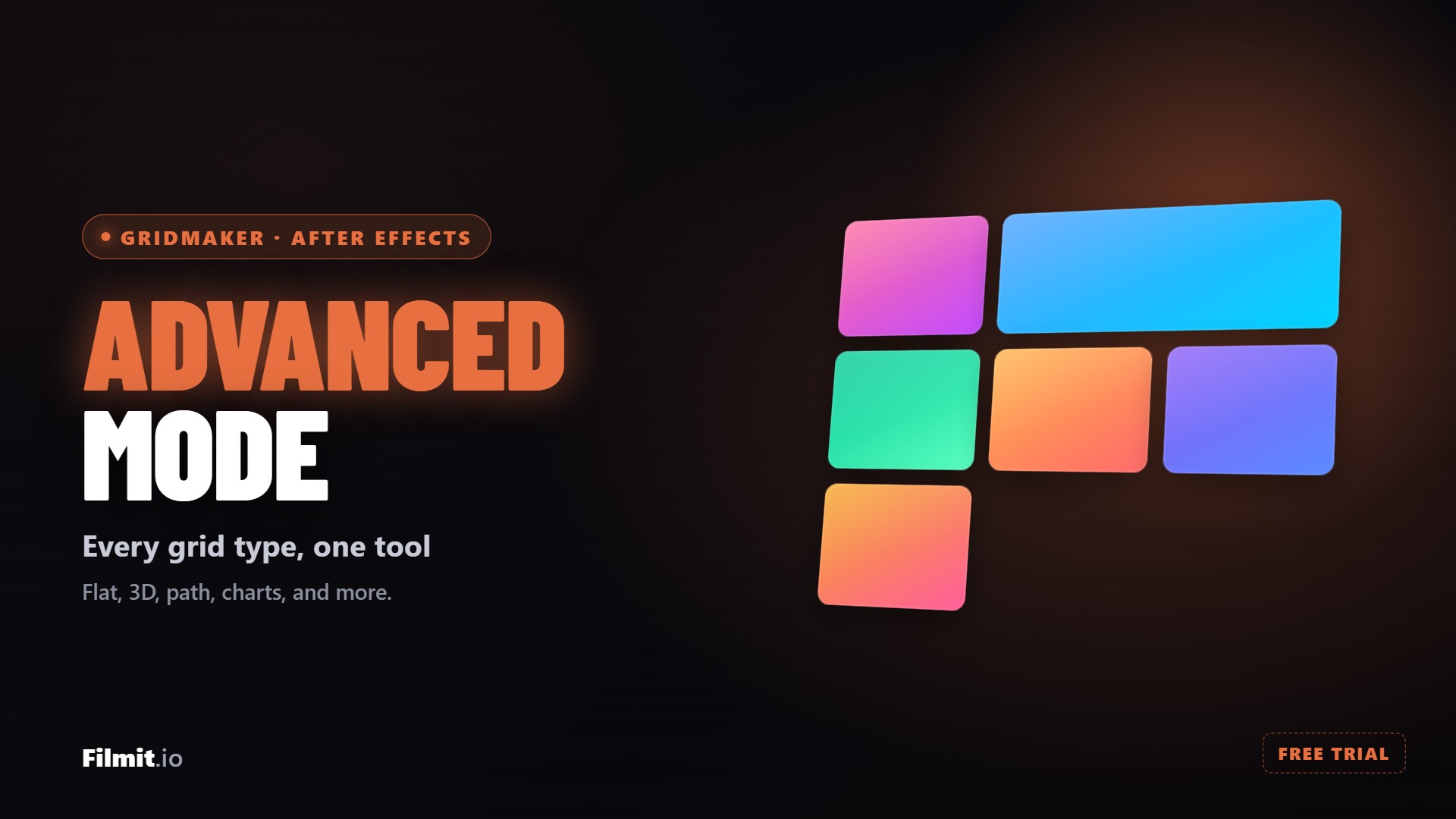
GridMaker started as a one-click gridding tool. You highlight your clips, click 2x2 or 10x10, and your footage snaps into a grid on screen. That alone saves real time. But there is a second window most people never open, and it is where the tool gets interesting.
Advanced Mode opens up ten grid types, each one a different way to arrange and animate your footage. A camera that flies cell to cell, charts you can fill with images, shatter and puzzle effects, packed circles, tiled hexagons, and words built out of your own clips. Every one builds as a real, keyframed, editable After Effects composition, not a flattened render you cannot touch.
This is the one-stop guide to those grid types. We walk through all ten tabs here, each with a full tutorial video, then cover the shared workflow that ties them together.
Flat: the classic grid, fully designed
The Flat tab is the heart of Advanced Mode and the one you will reach for most. You lay out any grid, merge cells, round corners, and set the gaps and margins, then animate the whole thing with a move, a direction, and a stagger so the tiles do not all pop on at once.
It is the split screen and the video wall, built and keyframed for you. Design the layout, apply it straight to your own clips, and every value stays editable after you generate the comp.
Pro Tip: Round just one corner by holding Alt or Command as you drag a cell edge, or Shift plus Alt to round the whole box. Mixing sharp and round cells is what makes a flat grid feel designed instead of default.
3D Spatial: a rotating sphere of footage
The 3D Spatial tab wraps your clips onto a sphere, ring, or helix with a real camera, so there are no nulls to rig and no parenting math to work out by hand. Pick a shape, set the count, and GridMaker builds the geometry for you.
It spins the rig and loops it to the length of your comp on its own, so a shot that normally eats an afternoon comes down to a couple of clicks. Drop your own footage into the tiles and it stays facing the camera as it turns.
Pro Tip: Keep the tile count modest while you find the look. The live preview spins every layer in 3D, so a lower count stays smooth, and you can raise it once the rotation and loop feel right.
Path: run tiles along any shape
The Path tab sends your tiles around a circle, star, spiral, or a path you draw yourself, with even spacing and a travel-along animation. You can use a built-in shape preset or import any path straight from After Effects.
Set the shape, the tile aspect, and the motion, then run your footage around it and let GridMaker handle the positions, the rotation, and the timing. It is the ring of footage shot without placing a single tile by hand.
Pro Tip: Draw your own mask path in After Effects and import it, and your tiles will travel that exact shape. A hand-drawn path is how you get motion that does not look like a preset.
Camera: a camera flies through your grid
The Camera tab builds a grid of your footage and then flies a camera across it, cell to cell, so the shot reads like a controlled tour of the layout. On the left you set the columns, rows, gap, margins, and corner tightness, then pick the shot path: start on one cell, pull out to the full grid, push into another cell, and come back. The easing keeps the moves gliding instead of snapping.
Build it with Create New Comp to see the path on placeholder cells, then grab your images, select them with precomp boxes on, and hit Apply to Selection to send the camera flying through your footage. Put the path back to its start cell and it loops cleanly.
Pro Tip: To make the move loop, set the final cell in your shot path back to the same cell you started on. The camera returns home and the animation cycles with no visible seam.
Charts: data shapes you can fill with images
The Charts tab builds animated chart shapes and lets you drop images into each slice. You get pie, donut, bar, funnel, sunburst, stacked, line, radial bar, and fan charts, and you switch between them with a click on the left. Build the chart as a new comp first to see the shape, then select the layers behind it and click Apply to Selection to fill each slice with its own image.
A control null comes with the comp, giving you a few sensible dials like gap and corner radius. Want the whole chart to be one picture broken across the slices instead of separate images? Turn on Single Image, select one layer, and apply.
Pro Tip: If the chart type you want is not in the list yet, leave feedback for the team. GridMaker is customer driven, and chart types get added based on what people actually ask for.
Fracture: shatter footage into animated shards
The Fracture tab breaks your footage or a single image into shards that animate in and out. On the left you control the shard count, the gap between pieces, and the corner rounding, then pick the animation, scale in and scale up among them, with optional 3D. You can stagger the shards and set the total time so the shatter overlaps the way you want.
Create New Comp builds the shards as shapes. To fill them, count the shards, grab that many images, select them, and Apply to Selection. For a clean shatter of one photo, switch on Single Image, dial the shard count down, and apply that one layer.
Pro Tip: Once the comp is built, open any shard precomp and reframe the image inside it. The shard is a real layer, so you can slide and scale the picture until each piece is composed the way you like.
Jigsaw: animated puzzles that hold together
The Jigsaw tab builds animated puzzles. The pieces interlock with no gap, the way a real puzzle does, and you pick how it assembles: center out, row by row, or random. Set the piece count and animation length on the left, choose your build order, and play it back.
The standout is Single Image. Switch it on and GridMaker splits one photo into real, movable puzzle pieces. They are not masks, so if you do a 3D zoom or move the puzzle in space, every piece scales correctly and the picture stays right. It still reads as a puzzle when assembled, which is the whole point.
Pro Tip: For a slow, satisfying build, stretch the animation length and raise the stagger so the puzzle assembles piece by piece over a longer beat. The random build order with a long duration makes a striking reveal.
Pack: footage packed into animated circles
The Pack tab packs your footage into circles that animate into place. On the left you set the circle count, the gap, and a size variation slider so the circles can be uniform or mixed, then pick the animation, column by column or center out, and the curve style like smooth or overshoot.
Build it as a new comp to see the circles pop in, then count them, grab that many images, select the layers, and Apply to Selection with Single Image off so each circle gets its own image. Flip Single Image on instead and GridMaker splits one picture across all the circles so it reads as a tiled whole.
Pro Tip: Watch the Single Image toggle before you apply. On for one picture split across the circles, off for a different image in every circle. It is the single switch that decides which look you get.
Tessellate: hexagon, triangle, and diamond tiling
The Tessellate tab tiles your frame with repeating shapes. Pick hexagons, triangles, or diamonds, set the density to control how many tiles you get, and choose the animation, like zoom or 3D scale up and down. You can grab the overlap of the animation so the tiles cascade, and set the timeline length to taste.
Down in the options are gap and corners. Turn the gap off for a tight grid or crank it up for breathing room, and push the corners to round the tiles toward circles. Build the comp, then count the tiles, grab that many images, select your layers, and Apply to Selection to fill every tile with footage.
Pro Tip: Keep the density reasonable while you design. Ten thousand tiles will make even a strong machine crawl in the live preview, so dial it in at a sane count and raise it only once the look is locked.
Text: fill any word with a grid
The Text tab fills a word with a grid. Type your word, pick a font, then set the letter count, spacing, row height, and even a rotation to tilt the whole thing. Set the animation order, center out and reverse makes the word grow from the middle, and pick the duration and stagger so it snaps in fast.
To fill the letters with footage, turn off Single Image, select your layers, and Apply to Selection so each letter cell gets its own image in its own precomp. To pour one picture across the whole word instead, turn Single Image on and select that one layer. Keep the letter count modest when you fill with footage, since a word with hundreds of cells means a lot of images.
Pro Tip: Count the letter cells before you go gather images. The Text tab fills one cell per slot, so an 18-cell word needs 18 images, and matching the count up front saves you reapplying.
How every tab works
The tabs look different, but they all share one workflow, and once it clicks the whole window feels easy. On the left of every tab is a composer with presets plus your composition and animation settings. You dial in the look there, set the timeline length, and pick the animation, then choose how to commit it.
Create New Comp builds the grid as shapes, so you get the layout and the animation with no footage in it. Apply to Selection takes the layers you have selected in your timeline and wraps them into that same grid, so your footage fills the cells. Both drop a fully keyframed, editable comp into After Effects.
Two toggles steer the result. Precomp boxes need to be on whenever you apply multiple layers, because GridMaker builds a precomp per cell to hold each one. Single Image flips the behavior to split one picture across the entire grid, which is how the jigsaw reads as one photo and how a chart or word becomes a single connected image. Each piece is a real layer, not a mask, so it stays correct under 3D moves.
For the footage itself, GridMaker pairs with Sourcer, the Filmit stock-media panel. Instead of leaving After Effects to hunt for images, you grab free royalty-free photos and video right in the panel, click insert, and they land in your timeline ready to apply.
Key takeaways
Advanced Mode turns GridMaker from a quick gridding tool into a grid animation suite, and every tab follows the same simple path.
Camera, Charts, Fracture, Jigsaw, Pack, Tessellate, Text, plus Flat, 3D Spatial, and Path, each a different way to arrange and animate footage.
Build the grid as shapes, or wrap your selected layers into it so your footage fills the cells. Both come out fully keyframed.
Real movable pieces, not masks, so jigsaws and tiled looks stay correct even under 3D moves.
Turn precomp boxes on whenever you apply more than one layer, and GridMaker builds a clean precomp per cell.
Grab free royalty-free photos and video without leaving After Effects, then select and apply in seconds.
Get started with Filmit
GridMaker installs through Filmit Studio, the desktop app you download from your dashboard to manage every Filmit plugin for After Effects and Premiere Pro. It comes with a 7-day free trial that unlocks the whole growing plugin library, and one install puts GridMaker in your editor and keeps it current.
If you are new to the tool, start with the full GridMaker demo to see the one-click basics, then come back to Advanced Mode. And to fill any of these grids fast, pair GridMaker with Sourcer, our stock-media panel, so you grab images without leaving your timeline. The whole suite runs under one subscription, and the team is on Discord for questions.