To make animated captions in After Effects, you need the words first, timed to the voice, and After Effects does not transcribe audio on its own. The native route is to transcribe the voiceover elsewhere (Premiere Pro’s transcription works), then build one text layer per line, trim each to when it is spoken, and add a text animator for the word-by-word look.
That works, and it is a long afternoon for a one-minute video. This guide covers the native way, then Captions, a free panel that transcribes the voiceover on your machine and builds every caption inside After Effects, as in the video below.
The native way, step by step
Get the words
Transcribe the voiceover in Premiere Pro’s Text panel, turn the transcript into captions, and export them as a file you can read from. Or work from the script if the read matches it.
One text layer per line
In After Effects, make a text layer for the first caption, then duplicate it for each line and retype it. Trim each layer to start and end where the line is spoken, watching the audio waveform (press L twice on the audio layer to show it).
Add the word-by-word look
On a text layer, choose Animate, Fill Color (or Opacity or Scale), then open the Range Selector’s Advanced settings and set Based On to Words. Keyframe the Start or Offset so the highlight moves across the line.
Keep it readable
Add a stroke or a shape layer behind the text, and keep the captions inside the title safe margin from the grid and guide options in the Composition panel.
Pro Tip: Build one caption layer exactly how you want it, animator and all, then duplicate that layer for every line. Changing the look later still means changing every layer, so settle the style before you duplicate.
The real cost shows up when the edit changes. Every recut means retiming the layers below it, one by one.
The faster way: captions from the voiceover
Captions is one panel for After Effects and Premiere Pro. These are the steps in the video:
Transcribe
Got a voiceover? Hit Transcribe, and Whisper listens right on your machine. Nothing is uploaded.
Or bring the words
Already have them? Paste your script or import an SRT file instead.
Pick a look
Five styles are free, and Snap frame previews the style on your own shot.
Go vertical
Cutting for phones? Switch the frame to vertical for one line at a time, right in the middle.
Fix it in Review
Heard a name wrong? Fix it once in Review, before anything lands on the timeline.
Create captions
Then Create captions puts every one in place, ready to tweak. In After Effects you get a Captions comp, with one Caption Controls layer that restyles every caption at once.
Tips for captions that read well
Add names and unusual words before you transcribe, and fix any that slip through in Review. The fix is remembered for next time.
If the highlight lands a touch early or late, press Sound under the preview and move Word timing until it sits with the voice.
Pick a new style or layout and click Update all captions. Remove captions takes every one off again.
Captions needs After Effects 2025 or Premiere Pro 2025, or newer.
Five styles with your own font, colors and outline, the Layout section, local transcription, Review and one saved style. A subscription adds the full library of 111 styles and Bulk.
Or ask Claude or ChatGPT for a single title
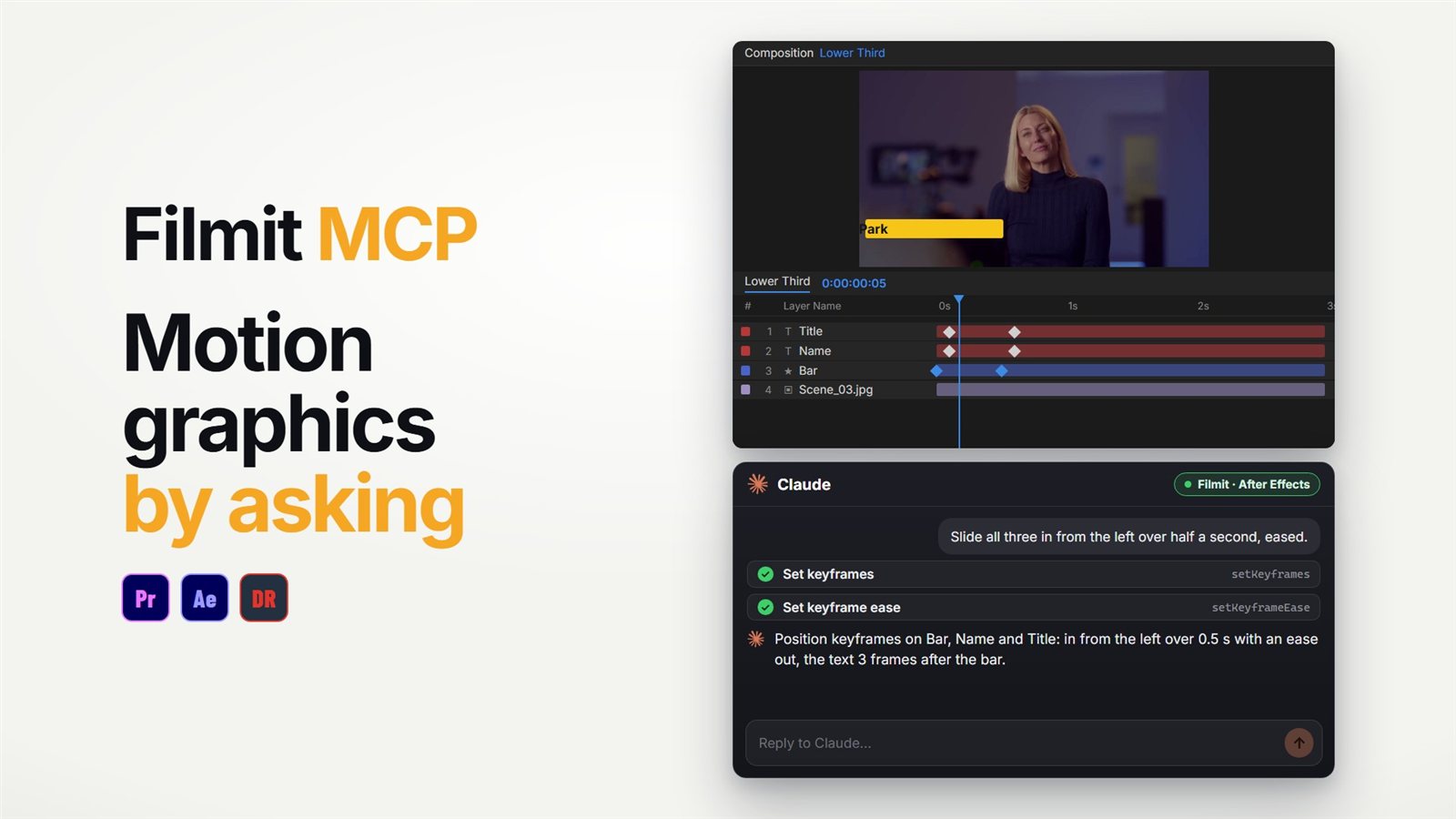
For one animated line rather than a whole voiceover, the Filmit MCP can build it in your comp by asking: "add a text layer that says Link in bio and type it on letter by letter". It adds the text layer and a per-character animation, then can look at a frame to check it. It does not transcribe audio, so a full caption track is still a job for Captions. Our guide to using Claude in After Effects covers the setup, and the After Effects MCP guide shows what else it can build.
Captioning in Premiere Pro instead? See how to make animated captions for free in Premiere Pro. Covering the same interview with cutaways? See adding b-roll that matches what is said. Captions installs free from Filmit Studio, our free desktop app.