To make an animated arrow in After Effects, draw a line with the Pen tool on a shape layer, give it a stroke, add Trim Paths, and keyframe its End from 0% to 100%. The line draws itself on. Add an arrowhead as a small triangle that pops in as the line arrives, ease the keyframes, and you have an arrow that points with some confidence.
Below is the native build step by step, the parts that get fiddly (arrowheads, restyling, pointing at something that moves), and a faster way with CallOuts, which draws eased call-out lines from one layer to another, as in the video.
The native way: Trim Paths on a shape layer
Draw the line
With no layer selected, pick the Pen tool (G) and click two points in the Composition panel, or click and drag for a curve. After Effects makes a new shape layer. Turn Fill off and give the Stroke a width and a colour.
Add Trim Paths
Open the shape layer’s Contents, click Add and choose Trim Paths. Keyframe End at 0% where the arrow should start, and at 100% where it should finish. The line now draws from its first point to its last.
Ease it
Select both keyframes and press F9 for Easy Ease. For a line that rushes out and settles, open the Graph Editor and pull the speed curve so most of the move happens early.
Add the arrowhead
Draw a small triangle on its own shape layer (the Polygon tool with three points, or three Pen clicks), place it at the end of the line and rotate it to point the right way. Keyframe its Scale or Opacity so it appears as the line arrives.
Style the stroke
In the Stroke settings, click the plus next to Dashes for a dashed line, set Line Cap to round for soft ends, and use Taper if you want the line to thin out toward the tip.
That is a solid arrow for one shot. It slows down when the arrow has to point at something that moves (you either track it or parent the ends to nulls), when the arrowhead has to sit at the end of a curve, or when a tutorial needs a dozen arrows in exactly the same style. Our roundup of After Effects callout animation examples shows the kinds of looks worth building.
Pro Tip: Keyframe Trim Paths Start as well as End, a few frames behind it, and the line draws on and then wipes off after itself. It makes a quick "look here" streak that leaves the frame clean.
The faster way: point from one layer to another with CallOuts
CallOuts is an After Effects panel that builds the line, both endpoints and the draw-on for you, between two layers you pick. These are the steps in the video:
Set the Start and the End
Need to point at a detail? Select a layer and set it as Start, then select the layer you are pointing at and set it as End.
Pick the endpoints
An arrow for the end, a dot for the start, or pins, flags and more. Each end of the line gets its own.
Set the draw-on
Animate draw-on is already on. Set how long it takes, and choose eased or linear.
Generate
Hit Generate and the line draws itself on, right in your comp.
Restyle it in the Control tab
Changed your mind? Pick the call-out in the Control tab and restyle it any time, for example a thicker line.
Brand colour and dashes
Type your hex code and the line follows. Switch it to dashed or dotted in one click.
Tips for arrows that read well
CallOuts draws from a Start layer to an End layer, and when the layer moves, the call-out follows. Set the End on the thing you are pointing at, not on an empty spot near it.
An arrow is there to guide the eye. A quick, eased draw-on reads as confident; a slow one makes the viewer wait for the point.
Pick a line weight, a colour and a pair of endpoints once, then match every arrow to it. Restyling from the Control tab is how you keep a late change consistent.
A dashed or dotted line reads as a path or a journey. A solid line with an arrowhead reads as "this one, here".
Or ask Claude or ChatGPT
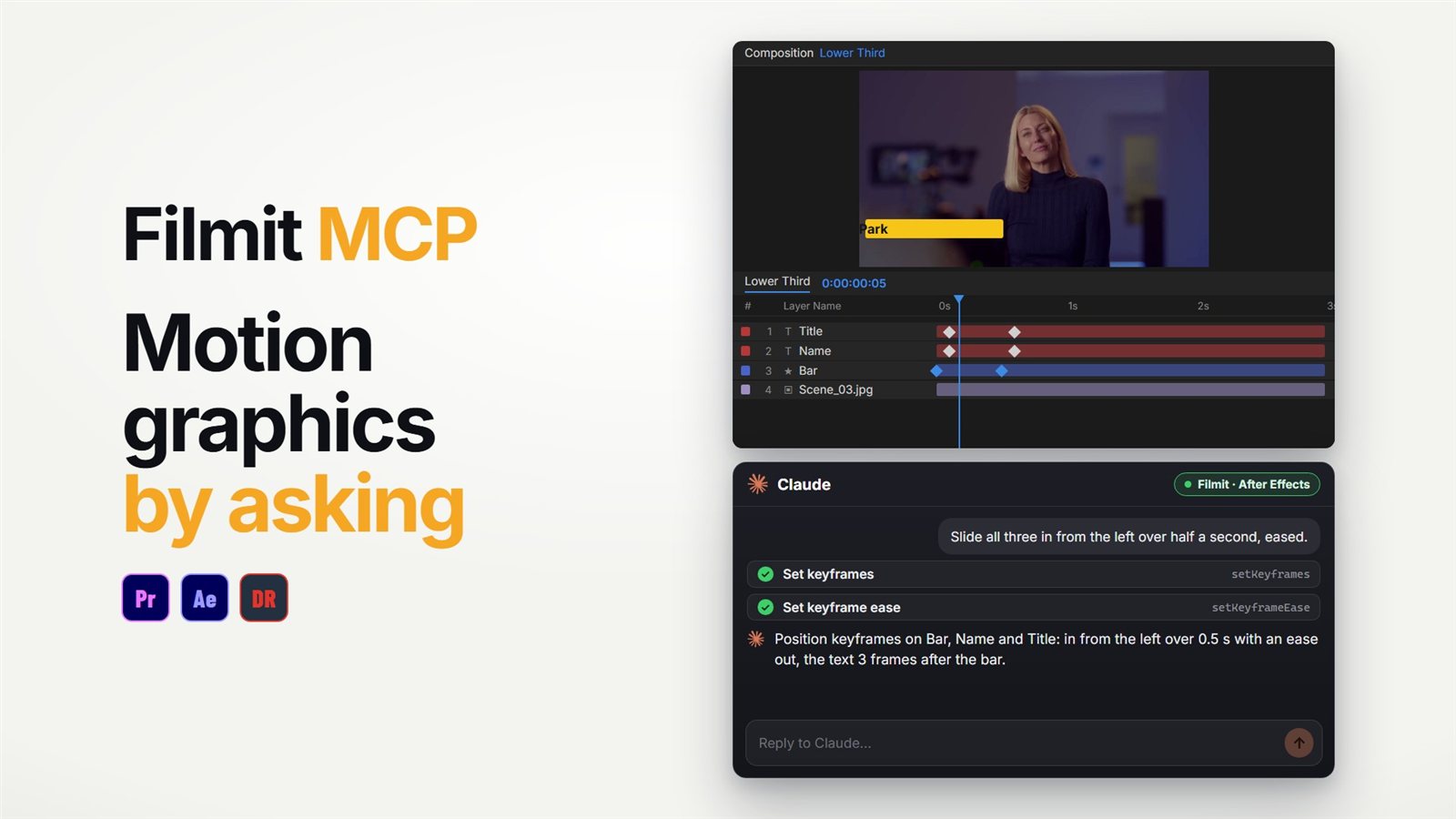
The Filmit MCP can build a simple straight arrow by asking. Its shape layers are rectangles, rounded rectangles, ellipses, polygons and stars rather than free Pen paths, so ask for a thin rectangle with a Linear Wipe keyframed to reveal it, plus a three-sided polygon for the head. It can set the keyframes and easing too. Our guide to using Claude in After Effects covers the setup, and the After Effects MCP guide lists what it can build.
Want your arrows to land on something more lively? Our guide to falling letters in After Effects pairs well with a pointer, and the CallOuts demo goes through more styles. CallOuts comes with Filmit Studio, our free desktop app, with a 7-day free trial.