Media management in Adobe Premiere Pro is the process of organizing, referencing, and relinking source media files so your project stays intact from first cut to final export. Premiere does not embed video files inside your project. It stores file paths, and when those paths break, your timeline goes dark. Understanding how Premiere handles media references gives you control over one of the most frustrating failure points in any video editing workflow. Tools like Media Browser, Project Manager, and the Link Media dialog are the core of this system, and knowing each one prevents hours of lost work.
What is media management in Premiere Pro?
Media management in Premiere Pro is defined as the system for mapping, organizing, and maintaining the file references that connect your project to its source footage. Adobe’s documentation describes it specifically as the process of mapping missing media files using relinking workflows such as the Link Media and Media Management dialogs. That definition is narrow but precise. It tells you something important: Premiere is not a media vault. It is a reference manager.
Every clip you see in your Project panel is a pointer to a file sitting somewhere on your hard drive, network, or external storage. Premiere stores the path to that file, not the file itself. This architecture keeps project files small and editing fast, but it creates a dependency. Move a folder, rename a drive, or hand your project to a colleague without the source files, and every clip turns into an offline placeholder. The red “Media Offline” frame is not a bug. It is Premiere telling you the path no longer leads anywhere.

One distinction before we go deeper: this guide covers the reference system — how Premiere tracks files, what to do when media goes offline, and how to archive projects safely. If you're looking for bin structure, naming conventions, and day-to-day footage organization, that's our media asset management guide; the two work together. This is why Premiere Pro media management is a skill, not just a setting. You are not just organizing folders. You are maintaining a live map between your creative decisions and the raw footage that makes them real.
How does Premiere reference media and what happens when it goes offline?
Offline media occurs when Premiere cannot find a file at the path it stored during import. The three most common causes are moving files to a new folder, renaming the file or its parent drive, and disconnecting an external drive without properly closing the project first. Each scenario severs the path, and Premiere has no way to guess where the file went.
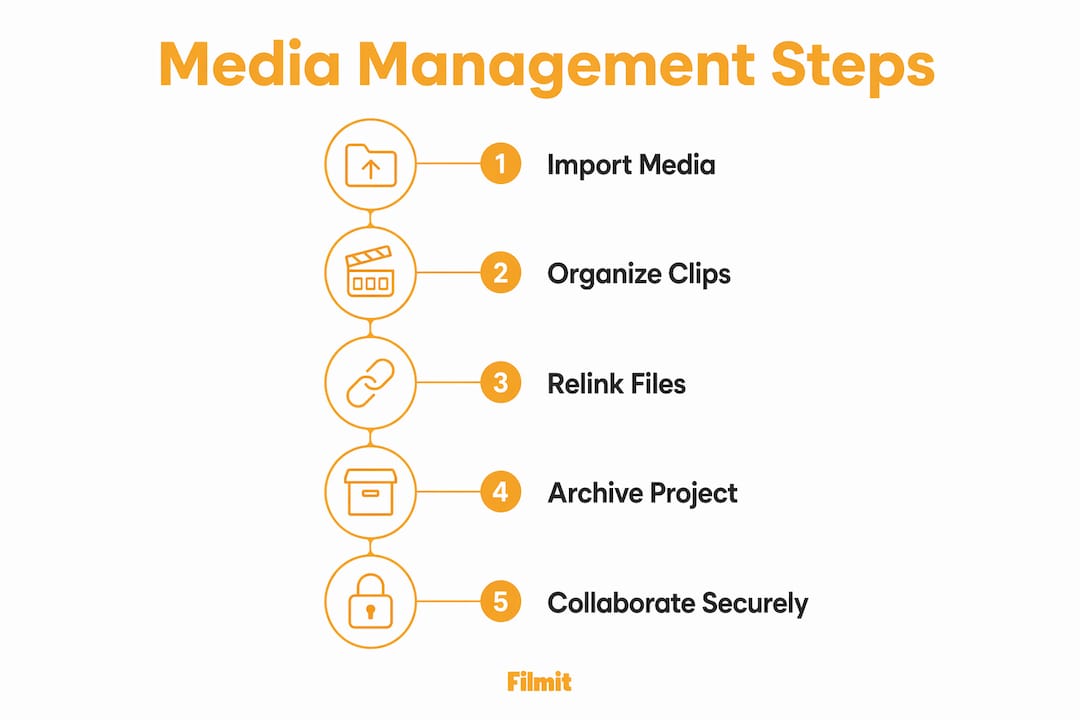
Relinking restores the connection. Here is how the process works in practice:
- Open your project. Offline clips appear with a red “Media Offline” overlay in the Program Monitor and a warning icon in the Project panel.
- Right-click any offline clip and select Link Media. The Link Media dialog opens and lists all unlinked files.
- Select a missing file from the list, then click Locate. Navigate to the file’s new location and select it.
- Enable Align Timecode if the file has the same content but a different name. This helps Premiere match the clip correctly.
- Click OK. Premiere’s auto-chaining feature then attempts to relink all other offline files in the same folder automatically, saving you from relinking each clip one by one.
Auto-chaining is one of Premiere’s most underused features. If you have 40 clips from the same shoot folder and you relink one, Premiere scans the same directory and reconnects the rest without any additional input from you. This turns a potential hour of manual work into thirty seconds.
Pro Tip: Before moving any project folder, always use File > Save a Copy first. This gives you a clean snapshot of the project at its current state, with all paths intact, before you reorganize anything.
In Team Projects, the relinking behavior changes. The Link Media feature works locally and does not alter any collaborator’s media mappings. This is a deliberate design choice that prevents one editor from accidentally breaking another editor’s file paths. Each person on the team maintains their own local map to the shared media.
What tools does Premiere Pro offer for organizing media?
Premiere Pro gives you two primary tools for media organization: Media Browser and Project Manager. They serve different purposes, and using both correctly is what separates a professional video editing workflow from a chaotic one.
Media Browser is your import gateway. It lets you browse footage directly inside Premiere while preserving metadata and supporting proxy workflows. Unlike importing through the OS file dialog, Media Browser understands camera formats like AVCHD and R3D, displaying multi-file media structures as single clips. This matters because dragging raw AVCHD folders into Finder or Explorer and then into Premiere often breaks the file structure. Media Browser handles it correctly.
Project Manager handles consolidation and archiving. Its core function is to copy only the source footage used in your sequences into a new, self-contained folder. The key options include:
- Exclude unused clips: Strips out any footage you imported but never cut into a sequence, reducing archive size significantly.
- Add handles: Adds extra frames (between 0 and 999) before and after each used clip, giving you room to adjust edits after the transfer.
- Rename media to match clip names: Syncs file names to the names you gave clips inside Premiere, which is useful when you have renamed clips for clarity during editing.
- Collect files and copy to new location: Bundles everything into one folder, making the project portable and ready to hand off or archive.
Importing footage into projects
Preserves metadata and camera-format structure
Consolidating and archiving projects
Copies only used media, with optional handles
Relinking offline clips
Batch relinks with auto-chaining support
Organizing clips inside the Project panel
Mirrors folder structure for fast navigation
Project Manager is designed more for portability and archiving than simple cleanup. When you hand a project to a client or move it to a new workstation, manually copying folders risks missing dependencies. Project Manager collects everything the project actually needs and nothing it does not.
Pro Tip: Set your handles to at least 24 frames when using Project Manager for archiving. This gives future editors one full second of breathing room on either side of every cut.
Organizing your Project panel into bins that mirror your folder structure on disk is a small habit with a large payoff. When your bins match your folders, relinking is faster because Premiere already knows where to look.
How does media management work in collaborative Team Projects?
Team Projects in Adobe Premiere Pro separates the project metadata from the actual media files. The project metadata lives in Creative Cloud, while the source media sits on whatever storage each collaborator can access. That storage can be a shared network drive, an external drive passed between editors, or a cloud sync service like Dropbox or OneDrive.
This architecture creates a specific challenge. Every collaborator must independently map the media to their local machine. No one’s relinking decision affects anyone else’s setup. That is the strength of the local-only Link Media approach. It isolates each editor’s file paths so a junior editor relinking footage on a laptop does not accidentally reroute a senior editor’s paths on a workstation.
Best practices for collaborative media management include:
- Store all shared media on a network drive or cloud sync folder that every team member can access with the same relative path structure.
- Agree on a naming convention for drives and folders before the project starts. A drive named “ProjectMedia” on one machine and “Backup_Drive” on another will cause relinking problems even when the files are identical.
- Use the Media Management dialog (Edit > Team Project > Media Management) to identify and resolve missing media at the project level rather than clip by clip.
- Avoid storing active media in cloud-only folders where files may not be locally available. Premiere needs a local path to read the file during playback and export.
Pro Tip: When onboarding a new collaborator to a Team Project, send them a simple text document listing the exact drive name and top-level folder structure. This one step eliminates most first-day relinking problems.
The Media Management dialog in Team Projects lets you select missing media items, navigate to the correct folder, and remap them in a single session. This is faster than relinking clip by clip and gives you a clear view of every unresolved dependency in the project.
How to prevent media management problems before they start
The most effective media management strategy is prevention. Offline media and broken projects almost always trace back to decisions made during project setup, not during editing.
Keep these practices consistent across every project:
- Create a master project folder before you import a single clip. Inside it, create subfolders for footage, audio, graphics, exports, and the Premiere project file itself. Every asset lives inside this folder from day one.
- Never import media from a desktop, Downloads folder, or temporary location. These paths change. Your project folder does not.
- Use consistent naming conventions for files and drives. Date-based prefixes like “20260315_Interview_A” sort chronologically and make relinking faster when you need to locate a specific clip.
- Run Project Manager before archiving or transferring any project. Manual folder copying misses render files, motion graphics templates, and other dependencies that Project Manager catches automatically.
- Back up your project folder to at least two locations. One local, one offsite or cloud. Media loss is not a Premiere problem. It is a storage problem that Premiere makes visible.
- Check your proxy workflows before sharing projects. Proxies are separate files with their own paths. If a collaborator does not have your proxies, they will either edit at full resolution or see offline media for every proxy-linked clip.
Avoiding cloud-only sync folders for active media deserves special attention. Services like iCloud Drive and Google Drive can mark files as “online only” to save local disk space. Premiere cannot read a file that is not physically on the drive. If you store active project media in one of these folders, you may open a project and find everything offline even though the files technically exist in the cloud.
Media cache vs. your media: know the difference
One source of confusion deserves its own mention: the media cache. As you import footage, Premiere generates helper files — waveforms, conformed audio, index files — and stores them in its Media Cache folder. These are not your media. They are disposable accelerators that Premiere can rebuild anytime.
That distinction matters in both directions. Deleting media cache files (via Preferences > Media Cache > Delete) is completely safe — your clips will not go offline; Premiere just regenerates the cache on the next open, which may make the first playback slower. Deleting source media to free disk space, on the other hand, is permanent: no amount of relinking brings back a file that no longer exists. When a drive fills up mid-project, clear the cache first, and never touch the project folder without a backup.
Key takeaways
Effective Premiere Pro media management requires consistent folder structures, proper use of Project Manager, and an understanding of how Premiere stores file paths rather than actual media.
Moving or renaming source files breaks the reference and takes clips offline.
Use auto-chaining to relink entire folders at once instead of clip by clip.
Consolidate before archiving to collect only used media, with optional handles.
Each collaborator maps media independently, so no one overwrites anyone's paths.
A consistent master folder and naming convention eliminates most offline-media issues.
Why media management is the skill most editors learn too late
Talented editors lose entire project days to offline media that ten minutes of setup would have prevented. The frustrating part is that Premiere's reference model is not a flaw — it is genuinely efficient. But it demands that you understand what you are agreeing to when you import footage.
The local-only relinking behavior in Team Projects is one of the most thoughtful design decisions Adobe has made for collaborative editing. Most editors do not know it exists until they accidentally break a colleague's project the old way. Once you understand it, you stop treating relinking as a recovery task and start treating it as a normal part of project setup.
Project Manager is similarly underappreciated. Editors who have never used it copy project folders manually, miss a dependency, and then spend an hour tracking down a missing motion graphics template on a drive they already returned to a client. Project Manager is not glamorous, but it is the difference between a clean handoff and a panicked email at midnight.
If you are teaching yourself Premiere or studying in a film program, build these habits before you build your first real project. The beginner's guide to Premiere Pro covers the foundational setup steps that make media management easier from the start. The editors who master this early do not just work faster — they work with confidence, because they know their projects will open correctly every single time.