Adobe Premiere Pro is the industry standard for video editing, but its depth can overwhelm a beginner. This guide covers the essentials — setting up your workspace, importing footage, organizing your project, making your first cuts, and exporting social-ready video for YouTube, Reels, and TikTok — so you can start editing confidently today.
Set up your workspace
When Premiere launches, skip the import prompt and choose the Edit workspace in the top-left. These are the four panels you'll actually use:
- Project panel — where your imported assets live.
- Timeline — where you actually edit.
- Program Monitor — previews your edit.
- Tools panel — selection, cut, text, and other essentials.
Premiere is modular — drag any panel to dock it where you like, and use Window > Workspaces to reset or save a layout. Close panels you don't need for a cleaner view.
Import your footage
Drag and drop
For phone clips, screen recordings, or downloaded files, just drag them from your file browser into the Project panel.
Use the Media Browser for pro formats
For RED, ARRI, or BRAW, open Window > Media Browser. It reads camera-card structures correctly, prevents broken links, and lets you preview before importing.
Stay organized with bins
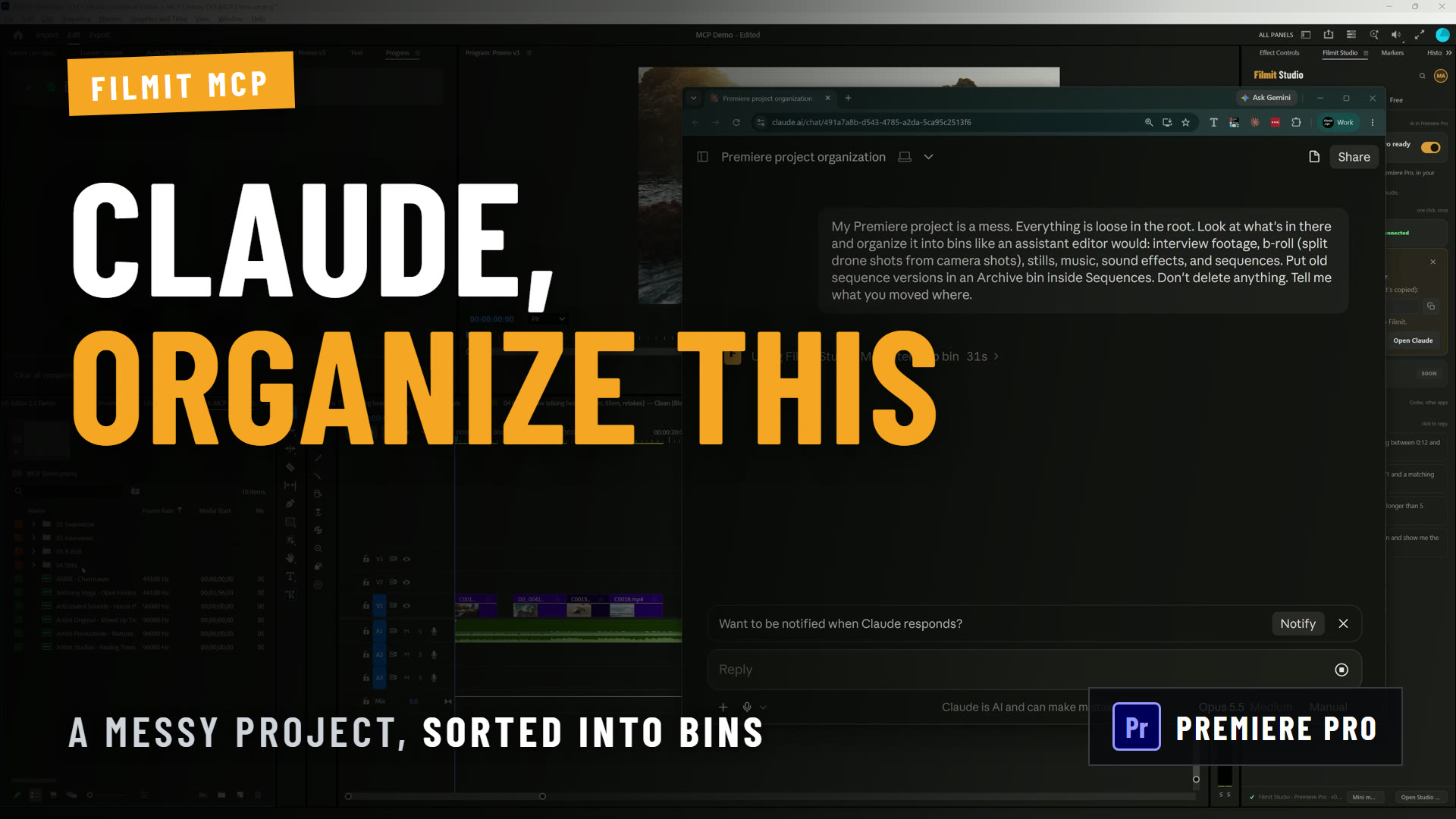
A clean project is a fast project. Right-click in the Project panel and choose New Bin to make folders for Footage, Sequences, Assets, Music, and Exports. Label and color them so you can find anything at a glance — a habit that saves hours as projects grow.
Make your first edit
Create a sequence
Drag a clip to the Timeline and Premiere builds a sequence that matches its settings — the simplest way to start at the right resolution and frame rate.
Cut and arrange
Use the Razor (C) to split clips and the Selection tool (V) to move and trim them. Press Space to play back as you go.
Add titles and audio
Use the Type tool (T) for text and drop music onto an audio track, then fade it with audio transitions.
Export for social platforms
When you're done, choose File > Export > Media (or Ctrl/Cmd+M). For YouTube, export H.264 at your sequence resolution with the Match Source high-bitrate preset. For Reels and TikTok, set a 9:16 vertical sequence and export H.264. Enable Loudness Normalization at -14 LUFS so your audio is consistent across platforms.
Pro tip: start every project from a saved bin structure so you never reorganize from scratch. A consistent folder template is the single fastest way to keep big edits manageable.