Making film credits by hand in After Effects is one of those jobs that looks like five minutes and becomes an afternoon. You type out every department, line the roles up against the names, stack it into a long text layer, then start the slow part: animating the scroll, timing it, and redoing the timing every time one more name comes in late. None of that is creative work, and it waits at the end of every project.
And on a real production it is not relaxed. A producer hands the editor a credit list and expects a clean roll back fast, often the day before a deadline, often with the list still changing. This guide follows my demo above and shows how to make a finished credit roll with a tool literally called Credits, which generates the credits for you, from the cast and crew list to a composition.
This video may reference an older version of Credits. Features and UI may have changed since recording.
What is the Credits plugin?
Credits is a Filmit plugin that builds film credits inside After Effects. You put your cast and crew into a panel, pick how it looks, preview it, and generate the roll as a real composition, rather than animating a scroll by hand or wrestling a hundred names into one text layer.
It is also extensive. There is a small Filmit example to get you started and, at the other end, a feature-film example loaded with a ton of credits, so it handles anything from a short film card to a full motion-picture roll. The workflow is the same at both sizes.
How to install and open Credits
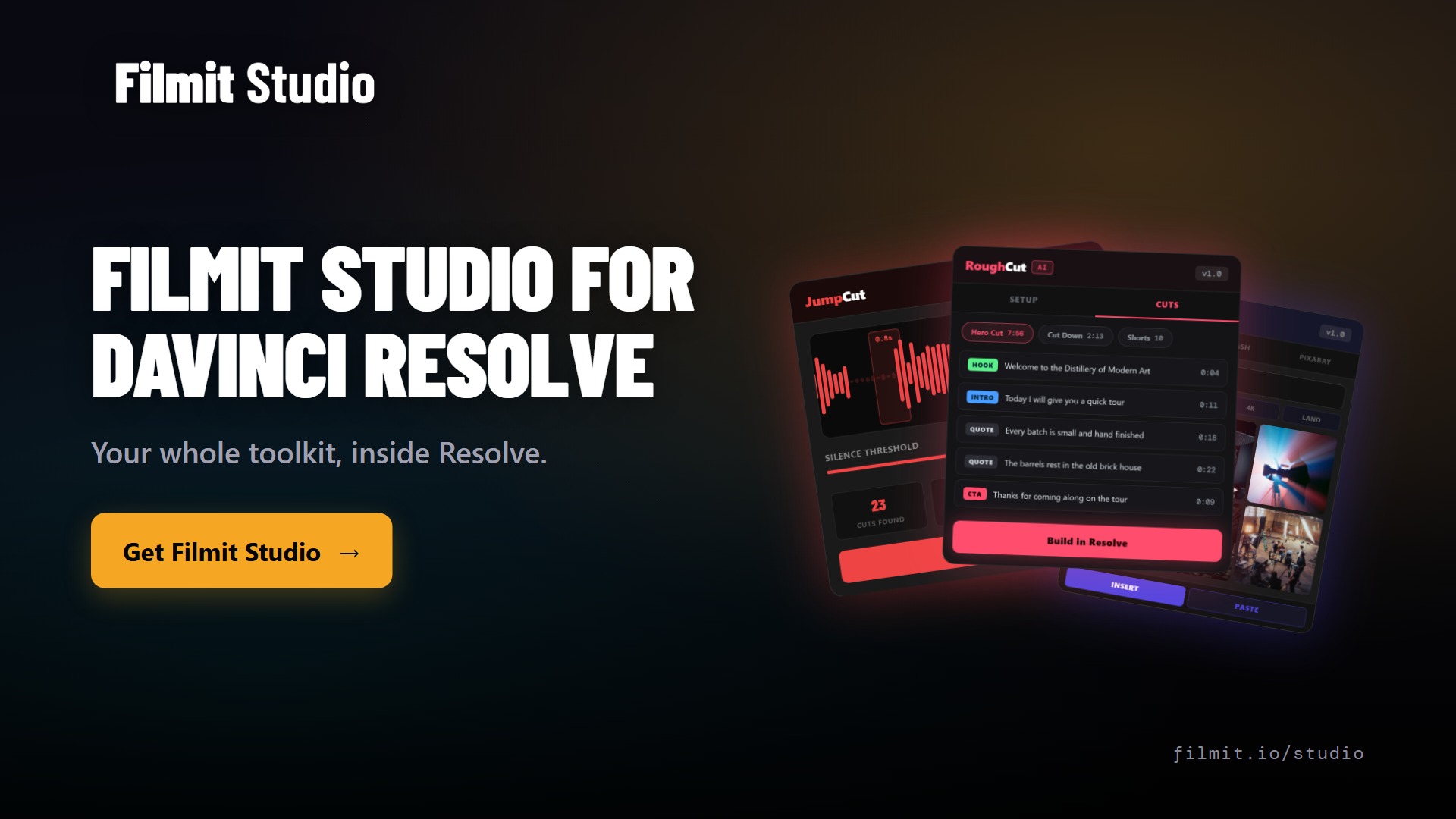
Credits installs through Filmit Studio, the desktop app that manages your Filmit plugins the way Creative Cloud manages Adobe apps. You download Filmit Studio for free and install Credits from it. Everything comes with a 7-day free trial, and that trial unlocks every After Effects, Premiere Pro, and DaVinci Resolve tool in the suite, so you try the whole thing.
Once it is installed, open After Effects and go to Window, then Extensions, then Credits. If After Effects was already running when you installed, close and reopen it first. The panel opens docked like any other extension.
Building credits with blocks
The Credits tab is where you put your cast and crew, and it is built out of blocks. There are many block types: a credit section, a spacer, a divider, a title card, and the credit layouts themselves, single, double, triple, quad, and group, so a role can sit next to one name or a whole list. You can also add a logo, a picture, and even a video, which is how production logos and stills end up in the roll.
To build from scratch, click New and start stacking blocks. Add a section for a department, drop in the singles and doubles under it, and use spacers and dividers to give the roll room to breathe. It is the structure a finished credit sequence has, assembled from labeled pieces.
Pro Tip: Match the block type to the credit. Use a single for one role and name, a double or triple when several people share a heading, and a group for a long list under one title. The right block keeps the roll aligned without manual spacing.
Importing from a spreadsheet, the producer workflow
For a real cast and crew list, the fastest path is not the panel at all. At the top of the Credits tab you can Import CSV or Import Excel, and there is a Download button for the Excel template. Grab that template so the program reads your layout correctly, fill in your credits, and import it back into Credits to build the whole roll at once.
This fits how productions actually work. Producers love handing editors a credit template for an indie short, a spreadsheet with every department and name already laid out. Instead of retyping that list block by block, you import it straight into Credits, and re-import the sheet when a name changes.
Pro Tip: Always start from the downloaded Excel template rather than your own spreadsheet. It is laid out so Credits reads each column correctly, the difference between a clean import and a roll you fix by hand.
Presets, styles, and Advanced Mode
You do not have to design a credits look from a blank canvas. Credits ships with built-in presets, so pick the Filmit example and hit Preview to see how it reads. If you do not like the font, the Style tab has plenty of template styles to swap in, and the demo goes with Indie Movie. The Style tab also lets you fully customize fonts and styles, so the templates are a starting point rather than a cage.
There is also a button in the top right called Advanced Mode, which most of the plugins have. It opens a one-to-one, larger workspace, which helps because the docked After Effects panel can feel cramped. In the bigger window you add and drag credits freely, for example dragging a new credit into the opening credits and typing in Animator and the name.
Scroll vs card sequence and setting the length
Credits gives you two modes for how the roll plays. Scrolling is the most popular, the continuous credits that move up the screen. Card sequence is the other, and it builds the card sequences automatically, showing your credits one card at a time, the look a lot of films use. They are a switch apart.
You can also set the roll to run a specific length. Type a duration like 360 seconds for about six minutes and the playback button shows what the composition will look like, or grab the speed slider to pick a duration directly, for example 41 seconds for a shorter example. Either way you fit the credits to the time you have, instead of generating a roll and discovering it runs long.
Pro Tip: If you have a hard time slot to hit, type the seconds you want rather than dragging the slider. Credits sizes the whole roll to that exact runtime, so it lands on time.
Generating the roll
Before you generate, check the Help file. It tells you if you are missing any fonts and links them for you, and most are free, with a how-to for fonts on the website. Sorting that out first means the roll renders with the type you picked.
When everything is in place, hit Generate Credits and the plugin builds the After Effects composition for you. Fit it to frame and play it back, and the roll matches what you previewed. From there it behaves like any other comp: you can set or change the frame rate, and it can include the logos, columns, photos, and videos you added through the blocks. If you want a feature added, request it or join the Discord from the settings page.
Key takeaways
Add sections, spacers, dividers, and single through group credit types, plus logos, pictures, and video.
Download the Excel template, fill in the cast and crew, and Import CSV or Excel instead of retyping.
Preview a built-in preset, swap to a template style like Indie Movie, and tune fonts on the Style tab.
Type a duration or drag the speed slider so the credits run the length you actually have.
Click Generate Credits and the plugin builds the After Effects comp, ready to fit to frame and play.
Get started with Filmit
Credits installs through Filmit Studio, the free app that manages every Filmit plugin for After Effects and Premiere Pro. One install puts Credits in your editor with a 7-day free trial, and the same app keeps it updated.
And once the roll is built, pair Credits with TextPilot, our text manager for After Effects that scans your whole project so you can bulk edit, translate, and spell check every text layer from one panel. Both are part of the same suite, so every plugin runs under a single subscription.