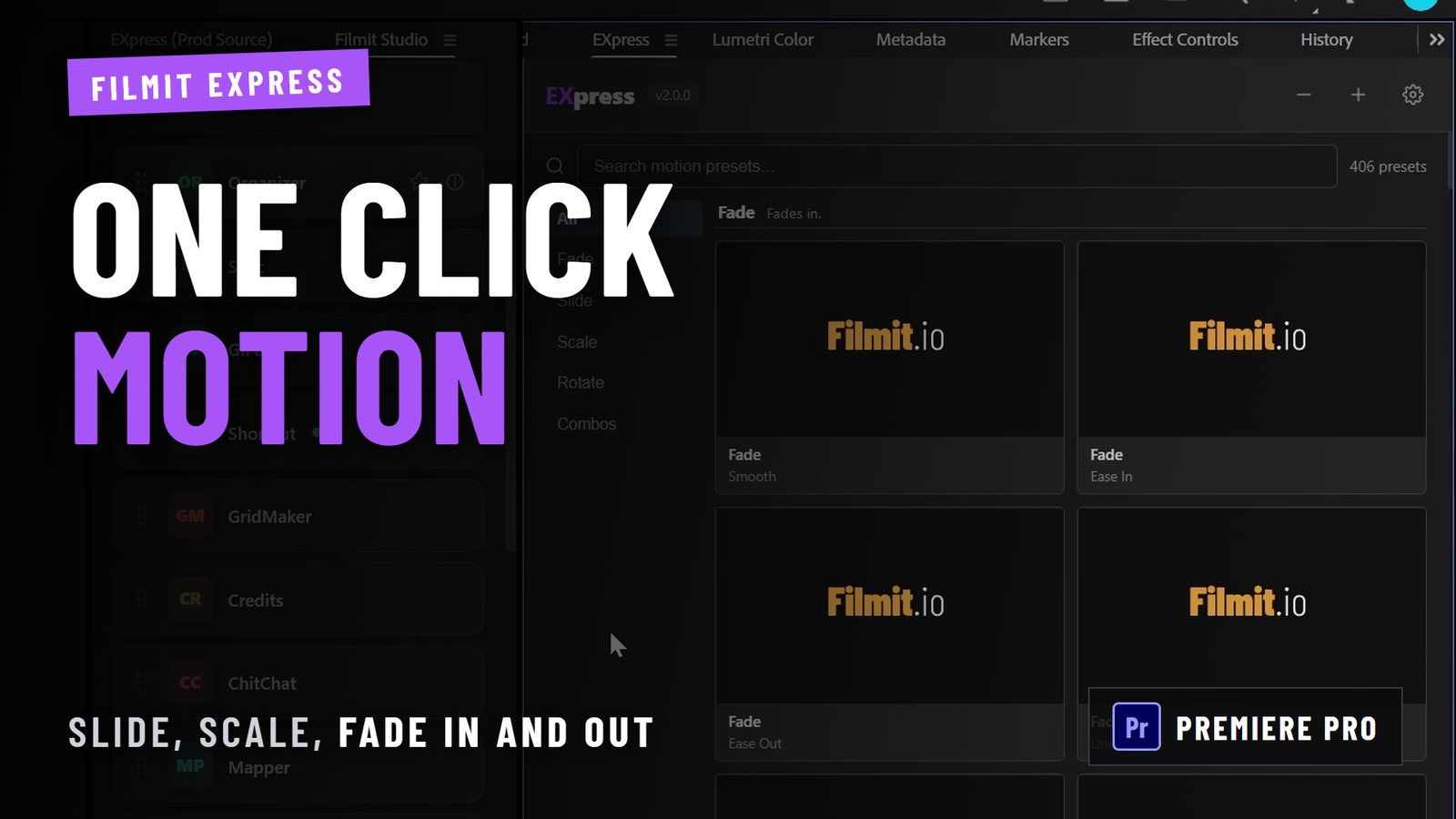
Animated infographics in Adobe Premiere Pro are motion graphics overlays built from Motion Graphics templates (MOGRTs) that let you display data, timelines, and comparisons directly inside your editing timeline. You can design animated infographics in Premiere Pro without ever opening After Effects, using the Essential Graphics panel to swap text, colors, and chart values in seconds. This native workflow keeps your editing rhythm intact, delivers brand-consistent visuals for weekly content and client work, and scales from solo YouTube creators to full post-production agencies. The result is professional, on-brand data visualization that moves with your story.
How to design animated infographics in Premiere Pro: tools you need first
The right setup makes every step faster. Before you touch a single template, confirm your environment is ready.
Software and version requirements

Premiere Pro CC 2017 or later supports MOGRT files natively. The Essential Graphics panel, which is your control center for every template edit, ships with all current Creative Cloud subscriptions. You do not need a separate After Effects license to use pre-built MOGRTs, though After Effects must be installed if you plan to create custom templates later.
Where to find infographic templates
Adobe Stock carries thousands of MOGRT packs directly searchable inside Premiere Pro. Third-party marketplaces like Motion Array and Envato Elements offer specialized infographic packs. Professional MOGRT packs include dozens of customizable animated chart elements such as line, bar, pie, and candlestick charts, all fully editable in the Essential Graphics panel with no plugins required. Many packs also support 4K resolution and dark or light mode, which matters when you are delivering for multiple platforms.
Sequence and display settings to check before you start
- Match your sequence resolution to your delivery spec: 1920x1080 for standard HD, 3840x2160 for 4K.
- Enable title-safe and action-safe overlays in the Program Monitor so text never bleeds off screen.
- Set your sequence frame rate to match your footage (23.976, 25, or 29.97 fps) before dropping in any MOGRT.
- Check that your color space is consistent. Most infographic templates assume Rec. 709.
Hardware requirements are minimal. Any machine that runs Premiere Pro smoothly handles MOGRT playback. GPU acceleration helps with real-time preview of complex animations, but no specialized hardware is required.
How do you customize and animate infographic templates step by step?
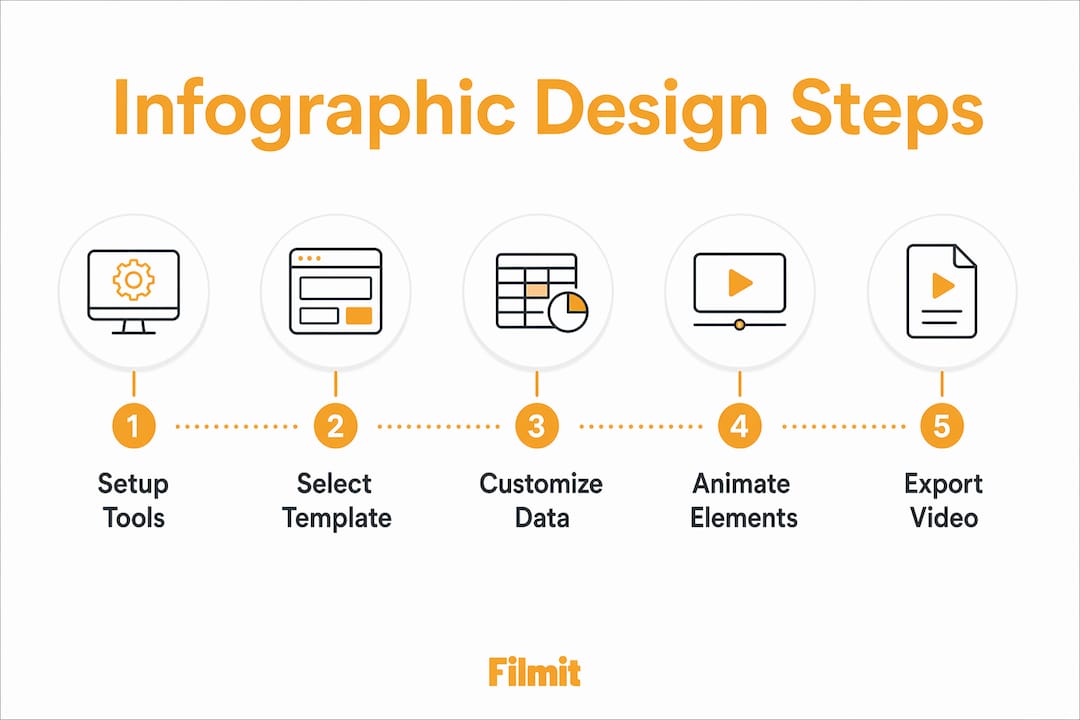
This is where the real work happens. Follow these steps to go from a raw MOGRT file to a polished animated graphic.
Install the MOGRT
Open the Essential Graphics panel (Window > Essential Graphics), click the Browse tab, then the cloud icon to install a local MOGRT file. It appears in the panel immediately.
Drop it on the timeline
Drag the template from the Essential Graphics panel onto a video track above your footage. Premiere places it as a Motion Graphics clip.
Open the Edit tab
Click the clip, then switch to the Edit tab. Every editable field appears: text boxes, color swatches, numeric sliders for chart values, and animation toggles.
Edit text and fonts
Click any text field and type your label or data point. Change the font from the dropdown, keeping choices consistent with your brand style guide.
Adjust colors
Click any color swatch to open the picker and match your brand hex codes exactly. Most professional packs expose separate background, accent, and data colors.
Set chart values
Bar, pie, and line templates expose numeric fields per data segment. Type your values and the animation scales to reflect them automatically.
Control animation timing
Expand the clip in the timeline to reveal keyframes, then drag the handles to stretch or compress the duration. Most MOGRTs use eased keyframes by default.
Layer multiple elements
Stack several MOGRT clips on separate tracks to build a composite infographic, using the panel's alignment tools to position each precisely.
Pro Tip: For animated progress bars and circular data indicators, use stroke-only shapes with the Trim Paths effect rather than filled shapes. Fills reduce animation smoothness. Strokes with Trim Paths give you clean, fluid motion that reads clearly at any size.
The Essential Graphics panel is more powerful than most editors realize. You can reorder layers, toggle visibility, and even link parameters across multiple elements, all without touching After Effects.
What are common mistakes in animated infographic design?
Even experienced editors run into the same handful of problems. Knowing them in advance saves real time.
-
Text cropping on export. Respecting title-safe margins prevents text from being cut off on televisions, mobile screens, and social media players. Enable the safe margin overlay in your Program Monitor before finalizing any graphic.
-
Non-editable fields in templates. Some MOGRT files lock certain layers to protect design integrity. If a field will not respond in the Edit tab, the template author has locked it. You need to open the original After Effects project to unlock it, or choose a different template.
-
Animation timing out of sync with narration. Drop a marker on your timeline at every beat where a data point should appear. Then align your MOGRT keyframes to those markers. This keeps your visuals locked to your script.
-
Inconsistent branding across multiple videos. Build a master color palette as a saved Essential Graphics style. Apply it to every new template you use. This takes five minutes to set up and eliminates brand drift across an entire series.
-
Readability at small sizes. Infographics that look sharp at 1080p can become illegible on a phone screen. Test your export at 50% zoom before delivery. If labels blur or overlap, increase font size or reduce the number of data points per graphic.
When a template feels broken, check the Essential Graphics Edit tab first. Locked fields, missing fonts, and mismatched frame rates cause most template issues in Premiere Pro.
When standard MOGRT customization hits its ceiling, that is the right moment to consider building custom animations in After Effects and exporting them back as reusable MOGRTs.
How do you integrate animated infographics into video projects?
Dropping a graphic on the timeline is the easy part. Making it serve your story takes deliberate choices.
Match the infographic type to your narrative
Infographic design is a thinking problem more than a visual one. Define your story and the one central message each graphic must carry before you select a template. A process infographic works for step-by-step tutorials. A comparison graphic suits product reviews. A timeline graphic fits historical or project-based content. Rushing to pick a template before clarifying the message is the most common reason infographics fail to land.
Pacing and rhythm
Animated graphics in Premiere need to breathe with the edit, not fight it. Cut to your infographic on a beat or at a natural pause in narration. Let the animation complete before cutting away. A graphic that disappears before the viewer reads it wastes screen time and confuses the audience.
Color and brand consistency
Match your video's color grade or use a neutral overlay.
Pull directly from your brand palette.
One typeface family across every graphic in the project.
Keep motion direction consistent — left-to-right builds, top-down reveals.
Export settings for quality and readability
Export at your sequence resolution with H.264 or ProRes depending on delivery platform. For social media, H.264 at a high bitrate (16–20 Mbps for 1080p) preserves text sharpness. For broadcast or client masters, ProRes 422 is the standard. Avoid heavy compression codecs that soften fine text edges.
An infographic with a clear narrative hierarchy gets read; one that's decoration with no through-line gets skipped. Lead with the story and the visual does the work.
What advanced tips speed up your infographic workflow?
Once you have the basics down, these techniques separate fast editors from slow ones.
Use pre-built MOGRT packs aggressively. The largest efficiency gains come from pre-built templates rather than building from scratch. A quality pack with 100+ elements covers nearly every data visualization scenario you will encounter in commercial work.
Build your own reusable MOGRTs. Experienced editors create custom MOGRT templates in After Effects once, then reuse them across every project. The upfront investment of two to three hours pays back on every subsequent video.
- Organize your Essential Graphics panel into folders by project or client.
- Assign your own keyboard shortcut to the Essential Graphics panel (Window > Essential Graphics) so you can toggle it instantly.
- Duplicate MOGRT clips on the timeline instead of re-importing the same template repeatedly.
- Name every MOGRT clip in the timeline so your project file stays readable six months later.
Why story always comes before the template
Most editors open Premiere Pro and immediately start browsing templates. It feels productive — you're moving, clicking, previewing. But that habit quietly kills the effectiveness of every infographic you make.
The template is a container. It doesn't know what story you're telling. Pick a visually impressive bar chart before you've defined what the bar chart is supposed to prove, and you end up designing around the template's constraints instead of your audience's needs. The graphic looks polished and says nothing.
The workflow that actually works: write one sentence describing what the viewer should understand after seeing the graphic. Then pick the simplest template that communicates that sentence. A plain animated number counter often outperforms a complex multi-axis chart because it carries one clear message.
It's also worth pushing back on the idea that After Effects is the answer for anything beyond basic customization. Premiere Pro's native MOGRT workflow handles the large majority of real-world infographic needs, and jumping to After Effects for every tweak adds context-switching cost that compounds across a full edit day. Stay in Premiere Pro until the template genuinely can't do what you need — you'll finish faster and the edit will feel more cohesive. The editors who produce the best motion graphics aren't the ones with the most After Effects skills; they're the ones who plan their visuals before they open any software.
Key takeaways
Designing animated infographics in Premiere Pro is most effective when you combine pre-built MOGRT templates with a clear story-first approach and consistent brand settings.
Install MOGRT packs into the Essential Graphics panel to edit charts and text without After Effects.
Define the single message each graphic must deliver before picking a template.
Stroke-only shapes with the Trim Paths effect give fluid, professional chart animation.
Enable title-safe and action-safe overlays so text stays readable everywhere.
Reusing professional MOGRT libraries beats building custom for most projects.