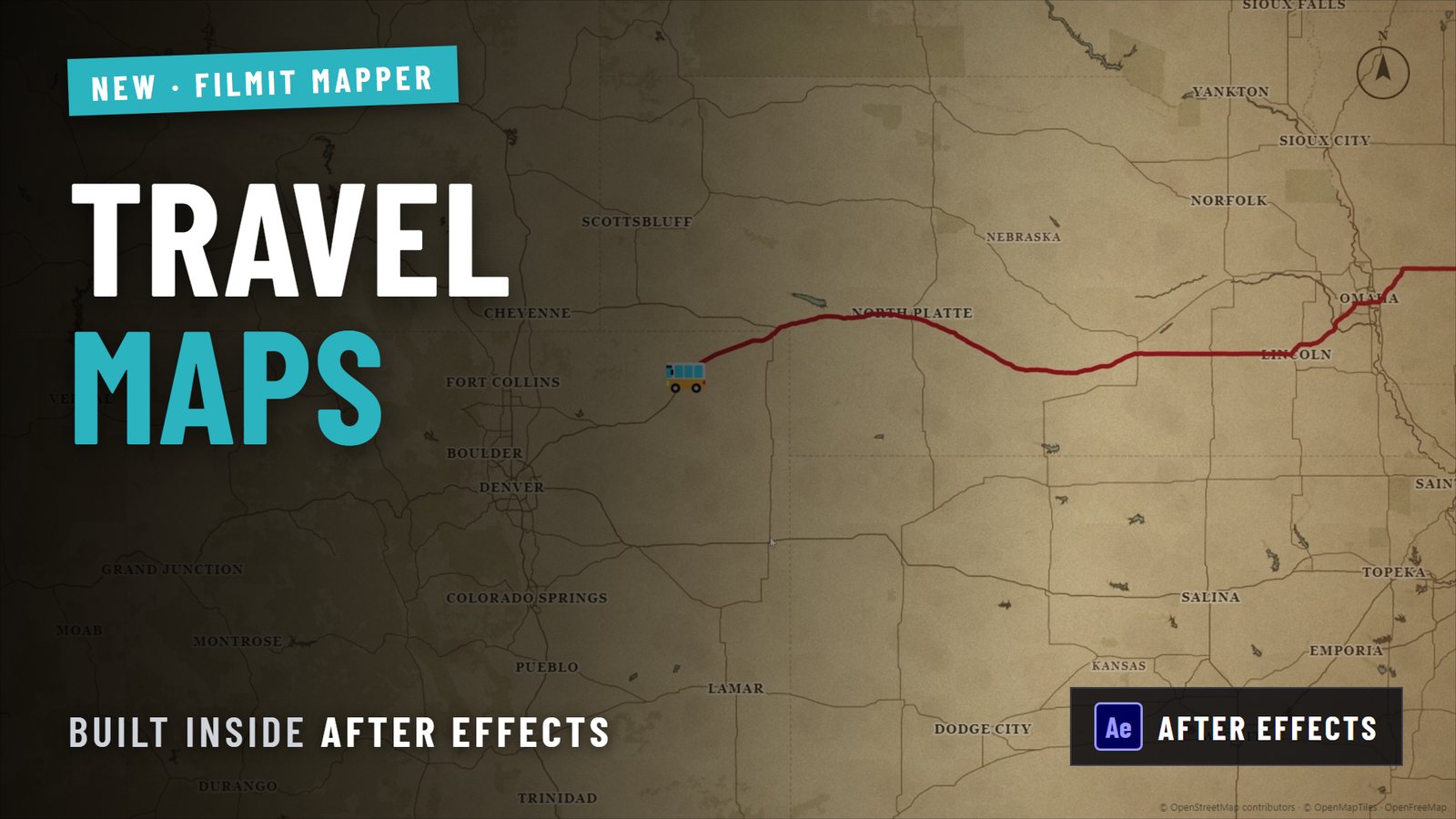
To create a map route animation in After Effects with no plugins, draw your path with the Pen tool on a shape layer, turn on a dashed stroke, add Trim Paths and keyframe End from 0% to 100%, then add Rounded Corners to smooth the turns. The line draws itself along your route — perfect for travel vlogs, documentaries, and presentations.
Step 1: draw your route
Grab the Pen tool
Open your map image in a composition and select the Pen tool (G). Click to plot points from your start to your end location — for example, Jefferson City to Oklahoma City to Dallas.
Set the stroke
In the shape layer, open Contents > Shape > Stroke. Raise the Stroke Width for visibility, and set Cap to Round and Join to Round for smoother lines.
Step 2: animate the line drawing on
Add dashes (optional)
Under Stroke, enable Dashes and raise the count for a dotted travel-line look.
Add Trim Paths
Click Add > Trim Paths, open its settings, and keyframe the End property from 0% to 100% over your chosen duration. Press Space and watch the line draw itself along the route.
Step 3: smooth the corners
To clean up sharp turns, go to Add > Rounded Corners and raise the Radius. This softens the path's angles for a polished, documentary feel.
Pro tips for better map animations
- Match the stroke color to your brand or use a contrasting hue so the route pops.
- Add a moving dot or icon at the Trim Paths head to simulate travel.
- Overlay a subtle map texture for a cinematic look.
- Easy Ease your keyframes so the line starts and ends naturally.
Need labels and multiple stops? This manual method is great for a single clean route. For animated callout labels, elbows, and multi-leg paths in one click, Filmit CallOuts automates the whole thing.