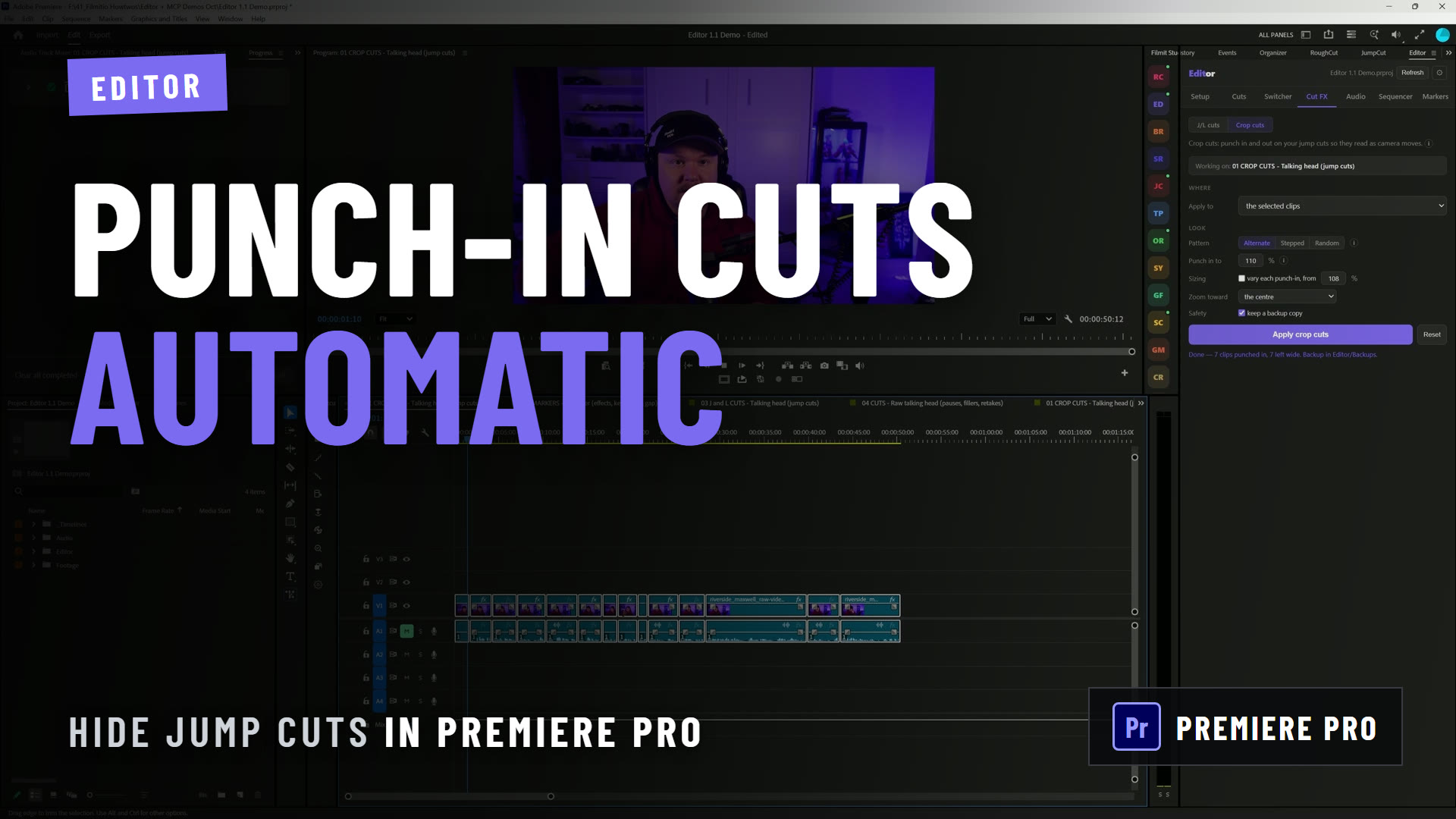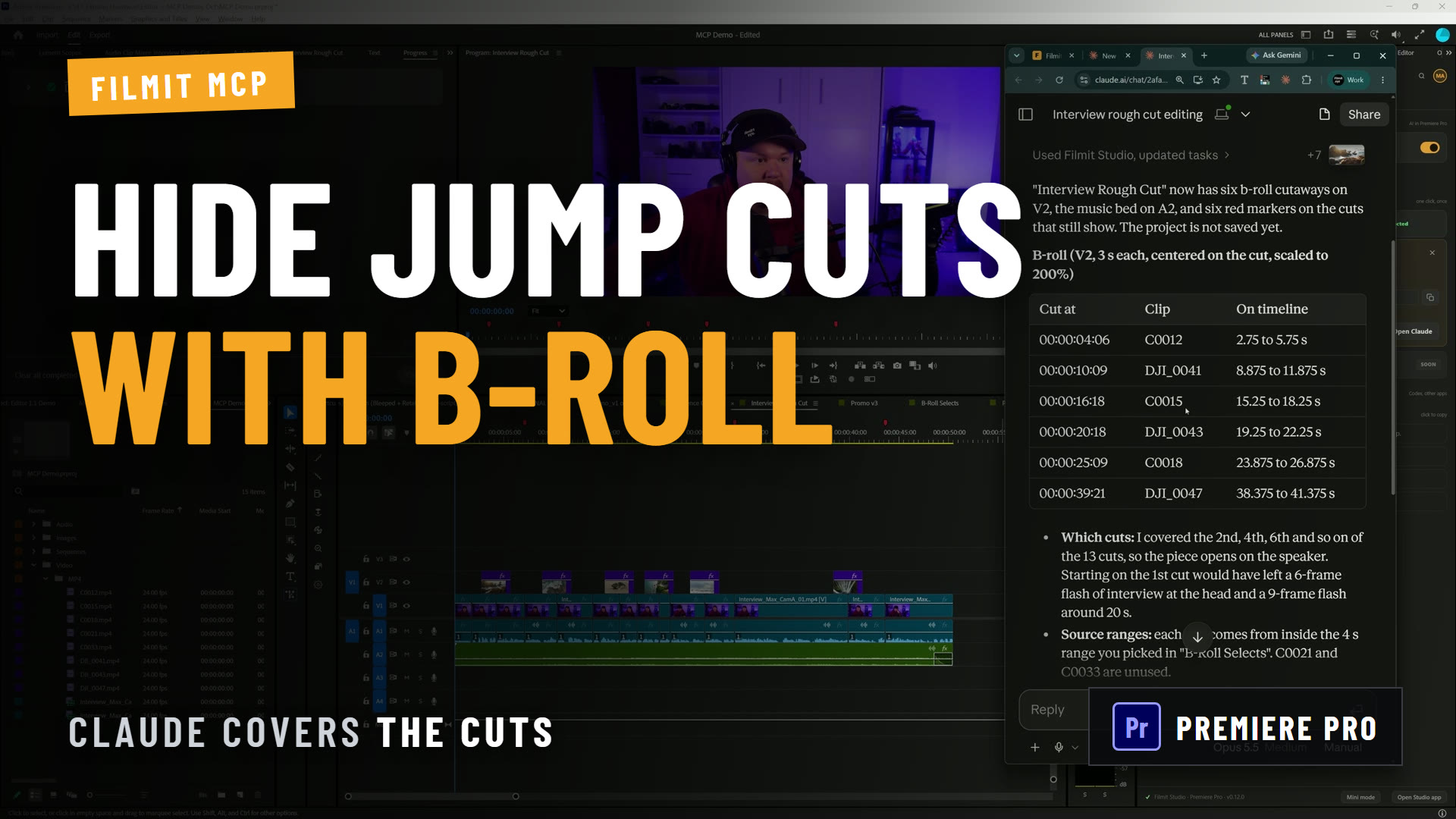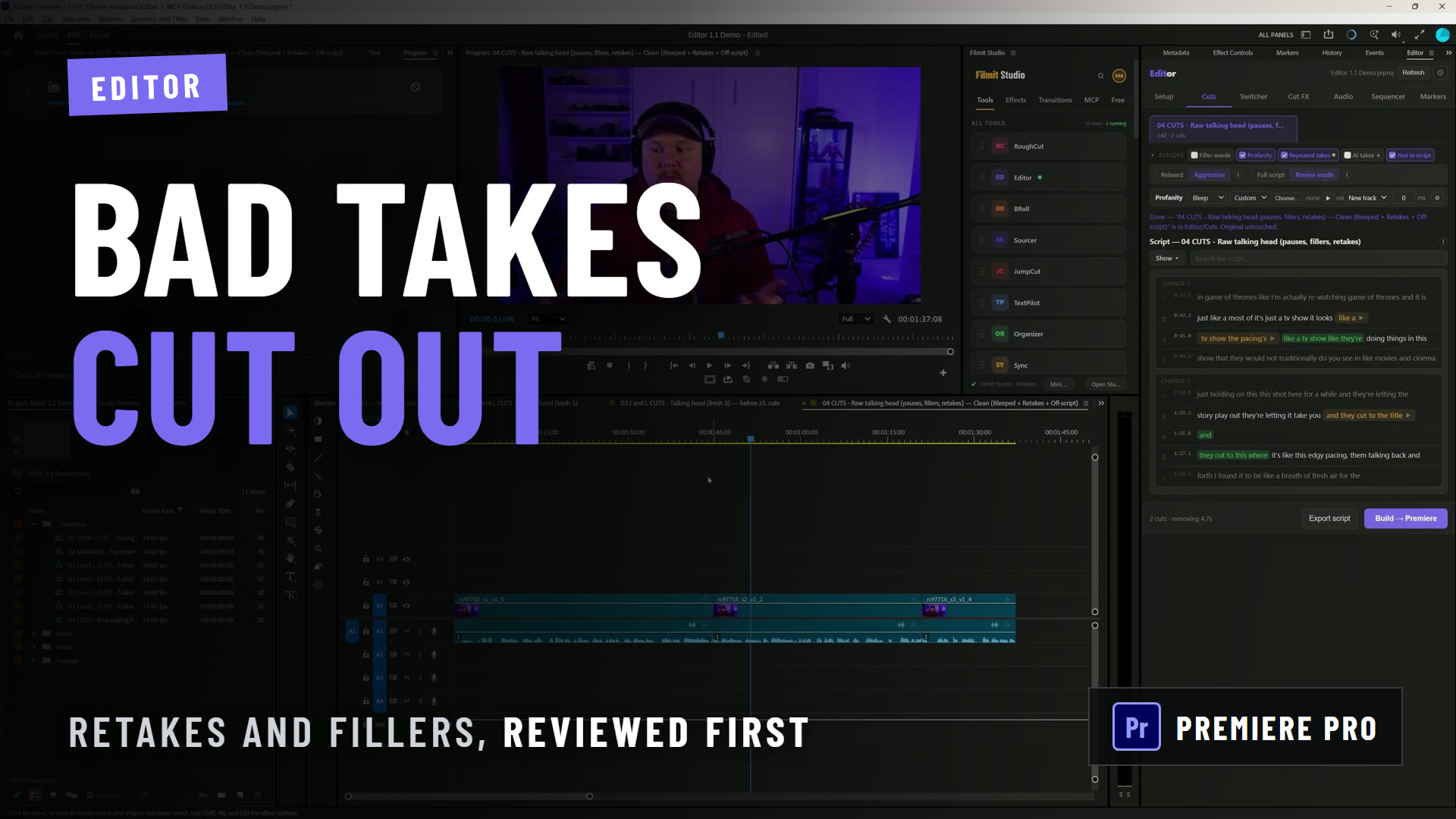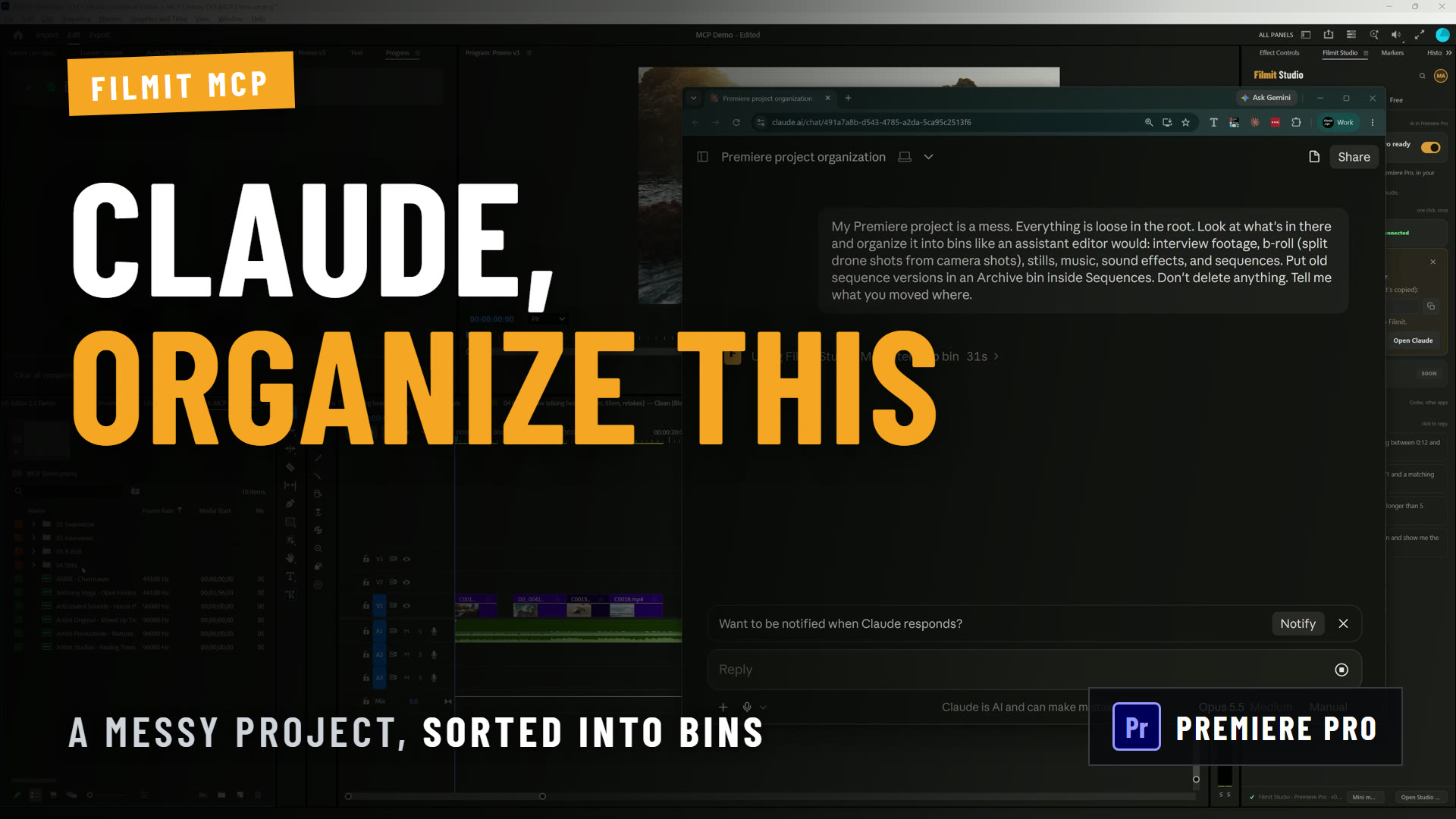
Plugins are software tools that integrate directly into your existing environment to automate routine tasks and cut the cognitive overhead that slows creative learning. For video editors working in Adobe Premiere Pro or After Effects, understanding why plugins accelerate learning workflow is the difference between grinding through repetitive setups and actually developing craft. The right plugin stack handles color grading automation, audio cleanup, and asset management so your brain stays focused on decisions that matter. Filmit builds exactly these kinds of tools for Premiere Pro and After Effects, and the case for why they speed up both your work and your learning is straightforward.
How do plugins automate key tasks in video editing workflows?
Plugins reduce manual repetitive steps by converting multi-click processes into single actions. In Adobe Premiere Pro, a color grading plugin applies a LUT across an entire sequence in seconds. Without it, you are manually adjusting Lumetri settings on every clip. That difference compounds fast across a full project.
The tasks that plugins handle best in video editing include:
- Automated color grading and LUT application across timelines
- Batch rendering and export queue management
- AI-powered audio cleanup and noise reduction
- GIF and stock footage insertion without leaving the editing interface
- Grid generation, callout creation, and motion graphics templating
- Project organization, folder structuring, and asset labeling
AI-driven plugins for audio enhancement are a strong example. Instead of manually scrubbing through waveforms to find noise floors, an AI plugin reads the signal and applies correction in one pass. That frees your attention for the creative call: does this scene need warmth or cold distance?
The deeper benefit is a shift in focus. When the mechanical steps disappear, you spend more time making creative decisions and fewer minutes fighting your own tools.
Pro Tip: Build a short list of the five tasks you repeat most in every project. If a plugin exists for three of them, your workflow just got measurably faster before you open a single timeline.
Why plugins improve learning efficiency
The mechanism is cognitive load. Every manual, repetitive step you remove frees working memory for the decisions that actually build skill. When your tools add structure and consistent feedback, you stay engaged with the craft instead of the mechanics.
The same goes for context switching. When you are not jumping between five apps to complete one task, your working memory stays available for the actual skill you are trying to build.
Plugins also flip your role from passive recipient to active participant. Instead of watching a tutorial and hoping something sticks, you use a plugin to experiment, iterate, and test your own decisions. That active loop is what builds retention. Plugins enable elaboration techniques that transform passive watching into hands-on practice.
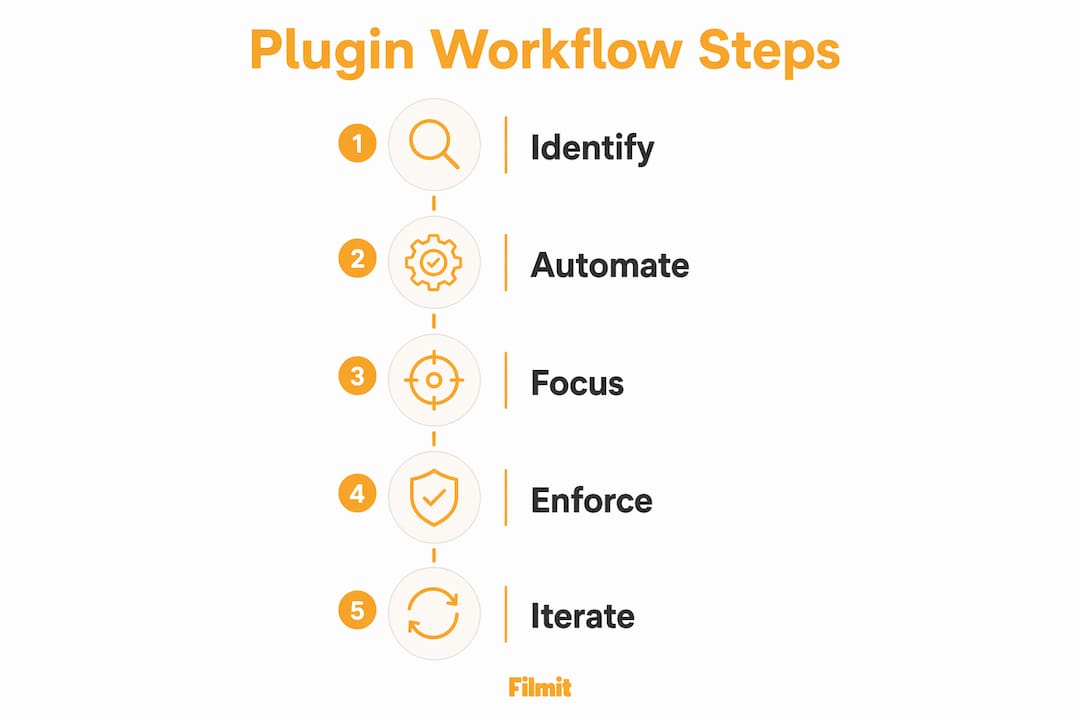
The advantages extend beyond speed. The right plugins encode a structure that mirrors professional standards. When a plugin captures a repeatable process, reusing it on every project turns that process into instinct. The tool teaches the pattern by repeating it.
What are the best practices for adopting plugins without overwhelming your workflow?
Plugin overload is a real problem. Installing twenty plugins before you understand your core tools creates conflicts, confusion, and a workflow that is harder to troubleshoot than the one you started with. Plugins should follow preliminary mastery of core tools. Premature reliance risks poor understanding and weak troubleshooting ability.
A practical adoption sequence looks like this:
Master the baseline
Spend real time in Premiere Pro or After Effects without plugins. Know where the manual controls live and what they do.
Identify friction points
Note which tasks you repeat most and which ones pull you out of creative flow.
Choose well-maintained plugins
Look for active development, clear documentation, and a known developer. Abandoned plugins break with software updates.
Install one at a time
Add a single plugin, use it for a week, and evaluate whether it actually saves time before adding another.
Manage through a single hub
A tool like Filmit Studio installs and updates every Filmit plugin from one desktop app, eliminating version conflicts and scattered installs.
A mature plugin ecosystem means you rarely need to build custom features from scratch. That scale of choice also means the risk of poor selection is real. Curating your stack carefully is what separates a productive setup from a cluttered one.
Pro Tip: Treat your plugin stack like a film kit. Carry only what you need for the shoot. A lean, trusted set of tools beats a bloated collection you barely understand.
How do plugins prevent workflow bottlenecks in complex projects?
The bottleneck in most editing workflows is not render time. It is mental overhead: the cost of remembering where you left off, which version is current, and what step comes next. Plugins reduce this overhead by keeping your project organized and your assets where you expect them.
The table below shows how specific plugin functions address common bottleneck types:
LUT batch application
Consistent grade across the timeline in seconds
Project organization plugins
Structured folders and labeled assets on every open
In-interface asset insertion
GIFs and stock footage added without leaving Premiere Pro
Animation and easing plugins
Smooth motion without hand-setting every keyframe
Centralized plugin management
One place to install and update, no version conflicts
For editors the point is direct: when your tools share context and communicate, you lose fewer decisions to friction.
A good preset or template captures a repeatable process, so the same setup is applied the same way every time. That consistency is the same discipline that separates a clean professional edit from a rushed one.
What practical steps help editors use plugins for continuous skill development?
Plugins for efficient learning work best when you treat them as practice partners, not just time-savers. The goal is to use automation to create more space for deliberate skill-building, not to replace the skill entirely.
Concrete steps that turn plugins into learning tools:
- Use an AI audio plugin to clean a track, then manually compare the before and after. Study what the plugin changed and why.
- Apply a LUT through a plugin, then recreate the same grade manually in Lumetri. The gap between the two results shows you exactly where your manual technique needs work.
- Use a motion graphics plugin to generate a callout or grid, then deconstruct it in After Effects to understand the underlying keyframes.
- Set a timer. Use a plugin to complete a task, then attempt the same task without it. The time difference is your baseline for measuring improvement.
- Explore AI-enhanced audio workflows in Premiere Pro to understand what frequency ranges the tool targets, then apply that knowledge manually on a different clip.
The real competitive edge lies in packaging workflows into reusable plugin infrastructure, not in longer manual processes. Editors who build a curated, reusable plugin stack finish projects faster and carry that speed into every future project. The plugin teaches the pattern. The pattern becomes instinct.
Properly integrated plugins meet you where you already are, layering assistance directly onto your existing interface. That proximity matters. When the tool lives inside Premiere Pro instead of a separate app, you stay in the edit. You stay in the learning loop.
Key takeaways
Plugins accelerate learning workflow by removing mechanical friction, enforcing process discipline, and keeping your attention on the creative decisions that build real skill.
Identify your five most repeated steps and find plugins that handle them before anything else.
Build baseline skill in Premiere Pro or After Effects so you can troubleshoot and learn from what plugins do.
Install one plugin at a time and evaluate real time savings before expanding your setup.
Compare plugin output to manual results to identify skill gaps and accelerate deliberate practice.
Centralized management through a tool like Filmit Studio prevents version conflicts and reduces overhead.
Plugins are architecture, not a shortcut
We have watched editors install a dozen plugins in their first month and then spend the next three months debugging conflicts instead of cutting footage. The mistake is treating plugins as a substitute for understanding. They are not. A LUT plugin does not teach you why crushing blacks and pushing shadows green creates that cold, processed, unreal look. It just does it fast. If you do not understand the underlying Lumetri controls, you cannot troubleshoot when the grade bleeds into the midtones and faces lose their natural warmth.
The editors we respect most treat their plugin stack the way a cinematographer treats a lens kit. Every tool has a specific purpose. Nothing is in the bag without a reason. They built that discipline by learning the manual process first, then automating it once they understood it.
The other mistake we see is chasing the newest plugin instead of deepening fluency with the ones already installed. One well-understood plugin you use on every project is worth more than ten half-understood ones you reach for occasionally. Build depth before breadth. Your workflow will be faster, cleaner, and far easier to hand off to a collaborator or explain to a client.
Plugins are architectural tools. They shape the structure of how you work. Treat them that way and they will genuinely accelerate both your output and your learning. Treat them as magic buttons and you will find yourself one keystroke away from a system error you cannot explain.
Build faster with Filmit
This is the niche our tools are built for. Filmit makes productivity plugins for Adobe Premiere Pro and After Effects that handle the mechanical work, color management, asset insertion, project organization, and motion graphics, so you can stay on the edit. Everything installs and updates through Filmit Studio, our free desktop app for Windows and macOS, which keeps your stack clean and conflict-free. Whether you are a solo YouTuber, a freelance editor, or part of a post-production team, Filmit for editors is a curated set rather than a scattered pile of third-party installs. Browse the full plugin catalog to find the ones that fit your workflow.