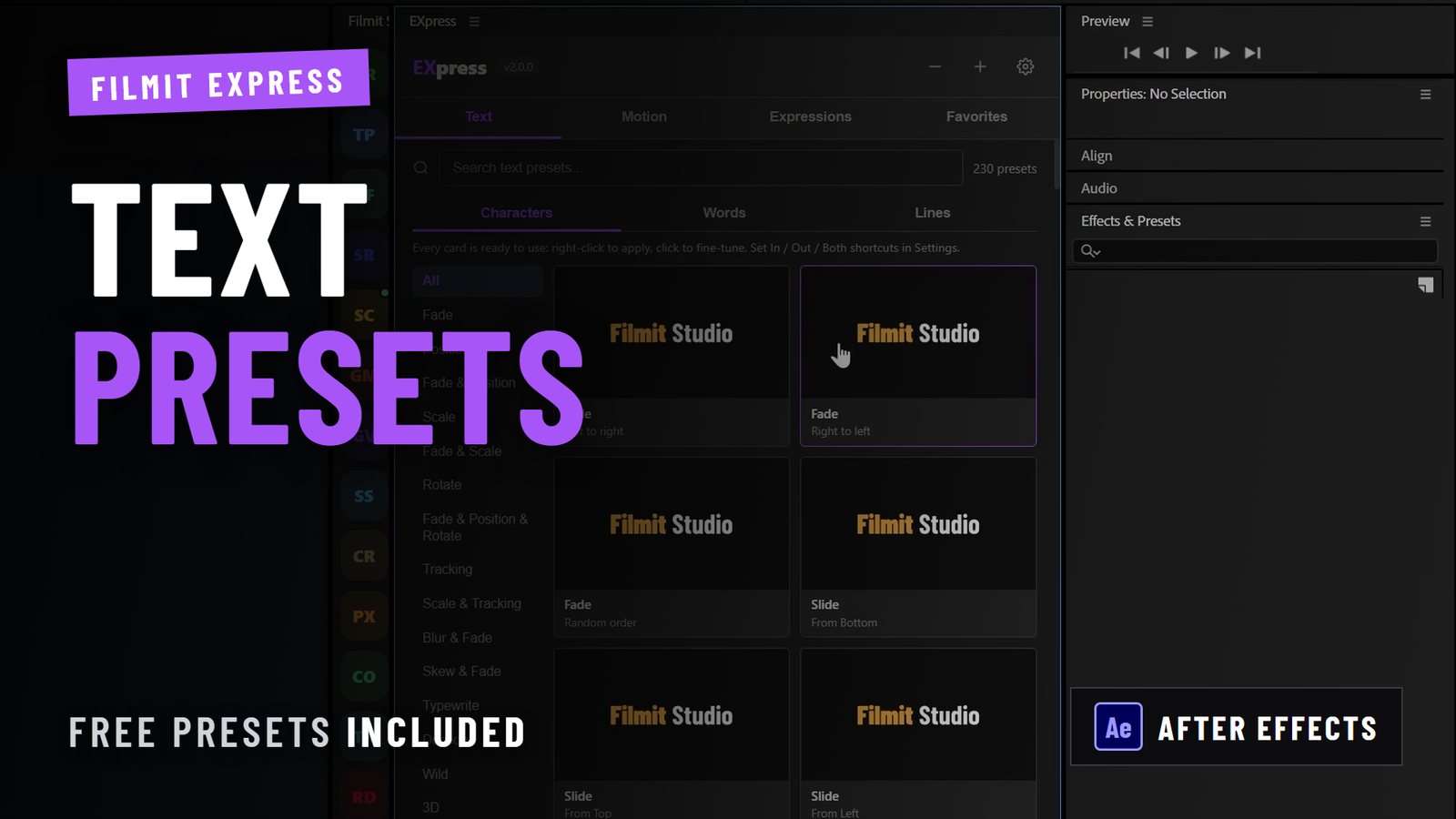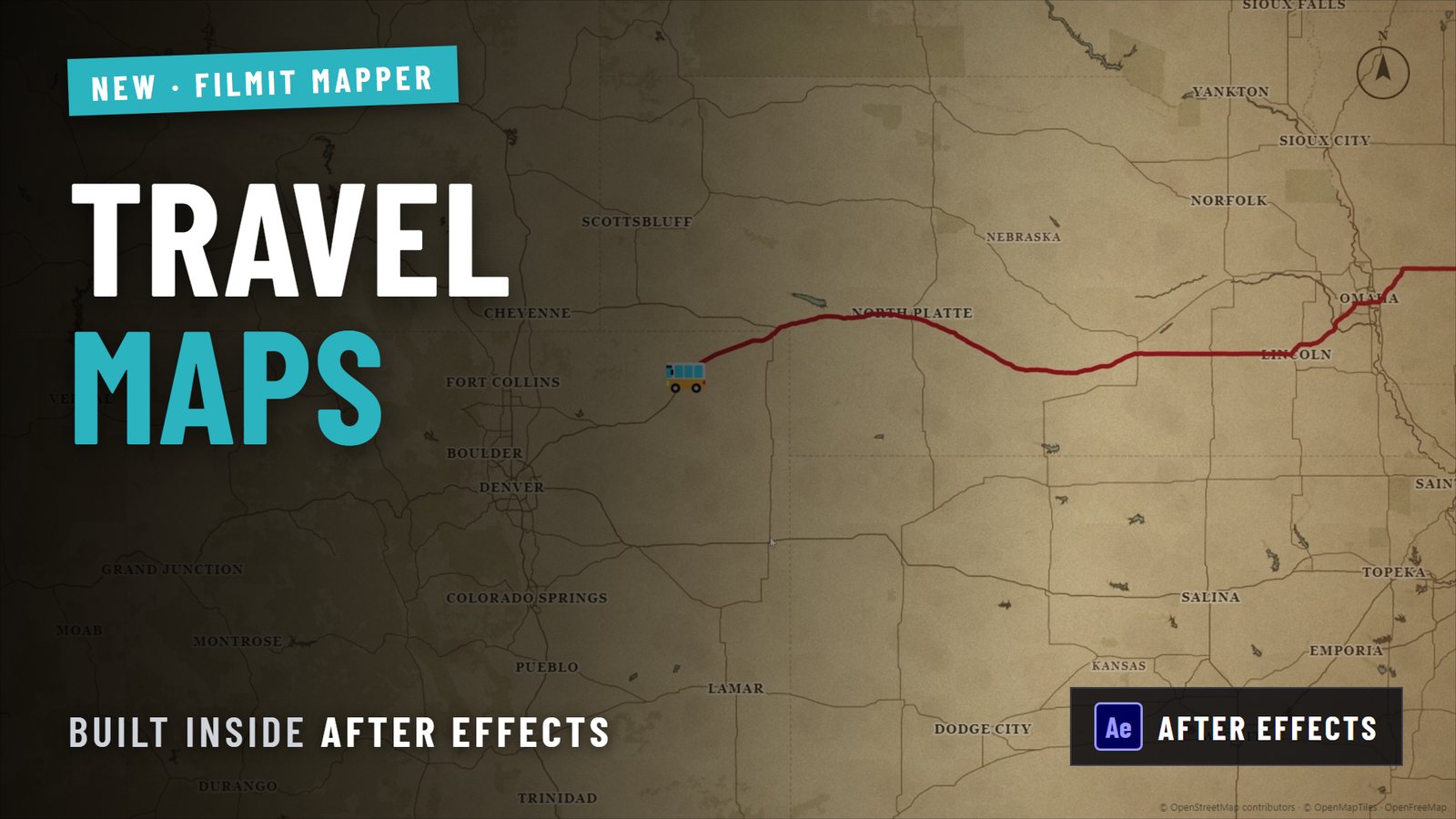
Motion graphics plugins are categorized into three core types: workflow automation tools, specialized visual effects suites, and 3D modeling integration plugins, each targeting a distinct layer of the motion design process. Beyond these three main categories, a fourth wave of AI-augmented and UI/UX-focused tools is reshaping how designers work in 2026. Whether you spend your days in Adobe After Effects, Premiere Pro, or Figma, knowing which types of motion graphics plugins solve which problems is the difference between a tight workflow and a bloated plugin folder that slows you down. This guide breaks every category apart, names the real tools, and tells you exactly what each one does.
1. Types of motion graphics plugins: the three core categories
Every plugin you will encounter falls into one of three functional families. Workflow automation tools handle the repetitive, mechanical side of motion design: preset animations, batch processing, and timeline shortcuts. Visual effects suites generate the eye-catching output, from particle explosions to volumetric light. 3D integration plugins pull real-time geometry into After Effects without forcing you to round-trip through Cinema 4D or Blender. The Adobe Creative Cloud Marketplace and aescripts + aeplugins are the two primary vetted plugin sources, offering everything from free scripts to full industry-standard suites. The landscape now runs from established premium suites like Red Giant and Video Copilot to newer all-in-one ecosystems like Filmit, which bundle an entire toolkit under one subscription instead of charging per plugin. Understanding the category before you buy the tool saves you money and prevents the “shiny plugin” trap that stalls real creative work.
2. Workflow automation plugins
Workflow automation plugins are the category most editors rely on daily. A large share of any After Effects session is workflow rather than creativity — applying preset animations, managing assets, rebuilding the same setup. That is exactly why preset and automation tools like Animation Composer, Motion Bro, and DUIK Bassel became pipeline fixtures, and it is the category Filmit builds its own utilities for.
Here is what this category delivers:
- Animation Composer provides a library of preset motion animations you can drag directly onto any layer, cutting keyframe setup from minutes to seconds.
- Motion Bro acts as a universal preset manager, organizing animations, transitions, and sound effects from multiple third-party packs into one panel.
- DUIK Bassel specializes in character rigging and inverse kinematics inside After Effects, making it the go-to tool for animators working with illustrated characters.
The core benefit is time. Manually keyframing a simple bounce or overshoot on every element in a 60-second explainer video adds up fast. Automation plugins eliminate that repetition without sacrificing control. You still adjust timing, easing, and scale. You just skip the part where you build the same curve for the fifteenth time.
Pro Tip: Always test a plugin’s free trial on your actual project files before purchasing. A preset library that performs well on demo footage may behave differently with your specific compositions, frame rates, or expression setups.
3. Specialized visual effects suites
Visual effects suites are the category that produces the work clients point to and say “I want that.” Red Giant Trapcode Suite, Video Copilot Optical Flares, and Superluminal Stardust are the most recognized names in this space. These tools generate particle systems, 3D light flares, and volumetric rendering that After Effects cannot produce natively.
Key capabilities across this category include:
- Trapcode Particular for physics-based particle systems with emitter controls, turbulence fields, and light interaction.
- Optical Flares for photorealistic lens flares built from real optical elements, with full 3D positioning inside After Effects.
- Stardust for node-based particle and 3D motion graphics with a modular workflow that feels closer to Cinema 4D than a traditional AE plugin.
The honest reality is that Trapcode Particular requires manual setup of emitters, physics parameters, and light interactions to produce professional results. There is no one-click path to a polished particle system. Designers who buy Trapcode expecting instant cinematic output and skip the learning curve end up with generic results that look like every other particle reel from 2015.
Render performance is the other variable to watch. Multi-Frame Rendering support in a plugin is critical for leveraging modern multi-core hardware. Older plugins without this support can cut your render speed by up to 50 percent compared to native effects. Check the plugin’s documentation for MFR compatibility before you commit.
Pro Tip: Before purchasing any visual effects suite, run a render benchmark on a test composition that matches your typical output resolution and duration. A plugin that renders beautifully at 1080p may become a bottleneck at 4K.
4. 3D modeling and integration plugins
3D integration plugins solve a specific problem: you want real-time 3D objects inside After Effects without exporting, importing, and re-importing every time you change a material or camera angle. Video Copilot’s Element 3D is the defining tool in this category. It enables real-time 3D rendering of imported OBJ and C4D models directly inside After Effects, with GPU-accelerated performance and an extensive tutorial library that makes adoption accessible at most skill levels.
Rowbyte Plexus 3 takes a different approach. Rather than rendering imported geometry, Plexus generates procedural 3D structures from point clouds, lines, and facets. The result is the connected-node aesthetic you see in tech explainers and data visualization work.
Core features across this category:
- Real-time GPU rendering inside the After Effects viewport
- Support for OBJ, C4D, and custom geometry formats
- Material editors with reflection, ambient occlusion, and subsurface scattering
- Integration with After Effects lights and cameras for cohesive scene control
The cost and learning curve for 3D integration plugins are both higher than workflow automation tools. Element 3D requires a solid understanding of 3D coordinate space, material properties, and lighting logic. If you are new to 3D, expect a few weeks of practice before your output looks intentional rather than accidental. The payoff is a motion graphics pipeline that can produce broadcast-quality 3D work without a separate 3D application license.
5. UI/UX motion design and AI-augmented plugins
This is the category growing fastest in 2026, and it is pulling motion design away from traditional timeline-based editing toward component-driven, code-exportable animation. UI/UX motion design plugins like MotionKit and Jitter now handle a growing share of UI prototyping work and can cut production time sharply compared to manual After Effects workflows. That is a structural shift, not a marginal improvement.
AI-augmented tools like Motn and remocn represent a genuinely different working model. These platforms promise dramatically faster production of kinetic typography and particle systems through token-based or subscription pricing. You describe the animation in plain text or select a template, and the system generates the motion. The output is not always perfect, but the iteration speed changes what is possible in a tight deadline.
The deeper trend is that motion design is shifting toward component-based, code-driven animation for web and UI contexts, increasing the value of any plugin that exports JSON or Lottie files. If your work touches web or app interfaces, learning one tool in this category now puts you ahead of the majority of motion designers still working exclusively in After Effects timelines. Filmit’s ProXimity plugin also explores this territory, enabling distance-reactive animation logic without manual keyframing.
You can also explore After Effects expressions without code as a bridge between traditional timeline work and the logic-driven approach these newer tools demand.
6. How to choose the right motion graphics plugins
Plugin selection is a purchasing decision, not a collection habit. Experts consistently recommend identifying a specific, recurring workflow problem before buying any plugin. If you cannot name the exact task the plugin will replace or accelerate, you do not need it yet.
Use this framework when evaluating any plugin:
- Define the problem first. Are you losing time on repetitive keyframing? Struggling with particle effects? Needing 3D objects in AE? The answer determines the category.
- Test before you buy. Most reputable plugins offer free trials. Run the trial on your actual project, not the developer’s demo file.
- Check Multi-Frame Rendering compatibility. Plugins without MFR support can throttle your render pipeline on modern hardware.
- Balance cost against frequency of use. A $200 plugin you use on every project is a better investment than a $50 plugin you open twice a year.
- Match complexity to your skill level. A beginner buying Trapcode Suite without After Effects fundamentals will spend more time watching tutorials than producing work.
Free plugins from aescripts + aeplugins and the Adobe Creative Cloud Marketplace are a legitimate starting point, especially for workflow automation. Many professional editors run a core stack of two or three paid plugins and fill gaps with free scripts. The ToolKit utility approach favored by experienced editors prioritizes versatile, frequently used tools over specialized one-trick plugins.
Pro Tip: Audit your plugin folder every six months. If you have not opened a plugin in two projects, remove it from your active panel. A leaner plugin setup loads faster and keeps your attention on the tools that actually move your work forward.
Key takeaways
The most effective motion graphics plugin strategy is to match each tool to a specific workflow problem, verify Multi-Frame Rendering support, and test every option before purchase.
Workflow automation, visual-effects suites, 3D integration, and the new AI/UI tools each solve a different layer of motion design.
Plugins without MFR can noticeably throttle render speed on modern multi-core hardware — verify it before you buy.
Tools like Motn and remocn generate kinetic-typography drafts fast; use them for speed, then refine the craft in After Effects.
UI/UX plugins like MotionKit and Jitter export web-ready animation — valuable if your work touches interfaces.
Name the recurring task a plugin will replace before you purchase it. If you cannot, you do not need it yet.
Buy to solve, not to collect
The editors who get the most out of plugins are rarely the ones with the most plugins. It is easy to accumulate tools the way some people accumulate hard drives — every new release feels like the missing piece — and end up with an impressive folder that never actually made the work faster.
The filter that cuts through it is one question before any purchase: what specific task am I doing by hand right now that this tool would replace? If you cannot name it, you do not need the plugin yet. The tools that survive that question — a solid automation utility, a 3D plugin for the client work that genuinely needs it, a lean set of scripts — are the ones you open every session.
The AI-augmented category is the one worth watching. Tools like Motn and remocn are not replacements for craft; they are speed tools for the parts of the job that are already solved creatively. Use them for kinetic-typography drafts, then refine in After Effects. That is the right relationship with any plugin: it handles the mechanical, you handle the creative.
Pick one tool from each category you genuinely need, learn it deeply, and resist the next shiny release for a while. The best work comes from knowing your tools well enough that they disappear — which is exactly the principle Filmit builds around.
Take your motion graphics workflow further with Filmit
If you are building or refining your plugin stack, Filmit is putting the whole thing under one roof. Where the last generation of motion designers assembled a stack of separate premium plugins, Filmit is building the all-in-one suite for the subscription era: the same breadth those industry-standard names defined, in one place, for one price.
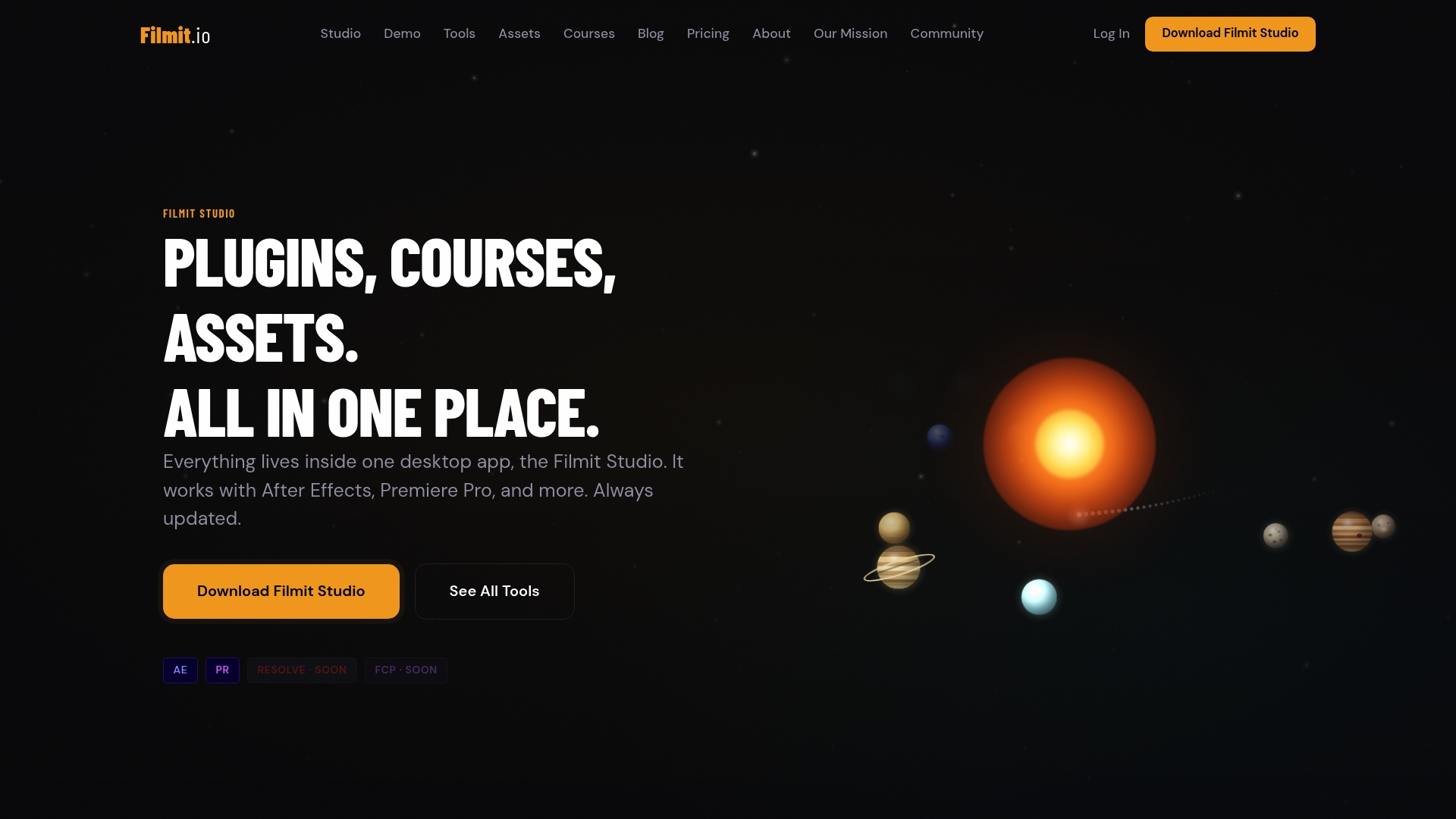
Filmit covers grid generation, animated callouts, GIF insertion, LUT management, retro and CRT effects, and project organization. Every plugin installs and updates through Filmit Studio, the free companion desktop app for Windows and macOS. Whether you are a solo creator, a freelance editor, or part of a post-production agency, the motion designer plugin suite and the editor workflow tools are built around the same principle this article argues for: solve a real problem, fast.