Adobe Dynamic Link is a live connection technology built into Adobe Creative Cloud that lets Premiere Pro and After Effects share project data in real time without rendering intermediate files. If you have ever exported a video from After Effects just to drop it into Premiere Pro, only to re-export it after a single text change, you already know the pain this feature eliminates. Dynamic Link keeps both applications talking to each other continuously, so a change you make in After Effects appears in your Premiere Pro timeline almost instantly. For editors and motion designers, that means fewer interruptions and more time spent on the actual creative work.
What is Dynamic Link in Adobe Creative Cloud?
Adobe Dynamic Link is defined as a real-time integration layer within Adobe Creative Cloud that creates live references between Premiere Pro and After Effects compositions. The official term you will see in Adobe documentation is simply “Dynamic Link,” and it has been a core part of the Creative Cloud ecosystem for years. Real-time feedback updates flow directly from After Effects into your Premiere Pro timeline the moment you save a change. No rendering. No exporting. No waiting.
The feature works by treating an After Effects composition as a live asset inside Premiere Pro. Instead of a flattened video file, Premiere Pro reads the composition directly from the .aep project file. This means the full quality of your motion graphics, color work, and visual effects is preserved at every stage of editing. The connection is not a copy. It is a live reference.
Dynamic Link also extends beyond the Premiere Pro and After Effects pairing. Adobe Audition and Photoshop can participate in extended Dynamic Link workflows, though the Premiere Pro and After Effects connection is the most widely used and the most powerful for video editors.
How does Dynamic Link work between Premiere Pro and After Effects?
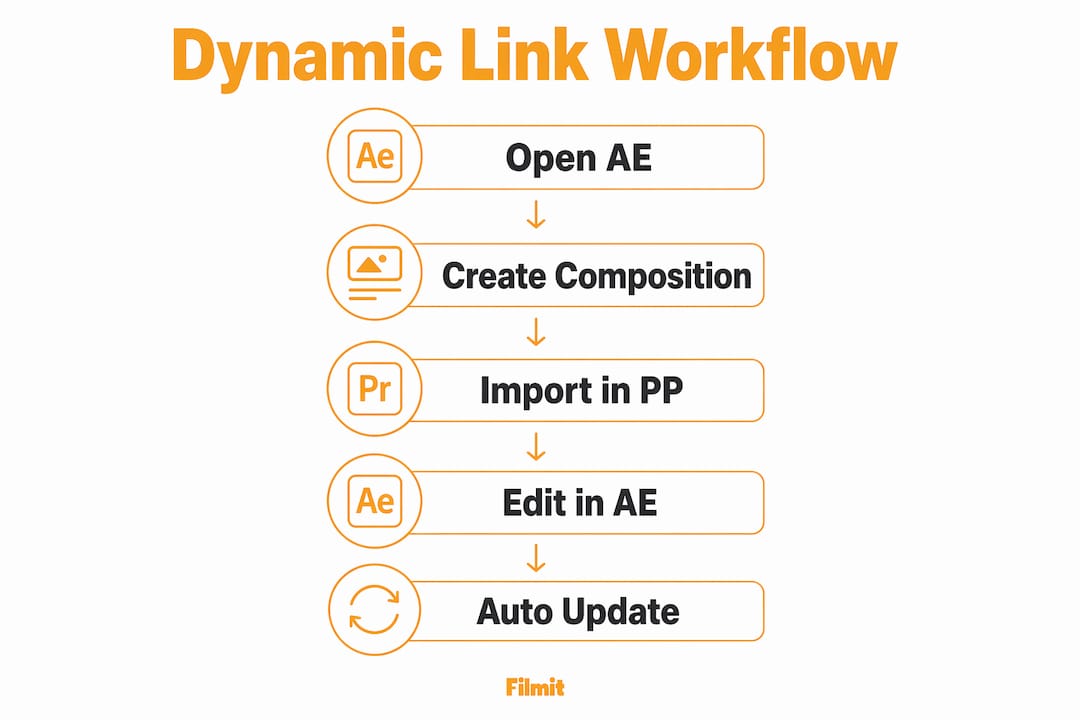
The mechanics are straightforward once you understand the three ways to create a Dynamic Link connection.
- Import an existing After Effects composition. In Premiere Pro, go to File > Adobe Dynamic Link > Import After Effects Composition. Select your .aep file, choose the composition, and it drops directly into your project panel as a linked asset.
- Replace a clip with an After Effects composition. Right-click any clip in your Premiere Pro timeline and choose Replace With After Effects Composition. Creating a Dynamic Link launches After Effects automatically if it is not already running, and it creates a new composition sized to match your clip.
- Create a new linked composition from scratch. Go to File > Adobe Dynamic Link > Create New After Effects Composition. This opens After Effects and creates a fresh composition already linked to your Premiere Pro sequence.
Once a link exists, any change you save in After Effects updates the corresponding clip in Premiere Pro without any manual export step. Dynamically linked assets display a unique icon in the Premiere Pro project panel so you can identify them at a glance.
One critical technical requirement: version mismatch prevents Dynamic Link connectivity completely. Both Premiere Pro and After Effects must run the same major version number. If you are on Premiere Pro 2026.x, After Effects must also be 2026.x. Running mismatched versions is the single most common reason Dynamic Link silently fails with no clear error message.

Pro Tip: Keep both Premiere Pro and After Effects updated together through the Creative Cloud desktop app. Updating one without the other is the fastest way to break every Dynamic Link in your project.
What are the real benefits of using Dynamic Link?
The productivity gains from Dynamic Link are concrete and measurable in daily editing work.
- No intermediate renders. You skip the export-import cycle entirely. A motion graphic that previously required a ProRes export and a re-import now updates live in your timeline.
- Iterative design without friction. You can tweak a title card in After Effects, switch back to Premiere Pro, and see the result immediately. Dynamic Link fosters creative momentum by removing the technical friction that interrupts the creative process.
- Full quality preservation. Because Premiere Pro reads the live .aep file, you are always working with the highest quality source. No generation loss from repeated renders.
- Extended application support. Adobe Audition integrates with Premiere Pro through a similar Dynamic Link mechanism, letting you send audio sequences directly to Audition for mixing and have the result update in your timeline.
Among working pros, Dynamic Link tends to be valued less as a time-saver and more as a creative enabler — the ability to iterate in real time genuinely changes how editors and motion designers collaborate on a project.
The biggest shift Dynamic Link creates is psychological. When you know a change takes two seconds instead of two minutes, you make more changes. You experiment more. You push the motion graphics further because the cost of trying something is nearly zero.
System requirements and best practices for Dynamic Link
Getting Dynamic Link to work reliably requires more than just installing both applications. These are the setup habits that prevent the most common problems.
Version matching is non-negotiable. Both apps must share the same major version number. Check this before starting any project that uses Dynamic Link.
File organization prevents broken links. Keeping linked Premiere Pro and After Effects files within the same folder structure avoids relinking issues when you move or archive a project. A simple rule: your .prproj and .aep files should always live in the same parent project folder. Use a media management guide like the Premiere Pro media asset guide to build a folder structure that scales.
Use Render and Replace for complex compositions. Render and Replace reduces system load while maintaining edit flexibility. Right-click a dynamically linked clip in Premiere Pro and choose Render and Replace. This bakes the composition into a video file for smooth playback but preserves the original link so you can revert to the live version at any time.
Here is a quick reference for when to use each approach:
Keep the live Dynamic Link active.
Use Render and Replace for smooth playback.
Render and Replace, or render directly from After Effects.
Render and Replace, then collect files.
Pro Tip: Before archiving a finished project, use Premiere Pro’s Collect Files function alongside After Effects’ Collect Files to gather all assets into one location. This prevents broken Dynamic Links when you revisit the project months later.
Deleting a dynamically linked clip from your Premiere Pro timeline does not destroy anything in After Effects. Deleting a linked clip only removes the reference in Premiere Pro. The original .aep composition stays intact and can be re-imported at any time.
How do you troubleshoot common Dynamic Link problems?
Dynamic Link issues almost always fall into a small set of categories. Here is how to handle each one.
Version mismatch (the silent killer). If your Dynamic Link clips show as offline with no clear error, check your version numbers first. Open the Creative Cloud desktop app and confirm both Premiere Pro and After Effects are on the same major release.
Broken links after moving files. If you moved your project folder or changed its name, Premiere Pro loses the path to the .aep file. Right-click the offline clip, choose Link Media, and navigate to the correct .aep file to restore the connection.
Sluggish playback on linked compositions. This is not a bug. Real-time rendering of Dynamic Link compositions is resource-intensive. Use Render and Replace on any composition with heavy particle systems, 3D layers, or complex expressions.
Dynamic Link manager process issues. On both Windows and Mac, restarting dynamiclinkmanager can fix broken link symptoms that persist even after version checks. On Windows, open Task Manager, find the dynamiclinkmanager process, and end it. On Mac, use Activity Monitor to locate and quit the process. Relaunch Premiere Pro and After Effects afterward.
Follow this sequence when a Dynamic Link stops working:
Match the version numbers
Confirm both apps are on the same major version. This is the cause far more often than anything else.
Check the .aep location
Make sure the .aep file hasn't moved from where Premiere Pro expects it.
Restart dynamiclinkmanager
End the dynamiclinkmanager process (Task Manager on Windows, Activity Monitor on Mac), then relaunch both apps.
Re-import the composition
Use File > Adobe Dynamic Link > Import After Effects Composition to rebuild the link.
Fall back to Render and Replace
If it still won't link, Render and Replace gets you working again while you investigate.
Organized file management, covered in depth in After Effects workflow best practices, prevents the majority of these problems before they start.
Key takeaways
Adobe Dynamic Link is the most direct way to connect Premiere Pro and After Effects in real time, and version matching combined with disciplined file organization determines whether it works reliably or breaks constantly.
Dynamic Link creates live references between Premiere Pro and After Effects — no intermediate rendering.
Both apps must run the same major version, or Dynamic Link fails silently.
Store .prproj and .aep in the same parent folder to survive project moves.
Smoother playback, with the live link preserved for edits.
Removing it from Premiere doesn't touch the source After Effects composition.
Dynamic Link is only as strong as your workflow discipline
Across projects from solo YouTube edits to multi-editor agency deliverables, the pattern with Dynamic Link is always the same: the feature is rock-solid when your file management is clean. When it breaks, the cause is almost never a software bug — it's a version mismatch, a moved folder, or a project that grew organically with no structure.
The habit worth building: treat your .prproj and .aep files like they're married. They live together, they move together, and they get archived together. The moment you separate them, you're one file migration away from a broken timeline.
Dynamic Link also changes how you think about the edit-to-motion-graphics handoff. Instead of treating After Effects work as a deliverable that gets handed off and locked, you can keep it fluid all the way through picture lock. That flexibility is genuinely valuable on client projects where feedback arrives late and changes are inevitable.
The one place not to lean on Dynamic Link is final export. For anything going to a client or a platform, render the After Effects compositions first and replace the live links with rendered files — Dynamic Link for creative iteration, rendered files for final playback. That split holds up every time.