If you cut a lot of talking head footage, interviews, or podcasts, you already know the grind. The conversation is great, but between every good moment sits a pause, a breath, a stretch of dead air, and pulling all of it out by hand takes forever. Scrub, razor, ripple delete, repeat, for an entire episode. It is the least creative work in the edit, and it eats more hours than almost anything else.
JumpCut is a Filmit plugin for Premiere Pro that does it for you. It analyzes the audio tracks you choose, finds the silence, shows you every planned cut before it touches your timeline, and then cuts and ripple deletes all the dead air in one click. This guide follows the same edit from the video: a real podcast episode I recorded with my buddy Justin, arguing about Game of Thrones for an hour.
This video may reference an older version of JumpCut. Features and UI may have changed since recording.
What is JumpCut?
JumpCut is a silence remover for Premiere Pro. The flow has three beats: scan, preview, apply. Point it at the audio tracks that matter, let it find everything quieter than your threshold, check the preview, and apply. The cuts land in your sequence and the gaps ripple delete behind them, so the timeline that comes back is already tightened.
It installs through Filmit Studio, the free companion app for Windows and macOS, and opens as a panel inside Premiere Pro. It works on both Mac and PC, and the processing runs in real time right in front of you.
How to open JumpCut in Premiere Pro
Once JumpCut is installed from your Filmit Studio suite along with the rest of your plugins, open Premiere Pro and go to Window, then Extensions, then JumpCut. A compact panel opens inside the editor, and you can resize it as large as you need, which matters in a minute.
The demo footage is a real two person podcast, complete with all the pauses and dead air an unscripted conversation produces. Before anything else, click Refresh so the panel is reading your current sequence and not an older state.
Pick the audio tracks that matter
Scroll down in the panel and choose which audio tracks JumpCut should analyze. This step matters more than it sounds. In the demo project, audio tracks one, two, and three are scratch tracks, reference audio that should not drive a single cutting decision. The real microphones live on tracks four and five, so those two are the only ones selected.
With the right tracks checked, click Preview Cuts. JumpCut runs through the sequence quickly and builds a preview of everything it plans to remove, before anything in your timeline changes.
Pro Tip: Deselect scratch and reference tracks before you analyze. JumpCut should only listen to the voices you want to keep, so every cutting decision comes from the real microphones and nothing else.
See your whole episode on one waveform
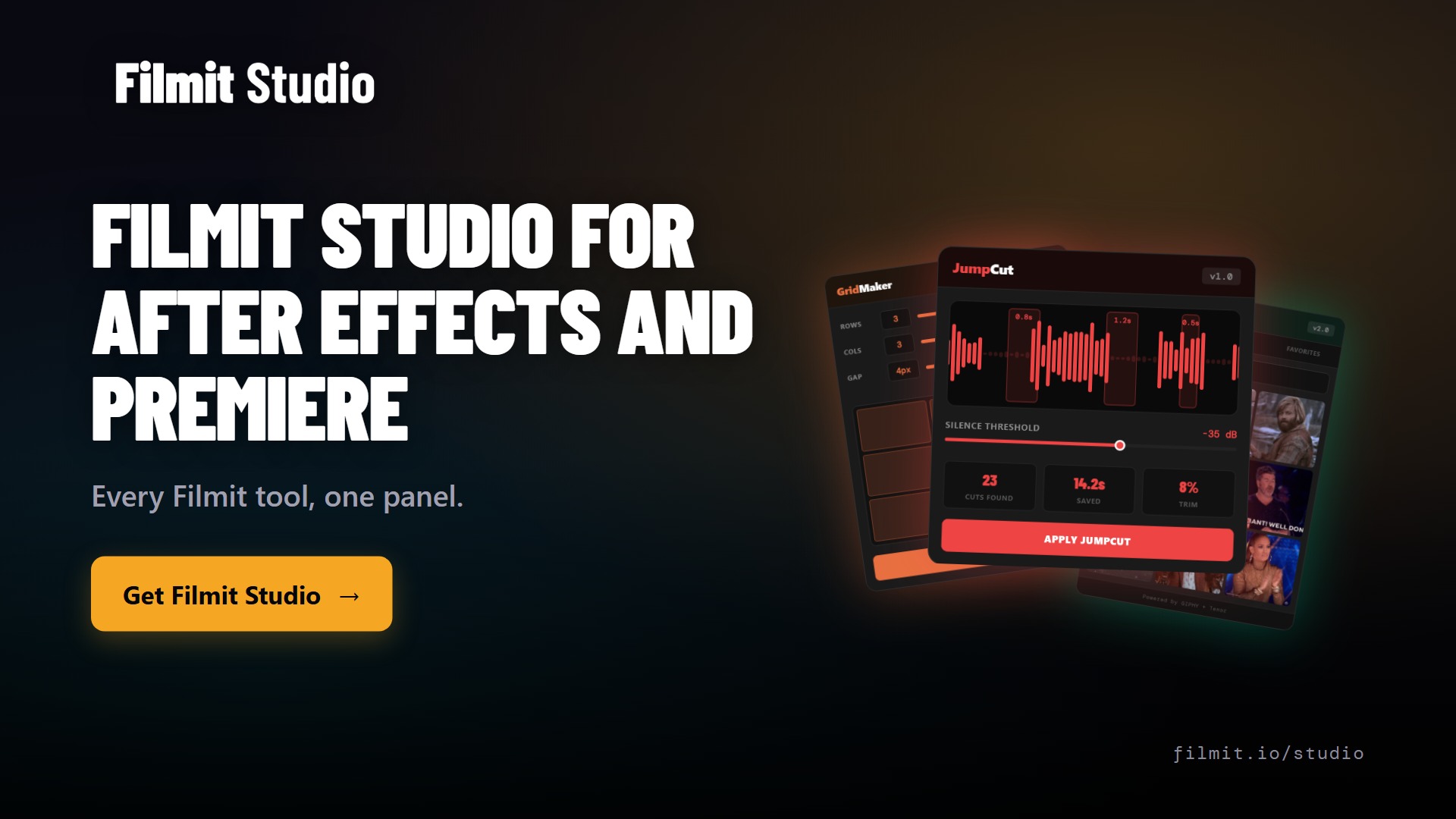
Now make the panel bigger, because this is the best view in the plugin. JumpCut lays out the audio for your entire episode as a single waveform. Whether the recording runs five minutes or an hour, the whole thing shows up in one view, and you can zoom in on any section to see exactly what is happening.
Under the hood, JumpCut takes every audio channel you selected and merges them into one track you can actually read. Everything above the threshold line stays. Everything below it, the quiet parts, gets cut.
Set the silence threshold (and keyframe it)
The threshold is the line you drag up and down on the waveform, and it is the single most important control in JumpCut. Whatever falls under it is marked for removal. Drag it low and only true silence goes. Push it higher and breaths, gaps, and mumbles start to disappear too.
Two details make it easy to dial in. First, double click anywhere inside JumpCut and your Premiere Pro playhead jumps to that exact spot in the sequence, so you can listen to what you are about to cut instead of guessing from the shape of a wave. Second, the threshold can be keyframed. If one section needs a different level, or you want an entire stretch removed outright, drop a keyframe and the threshold changes only where you told it to.
Pro Tip: When a cut looks borderline on the waveform, double click it and listen. Two seconds of real audio tells you more than any amount of squinting at peaks.
Padding that protects words
JumpCut gives you a full set of options for shaping the cuts: minimum silence, minimum keep, lead in padding, and lead out padding. The first two control how long a gap must be before it counts as cuttable and how short a kept moment is allowed to get.
The padding options are what make the result sound human. Lead in padding preserves a little audio before each kept section, and lead out padding preserves a little after it, so nobody gets their words clipped mid syllable. These are easy to test: change the lead in value and you can watch the markers shift on the waveform in real time, so you always know exactly what a setting is doing before you commit.
Pro Tip: A little lead out padding goes a long way. It leaves natural breathing room at the end of each phrase, so the finished edit feels like a tight conversation rather than audio chopped on every dip in the waveform.
Create Jump Cuts and let it work
When the preview looks right, pick a processing mode. On Windows, JumpCut offers a fast mode and an advanced mode. On Mac there is a single mode, and the plugin works on both platforms.
Then click Create Jump Cuts and watch it go. The demo shows this running in real time, and it moves quickly. A two or three hour podcast takes longer simply because there is more footage to process, and that is fine, set it running and let it work. JumpCut makes every cut, trims the footage down, and ripple deletes the gaps, so the dead air disappears and the remaining clips close up behind it. When it finishes, the episode is cut down and ready for the actual edit.
Key takeaways
JumpCut turns hours of manual silence cutting into a scan, a preview, and one click.
Point JumpCut at your real voice tracks and keep scratch tracks out of the decision.
The whole episode shows up on one waveform, so you see exactly what will be removed before anything happens.
Drag it, double click to move the playhead and listen, and keyframe it when one section needs a different level.
Minimum silence, minimum keep, and lead in and lead out padding stop words from being clipped.
Create Jump Cuts makes every cut and ripple deletes the dead air, on Mac and PC.
Why I built JumpCut
The first line of the demo video is the honest pitch: if you cut a lot of talking head or interview footage, you lose forever pulling out silences and cutting dead air. The podcast in the video is mine. Before JumpCut, tightening an episode meant scrubbing the entire conversation and razoring out every pause by hand. None of that is editing. It is janitorial work that happens to take place in a timeline.
So we decided to make something that does it for you, with the guardrails a real editor needs. You pick the tracks. You see every cut before it happens. Padding keeps the conversation sounding like a conversation. The hours that used to go into deleting silence now go into the cut itself, and that is the point of every tool we make.
Get started with Filmit
JumpCut installs through Filmit Studio, the free app that manages every Filmit plugin for Premiere Pro and After Effects. One install puts JumpCut in your editor, and the same app keeps it updated. If you hit a question, the settings page inside JumpCut links straight to support and feature requests on Filmit.io, and our Discord is where I answer directly.
If podcasts and interviews are your regular work, pair JumpCut with Sourcer, which puts stock video search inside Premiere Pro with one click inserts straight to your timeline. The whole toolkit runs under one subscription, always updated.