Building a grid of footage by hand in After Effects looks easy until you do it. A flat grid means precomping every clip, lining up the rows and columns, setting the gaps and corners, then animating each tile in so they do not all pop on at once. A 3D arrangement is far worse: positioning layers in space, rotating them to face a camera, and hoping the spacing reads as a sphere instead of a mess.
GridMaker 2.0 takes that off your plate. The original tool already gridded footage in a couple of clicks, and that has not changed. What is new is Advanced Mode, a visual grid designer that builds flat grids, 3D spatial grids, and path based grids, with animation baked in, then either applies them to your selected layers or builds a finished comp in After Effects. This guide follows the demo above, from install to a 120 tile sphere of footage.
This video may reference an older version of GridMaker. Features and UI may have changed since recording.
What is new in GridMaker 2.0
GridMaker is, at its heart, our grid making tool for After Effects. Version 2.0 keeps everything you know and adds a second way to work: Advanced Mode, for the kind of grids that used to take an afternoon. Nothing was taken away, so the standard mode is exactly where it was and Advanced Mode sits alongside it for when you need to do something wild.
How to install and open GridMaker
GridMaker installs through Filmit Studio, the desktop app you download from your dashboard. Open the app, go to My Tools, find GridMaker, and click Install. From that same tool card you can report a bug, request a feature, or join our Discord. Like all our tools, it is included with the suite, so it is free to try today.
Once installed, open After Effects and go to Window, then Extensions, then GridMaker.
The standard mode still works
A quick word on the old stuff first. The standard mode is unchanged and functions exactly as intended. You highlight your footage and grid it very quickly: choose your columns and rows, or set a custom grid, and GridMaker lays it out. If that is all you need, you never have to leave it.
Advanced Mode: the overview
With GridMaker open, click Advanced Mode. This opens a much more granular space, with a toolbar on the left that runs from the standard grid modes through to animation tools.
The loop is the same in every mode: create the grid, select your layers, and either Apply to Selection or Create New Comp. Apply to Selection drops the arrangement onto the footage you highlighted. Create New Comp builds it directly in After Effects without footage, every tile pre composed. In the demo, doing this on a 3D spatial grid also generates a controller for the radius, size, and corners, pre set to slide footage in.
Pro Tip: Use Create New Comp to design the structure first and add footage later. Every tile comes in pre composed, so you drop clips into the placeholders when you are ready.
Flat mode: Composer, comp tools, and gridding
Flat mode starts with Composer, a set of presets we put together. Pick one, like Hero, and it automatically builds a layout. On the left are composition tools, 4K, vertical, square, and more, and you can match your comp to GridMaker or resize it the other way.
Then come the gridding tools. Click 4x4 for a four by four grid, Ctrl or Cmd plus Z to undo, and equalize the cells. Drag in a new box to create a box, or drag into a space for an empty space. Everything hovers, so grab a corner to move it, hold Alt to round that one corner, or hold Shift plus Alt to round the whole thing into a full square. The style properties change the gap, the margins, and all the corners at once.
Pro Tip: Start from a Composer preset instead of a blank grid. Something like Hero gives you a finished arrangement in one click, and you only nudge the boxes you want to change.
Animation: slides, timing, and order
Animation is where flat mode comes alive. Pick a move like a slide in or zoom out, choose a 3D direction such as bottom left, and have the tiles travel from subtle instead of off frame. Set the duration, in the demo 1.37 seconds, and a stagger of 0.2 seconds so the tiles cascade rather than arrive together. Then scrub the timeline and hit Preview Animation.
You also get real control over the in and out points: see them, move them, set the start, and set the composition length by dragging or typing a time, with timing by numbers or pull handles. The order can run by box number, and you can separate the out order from the in order and choose center out. Then select your layers and Apply to Selection.
Pro Tip: Separate the out order from the in order for a more designed feel. Tiles can arrive by box number and leave center out, so the exit reads as its own move.
3D spatial grids: sphere, ring, and carousel
The 3D spatial mode grids your tiles around a 3D point. Choose your composition format, toggle the boxes and grid controller on, choose how many boxes you want (say 10), then choose the shape: sphere, ring, or carousel. Click Create New Comp for a one to one creation. From the controller you set the tiles, the radius, and the tile size, zoom in or out, and choose whether tiles face the camera. Animation options are spin, tumble, swing, and flow (a bouncier type), or none for just the shape.
For the finale, the demo cranks the spatial grids all the way up, first to 40 and then typed to 120, to make a real sphere of footage, with a bigger radius and an HD composition (4K would render like crazy). Many boxes takes some time, about a minute and a half, with a load box while it works. The result is a 3D sphere of 120 layers, and 120 pieces of applied footage drop into the boxes for you. Because it is all built on geometry and a null, you stay in control after the build: grab the null to change the animation, turn it off, or move the Z axis to shift the sphere.
Path mode: shape presets and importing a path
Path mode makes paths inside GridMaker. Choose an HD composition, match your comp, and set the number of boxes (say 10). The shape presets are circle, square, star, wave, and spiral. The clever part: you can also import a shape from After Effects. Draw a path with the pen tool, then in GridMaker, with the shape selected, click Get Shape Preset from After Effects and it pulls your path in.
For animation, items can travel along the path, or you can choose layout, which holds them in place. Set the speed and the spread, then Apply to Selection. Paths also get a null controller for the size of your grids and the corners. The footage filling these grids, by the way, came from Sourcer, our free stock footage tool, with GIFer doing the same for GIFs.
Key takeaways
GridMaker 2.0 turns flat, 3D, and path grids of footage into a design and a click.
A visual grid designer that builds flat, 3D spatial, and path grids from one toolbar.
Drop a grid onto your layers, or build a fresh comp with every tile pre composed.
Grid footage into a sphere, ring, or carousel, scaled up to a 120 tile sphere.
Use circle, square, star, wave, or spiral presets, or import a pen tool path.
Every advanced build adds a controller for radius, corners, animation, and center.
Why I built GridMaker
I have built grids of footage on real projects more times than I want to admit. The flat ones are tedious; the 3D ones are where I would lose a whole afternoon, nudging the spacing until a pile of clips finally read as a sphere. None of that is the creative part. It is math and patience, exactly the kind of work a tool should handle.
So we built Advanced Mode to do the math for you. The geometry, the null rig, the pre composed tiles, and the animation are all generated, so you spend your time on the shape and the motion. The 120 tile sphere is the whole point: brutal to assemble manually, here it is a number you type and a button you click. This is just the start, and we build new features from customer feedback, so tell us what you want next.
Get started with Filmit
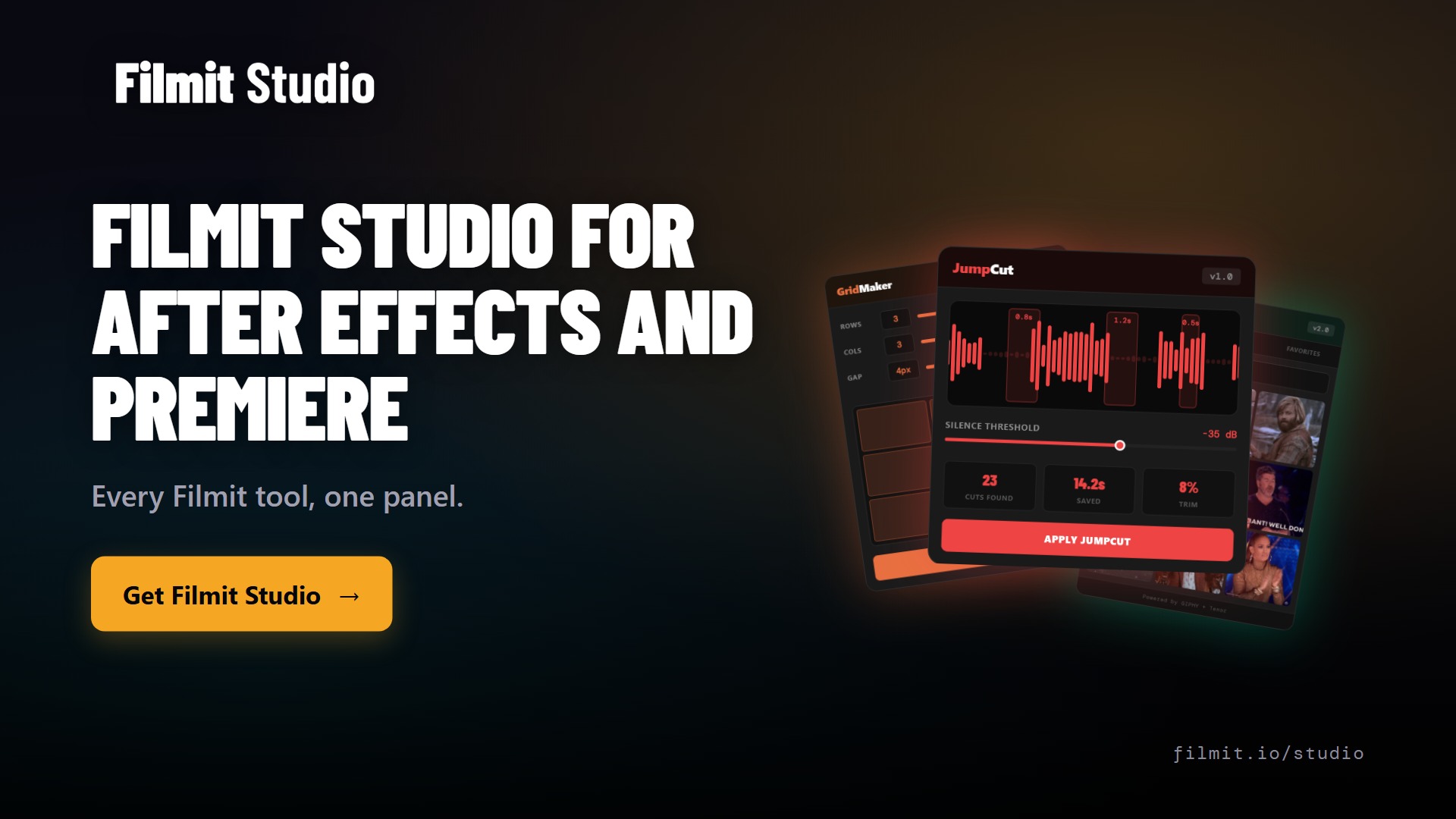
GridMaker installs through Filmit Studio, the free app that manages every Filmit plugin for After Effects and Premiere Pro. One install puts GridMaker in your editor and keeps it updated.
To fill your grids fast, pair GridMaker with Sourcer, the free stock footage tool used in this demo to drop clips into the tiles. It inserts photos and video straight onto your timeline, and the whole suite runs under one subscription.