Every plugin you install for Premiere Pro or After Effects shows up in the same place: the Window menu, under Extensions. That one menu is where panels live, and it is also the reason so many editors forget what they own. You buy a suite, use one tool, and the rest sit invisible behind a submenu you never open.
This is a guide to finding and opening your plugins the native Adobe way in both hosts, why they seem to vanish, and how we tried to fix the hunt for our own tools. As of July 2026, the whole Filmit lineup now opens from a single home panel that lives right inside Premiere Pro and After Effects.
Where do installed plugins show up in Premiere Pro and After Effects?
Installed panel plugins appear under Window > Extensions in both Premiere Pro and After Effects. On newer builds you may see two entries: Extensions for the modern UXP panels and Extensions (Legacy) for the older CEP panels. Most established plugins, including every Filmit tool, are CEP, so if a panel is missing from the first list, check the Legacy one.
Open the host and load a project
Some panels stay greyed out until a project is open, so start there rather than from the empty launch screen.
Go to the Window menu
It is in the top menu bar in both Premiere Pro and After Effects.
Hover Extensions (and Extensions Legacy)
Your installed panels are listed by name. On recent versions, CEP panels sit under Window > Extensions (Legacy) while newer UXP panels sit under Window > Extensions.
Click the panel to open it
It opens as a floating or docked window. Drag it into your layout, then save the workspace so it stays put next time.
Effect plugins are different from panels. Those show up in the Effects panel or the Effect menu, not under Extensions, and you apply them to a clip or layer rather than opening a window.
Why do my plugins feel like they keep disappearing?
They are almost never gone. A panel that vanishes was usually closed, or lives in a workspace you switched away from, and it comes right back from Window > Extensions. The harder problem is discovery: once you have a lot installed, the host gives you no tidy list of what you own.
The clutter is real and documented. When your effect plugins pile up, the Effect menu stops organizing them cleanly and starts dumping the overflow into a generic "other" bucket, a complaint editors have raised on the Creative COW forums for years. Panels have the opposite problem: they are neatly named but hidden one menu deep, so out of sight becomes out of mind.
A missing panel is reopened from Window > Extensions. Save a workspace to keep it docked.
Effect plugins live in the Effects panel and Effect menu. Panel plugins live under Window > Extensions.
On newer Premiere Pro and After Effects, older CEP panels are under Extensions (Legacy).
How do I keep track of every plugin I actually own?
There is no built-in "my plugins" list in Premiere Pro or After Effects. To see what you have, you scan the Effects panel, dig through the plugins folder on disk, or log into each vendor account and cross-reference. For editors running tools from several vendors, that is genuinely tedious, and it is why paid features go unused.
This is the gap we kept hearing about from our own customers. People were paying for the full Filmit suite and only reaching for one or two tools, not because the others were not useful, but because they were buried behind a menu and easy to forget. So we built a home for them inside the host.
A home panel for your whole Filmit toolkit
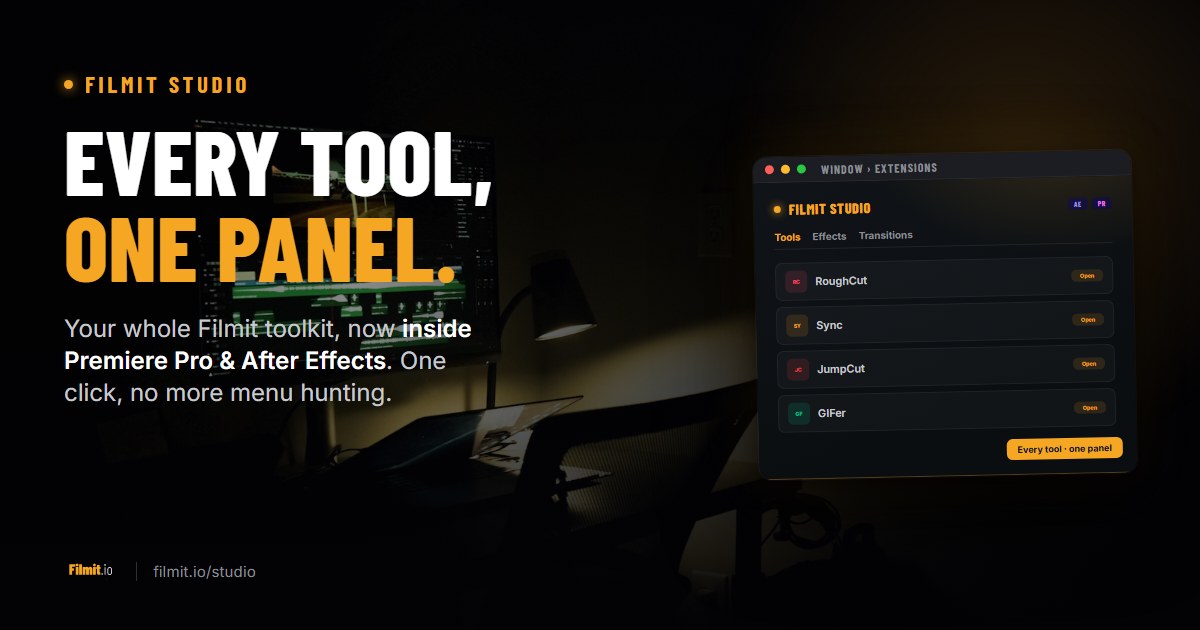
Filmit Studio now adds a single Filmit Studio panel inside Premiere Pro and After Effects that lists every Filmit tool you can open, in one click, without hunting through Window > Extensions. It went live to subscribers in July 2026 and installs alongside the rest of the suite. Think of it as a launcher and a home base, not a container: each tool still opens as its own dockable panel, so you can keep Organizer and GIFer visible side by side the way you always could.
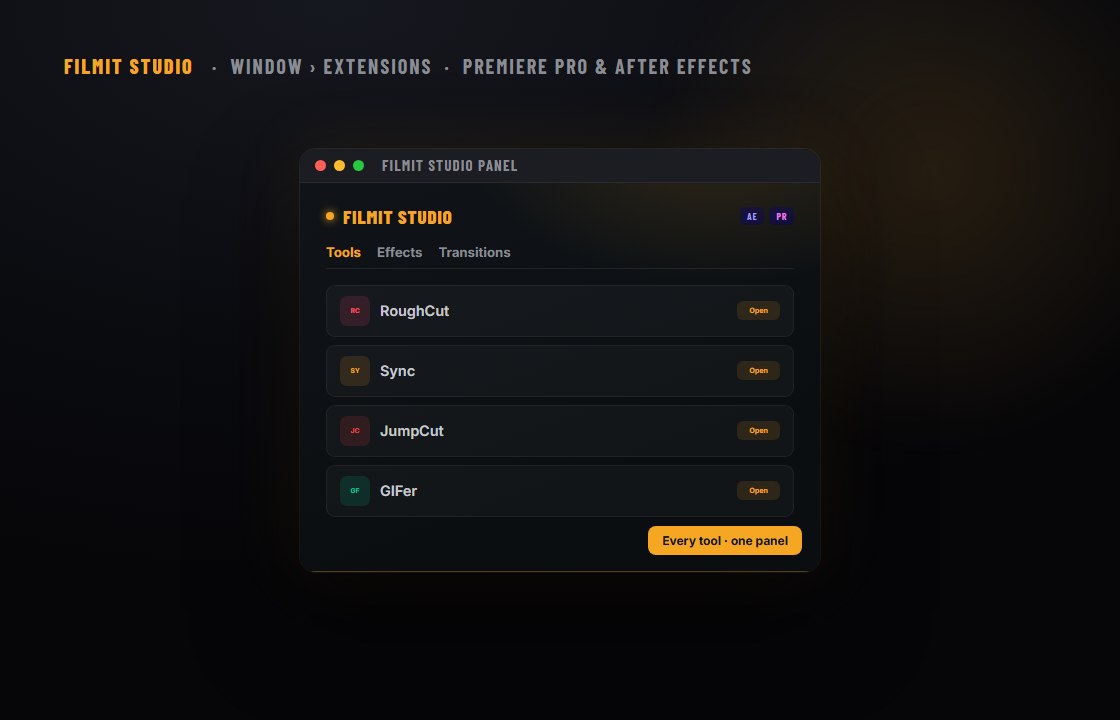
The Filmit Studio panel: your whole toolkit under Window > Extensions, one click to open any tool.
The panel is organized into three tabs:
Your full Filmit catalog for the current host. Pin your favorites to the top (up to six), and click any tool to open its panel instantly. What is available matches the app you are in, so Premiere Pro shows the Premiere tools and After Effects shows the After Effects tools.
A visual grid of Filmit FX effects and transitions with preview thumbnails. Select a clip on your timeline and apply an effect or transition straight from the panel. With nothing selected, the same click opens a larger preview so you can see it first.
Sign in once and every Filmit panel is licensed. The panel reads your session from the Filmit Studio desktop app, so there are no separate keys to paste tool by tool.
It is built to feel native rather than like a web page bolted into your editor. It matches the host theme, including the After Effects brightness slider, uses the system font at editor density, and loads instantly because there is no heavy framework behind it.
Window > Extensions vs the Filmit Studio panel
The native menu still does everything it always did, and for third-party plugins it is still where you go. The panel is a faster front door specifically for the Filmit suite. Here is how they compare for day to day work.
Menu, submenu, find the name, click.
One click from the Tools tab.
No list. Scan the menu or your account.
The whole catalog for that host, in one grid.
Find it in the Effects panel, drag to the clip.
Select the clip, click the effect in the panel.
Per-tool, however each vendor handles it.
Sign in once, every Filmit panel unlocks.
Yes, this is the place for those.
No. Filmit tools only.
How do I get the Filmit Studio panel?
The panel ships with Filmit Studio, the free desktop app that installs and updates the suite, so you do not download it separately. Make sure Studio is up to date, and it installs the panel into whichever editors you have. Here is the flow.
Open Filmit Studio and sign in
Filmit Studio is the free companion app for Windows and macOS. It installs, activates, and updates every Filmit plugin from one login.
Let it update
Studio checks for updates when you open and close it. On a current version, the Filmit Studio panel installs into Premiere Pro and After Effects automatically.
Restart your editor once
Adobe registers new panels at launch, so quit and reopen Premiere Pro or After Effects the first time. You only do this once.
Open it from Window > Extensions
Find Filmit Studio under Window > Extensions (or Extensions Legacy), open it, and dock it wherever it fits your layout. Save the workspace and it is there every session.
If you are on the free tier, the panel still shows the full catalog. GIFer and Sourcer are usable free, and the rest are visible so you can see what a subscription adds. For a fuller tour of the desktop app that powers all of this, see our Filmit Studio walkthrough. And if your project panel itself is the mess, Organizer is one of the tools a click away, right next to GIFer for dropping GIFs onto the timeline.
None of this replaces knowing your way around Window > Extensions. That menu is still the universal home for every panel plugin from every vendor. The Filmit Studio panel just means that for the tools we make, you never have to go looking again.