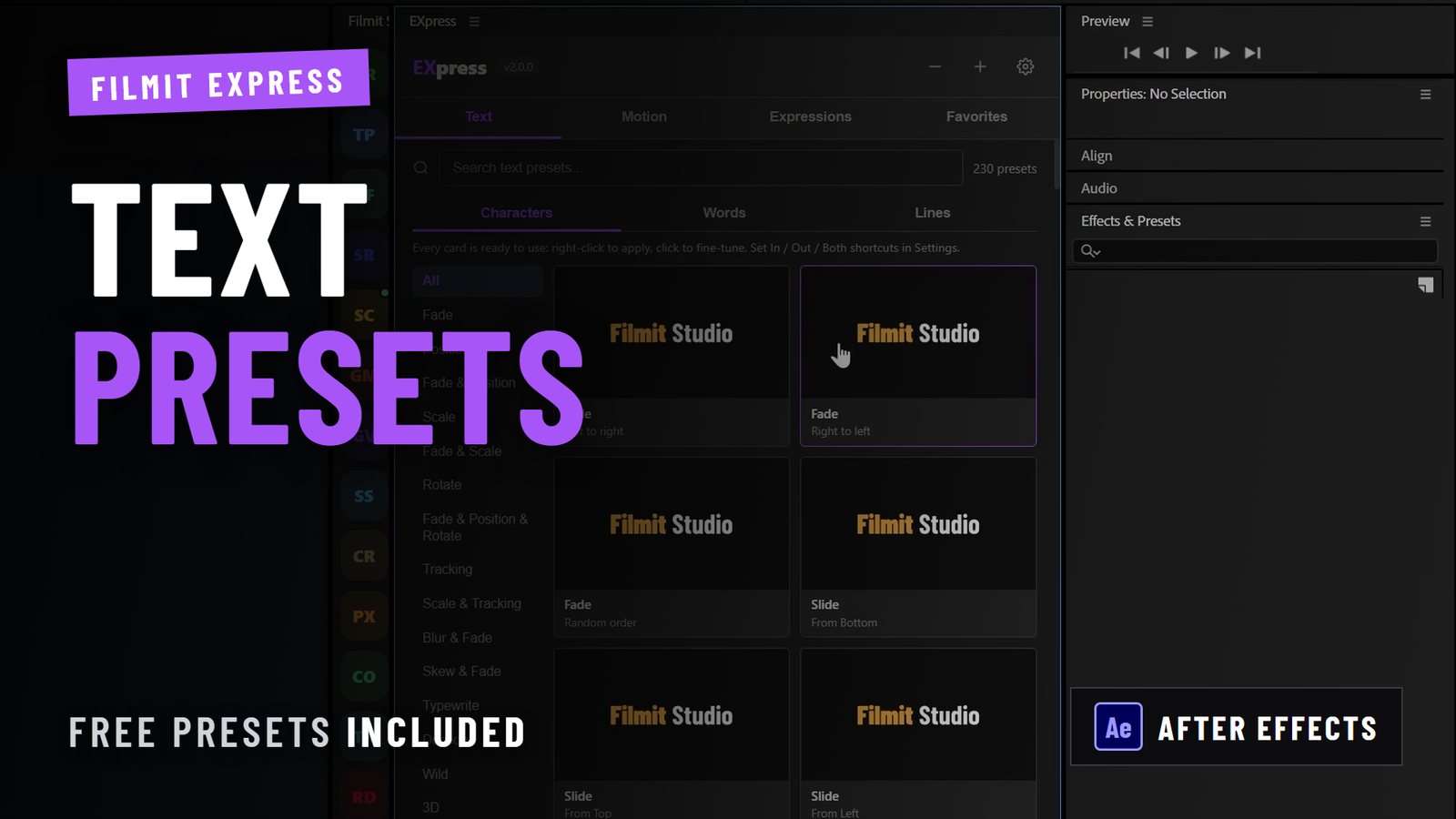
Eye-catching text animation examples are dynamic motion effects applied to text that transform static words into visual experiences, pulling viewer attention and signaling a crafted, intentional design. Tools like Adobe After Effects, Framer Motion, and the open-source Typo library cover everything from simple fade reveals to cursor-reactive magnetic effects. Word-by-word staggered animations immediately elevate perceived quality on hero sections and video intros, contrasting sharply with static text that reads as unfinished. Whether you work in After Effects, CSS, or React, the right animated typography example can be the difference between content that holds attention and content that loses it in the first three seconds.
Eye-catching text animation examples: the top 10 styles
The industry term for this category is kinetic typography, and it covers every technique that puts text in motion to communicate meaning, mood, or brand identity. The ten styles below represent the highest-ROI effects in 2026, drawn from real production workflows.
1. Per-segment staggered fade
Words or characters enter one at a time with a progressive delay, creating a natural reading rhythm. Stagger delays above 40ms prevent jumpiness while keeping the sequence feeling alive. This is the single most versatile text animation idea in any creator’s toolkit. Use it on landing page hero headings, YouTube intro cards, and lower-third titles.

2. Typewriter and handwriting reveal
Text appears character by character, mimicking a keyboard or pen stroke. The typewriter effect works in After Effects using the Range Selector on the Source Text property, or in CSS with a stepped animation on the width property. Handwriting reveals add a path-drawn stroke on top of the text, making it feel personal and crafted. Both styles perform well in tutorial videos, brand storytelling, and social media reels.
3. Glitch and digital distortion
Characters shift, split, and flicker as if the signal is breaking up. This effect sits at the intersection of retro aesthetics and digital tension, and it reads instantly as tech-forward or cyberpunk. In After Effects, the Displacement Map effect combined with a noise layer produces a convincing glitch. For web use, CSS animations cycling through clip-path offsets on pseudo-elements replicate the look at near-zero performance cost.
Pro Tip: Keep glitch bursts under 400ms. Longer glitch sequences read as broken rather than intentional, and they wear out their welcome fast.
4. Cursor-reactive animations (magnetic, orbit, spotlight)
Text characters respond to mouse position in real time, bending toward the cursor, orbiting around it, or revealing a spotlight of color beneath it. The Typo library covers magnetic, orbit, and radar effects out of the box, making these interactive effects accessible without writing custom physics from scratch. These animations are best reserved for portfolio sites, interactive brand experiences, and web-based motion reels where a mouse is present. The After Effects cousin of this idea is distance-reactive animation — ProXimity makes layers react to how close they are to a controller, no keyframes or expressions required, which gets you that same "alive" quality in rendered video.
5. Gradient shimmer and neon glow
A moving gradient or glow passes across text, suggesting energy and luminosity. In After Effects, animating the offset of a gradient ramp on a luma matte produces a clean shimmer. In CSS, background-clip: text combined with an animated background-position achieves the same result with GPU-friendly compositing. Neon glow variants add a pulsing text-shadow or outer glow effect, which works especially well for gaming content, nightlife branding, and music videos.
6. Blur reveal and focus pull
Text starts as a soft blur and snaps into focus, mimicking a camera lens pulling focus onto the subject. This is one of the most cinematic dynamic text effects available, and it translates directly from video production language into motion graphics. The trade-off is GPU load. Blur-based animations are GPU-heavy when applied to many simultaneous elements, so limit blur reveals to one or two text elements per scene rather than animating full paragraphs.
7. Wave and ripple motion
Characters rise and fall in a sine wave pattern, either continuously or triggered on entry. GSAP handles this cleanly in web contexts. Optimized scroll-driven wave animations use a single scroll progress value and avoid creating new tweens on every frame, which keeps the motion smooth even on mid-range hardware. In After Effects, the Wave Warp effect applied to a text layer produces a similar organic motion for video titles.
8. Retro flicker and VHS style
Text flickers at irregular intervals, sometimes paired with scan lines, color bleeding, or tape-warp distortion. This aesthetic pulls directly from CRT television and VHS tape artifacts. Filmit’s CRTme applies the full CRT simulation stack inside After Effects — scan lines, glow, curvature — without building it by hand (and RetroGamingFX covers the retro-gaming look in Premiere Pro). The effect lands well on horror content, retro gaming videos, lo-fi music visuals, and nostalgia-driven brand campaigns.
9. Split text and cascade reveal
Text splits apart along a horizontal or vertical axis before assembling into its final position, or characters cascade in from different directions and lock into place. This is a high-impact entrance effect that works best for title cards, chapter headings in documentary-style videos, and opening sequences. The cascade variant, where each character arrives from a slightly different angle, adds a sense of controlled chaos that feels expensive to produce even when it is not.
10. Stroke draw and kinetic typography
Text is drawn on screen stroke by stroke, as if an invisible hand is writing it in real time. In After Effects, the Write-On effect or a Trim Paths animation on a text outline path produces this result. True kinetic typography goes further, syncing text motion to audio beats or spoken word timing. Smooth kinetic typography at 60fps requires avoiding expensive DOM reflows, which is why dedicated layout engines like Pretext compute glyph positions outside the browser’s rendering pipeline.
Performance and accessibility: what to know before you animate
Choosing between animation styles is not just a creative decision. It is a technical one that affects frame rate, battery life, and whether your content is usable for people with vestibular disorders.
Low GPU · low accessibility risk
Safe for all contexts
Low GPU · low risk
Default choice for stagger effects
High GPU · medium risk
Limit to 1–2 elements per scene
Medium GPU · high risk
Always wrap in a reduced-motion check
Medium GPU · high risk
Disable fully under prefers-reduced-motion
Low–medium GPU · low risk
Desktop only; skip on touch devices
Scroll-driven animations require linear timing because scroll position already provides continuous progress. Adding easing on top of that input creates a laggy, disconnected feel. Use linear as your timing function and let the scroll itself control the pacing.
Accessibility is non-negotiable. Resetting animation-timeline to auto fully disables scroll-driven animations for users with motion sensitivity. Simply toggling animation: none in a prefers-reduced-motion media query is not enough when scroll-driven properties are involved. You need to reset both animation-duration and animation-timeline explicitly.
Pro Tip: Use Intl.Segmenter for character splitting instead of splitting on code units. Simple string splitting breaks emoji and complex scripts like Arabic or Hindi into visual fragments, which looks like a rendering error rather than an animation.
How to implement dynamic text animations: tools and workflow
The right tool depends on your output format. Video editors and motion designers work primarily in After Effects and Premiere Pro. Web-focused creators reach for CSS, JavaScript libraries, or React-based solutions.
-
After Effects text animators. Open the text layer, expand Animate, and add properties like Position, Opacity, or Blur. Use the Range Selector to control which characters animate and when. Add a second Range Selector with Wiggle set to a low value for organic variation. This is the fastest path to professional stagger effects without any third-party plugins.
-
Framer Motion in React. Wrap text in a
motion.divand defineinitial,animate, andtransitionprops. Split the string into words or characters using a map function, then offset each element’sdelayby its index multiplied by a stagger value. GPU-friendly transforms with will-change keep Framer Motion animations smooth even on lower-end devices. -
Typo library for interactive effects. Typo is a lightweight open-source library that handles cursor-reactive animations including magnetic pull, orbit, and spotlight effects. Drop it into any HTML project with a single script tag. It covers effects that would otherwise require custom WebGL or Canvas code.
-
CSS scroll-driven animations. Use
animation-timeline: scroll()combined with@keyframesto tie text entrance animations directly to scroll position. Pair this withIntersectionObserverfor trigger-based fallbacks in browsers that do not yet support the scroll-driven spec. Keep the animation logic tied to a single progress variable and avoid spawning new tweens on each scroll event. -
GSAP for scroll-linked wave and kinetic effects. GSAP’s ScrollTrigger plugin maps scroll position to animation progress with precise control. For wave text effects, update a single scroll progress value and apply it to each character’s Y position using a sine function. This avoids the performance cost of creating new tweens repeatedly.
-
Filmit plugins inside After Effects. Filmit’s tools automate the repetitive parts around text animation: TextPilot scans, edits, find-and-replaces, and translates every text layer in a project from one panel, ProXimity drives distance-reactive motion with zero keyframes, CallOuts generates animated callout graphics, and CRTme applies retro CRT looks in one step. That cuts setup time on projects that need a consistent style across many text elements.
Explore the full range of motion graphics plugin types to understand which tools fit your specific workflow before committing to a stack.
Choosing the right animation for your project type
Not every effect belongs in every project. Matching the animation style to the context is what separates polished work from visually noisy content.
- Landing pages and hero sections. Word-by-word stagger fades are the strongest choice. They signal craft without distracting from the message. Avoid glitch or flicker effects here since they undermine trust on conversion-focused pages.
- Social media video intros. Bold, fast entrance effects work best. Split text cascades and typewriter reveals read well at small sizes and on mobile screens. Keep total animation duration under two seconds so the message lands before viewers scroll past.
- Documentary and editorial video. Stroke draw and kinetic typography sync naturally with narration. Time the text reveal to match the spoken word for maximum impact. Subtle blur reveals work well for chapter headings.
- Gaming and entertainment content. Glitch, neon glow, and retro flicker effects are at home here. Push the intensity further than you would for corporate content. Viewers in this context expect visual energy.
- Professional presentations. Stick to fade and transform-based animations. A clean word stagger on key points reads as confident and prepared. Anything more complex pulls attention away from the content itself.
- Accessibility-first projects. Default to opacity and transform animations, always include a
prefers-reduced-motionoverride, and test on actual devices with reduced motion enabled rather than relying on simulator checks.
The role of text animation in viewer engagement goes beyond aesthetics. Timing, duration, and context determine whether an animation adds meaning or just adds noise.
Key takeaways
The most effective text animations combine GPU-friendly transforms, proper accessibility overrides, and timing calibrated to the project context rather than defaulting to the most visually complex effect available.
Word-by-word fades with delays above 40ms work across nearly every project type.
Blur is GPU-heavy; glitch can trigger vestibular issues. Use both sparingly with reduced-motion fallbacks.
Easing on scroll-linked animation feels laggy — let the scroll control the pacing.
Pick a single move and execute it with precise timing.
Bold effects for entertainment; subtle fades for conversion and professional work.
What separates text animations that succeed from ones that fail
Watching motion graphics work across YouTube channels, brand campaigns, and web projects, the pattern is clear: the creators who get the most out of text animation are not the ones using the most complex effects. They are the ones who pick one strong effect and execute it with precise timing.
The most common mistake is stacking animations. A word that fades in, then scales up, then glows, then shakes is not more engaging than a word that simply fades in cleanly — it is more exhausting. Viewers stop reading and start watching the animation instead, and the message is lost.
The second mistake is ignoring duration. Most text animations should complete in roughly 600ms to 1.2 seconds. Anything longer starts to feel like the content is loading rather than performing, and viewers get to your actual message later than they should. When in doubt, cut the duration, not the effect.
The trend worth watching in 2026 is scroll-driven kinetic typography synced to audio. It is technically demanding, but the results feel genuinely new — if you work in motion design, it is the space to experiment in now, before it becomes a commodity effect.
Take your text animations further with Filmit
If you work in After Effects or Premiere Pro, building and maintaining text systems by hand costs time you could spend on the creative work itself. Filmit builds plugins that handle that overhead: TextPilot bulk-manages, edits, and translates every text layer in an After Effects project, ProXimity creates distance-reactive animation with zero keyframes, CallOuts builds animated callout titles that track moving objects, and CRTme drops retro CRT looks onto type in one step. Browse the lineup for motion designers and editors — every plugin installs through Filmit Studio, the free companion app for Windows and macOS.