Mapper
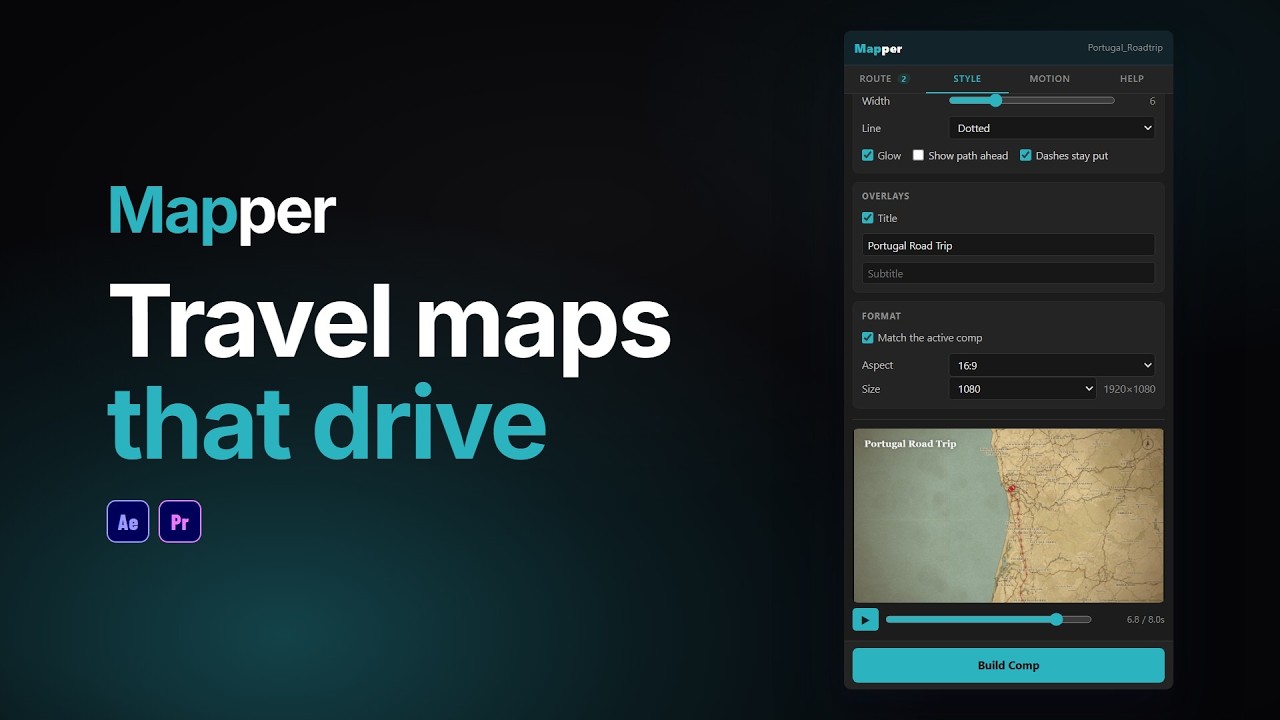
Animated travel maps, built inside your editor.
Search your stops, drive real streets or fly between cities, and pick a look. Mapper builds the whole animation for you: an editable comp in After Effects, or a clip on your Premiere Pro timeline.
Mapper comes with Filmit Studio, along with our whole suite of plugins, effects, transitions, overlays, and courses, plus everything new we ship. It's all included!
Watch the Demo
See Mapper in Action
Mapper builds animated travel maps inside your editor: search your stops, the route follows real streets, pick a style and the camera follows along.
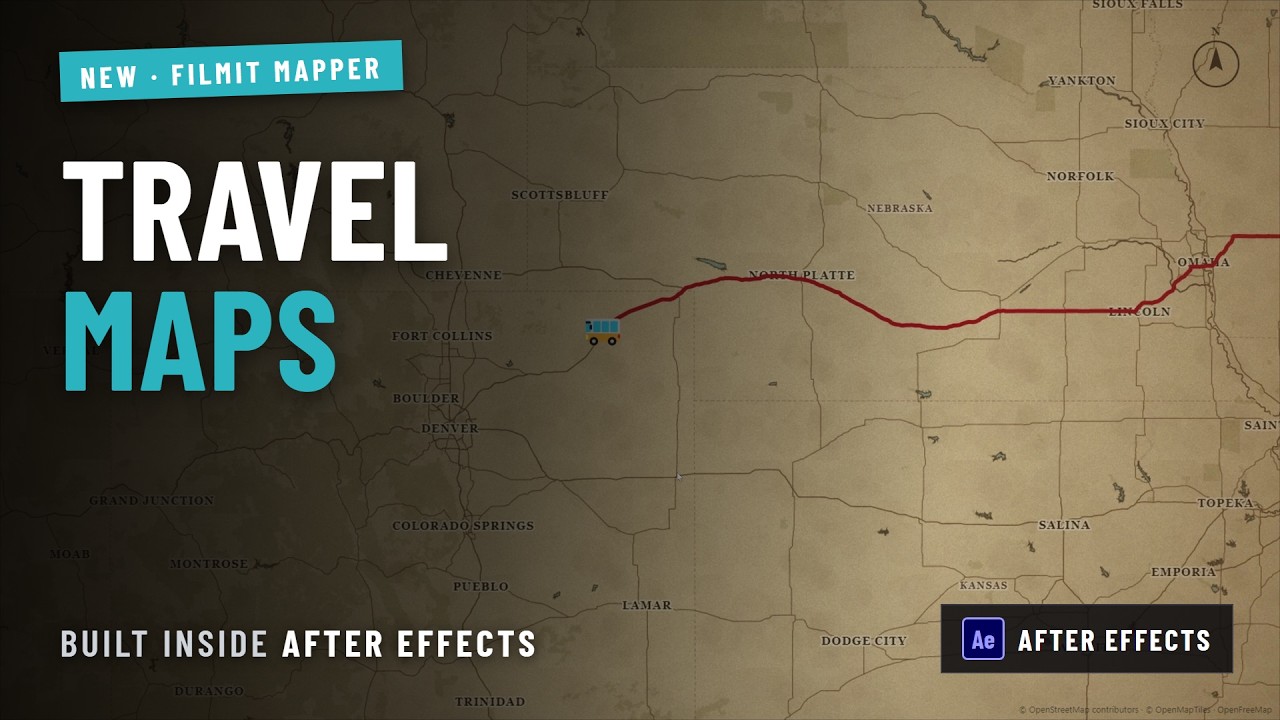
From two stops on a search bar to a fully editable After Effects comp: a driving route, the Tactical style, and a helicopter that flies the whole way.
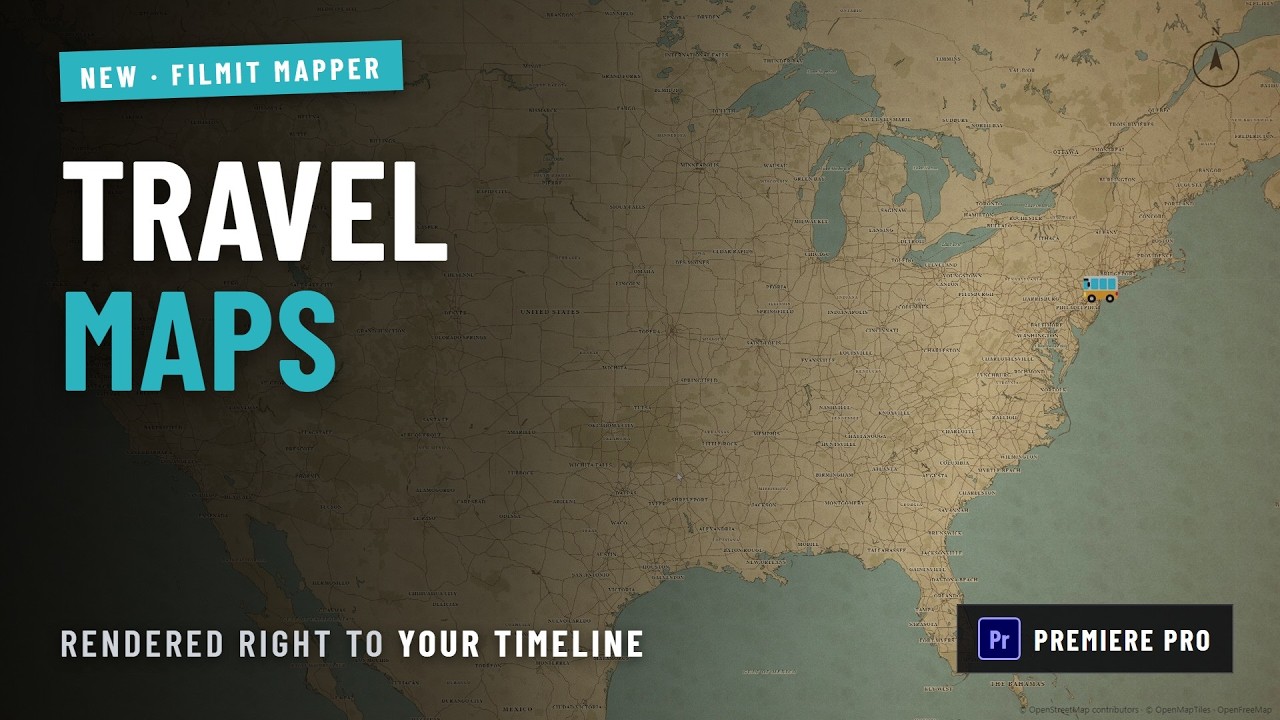
A route searched, styled and rendered onto the Premiere Pro timeline without leaving the edit.
Two stops and a waypoint, the Expedition style, and a 20 second route rendered straight to the DaVinci Resolve timeline.

How to get Mapper
Three steps and you are up and running, with Mapper and every other Filmit tool, right inside your editor today.
Create your account
Sign up free at filmit.io. No card needed to look around.
Install Filmit Studio
Download the free desktop app for Mac or Windows. It manages every tool for you.
Start your free trial
Start your 7-day trial and install Mapper plus every other tool, straight into your editor.
Templates that almost fit
The template ships with someone else's city. You end up tracing a fake route over a screenshot and hoping nobody checks the roads.
Drawing the route by hand
Pen tool, trim paths, a camera to follow it, labels for every stop. Then the client adds a stop in the middle and you start again.
A round trip for one shot
The edit lives in Premiere Pro, but the map means opening After Effects, rendering, and importing it back.
Your stops, however you have them.
Search for a place, click the map, or paste coordinates or a Google Maps or Apple Maps link. Mapper names each stop for you, and every leg between two stops travels its own way.
- Search places, click the map, or paste coordinates or a Maps link
- Drive, Walk, and Cycle legs follow real streets
- Fly draws an arcing flight path; Ship, Straight, and Curve go direct
- Mix travel modes on one trip: drive to the airport, then fly
- Drag points to move them, reorder stops, reverse, or make a round trip
- Distances per leg and for the whole trip, in kilometres or miles
Pick a look, then make it yours.
Start from one of 14 map styles. Each one sets the line, markers, and overlays to match, and every setting is yours to change after that.
- Route line: solid, dashed, dotted, or travel dashes, with glow
- A faint preview of the path still to come, if you want one
- Vehicles that ride the line: plane, car, ship, arrow, dot, or any emoji
- Auto vehicle picks per leg: a car for driving, a plane for flying
- Markers: pin, dot, ring, crosshair, flag, star, heart, or a per-stop emoji
- Labels as chips or plain text, place names in English or the local language
- An optional title and subtitle over the map
A camera that tells the trip.
Cinematic starts wide, follows the journey, and pulls back at the end. Follow stays with the vehicle, Zoom in pushes toward the route, and Static holds the frame. Then set the timing and the preview plays it through.
- Cinematic, Follow, Zoom in, and Static cameras
- Built-in motion presets like Quick social, Road trip, Chase cam, and Epic reveal
- Save your own camera and timing as a preset
- Duration, holds at the start and end, and a pause at every stop
- Pace legs by distance, evenly, or balanced between the two
- Smooth, gentle, linear, ease in, or ease out
Classic
The familiar street map
Midnight
Dark roads, glowing line
Noir
Black and white, red route
Blueprint
Technical drawing
Tactical
Green HUD, crosshair markers
Expedition
Old paper, travel dashes
Neon
Glowing roads after dark
Minimal
Water, borders, and the route
Newsprint
The printed page
Holiday
Snowfall and a sled
Haunted
Drifting fog and a ghost
Arcade
Pixelated, arcade colours
Comic
Halftone water, ink outlines
Candy
Pastel map, heart markers
Holiday, Haunted, and Arcade even bring their own vehicle: a sled, a ghost, and a space invader.
A real comp you can pull apart
Build Comp lays out a native After Effects comp in a Filmit Mapper folder, and it undoes in one step.
- The route is a shape layer, one group per leg
- Change the line width and route colour live from a Mapper Controls layer
- Markers, labels, and the title are real layers and real text
- Every overlay is its own layer, from the compass to the grain
- Anything you switched off is built and hidden, ready to turn back on
- Or render it as footage and get a single clip in a new comp
A clip at your playhead
Render to Timeline renders the finished animation and places it at your playhead, with a progress bar and a time-left estimate while it works.
- Lands on the first free video track, and adds one if every track is full
- Filed in a Filmit Mapper bin, named after your map
- Rendered at your sequence's frame rate
- Overlay only renders the route, vehicle, and markers on a transparent background
Overlays that travel with you
A live coordinates readout and a distance counter that run with the trip, plus a compass, corner brackets, grid, scanlines, snow, fog, vignette, and grain.
Any frame, up to 4K
Match the active comp or sequence, or pick 16:9, 9:16 vertical, 1:1, 4:5, or 21:9 at 720 up to 2160, and frame rates from 23.976 to 60.
Overlay only
Leave the map out and render just the route, vehicle, and markers on a transparent background, ready to lay over your own footage.
Saved maps and styles
Every map you make is saved and one dropdown away. Keep a tuned look in My styles and your favourite camera and timing as a motion preset.
Show only what you need
Switch the route line, vehicle, points, and point labels on or off in any combination, and choose whether points sit above or below the vehicle.
Names your way
Place names in English or the local language, street names on or off, and distances in kilometres or miles.
Add your stops
Open Mapper from the Filmit Studio panel, then search, click the map, or paste coordinates for each stop.
Choose how you travel
Set each leg to drive, walk, cycle, fly, or sail, and pick one of the map styles.
Set the motion
Pick a camera or a motion preset, set the duration and pauses, and watch the preview.
Build
Build Comp in After Effects, or Render to Timeline in Premiere Pro. Change a stop and build again.
Adobe After Effects and Adobe Premiere Pro, from one install. In After Effects it builds a native comp you can edit. In Premiere Pro it renders the animation and places it on your timeline.
Yes, for Drive, Walk, and Cycle legs, which follow real streets between your stops. Fly draws an arcing flight path, and Ship, Straight, and Curve go direct. You can mix modes on one trip. If a street route can't be found for a leg, Mapper tells you and draws that leg as a straight line.
Yes. The route is a shape layer, the markers, labels, and title are real layers, and every overlay sits on its own layer. The line width and route colour stay live on a Mapper Controls layer. To change the timing or the camera, adjust it in the panel and build again.
Yes. Choose Overlay only and Mapper leaves the map out, rendering the route, vehicle, and markers on a transparent background, ready to lay over drone shots or your own map artwork.
Yes. Match your active comp or sequence, or pick 9:16 vertical, 1:1, 4:5, 16:9, or 21:9, at sizes up to 2160 (4K).
Maps, place search, and street routes come from OpenStreetMap, the open map built by contributors around the world. Mapper adds a small map credit in the corner of the frame by default.
Yes, to load the map, search for places, and plot street routes. What you have already loaded is kept on your computer, so reopening a saved map is quicker.
Yes. Save a tuned style to My styles and it is there on every map. Motion presets save your camera and timing the same way, and every map you make is saved in the panel to reopen later.
Yes. Mapper is included with your Filmit Studio subscription at $20/month, along with every other Filmit tool, effect, transition, and course. Try it with a 7-day free trial.