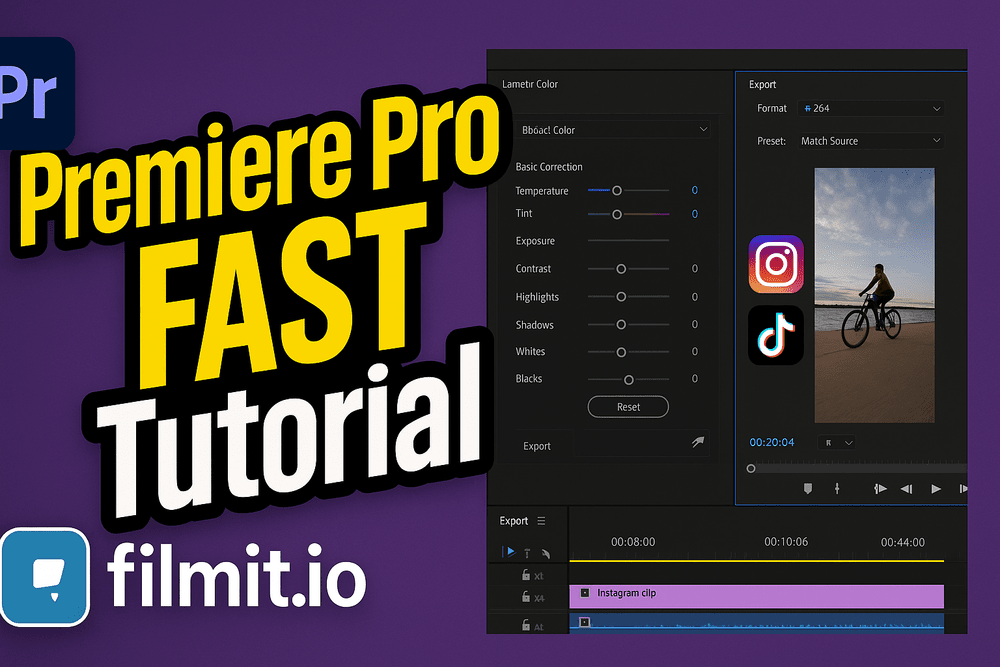
Mixing footage from different cameras, lighting setups, or shooting days creates visual inconsistency. Premiere Pro's automatic color match feature in Lumetri Color can bring disparate clips into visual harmony in seconds.
Watch the tutorial
How to Color Match
- Open Lumetri Color and go to the Color Wheels & Match section
- Click the Comparison View icon to enter split view
- Navigate the reference side to the clip with the look you want to match
- Click Apply Match — Premiere Pro analyzes both clips and adjusts the current clip's color, exposure, and contrast to match the reference
- Fine-tune with the Color Wheels and Basic Correction if needed
Pro tip: Color match works best when your reference clip is already well-graded. Start by grading your hero shot, then use it as the reference to match everything else. This gives you a consistent baseline across your entire project.